


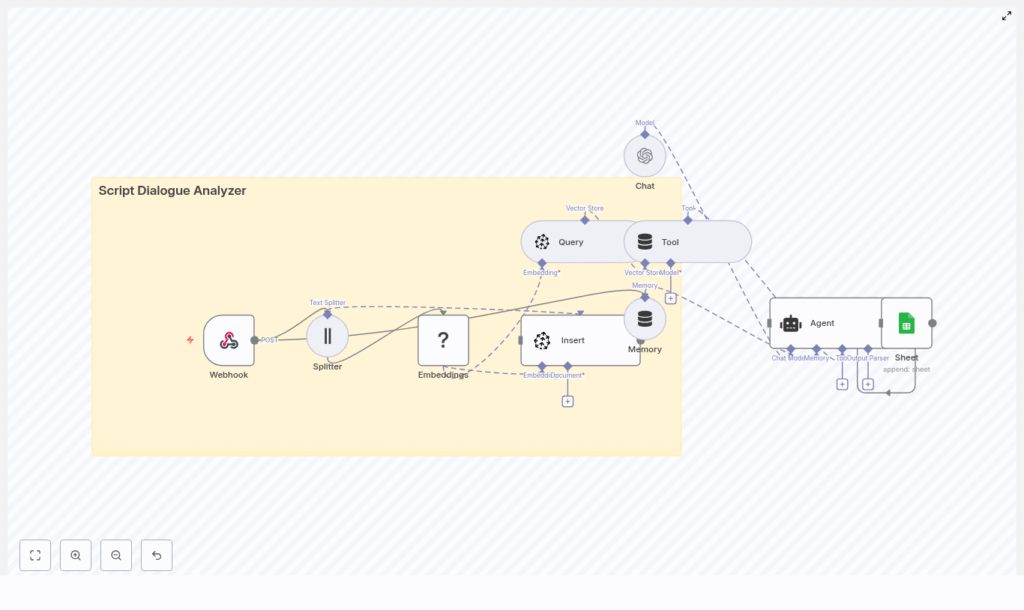
Script Dialogue Analyzer with n8n, LangChain, Pinecone, Hugging Face & OpenAI
This guide describes how to implement a production-style Script Dialogue Analyzer in n8n using LangChain, Pinecone, Hugging Face embeddings, and OpenAI. The workflow ingests screenplay text via a webhook, chunks and embeds dialogue, persists vectors in Pinecone, and exposes a LangChain Agent that retrieves relevant passages and generates analytical responses. Final outputs are logged to Google Sheets for traceability.
1. Solution Overview
The Script Dialogue Analyzer is designed for users who need structured, repeatable analysis of screenplay dialogue, such as:
- Screenwriters and story editors
- Localization and dubbing teams
- Script consultants and analysts
- AI and NLP researchers working with dialogue corpora
By combining text splitting, vector embeddings, and a vector database with a large language model (LLM) agent, you can submit a script or scene and then ask natural-language questions such as:
- “List the primary traits of ALEX based on Scene 1 dialogue.”
- “Show lines that indicate tension between ALEX and JORDAN.”
- “Find repeated motifs or phrases across the first three scenes.”
- “Extract all expository lines that reveal backstory.”
The workflow performs retrieval-augmented generation (RAG) on top of your script: it searches Pinecone for relevant dialogue chunks, then lets the LLM synthesize structured, context-aware answers.
2. High-Level Architecture
The n8n workflow is organized as an end-to-end pipeline:
- Webhook (n8n) – Receives script payloads (JSON) containing dialogue.
- Text Splitter – Character-based splitter with overlap to maintain context across chunks.
- Embeddings (Hugging Face) – Generates vector representations of each chunk.
- Pinecone Insert – Stores vectors and associated metadata in the
script_dialogue_analyzerindex. - Pinecone Query + LangChain Tool – Exposes semantic search as a tool callable by the Agent.
- Conversation Memory – Buffer window that preserves recent exchanges for multi-turn analysis.
- Chat LLM + LangChain Agent (OpenAI) – Orchestrates tool calls and composes final responses.
- Google Sheets – Persists queries, context, and answers for auditing and later review.
The following sections document the workflow in a reference-style format, focusing on node configuration, data flow, and integration details.
3. Data Flow & Execution Lifecycle
- Ingestion: A client sends a POST request to the n8n Webhook with screenplay or dialogue JSON.
- Preprocessing: The workflow normalizes and concatenates dialogue text, then passes it to the text splitter.
- Chunking: The splitter generates overlapping character-based chunks optimized for embeddings and retrieval.
- Embedding: Each chunk is sent to Hugging Face for embedding generation.
- Indexing: The resulting vectors, along with metadata (for example script title, character, scene), are inserted into Pinecone.
- Query Phase: When a user query arrives, the Agent uses the Pinecone Query node as a LangChain tool to retrieve relevant chunks.
- Reasoning: The OpenAI-backed Agent uses retrieval results plus memory to generate an analytical response.
- Logging: The workflow appends a record to Google Sheets containing the query, retrieved context, answer, and metadata.
4. Node-by-Node Reference
4.1 Webhook Node
Purpose: Entry point for incoming scripts or dialogue payloads.
Method: POST
Content-Type: application/json
Example payload:
{  "title": "Scene 1",  "dialogue": [  { "character": "ALEX", "line": "Where did you go?" },  { "character": "JORDAN", "line": "I had to leave. It wasn't safe." }  ]
}
Expected structure:
title(string) – A label for the scene or script segment.dialogue(array) – Each item should include:character(string) – Speaker identifier.line(string) – Spoken line of dialogue.
Configuration notes:
- Set the Webhook node to respond only to
POSTto avoid accidental GET triggers. - Validate the JSON shape downstream or in pre-processing logic if your real payloads vary.
- Ensure the node outputs are routed directly into the text splitting stage.
Edge cases:
- If
dialogueis empty or missing, the workflow will have nothing to embed or index. In such cases, you may want to add a guard node (for example IF) to exit early or return an error response. - Non-UTF-8 or malformed JSON should be handled at the client or reverse proxy level, as the template expects valid JSON.
4.2 Text Splitter Node
Purpose: Chunk long scenes or scripts into manageable segments without losing conversational context.
Splitter type: Character-based text splitter
Recommended configuration (from the template):
chunkSize:400chunkOverlap:40
Behavior:
- The node concatenates dialogue lines into a single text block or processes them as configured, then slices them into overlapping character spans.
- The 40-character overlap helps preserve context at chunk boundaries so that semantically related lines are present in multiple chunks.
Configuration notes:
- Ensure the input field used for splitting contains plain text, not nested JSON objects.
- Consider pre-formatting lines as
"CHARACTER: line"before splitting to preserve speaker attribution inside each chunk.
Trade-offs:
- Smaller
chunkSizeimproves retrieval precision but may fragment dialogue sequences. - Larger
chunkSizepreserves more context but can dilute the semantic specificity of embeddings.
4.3 Hugging Face Embeddings Node
Purpose: Convert each text chunk into a vector embedding suitable for semantic search.
Model placeholder: model: default (in the template)
Recommended model examples:
sentence-transformers/all-MiniLM-L6-v2- Any other Hugging Face sentence embedding model suitable for dialogue semantics
Credentials:
- Configure a Hugging Face API key in n8n credentials and select it in the node.
Configuration notes:
- Map the node input to the chunk text field produced by the splitter.
- Ensure the node returns embeddings as arrays of floats that can be consumed by the Pinecone Insert node.
- Batching is recommended when embedding large scripts to respect rate limits and reduce overhead, where supported by your n8n version and node configuration.
Potential issues:
- If embeddings are
nullor the node throws an error, verify the model name and API key. - Large payloads may trigger rate limits. In this case, introduce throttling or chunk your workflow execution.
4.4 Pinecone Insert Node
Purpose: Persist embeddings and metadata into a Pinecone vector index for later retrieval.
Index name: script_dialogue_analyzer
Mode: insert
Credentials:
- Pinecone API key
- Pinecone environment (for example
us-west1-gcp, depending on your account)
Configuration notes:
- Generate a unique ID per chunk (for example a combination of script title, scene number, and chunk index) to avoid collisions.
- Attach metadata fields such as:
title(script or scene title)character(if chunk is dominated by a single speaker)scene_numberor similar identifierline_indexor chunk index
- Ensure the vector dimension in Pinecone matches the embedding dimension of your chosen Hugging Face model.
Usage pattern:
- Each chunk from the splitter is embedded, then inserted as a separate vector record in Pinecone.
- Metadata enables more granular filtering or precise referencing in downstream responses.
Troubleshooting:
- If queries later return no results, confirm that vectors are actually present in the
script_dialogue_analyzerindex. - Check that the index name and environment in the Insert node match the Query node configuration.
4.5 Pinecone Query Node & LangChain Tool
Purpose: Retrieve the most relevant dialogue chunks for a given user query and expose this retrieval capability as a LangChain tool.
Behavior:
- The node accepts a query string or embedding, performs a similarity search on the
script_dialogue_analyzerindex, and returns the top-k nearest vectors. - These results are wrapped as a LangChain tool so that the Agent can call Pinecone search as needed during reasoning.
Configuration notes:
- Use the same Pinecone credentials and index name as in the Insert node.
- Set an appropriate
top_kvalue (for example 5-10) based on how much context you want the Agent to consider. - Ensure the node outputs include both the text payload and metadata for each match so the LLM can reference them explicitly.
Edge cases & tuning:
- If queries feel noisy or off-topic, try lowering
top_kor adjusting similarity thresholds (if available in your configuration). - If results are too sparse, verify that the query text is embedded using the same model or embedding configuration as the index.
4.6 Memory (Buffer Window) Node
Purpose: Maintain short-term conversational context across multiple user queries, for example iterative analysis of the same scene.
Behavior:
- The memory node stores recent user inputs and Agent outputs in a buffer window.
- On each new query, the Agent receives this conversation history, which helps it maintain continuity and refer back to previous findings.
Configuration notes:
- Set a reasonable window size so that memory remains relevant without exceeding token limits.
- Ensure the memory node is correctly wired to both read from and write to the Chat / Agent node.
4.7 Chat LLM + LangChain Agent (OpenAI)
Purpose: Act as the core reasoning engine that interprets user queries, decides whether to call the Pinecone tool, and generates human-readable analysis.
Components:
- Chat Node (OpenAI): Provides the underlying LLM.
- LangChain Agent: Orchestrates tool calls and composes the final answer.
Agent responsibilities:
- Interpret user intent from natural language input.
- Invoke the Pinecone search tool when contextual evidence is required.
- Use conversation memory to maintain continuity across multiple queries.
- Produce structured analyses, for example:
- Character voice and traits
- Sentiment and emotional tone
- Motifs, repeated phrases, or thematic patterns
- Suggestions for alternative lines or refinements
Credentials:
- OpenAI API key configured in n8n and selected in the Chat node.
Configuration notes:
- Attach the Pinecone Query node as a tool to the Agent so it can perform retrieval as needed.
- Connect the memory node so that the Agent receives the latest conversation context.
- Optionally, customize the system prompt to instruct the Agent to:
- Always ground answers in retrieved dialogue chunks.
- Quote specific lines and characters when making claims.
- Avoid speculation beyond the retrieved evidence.
Hallucination mitigation:
- Encourage the Agent (via prompt) to explicitly reference retrieved chunks.
- Limit
top_kor adjust retrieval parameters to prioritize highly relevant passages.
4.8 Google Sheets Logging Node
Purpose: Persist a structured log of each analysis run for auditing, review, or downstream reporting.
Target: A Google Sheet identified by SHEET_ID
Typical fields to log:
- User query
- Script or scene title
- Top retrieved passages (or references to them)
- Agent answer
- Metadata such as:
- Timestamp
- Scene number
- Character focus (if applicable)
Credentials:
- Google Sheets OAuth2 credentials configured in n8n.
Configuration notes:
- Use “Append” mode so each new analysis is added as a new row.
- Align the node’s field mapping with your sheet’s column structure.
- Consider logging only references or short excerpts of script text to reduce sensitivity and size.
5. Example Queries & Usage Patterns
Once the script is indexed, you can send natural-language questions to the Agent, which will:
- Interpret the query.
- Call Pinecone to fetch relevant chunks.
- Generate a synthesized, context-aware answer.
Example prompts:
- “List the primary traits of ALEX based on Scene 1 dialogue.”
- “Show lines that indicate tension between ALEX and JORDAN.”
- “Find repeated motifs or phrases across the first three scenes.”
- “Extract all expository lines that reveal backstory.”
For each query, the Agent uses Pinecone retrieval as external evidence and the LLM as a reasoning layer on top of that evidence.
