


Automate Lead Routing with AI and Calendly Integration
Picture This: Your Inbox vs. 200 New Leads
You open your laptop on Monday morning, full of optimism and caffeine. Then you see it: a wall of Calendly notifications, form responses, and “quick questions” from leads who may or may not be a good fit. You start copying data into sheets, checking if people actually booked a meeting, and manually deciding who should get which follow-up sequence.
Ten minutes later, your optimism is gone. Forty minutes later, your coffee is cold. Two hours later, you are sorting email domains like a very overqualified spam filter.
That is exactly the kind of repetitive chaos this n8n workflow template is built to destroy, in a nice, automated way. Using Calendly, OpenAI, Saleshandy, and Google Sheets, you can score, route, and log leads automatically, so your sales team spends less time clicking and more time closing.
What This n8n Workflow Actually Does
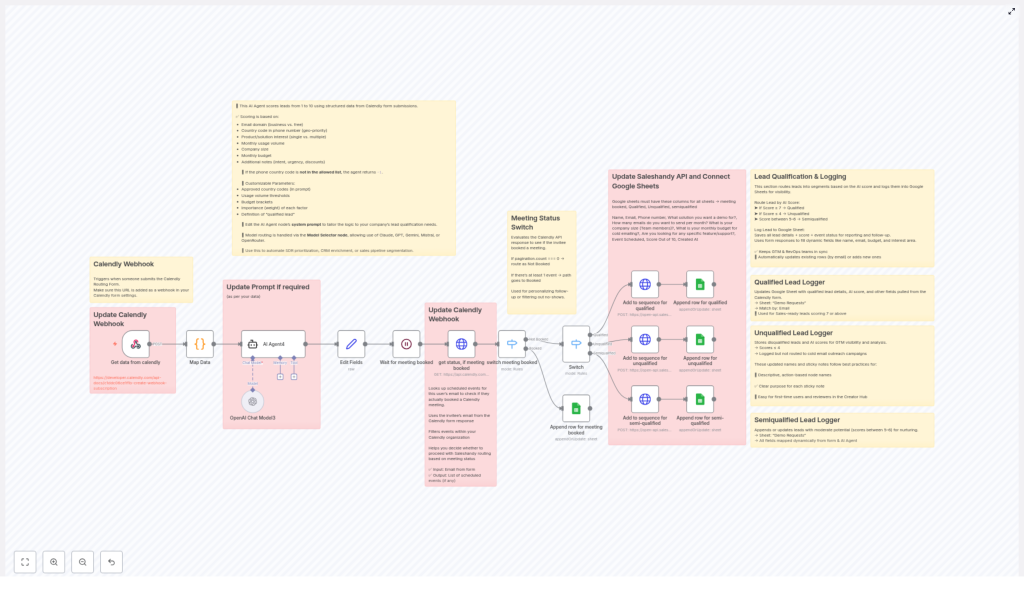
This workflow connects your Calendly form submissions with an AI lead scoring system, then routes each lead into the right Saleshandy sequence and Google Sheet based on how promising they are.
Here is the high-level flow, without the technical jargon headache:
- Calendly sends a webhook when someone fills out your form.
- An AI agent (OpenAI) reviews the lead details and gives them a score from -1 to 10.
- Based on that score, the lead is classified as Qualified, Semiqualified, or Unqualified.
- The workflow checks if the person actually booked a Calendly meeting or just flirted with the idea.
- Qualified and semiqualified leads go into different Saleshandy sequences for targeted outreach.
- All leads are logged into separate Google Sheets tabs for full visibility by your GTM and RevOps teams.
The result is a smart, scalable lead routing system that runs quietly in the background while you pretend you did it all manually.
How the Workflow Thinks About Your Leads
AI Lead Scoring: From -1 to 10
At the heart of this setup is an AI lead scoring agent powered by OpenAI. It evaluates each lead using details pulled from your Calendly form, such as:
- Email domain (business domain vs free email provider)
- Phone country code
- Product interest or use case
- Company size
- Monthly budget
The AI assigns a numeric score between -1 and 10. A score of -1 is the “hard no” category, usually for invalid or disqualified leads, like unsupported phone country codes or clearly useless data. Everything else falls on a scale that you can tune through the AI prompt.
Lead Categories Based on Score
Once the score is in, the workflow uses a switch node in n8n to put each lead into one of three buckets:
- Qualified – score 7 or higher
- Semiqualified – scores 5 to 6
- Unqualified – scores 4 or less
These categories drive everything that happens next: which Saleshandy sequence they enter, which spreadsheet tab they land in, and how your team prioritizes them.
Did They Actually Book a Meeting?
Not everyone who fills out a Calendly form finishes the job. Some people get distracted, some ghost, some just like your calendar UI.
To separate the serious from the curious, the workflow calls the Calendly API to verify whether a meeting was actually booked. That booking status is then used to:
- Tailor the follow-up sequence
- Filter out no-shows or non-bookers from certain campaigns
- Log accurate event details for reporting
The Main Building Blocks of the Workflow
1. Calendly Webhook Trigger
Everything starts when Calendly sends a webhook after a form submission. This trigger node in n8n captures the raw submission data, including all the fields you care about for scoring and routing.
2. AI Lead Scoring Agent (OpenAI)
The captured data is passed to an AI agent configured with your scoring logic. You control the logic through the system prompt, so you can define what a “good” lead looks like for your business. The agent:
- Reads data like email domain, phone country code, company size, and budget
- Evaluates whether the lead fits your target profile
- Outputs a score from -1 to 10 that the rest of the workflow uses
3. Score-Based Routing with a Switch Node
Next, a switch node in n8n routes leads based on that score. It sends them into one of three branches:
- Qualified branch
- Semiqualified branch
- Unqualified branch
Each branch has its own logic for Saleshandy sequences and Google Sheets logging, so you can treat each group differently.
4. Calendly API Meeting Check
Before any outreach is triggered, the workflow calls the Calendly API to verify if the lead actually booked a meeting. This step helps you:
- Distinguish booked vs unbooked leads
- Adjust messaging for people who already have a call scheduled
- Avoid bothering people who never confirmed a slot
5. Saleshandy Sequence Integration
For leads that are worth nurturing, the workflow connects directly to Saleshandy via API. It automatically:
- Enrolls qualified leads into a dedicated high-priority Saleshandy sequence
- Enrolls semiqualified leads into a different, more exploratory sequence
- Leaves unqualified leads out of campaigns while still logging them for reference
No more CSV exports, manual imports, or “Did we add this lead yet?” messages in Slack.
6. Google Sheets Logging for Visibility
Finally, every lead is logged in Google Sheets. The workflow appends or updates rows in different tabs based on qualification level, so you end up with:
- Separate tabs for Qualified, Semiqualified, and Unqualified leads
- Columns for lead data, AI score, Calendly event details, and meeting status
- A live, filterable view for GTM and RevOps teams without needing to open n8n
Why This Setup Is Worth the 20 Minutes to Configure
- Automation – No more manual lead sorting or copy-pasting into spreadsheets. Your SDRs will thank you, and so will their wrists.
- Precision – AI-driven scoring helps you prioritize high-value prospects and cut down on noise.
- Visibility – Google Sheets act like a real-time dashboard for segmented leads, easy to share and analyze.
- Customizable – You can tweak AI prompts, score thresholds, and routing rules to match your own sales playbook.
Step-by-Step: How to Set Up the Workflow in n8n
Here is a simplified setup guide to get the template running without needing a full-time automation engineer.
1. Connect Calendly and Set Up the Webhook
- Create or identify the Calendly form you want to use for lead capture.
- Set up a Calendly webhook that sends form submission data to your n8n instance.
- Use the Calendly Webhook Trigger node in n8n to receive that data.
2. Configure the AI Lead Scoring Agent
- Add the OpenAI node or AI Agent node in n8n.
- Provide your OpenAI API key and select the model you want to use.
- Edit the system prompt to define your scoring criteria, for example how to treat different email domains, budgets, or company sizes.
- Make sure the node outputs a numeric score between -1 and 10.
3. Build Score-Based Routing Logic
- Add a Switch node after the AI scoring step.
- Configure branches for:
- Score 7 and above – Qualified
- Scores 5 to 6 – Semiqualified
- Scores 4 or below – Unqualified
- Connect each branch to its own follow-up logic.
4. Verify Meeting Booking Status via Calendly API
- Add a node that calls the Calendly API for each lead.
- Use the lead’s event or invitee data to check if a meeting was actually booked.
- Store the booking status and event details for use in your routing and logging.
5. Integrate Saleshandy Sequences
- Connect the Saleshandy API to n8n using your credentials.
- For Qualified leads, map the contact data and enroll them into your primary Saleshandy sequence.
- For Semiqualified leads, map the same data but enroll them into a different, more nurturing sequence.
- For Unqualified leads, skip sequence enrollment but keep logging them for future analysis.
6. Log Data in Google Sheets
- Connect your Google account to n8n.
- Set up Google Sheets nodes to append or update rows in specific tabs for each lead category.
- Map all relevant fields: contact info, AI score, meeting status, and any Calendly event details.
7. Document the Workflow with Sticky Notes
- Use sticky notes inside the n8n editor to label key sections:
- AI scoring logic
- Routing rules
- Saleshandy integration
- Google Sheets logging
- This helps future you (or your teammates) understand what each part of the workflow is doing without reverse engineering it.
Tips to Keep Your Automation Smart, Not Messy
- Refine your AI prompt regularly – As your ideal customer profile evolves, update the scoring rules so the AI keeps matching your real-world criteria.
- Secure your credentials – Store API keys for Calendly, Saleshandy, OpenAI, and Google securely, not in random text files or screenshots.
- Test with sample leads – Run test data through the workflow to confirm that routing, scoring, and logging behave exactly as expected.
- Watch for duplicates – Keep an eye on your Google Sheets for duplicate rows or inconsistent formatting, especially after making changes to the workflow.
- Use booking status wisely – Personalize follow-ups based on whether a meeting is booked. It can help reduce no-shows and avoid awkward “Did you book?” messages.
Wrapping Up: Let the Robots Sort Your Leads
By combining Calendly form data with AI-powered lead scoring, meeting verification, targeted Saleshandy sequences, and clean Google Sheets logging, you get a lean, smart lead routing machine that runs with minimal manual effort.
Your sales team can finally focus on conversations, not spreadsheets. Your RevOps team gets clear visibility into lead quality and funnel performance. And you get to retire at least three repetitive tasks from your daily routine.
Start designing your smart lead routing workflow today and see how much smoother your sales process feels when automation handles the busywork.
Try the n8n Workflow Template
Ready to automate your lead management and routing instead of wrestling with it every week? Connect your Calendly account, plug in AI scoring, and integrate Saleshandy plus Google Sheets using this streamlined n8n workflow template.
Get started now and transform your sales process with automated lead routing, AI scoring, and clean data in one place.
