


Automate Gmail With GPT-4 For Intelligent Email Drafts
Why Automate Your Gmail With n8n And GPT-4
High-volume inboxes are a persistent bottleneck for operations, customer success, and leadership teams. Manually triaging, prioritizing, and drafting responses consumes time that could be spent on higher-value work. By combining the n8n automation platform with GPT-4, you can implement a structured, repeatable process that classifies incoming messages and generates high-quality draft replies in a fully automated way.
This article describes a production-ready n8n workflow template for Gmail that uses GPT-4 to categorize emails and create context-aware drafts that you can quickly review and send. It is designed for automation professionals and power users who want to operationalize AI within their existing email workflows.
Solution Architecture Overview
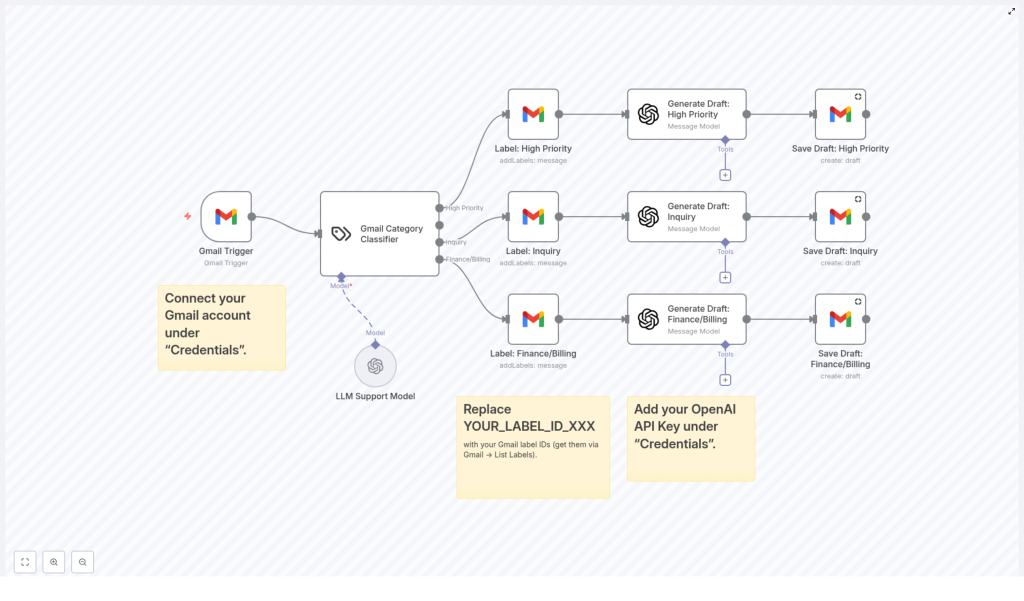
The workflow runs on a scheduled basis using a Gmail Trigger node, retrieves new messages from your inbox, and passes each email through a GPT-4 classification step. Based on the classification result, the workflow assigns the appropriate Gmail label and calls GPT-4 again to generate a tailored draft response. These drafts are then stored as Gmail drafts on the corresponding threads, ready for human review.
At a high level, the automation implements the following pattern:
- Detect new inbound emails in Gmail at a fixed interval.
- Classify each message into a predefined business category using GPT-4.
- Apply the corresponding Gmail label for downstream prioritization and reporting.
- Generate a category-specific draft reply with GPT-4, following consistent tone and structure.
- Save the generated content as a draft reply in the original email thread.
Key Workflow Components
1. Gmail Trigger Node
The workflow starts with the Gmail Trigger node, which monitors your inbox on a recurring schedule. In this template, the trigger is configured to check for new emails every 15 minutes. This interval can be adjusted according to your operational needs and API limits.
Best practice is to:
- Scope the trigger to the specific mailbox or label you want to automate.
- Ensure you have appropriate access rights and that the connected account is dedicated to business workflows when possible.
2. GPT-4 Email Category Classifier
Once a new email is captured, the workflow calls GPT-4 to categorize the message. The Gmail Category Classifier step uses the email subject and body as input and returns one of several predefined categories, for example:
- High Priority
- Inquiry
- Finance/Billing
- Other or fallback categories as configured
This classification enables structured routing and prioritization. It also drives the logic for how the reply draft should be written, including tone, level of detail, and information requested.
3. Label Assignment In Gmail
After the category is determined, the workflow maps that category to a specific Gmail label. This is handled by a label assignment step that updates the email with the appropriate label ID. To ensure the workflow operates correctly, you must replace the placeholder values with your own label identifiers.
Configuration requirement:
- Replace each instance of
YOUR_LABEL_ID_XXXwith the real label ID from your Gmail account.
You can obtain these IDs via the Gmail API List Labels endpoint or by using the Gmail web interface and inspecting label metadata. Once configured, labels provide a clear visual and programmatic signal for priority handling and reporting.
4. GPT-4 Draft Generation By Category
The core of the workflow is the GPT-4 draft generation logic. For each classified email, GPT-4 generates a reply that is aligned with the category-specific communication style. The template includes tailored guidance for three primary categories:
- High Priority
Drafts follow a concise, executive-style format. They aim to quickly acknowledge the issue, provide any available provisional answers, and request necessary clarifications without unnecessary verbosity. - Inquiry
Replies are written in a polite, comprehensive customer support tone. GPT-4 summarizes the sender’s questions, clarifies context where needed, and outlines clear next steps or actions the recipient can expect. - Finance/Billing
Responses are precise and transactional. Drafts confirm billing details, request any missing documentation, and clearly state payment terms, due dates, or follow-up requirements.
By encoding these patterns in the workflow, you enforce consistent communication standards across your organization while still allowing for human review before sending.
5. Saving Drafts Back To Gmail
Once GPT-4 returns the generated content, the workflow uses Gmail nodes to create a draft reply on the original email thread. The drafts are not sent automatically, which aligns with best practices for AI-assisted communication in sensitive or high-stakes contexts.
This approach allows your team to:
- Quickly scan and approve AI-generated drafts.
- Make minor edits for nuance or context before sending.
- Retain full control over final outbound communication while still benefiting from automation.
Configuration And Setup In n8n
1. Connect Your Gmail Account
In the n8n Credentials section, configure a new Gmail credential and complete the authentication flow. Once connected, the workflow can securely read new messages, apply labels, and create drafts in your mailbox.
2. Add Your OpenAI API Key
To enable GPT-4-based text generation, add your OpenAI API key in the n8n Credentials area. The workflow references this credential when calling GPT-4 for both classification and draft creation.
Ensure that:
- Your OpenAI key has access to the GPT-4 model you intend to use.
- Usage limits and cost controls are aligned with your expected email volume.
3. Configure Gmail Label IDs
The workflow uses label IDs to tag emails according to their category. Before running the template in production, update all placeholder label IDs:
- Locate each instance of
YOUR_LABEL_ID_XXXin the workflow. - Replace it with the corresponding label ID from your Gmail configuration.
Use descriptive label names in Gmail, such as High Priority – AI or Finance – Review, so that your team can immediately understand how the automation is classifying messages.
Operational Benefits And Best Practices
Efficiency And Time Savings
By automating both classification and draft creation, this n8n workflow significantly reduces the time your team spends on low-level inbox management. Routine responses are prepared in advance, and manual work is limited to quick review and final approval.
Consistent, High-Quality Responses
GPT-4 enables standardized language and structure across your communications. The workflow ensures that every reply adheres to your specified tone, whether it is executive-level brevity, customer support thoroughness, or finance-oriented precision.
Improved Prioritization And Triage
Systematic labeling of emails as High Priority, Inquiry, or Finance/Billing helps teams focus on the most critical items first. This is especially valuable in environments where response time for certain categories has direct business impact.
Scalability And Extensibility
The template is designed to be easily extended:
- Add more categories and labels as your use cases evolve.
- Integrate additional systems, such as CRMs, ticketing tools, or internal databases, using other n8n nodes.
- Adapt prompts and reply structures to reflect your organization’s communication guidelines and regulatory requirements.
Getting Started With The Template
To deploy this workflow in your environment:
- Prepare your Gmail and OpenAI credentials.
- Import the n8n workflow template into your n8n instance.
- Configure Gmail and OpenAI credentials in the workflow nodes.
- Update all Gmail label IDs with your actual label identifiers.
- Run initial tests on a limited set of emails and refine prompts or labels as needed.
Once validated, you can enable the workflow to run continuously and start realizing significant gains in email productivity and operational consistency.
Implement this Gmail and GPT-4 automation in n8n today and transform how your team manages high-volume inboxes.
