


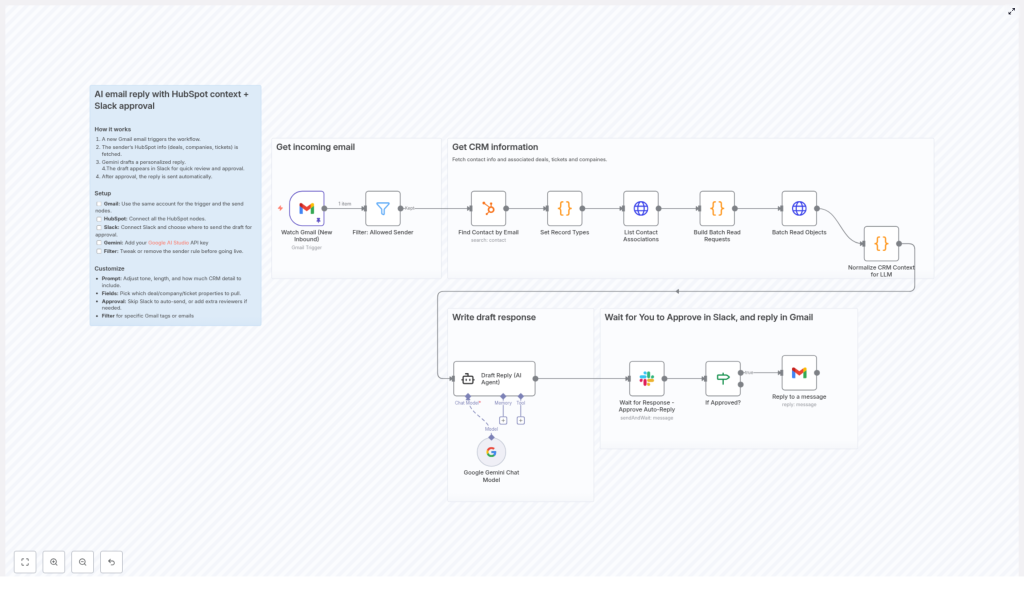
Streamline Email Replies with HubSpot AI & Slack Approval
What You Will Learn
In this guide, you will learn how to use an n8n workflow template that:
- Automatically detects new customer emails in Gmail
- Pulls relevant customer data from HubSpot CRM
- Uses Google Gemini AI to draft a personalized reply
- Sends the draft to Slack for human review and approval
- Sends the approved reply back to the customer via Gmail
By the end, you will understand each step of the workflow, how the tools connect, and how to customize it for your own email automation process in n8n.
Why Use This n8n Email Automation Workflow
Responding to customer emails quickly while keeping replies personal and accurate is hard to scale. This n8n workflow template solves that by combining:
- Gmail for receiving and sending emails
- HubSpot CRM for customer and deal context
- Google Gemini AI for drafting professional replies
- Slack for a human approval checkpoint
The result is a semi-automated email reply system that keeps humans in control, but removes most of the manual work.
Core Concepts Before You Start
1. Trigger-based automation in n8n
n8n workflows usually start with a trigger node. In this template, that trigger is a new inbound Gmail email. Each time a new email arrives in your Gmail inbox, the workflow starts and runs through all the following steps automatically.
2. Filtering which emails to automate
Not every email should be handled by automation. For example, internal messages or system notifications might not be suitable. This workflow uses a filter step to allow only approved senders to continue, such as real customers or leads.
3. Using HubSpot CRM for personalization
To avoid generic responses, the workflow looks up the sender in HubSpot and retrieves:
- Their contact profile
- Associated deals
- Linked companies
- Related tickets
This gives the AI model rich context so it can craft replies that feel informed and specific.
4. Drafting with Google Gemini AI
The workflow uses the Google Gemini AI Chat model to generate a draft email reply. It combines:
- The customer’s original email content
- Data pulled from HubSpot
- A carefully designed prompt that defines tone and style
This makes the reply sound professional, concise, and consistent with your brand voice.
5. Human-in-the-loop via Slack
Instead of sending AI replies directly to customers, the workflow adds a Slack approval step. The AI draft is posted to a specific Slack channel, where a team member can:
- Review the suggested reply
- Approve it to send as is
- Optionally edit or adjust the text before approval
This keeps quality and compliance under human control while still saving time.
Step-by-Step: How the n8n Workflow Runs
Step 1 – Trigger on new incoming Gmail email
The workflow begins with a Gmail trigger node:
- It listens for new inbound emails arriving in your chosen Gmail account.
- When a new email is detected, the workflow is activated and the email content is passed to the next node.
In this template, the same Gmail account is used both to receive incoming messages and to send replies, which simplifies setup and access control.
Step 2 – Filter out internal or unwanted emails
Next, a filter step checks if the sender should be processed by automation:
- Emails from internal domains, such as
n8n.io, are excluded. - Only messages from external or approved senders move forward.
You can customize this filter to:
- Exclude or include specific domains
- Limit automation to certain customer segments
- Apply rules based on tags or email patterns
This prevents the workflow from replying to internal messages or sensitive email types.
Step 3 – Fetch customer context from HubSpot
For each email that passes the filter, the workflow uses the sender’s email address to query HubSpot CRM:
- It looks up the corresponding contact record.
- It retrieves any associated deals to understand ongoing opportunities.
- It pulls related companies for account-level context.
- It fetches tickets to see existing support conversations.
All of this data is compiled into a structured context object that will be passed to the AI node. This enables replies like:
“I see you are currently working with us on Deal X” or “I noticed your open ticket about Y.”
Step 4 – Generate a draft reply using Google Gemini AI
With the email content and HubSpot context ready, the workflow calls the Google Gemini AI Chat model:
- The AI node is configured with your Google AI Studio API key.
- A prompt explains how the AI should respond, including tone, style, and length.
- The customer’s original message and relevant CRM details are included as input.
The AI then returns a concise, professional draft reply that:
- Uses a friendly but consistent tone
- References the customer’s context from HubSpot
- Avoids unnecessary length or complexity
You can customize the prompt and which data fields are passed to the AI to match your business needs.
Step 5 – Send the AI draft to Slack for approval
Instead of sending the AI reply immediately, the workflow posts it to a specific Slack channel:
- The draft reply text is included in the Slack message.
- The original customer email can also be included for quick comparison.
- Team members can review the draft in context.
The Slack node is configured using your Slack integration, so replies and approvals can happen within your existing team channels.
Step 6 – Approve and send the reply via Gmail
Once someone approves the draft in Slack, the workflow proceeds to the final step:
- The approved message is passed to a Gmail send node.
- Gmail sends the email back to the original sender as the official reply.
This step completes the loop: the customer receives a quick, personalized response that has been checked by a human, but required minimal manual typing.
How to Set Up and Customize the Template
1. Configure Gmail in n8n
- Connect your Gmail account in n8n credentials.
- Use this same account for:
- The trigger node that listens for incoming emails
- The send node that replies to customers
This keeps authentication simple and ensures replies are sent from the same address that received the email.
2. Connect HubSpot CRM
- Set up a HubSpot credential in n8n.
- In the workflow, configure the HubSpot nodes to:
- Find contacts by email address
- Fetch associated deals, companies, and tickets
Confirm that the properties you need (such as deal names, ticket status, or company details) are available and correctly mapped.
3. Integrate Slack for approvals
- Connect your Slack account in n8n.
- Choose the Slack channel where draft replies will be posted.
- Optionally, define how approval is captured, for example:
- Using reaction emojis
- Using a specific reply keyword
The template is designed to support a simple review and approval flow so your team can keep control of outbound communication.
4. Set up Google Gemini AI
- Obtain your Google AI Studio API key.
- Add it as a credential in n8n.
- Configure the Google Gemini AI Chat node to:
- Use the correct model
- Include the customer’s email and HubSpot context in the prompt
- Apply your preferred tone, style, and reply length
You can adjust the prompt to emphasize things like empathy, brevity, or technical detail depending on your audience.
5. Customize email filters for your needs
- Review the filter logic that excludes internal domains like
n8n.io. - Add or remove domains based on your organization.
- Optionally, restrict automation to:
- Specific customer groups
- Certain email subjects or labels
- Particular tags or patterns in the sender address
Fine-tuning the filter helps you control exactly which conversations are automated.
Key Features of This n8n Workflow Template
- Real-time personalization using live HubSpot data, including contacts, deals, tickets, and companies.
- AI-generated replies that maintain a consistent, friendly, and professional tone.
- Human approval in Slack as a built-in safeguard against accidental or inappropriate replies.
- Highly customizable prompts and fields so you can adapt the workflow to your business context and voice.
- Flexible filtering and approval controls to support compliance, quality assurance, and internal policies.
Benefits for Your Team
- Save time by automating the drafting of routine email responses.
- Keep personalization through CRM-aware replies that reflect customer history and context.
- Reduce errors by keeping a human review step before sending AI-generated messages.
- Unify your tools with seamless integration between Gmail, HubSpot, Google Gemini AI, and Slack inside n8n.
Quick Recap
This n8n workflow template creates a guided path from incoming email to approved reply:
- New email arrives in Gmail.
- Workflow filters out internal or unwanted senders.
- HubSpot is queried for contact, deal, company, and ticket context.
- Google Gemini AI drafts a personalized, professional reply.
- The draft is sent to Slack for human review and approval.
- Once approved, Gmail sends the final reply to the customer.
This structure lets you scale customer communication without sacrificing quality or oversight.
FAQ
Do I have to use the same Gmail account for receiving and sending?
In this template, yes. It is designed to use the same Gmail account for both triggering on incoming emails and sending replies. This keeps configuration simpler and avoids confusion for customers.
Can I change which emails are processed by the workflow?
Yes. The filter configuration is fully customizable. You can adjust domain rules, add tags, or apply other logic to control which messages the workflow handles.
Is the AI reply sent automatically without human review?
No. The template includes a mandatory Slack approval step. A human must review and approve the AI draft before it is sent to the customer.
Can I modify the AI prompt and the data used in replies?
Yes. You can edit the Google Gemini AI node to change the prompt, tone, and which HubSpot fields are passed into the model. This is one of the main customization points of the workflow.
What if a sender is not found in HubSpot?
You can adjust the workflow logic to handle missing contacts, for example by generating a more generic reply or creating a new contact in HubSpot. The template is flexible and can be extended to match your process.
Get Started
This integrated n8n workflow is ideal if you want to scale customer email replies while maintaining personalization and control. By combining HubSpot insights, Google Gemini AI drafting, and Slack approvals, your team can respond faster with confidence and consistency.
Ready to optimize your email replies? Set up this workflow now in n8n and start improving customer engagement and efficiency.
