


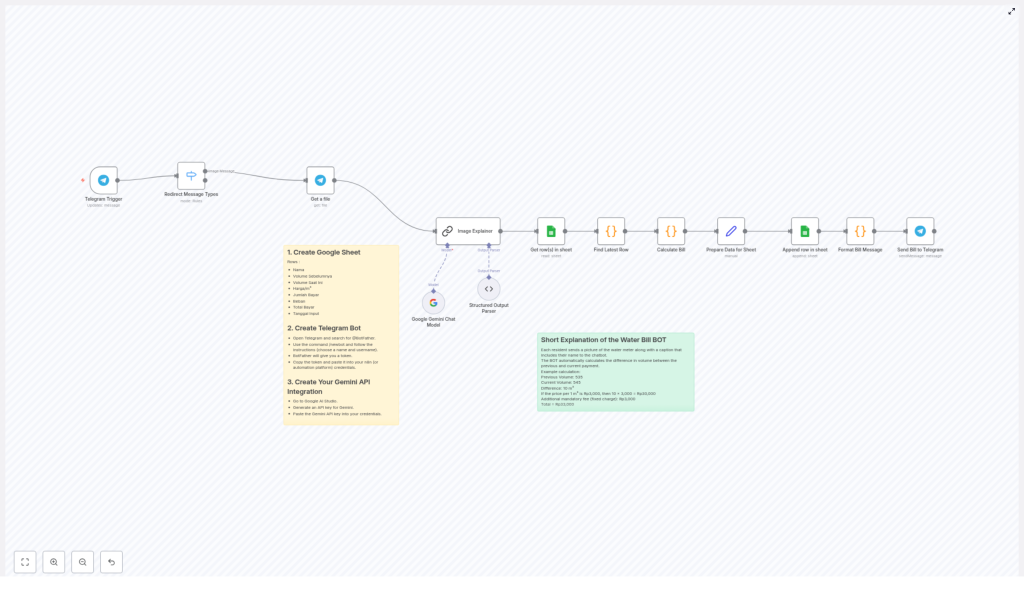
Automate Your Water Bill Calculations with Telegram Bot & Google Sheets
What You Will Learn
In this guide, you will learn how to build an automated water billing system using:
- Telegram as a simple user interface for residents
- Google Sheets as your central database and calculator
- Google Gemini AI to read water meter values from images
- n8n workflow automation to connect everything together
By the end, you will understand how the n8n workflow template works step by step, how each node contributes to the process, and how to adapt it for your own residential area or business.
How the Automation Works – Big Picture
Before we dive into the nodes and configuration, let us look at the overall flow from a resident’s perspective:
- A resident takes a photo of their water meter.
- They send the photo to a Telegram bot, with their name in the caption.
- The n8n workflow receives this message through the Telegram Trigger node.
- The workflow downloads the image and sends it to the Google Gemini AI model.
- Gemini reads the meter value (in cubic meters) from the photo and returns the number.
- n8n looks up the resident’s previous reading in Google Sheets.
- The workflow calculates the usage difference, multiplies it by the price per cubic meter, adds any fixed charge, and produces the total amount to pay.
- The new reading and billing details are appended as a new row in Google Sheets.
- Finally, n8n formats a clear bill message and sends it back to the resident on Telegram, including the amount and payment details.
All of this happens automatically after the resident sends a single Telegram message.
Why Use n8n for Water Bill Automation?
This n8n workflow template is ideal if you want to:
- Improve accuracy by reducing manual reading and calculation errors
- Save time by automating data entry and monthly bill preparation
- Offer convenience so residents can submit readings and receive bills directly in Telegram
Because the workflow is template-based, you can reuse and adapt it without starting from scratch.
Step 1 – Prepare Your Google Sheet
First, you need a well-structured Google Sheet that will store all readings and calculations. Create a new sheet and add the following columns:
- Nama (Name) – the resident’s name, matching the caption they send on Telegram
- Volume Sebelumnya (Previous Volume) – the last recorded meter reading
- Volume Saat Ini (Current Volume) – the new reading from the latest photo
- Harga/m³ (Price per cubic meter) – your water price per cubic meter
- Jumlah Bayar (Amount to Pay) – the calculated usage cost before fixed charges
- Beban (Fixed Charge) – any base fee you charge every month
- Total Bayar (Total Payment) – final amount after adding the fixed charge
- Tanggal Input (Date Recorded) – the date the reading was recorded
This sheet will be read and updated by the n8n workflow whenever a new meter photo is submitted.
Step 2 – Create and Configure Your Telegram Bot
Next, create a Telegram bot that residents will interact with:
- Open the Telegram app.
- Search for
@BotFather. - Start a chat and use the command
/newbot. - Follow the prompts to give your bot a name and username.
- After creation, BotFather will send you a bot token.
Copy this token. You will use it in n8n to authenticate the Telegram Trigger node and the node that sends messages back to users.
Step 3 – Set Up Google Gemini AI for Image Reading
To automatically read the meter value from images, you will use the Google Gemini AI model:
- Go to Google AI Studio.
- Create or select a project and generate an API key for the Gemini model.
- Store this key securely and configure it in n8n where the Google Gemini Chat Model & Image Explainer node is used.
In the workflow, this node will receive the water meter photo, send it to Gemini, and get back the detected numeric reading in cubic meters.
Understanding the n8n Workflow Template
Now let us walk through the n8n workflow node by node so you know exactly how the template works and how the data flows.
1. Telegram Trigger – Starting the Workflow
Purpose: Start the automation when a user sends a message to your Telegram bot.
This node is configured to listen for incoming messages. In this use case, it expects:
- An image (photo of the water meter)
- A caption that contains the resident’s name
When such a message is received, the workflow is triggered and passes the message data to the next node.
2. Switch Node – Handling Different Message Types
Purpose: Make sure the workflow processes only the correct type of message.
The Switch node checks the incoming message type. It routes the execution so that only messages with an image are processed by the next steps. This helps avoid errors if someone sends text only or another unsupported format.
3. Get a File – Downloading the Meter Photo
Purpose: Retrieve the actual image file from Telegram.
Using the file information from the Telegram Trigger, this node:
- Downloads the water meter photo
- Makes the image available as binary data for the Gemini AI node
4. Google Gemini Chat Model & Image Explainer – Reading the Meter
Purpose: Extract the meter reading from the image using AI.
This node sends the downloaded image to the Gemini model along with a prompt that explains what to detect (for example, the numeric value in cubic meters). The Gemini model:
- Analyzes the image
- Recognizes the number shown on the water meter
- Returns the detected reading to the workflow
The result is a numeric value that will be treated as the current volume.
5. Get row(s) in sheet – Reading Data from Google Sheets
Purpose: Retrieve existing billing data for the specific resident.
This node connects to your Google Sheet and fetches rows that match the resident’s name (taken from the Telegram caption). It pulls all historical rows for that user so that the workflow can determine the last recorded reading.
6. Find Latest Row – Identifying the Previous Reading
Purpose: Find the most recent record for this resident.
From the rows returned by Google Sheets, this node selects the latest entry. That row contains the Volume Sebelumnya (Previous Volume), which is required to calculate how much water has been used since the last reading.
7. Calculate Bill – Performing the Billing Logic
Purpose: Calculate the amount the resident needs to pay.
Using the previous volume and the new volume from Gemini, this node:
- Computes the usage difference: Volume Saat Ini – Volume Sebelumnya
- Multiplies the difference by Harga/m³ (Price per cubic meter)
- Adds the Beban (Fixed Charge)
- Outputs:
- Jumlah Bayar (Amount to Pay) before fixed charge
- Total Bayar (Total Payment) after adding the fixed charge
8. Prepare Data for Sheet & Append Row – Updating the Spreadsheet
Purpose: Store the new reading and billing result in Google Sheets.
This step prepares a new row with all required columns:
- Nama (Name)
- Volume Sebelumnya (Previous Volume)
- Volume Saat Ini (Current Volume)
- Harga/m³ (Price per cubic meter)
- Jumlah Bayar (Amount to Pay)
- Beban (Fixed Charge)
- Total Bayar (Total Payment)
- Tanggal Input (Date Recorded)
The Append Row operation then adds this new record to the bottom of your Google Sheet, keeping a complete history of all readings and bills.
9. Format Bill Message – Creating a Clear Telegram Response
Purpose: Build a user-friendly message with billing details.
This node takes the calculated values and formats them into a readable message, for example:
- Previous volume and current volume
- Usage in cubic meters
- Price per cubic meter
- Fixed charge
- Total amount to pay
- Optional: payment link or instructions
The goal is to provide all key information so the resident understands how the bill was calculated.
10. Send Bill to Telegram – Delivering the Result
Purpose: Send the final bill message back to the resident.
The last node uses the Telegram API to deliver the formatted bill to the same chat that sent the meter photo. You can also include a direct payment link or bank details in this message.
Example Water Bill Calculation
To make the billing logic concrete, consider this example:
- Previous volume: 535 m³
- Current volume: 545 m³
Usage difference:
- 545 – 535 = 10 m³
If the price per cubic meter is Rp3,000, then:
- Usage cost: 10 × 3,000 = Rp30,000
- Fixed charge (Beban): Rp3,000
- Total to pay: Rp33,000
This is exactly the type of calculation the Calculate Bill node performs automatically for every new reading.
Benefits of Automating Water Billing with n8n
Accuracy
By using AI to read meter images and a consistent formula in your workflow, you reduce mistakes that often occur with manual readings and manual spreadsheet edits.
Efficiency
Once set up, the n8n template takes care of the entire process from image input to bill output. You no longer need to type in readings, run formulas, or send individual messages.
Convenience for Residents
Residents simply send a Telegram photo and receive their bill back in the same app. There is no need to log in to a portal, fill out forms, or handle complex steps.
Quick Recap
- You created a Google Sheet with columns for name, previous volume, current volume, pricing, fixed charge, total payment, and date.
- You set up a Telegram bot using
@BotFatherand obtained a bot token. - You generated a Google Gemini API key and used it in n8n to read meter values from images.
- You learned how each n8n node works:
- Telegram Trigger and Switch for handling incoming messages
- Get a File and Gemini for image processing
- Google Sheets nodes for reading and appending data
- Custom logic nodes for calculating and formatting bills
- Telegram send node for delivering the final bill
FAQ
Do residents always need to include their name in the caption?
Yes. The workflow uses the caption text as the Nama (Name) to match and update the correct rows in Google Sheets. Make sure your instructions to residents are clear about this.
Can I change the water price or fixed charge?
Yes. Adjust the Harga/m³ and Beban values in your Google Sheet or in the calculation logic within the n8n workflow, depending on how the template is configured.
Is it possible to reuse this workflow for other utilities?
In many cases, yes. The same pattern of “photo + AI reading + spreadsheet + calculation + message” can be adapted for electricity, gas, or other meter-based billing, with appropriate changes to labels and formulas.
Next Steps
This Telegram-based water bill automation template combines AI, Google Sheets, and n8n to simplify monthly billing for residential communities and small businesses. To implement it yourself, start by:
- Creating the Google Sheet with the required columns.
- Setting up your Telegram bot with BotFather.
- Configuring the Gemini API key in n8n.
- Importing and customizing the n8n workflow template.
If you would like a ready-to-use n8n workflow or need help customizing it, you can contact our support team or leave a comment with your questions.
