


Build a Sensor Fault Detector with n8n, LangChain and Supabase
Imagine this: it is 3 a.m., an industrial sensor is having a full-on meltdown, and your phone starts screaming with alerts. You open the logs and see nothing but walls of JSON and vague notes like “sudden spike.” You squint, you scroll, you sigh. Repeatedly.
Now imagine instead that an automated workflow quietly catches the weird sensor behavior, compares it to past incidents, decides whether it is a real fault or just a drama queen sensor, and then neatly logs its reasoning in a spreadsheet for you to review later. That is what this n8n workflow template does.
This guide walks you through a ready-to-deploy Sensor Fault Detector built with n8n, OpenAI embeddings, a Supabase vector store, memory, and an LLM agent that logs decisions to Google Sheets. Less copy-paste, more coffee.
What this Sensor Fault Detector actually does
At a high level, this n8n workflow takes incoming sensor data, turns it into embeddings, stores and retrieves similar events from a Supabase vector store, reasons about what is going on using an LLM agent, and then logs everything to Google Sheets for traceability.
It combines lightweight automation with retrieval-augmented intelligence so you get:
- Real-time ingestion using an n8n webhook for incoming sensor payloads
- Smart retrieval using OpenAI embeddings and a Supabase vector store
- Context-aware reasoning via an LLM agent with memory
- Immutable logging into Google Sheets for audits, reports, and “who decided this?” moments
Instead of manually digging through logs every time a sensor freaks out, this workflow gives you an automated, explainable fault detection pipeline.
How the n8n workflow is wired together
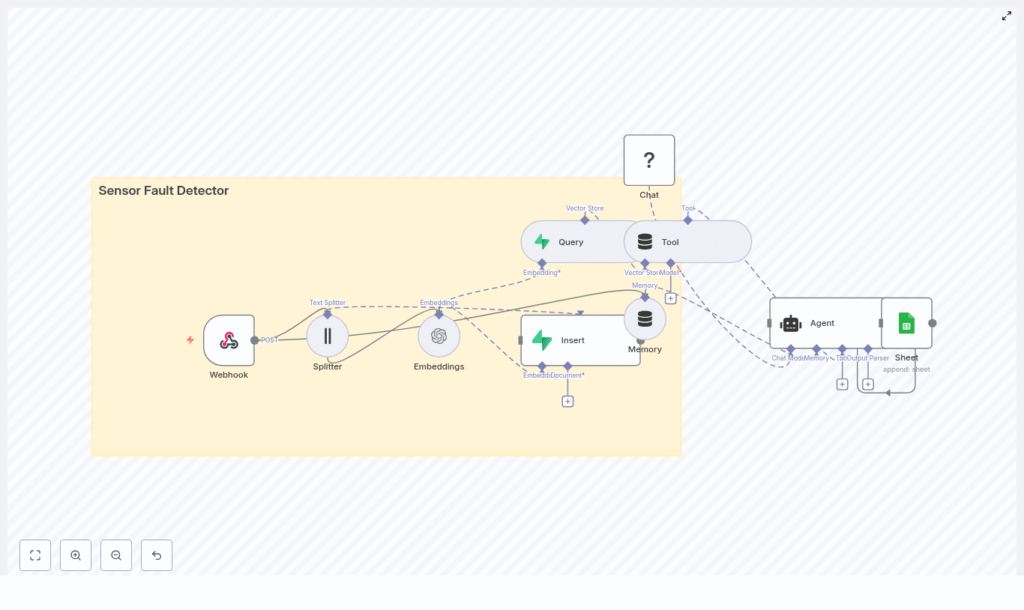
The template is designed as a left-to-right n8n flow, with each node doing a specific job. Here is the cast of characters and what they do.
1. Webhook – your real-time sensor gate
The workflow starts with a Webhook node listening on POST /sensor_fault_detector. Every time a sensor sends data or reports an anomaly, this webhook fires and kicks off the entire process.
Think of it as the front desk for your sensors. It receives the payload, hands it off to the rest of the workflow, and never complains about night shifts.
2. Character Text Splitter – breaking long notes into chunks
Some sensor logs are short and sweet. Others read like a novel. The Character Text Splitter node takes large payloads or long notes and splits them into smaller chunks so embeddings work better and retrieval stays efficient.
Typical settings might be:
chunkSize: around 400 charactersoverlap: around 40 characters
This overlap helps keep context between chunks so the model does not lose track of what is going on mid-sentence.
3. OpenAI Embeddings – turning text into vectors
Next, each text chunk goes through an Embeddings (OpenAI) node. Here, the text is converted into a vector representation that captures semantic meaning, not just keywords.
You can use OpenAI or another supported embedding model. Better embeddings usually mean better retrieval, so this is a good place to balance accuracy and cost.
4. Supabase Vector Store – your memory palace for sensor events
Those embeddings, along with their original text chunks, are stored in a Supabase vector store using an Insert node. They are saved in a vector index named sensor_fault_detector.
This index lets you run fast nearest-neighbor searches so that when a new event comes in, you can quickly find similar historical incidents, relevant logs, or documentation.
5. Vector Store Query + Tool – giving the agent context
When the workflow needs to assess a fresh sensor event, it uses a Vector Store Query node plus a Tool integration. This combo queries the Supabase index for similar past events and passes those results to the agent as a tool.
The tool returns contextual documents, which the agent uses as reference material. Instead of guessing blindly, the agent can say “I have seen something like this before” and base its decision on prior data.
6. Buffer Window Memory – short-term memory for patterns
The Memory (Buffer Window) node keeps track of recent interactions or events. This short-term memory lets the agent reason about sequences, such as repeated spikes or gradual drifts over time.
Instead of treating each reading as an isolated event, the agent can look at what happened just before and after, which is often crucial for fault detection.
7. Chat / Agent – the brains of the operation
The Chat / Agent node runs a language model, hosted via Hugging Face or another LLM provider. This agent can:
- Call the vector store tool to retrieve relevant documents
- Use memory to understand recent trends
- Assess whether the sensor reading likely indicates a fault
- Decide on an action, such as:
- Raise an alert
- Ignore as non-critical
- Ask for more data
This is where the “Is this sensor actually broken or just having a moment?” decision happens.
8. Google Sheets append – the audit trail
Finally, the Google Sheets append node logs the agent’s output. It writes:
- The decision (fault or not, and what to do)
- Confidence scores
- References to the supporting documents or context
All of this is stored in a Google Sheet so you have a clear audit trail and a handy dataset for analytics, dashboards, or future model tuning.
What a typical request looks like
Here is an example payload you might send to your webhook at /sensor_fault_detector:
{  "sensor_id": "temp-12",  "timestamp": "2025-08-30T14:32:00Z",  "reading": 98.7,  "units": "C",  "notes": "sudden spike compared to historical 45-55C"
}
Once this JSON hits the webhook, the flow goes like this:
- The Webhook node receives the payload and starts the workflow.
- The Text Splitter breaks any long notes into manageable chunks.
- The Embeddings node converts each chunk to a vector, and the Insert node stores them in Supabase.
- The Vector Store Query + Tool searches for similar historical incidents and returns related documents to the agent.
- Memory provides recent context, and the Agent reasons about whether this is a genuine fault.
- The final decision, along with evidence and confidence levels, is appended to Google Sheets.
The result is a structured, explainable decision instead of a random alert you have to reverse engineer.
Quick setup checklist
Before you hit deploy and start streaming sensor data, make sure you have these pieces ready:
- An n8n instance (self-hosted or cloud)
- An OpenAI API key or another embedding model for the Embeddings node
- A Supabase project and API access for the vector store
- Vector index name:
sensor_fault_detector
- Vector index name:
- A Hugging Face or other LLM API for the Chat / Agent node
- Google OAuth credentials for the Google Sheets append node
Once those credentials are connected in n8n, you are ready to plug in the template and start testing.
How to tune the workflow for your sensors
Out of the box, the template works as a solid starting point, but a bit of tuning can significantly improve results.
Chunking strategy
- Start with chunk sizes in the 200 to 500 character range.
- Use an overlap of about 10 to 40 characters to preserve context.
Shorter chunks give more granular retrieval, while larger ones keep more context together. Adjust based on how verbose your sensor logs are.
Embedding model choice
- Use higher quality embeddings when accuracy is critical.
- Balance cost vs performance if you have a large number of events.
If your use case involves subtle fault patterns, investing in a stronger embedding model usually pays off.
Vector query settings
- Set top-k to return around 3 to 10 nearest documents.
Too few documents and the agent might miss important context. Too many and you overload the prompt with noise. Start in the 3 to 10 range and adjust based on how repetitive or diverse your data is.
Memory window length
- Keep recent events for a timeframe that matches your sensor frequency.
- For fast sensors, that might be minutes; for slower ones, hours.
The goal is to capture meaningful patterns, like repeated spikes or drifts, without storing so much that the context becomes unwieldy.
Where this template really shines
This n8n Sensor Fault Detector template is flexible enough to cover a range of real-world scenarios:
- Industrial IoT – detect sensor drift, stuck-at faults, or sudden spikes in machinery and production lines
- Facility monitoring – catch HVAC and temperature anomalies before people start complaining it is “either a sauna or a freezer”
- Telemetry triage – automatically classify issue severity and route alerts to the right team
Any environment where sensors can misbehave and you are tired of manual log reviews is a good candidate.
Troubleshooting the workflow
Even with automation, things can occasionally misbehave. Here is how to debug the most common issues.
No results from Supabase query
If your vector store query comes back empty:
- Verify that embeddings are actually being inserted.
- Double-check that the index name matches
sensor_fault_detector. - Inspect Supabase logs and confirm the embedding pipeline is connected correctly.
Agent decisions feel low confidence
If the agent keeps saying “I am not sure,” try:
- Increasing the top-k value to return more documents from the vector store.
- Adding more historical examples to the index.
- Upgrading to a stronger LLM for better reasoning.
Duplicate entries in Google Sheets
If your sheet starts looking like a copy-paste festival:
- Add deduplication logic in the Agent node or the Sheets append step.
- Include a unique document or reference ID to prevent multiple inserts of the same event.
Security and cost tips
Automation is great until your bill spikes harder than your sensors. A few safeguards help keep things sane.
- Rate-limit incoming webhooks so sudden surges do not overwhelm your APIs.
- Mask or encrypt sensitive fields in sensor payloads before embedding, especially if you have compliance requirements.
- Monitor usage of embeddings and LLM calls and throttle or batch requests when needed to control costs.
With a bit of planning, you get powerful fault detection without surprise invoices.
Next steps: level up your sensor monitoring
Once you have the basic Sensor Fault Detector running smoothly, you can extend it in several useful ways:
- Integrate alerting tools like Slack or PagerDuty to notify the right people when the agent confirms a fault.
- Build dashboards that visualize sensor trends and agent decisions using data from Google Sheets or a dedicated database.
- Retrain or fine-tune models on your labeled fault dataset to improve accuracy over time.
Each of these adds another layer of intelligence and visibility to your monitoring stack.
Wrapping up
This Sensor Fault Detector workflow combines n8n automation, embeddings, and vector search to create an intelligent, explainable pipeline for sensor monitoring. It is:
- Modular – easy to swap out models or tools
- Extensible – ready for alerting, dashboards, and custom logic
- Auditable – every decision is logged in Google Sheets
If you are tired of manually triaging sensor alerts, this template lets you offload the repetitive work to an agent that never sleeps and always takes notes.
Ready to deploy? Import the n8n template, connect your credentials (OpenAI, Supabase, Hugging Face, Google Sheets), and start streaming sensor events to /sensor_fault_detector. Run a test POST, watch the decisions land in your spreadsheet, and begin building your own fault detection dataset.
Call to action: Try the template now, automate your sensor fault detection, and save your future self from another late-night log review.
