


Automated Image Extraction Pipeline with Google Drive & VLM Run
What You Will Learn
In this guide, you will learn how to build an automated image extraction pipeline using:
- Google Drive to store and monitor your documents
- VLM Run to identify and extract image URLs from those documents
- n8n to orchestrate the workflow, download the images, and save them back to Google Drive
By the end, you will understand the full end-to-end process and be able to:
- Automatically react whenever a new file is uploaded to a Google Drive folder
- Send that file to VLM Run to extract image links
- Receive those image URLs in n8n via a webhook
- Download each image and store it in a dedicated Google Drive folder
Why Automate Image Extraction?
Manually opening documents, saving images, and organizing them into folders quickly becomes tedious and error prone. An automated image extraction pipeline in n8n removes this repetitive work and ensures images are consistently stored where you need them.
This kind of workflow is especially useful for:
- Expense processing – automatically extract receipt images from PDF invoices or statements
- Reporting and analytics – collect images from reports for dashboards, presentations, or archives
- Machine learning preparation – build ML-ready datasets by batch extracting images from large document collections
What This Pipeline Does, End to End
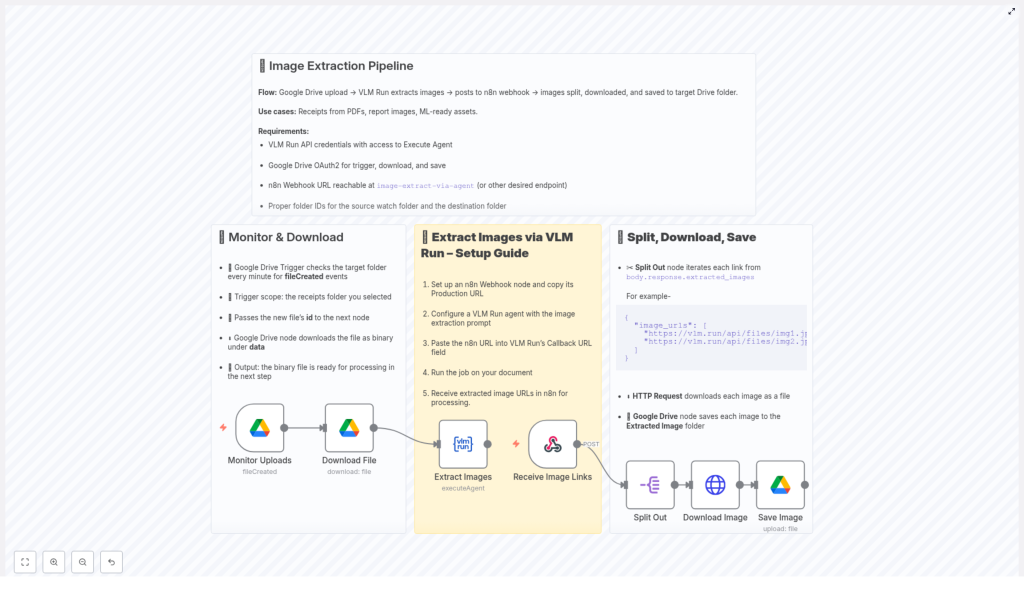
At a high level, the pipeline behaves like this:
- You upload a file (for example a PDF) into a specific Google Drive folder.
- n8n detects the new file using a Google Drive trigger node.
- n8n downloads the file and sends it to VLM Run.
- VLM Run scans the document, extracts image URLs, and sends those URLs to an n8n webhook.
- The webhook receives a JSON payload containing an array of image URLs.
- n8n loops through each URL, downloads the corresponding image, and uploads it to a target Google Drive folder.
The result is a fully automated image extraction and storage process that runs every time a new document is added to your chosen folder.
Prerequisites and Requirements
Before you start building the workflow in n8n, make sure you have the following in place:
Accounts and Credentials
- VLM Run API credentials with Execute Agent access so that n8n can call the VLM Run agent.
- Google Drive OAuth2 credentials configured in n8n to:
- Monitor a folder for new files
- Download the uploaded document
- Upload the extracted images to a destination folder
- n8n webhook URL that VLM Run can send image URLs to, for example a webhook named
image-extract-via-agent.
Folder Setup in Google Drive
- The source folder ID where new files will be uploaded and monitored (for example a “Receipts” folder).
- The destination folder ID where extracted images will be saved (for example an “Extracted Images” folder).
Key Concepts Before You Build
1. Using n8n as the Orchestrator
n8n connects Google Drive and VLM Run together. It:
- Listens for new files in a specific Drive folder
- Triggers VLM Run when a document is uploaded
- Receives the list of image URLs via a webhook
- Downloads and stores each image in your chosen destination folder
2. Role of VLM Run
VLM Run acts as the “image extractor” for your documents. You configure an agent with a prompt that instructs it to:
- Analyze the uploaded document
- Detect and extract image URLs
- Return those URLs in a structured JSON format
This JSON is then sent to your n8n webhook endpoint.
3. Webhook and JSON Payload
The webhook node in n8n acts as the entry point for the extracted image URLs. VLM Run calls this webhook with a JSON body that typically looks like this:
{  "image_urls": [  "https://vlm.run/api/files/img1.jpg",  "https://vlm.run/api/files/img2.jpg"  ]
}
n8n parses this JSON and then processes each URL one by one.
Step-by-Step: Building the n8n Image Extraction Workflow
Step 1 – Monitor a Google Drive Folder for New Files
First, you need to detect when a new document is added to Google Drive.
- Add a Google Drive Trigger node to your n8n workflow.
- Configure it to:
- Watch a specific folder using its folder ID (for example your receipts or reports folder).
- Trigger on file creation events.
- Each time a new file appears in that folder, this node fires and passes the file ID downstream.
This file ID is what you will use to download the file in the next step.
Step 2 – Download the Uploaded File from Google Drive
Once the trigger fires, you need the actual document content so it can be sent to VLM Run.
- Add a regular Google Drive node after the trigger.
- Use the file ID from the trigger node as the input.
- Set the operation to Download and make sure the file is retrieved in binary format.
At this point, n8n holds the uploaded document as binary data, ready to be processed by VLM Run.
Step 3 – Call VLM Run to Extract Image URLs
Next, you will send the downloaded file to VLM Run so it can identify and extract images.
- Add a VLM Run node to the workflow.
- Configure it with your VLM Run API credentials and set the operation to Execute Agent.
- Attach the binary file from the previous Google Drive node as the input file.
- Configure the agent prompt so that it:
- Analyzes the document
- Extracts image URLs from the content
- Returns them as a JSON array in the response
- Set VLM Run to send its output (the JSON with image URLs) to your n8n webhook URL.
The VLM Run node acts as the bridge between the document and the list of images you want to download.
Step 4 – Receive Image URLs via the n8n Webhook
Once VLM Run finishes processing, it calls your webhook with the extracted image URLs.
- Create a Webhook node in a workflow that will handle the image download and saving.
- Copy the webhook URL generated by n8n and configure VLM Run to send its results to this URL (for example, a path like
/image-extract-via-agent). - When VLM Run calls this URL, the webhook node receives a JSON payload that includes an array of image URLs, such as:
{ "image_urls": [ "https://vlm.run/api/files/img1.jpg", "https://vlm.run/api/files/img2.jpg" ] } - The webhook node then passes this array downstream for further processing in n8n.
Step 5 – Split, Download, and Save Each Image
Now that you have an array of image URLs, the final part of the workflow is to process each one individually.
5.1 Split the Array of Image URLs
You need to handle each image URL as its own item in n8n.
- Add a Split Out (or similar item-splitting) node after the webhook.
- Configure it to iterate over each URL in the array, such as
body.response.extracted_imagesorimage_urlsdepending on your VLM Run response structure. - This creates one execution item per image URL, which makes it easy to download each image separately.
5.2 Download Each Image with HTTP Request
Once you have one URL per item, you can download each image.
- Add an HTTP Request node after the Split Out node.
- Set the method to GET and use the current item’s image URL as the request URL.
- Configure the node to:
- Return the response as binary data since it is an image file.
After this step, each item in the workflow contains a downloaded image in binary format.
5.3 Upload the Downloaded Image to Google Drive
The last step is to save each image into your chosen Google Drive folder.
- Add another Google Drive node.
- Set the operation to Upload.
- Use the binary data from the HTTP Request node as the file content.
- Specify the destination folder ID for your “Extracted Image” or similar folder.
- Optionally, configure a naming convention for the files (for example using part of the URL or a timestamp).
Each image is now automatically stored in your Google Drive destination folder, ready for further processing, sharing, or machine learning use.
Example JSON Payload From VLM Run
To help you test your webhook and downstream nodes, here is a sample JSON payload that VLM Run might send:
{  "image_urls": [  "https://vlm.run/api/files/img1.jpg",  "https://vlm.run/api/files/img2.jpg"  ]
}
You can use this example in n8n’s Test mode or with mock data to verify that your Split Out, HTTP Request, and Google Drive upload nodes behave as expected.
Benefits of This n8n Image Extraction Template
- Fully automated workflow – from document upload to image storage, no manual steps are required.
- Time savings – reduces repetitive tasks such as downloading images and organizing them into folders.
- Reliable organization – all images are consistently stored in your chosen Google Drive folder.
- Scalable solution – suitable for handling large volumes of documents and images.
- Works with familiar tools – integrates Google Drive, VLM Run, and n8n in a single, cohesive pipeline.
Quick FAQ and Troubleshooting Tips
What happens if a document has no images?
If VLM Run does not find any images, the JSON payload might contain an empty array. In that case, the Split Out node will not produce any items and no downloads or uploads will occur. This is normal behavior.
How do I check that my webhook is receiving data?
In n8n, open the workflow with the Webhook node, click Execute Workflow, then trigger VLM Run to send a request. You should see the incoming JSON payload in the execution data.
Can I change the destination folder later?
Yes, you can update the folder ID in the final Google Drive upload node at any time. The workflow will then save new images to the updated folder.
Next Steps
With this pipeline in place, you can streamline tasks like expense management, reporting, and machine learning data preparation. All you need to do is drop files into your monitored Google Drive folder and let n8n, VLM Run, and Google Drive handle the rest.
If you need help configuring OAuth2 credentials, setting up the webhook, or customizing the workflow, explore our detailed n8n tutorials or contact our support team for guidance.
