


Automate X Video Posts With AI Captions & Google Sheets
Imagine waking up to find your X (formerly Twitter) account already sharing fresh video content with thoughtful, on-brand captions you didn’t have to write yourself. Sounds nice, right?
That is exactly what this n8n workflow template is built to do. It pulls recent videos from a specific X user, lets AI write engaging captions in Japanese, posts them for you, and quietly keeps track of everything in Google Sheets so you never double post the same video.
In this guide, we will walk through what the template does, when you might want to use it, and how to get it running with your own accounts. Think of it as your personal social media assistant that never gets tired.
What This n8n Workflow Actually Does
At a high level, this automation connects four main pieces:
- Your X account (for fetching and posting videos)
- AI via OpenRouter (for generating captions in Japanese)
- Google Sheets (for logging, deduplication, and analytics)
- n8n (for scheduling and tying everything together)
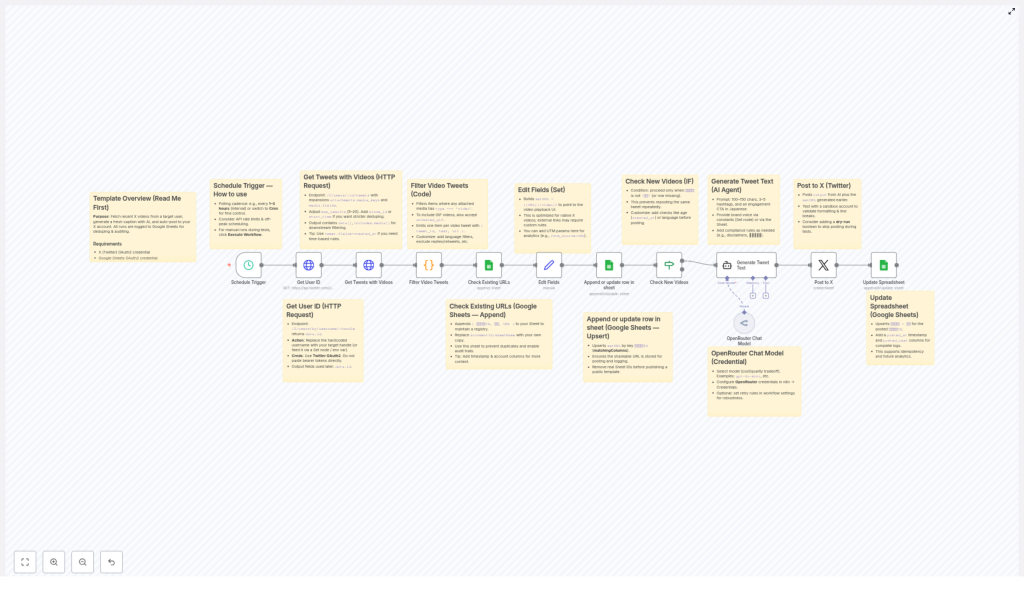
Here is the basic idea: on a schedule you choose, n8n checks a specific X user, finds their latest tweets that include videos, makes sure you have not posted them before, asks AI to write a catchy Japanese caption, then posts that caption plus the video link to your own X account. Every step is logged in a Google Sheet so you can see what was posted and when, and so the workflow does not repost the same video later.
When You Should Use This Template
This workflow is a great fit if you:
- Regularly share video content from a particular X creator or brand account
- Want consistent posting without manual copy-pasting and caption writing
- Prefer AI-generated Japanese captions with hashtags and calls to action
- Need a clear audit trail of what was posted and want to avoid duplicates
It is especially handy for content curators, social media managers, or anyone repurposing videos from a main brand account to multiple regional or personal accounts.
Step-by-Step: How the Workflow Runs
Let us break down the workflow into simple, understandable steps so you know exactly what is happening behind the scenes.
1. The Schedule Trigger: When Everything Starts
The workflow begins with a Schedule Trigger. You can configure this in n8n to run as often as you like, for example every 1 to 3 hours.
Each time the schedule fires, n8n starts a new run of the workflow, checks for fresh videos, and decides what to post. Adjusting the interval helps you balance between staying up to date and staying within X API rate limits.
2. Getting the X User ID From a Username
Next, the workflow uses the Get User ID step. Instead of hardcoding an ID, you simply provide a username (the X handle) that you want to pull videos from.
Behind the scenes, the workflow calls the X (Twitter) API to convert that username into a user ID. This ID is then used in the following steps to fetch that user’s tweets.
3. Fetching Tweets That Contain Videos
Once the user ID is ready, the workflow moves to Get Tweets with Videos. This step asks the X API for recent tweets from that user, including any media attachments.
Since we care about video content, the workflow then runs a Filter Video Tweets step. Only tweets that actually contain video media move forward. Everything else is ignored.
4. Creating Clean Video URLs
For each tweet that passes the filter, the workflow uses an Edit Fields & Create Video URLs step.
This part is all about formatting. It takes the raw data from X and builds proper URLs that point directly to the native X video playback page. That way, when your post goes out, followers can click straight through to watch the video on X without confusion.
5. Logging Everything in Google Sheets
Now comes the tracking side. The workflow uses Google Sheets as a simple but powerful database.
- Check Existing URLs: The workflow checks your Google Sheet to see if the tweet or video URL has been logged before.
- Append or Update Rows in Google Sheets: It then upserts (inserts or updates) rows with the latest tweet information.
Your sheet will store things like tweet IDs, URLs, AI-generated captions, and posting status. This is what lets the workflow stay idempotent, which is a fancy way of saying it will not post the same video twice.
6. Filtering Out Videos You Already Posted
Once the sheet is updated, the workflow runs a Check New Videos step. Here it filters out any videos that are already marked as completed or posted.
Only videos that are new and not yet posted move on to the AI caption stage. This keeps your feed clean and avoids awkward duplicate posts.
7. Letting AI Write Japanese Captions
This is where the fun part happens. For each new video, the workflow calls an LLM via OpenRouter in the Generate Tweet Text with AI step.
The AI receives context about the video and is instructed to generate an engaging caption in Japanese, complete with:
- Relevant hashtags
- Calls to action
- Text tailored for X posts
You can customize the AI prompt to better fit your brand voice, tone, or style. Want more playful language, or more formal? You are in full control of that prompt.
8. Posting to X Automatically
With the caption ready and the video URL formatted, the workflow moves to the Post to X step.
Here, it uses your X OAuth2 credentials to publish a new tweet that includes the AI-generated Japanese text plus a link to the video. No manual intervention needed. Once the workflow is live, it just keeps posting new content as it finds it.
9. Updating the Spreadsheet for Analytics and Safety
After a successful post, the final step is Update Spreadsheet. The workflow goes back to your Google Sheet and marks that specific video as posted.
This updated status is what prevents future runs from reposting the same content. It also gives you a simple analytics log so you can see:
- Which videos were posted
- What captions were used
- When each post went out
How to Set It Up in Your Own n8n Instance
Ready to try it yourself? Here is what you need to configure before going live.
1. Connect Your Credentials
You will need three sets of credentials in n8n:
- X OAuth2: For reading tweets and posting to your X account.
- Google Sheets OAuth2: For reading and writing to your log sheet.
- OpenRouter API key: For accessing the AI model that generates captions.
Set these up using n8n’s built-in credential management. Avoid hardcoding any tokens directly in the workflow.
2. Replace the Hardcoded Username
In the workflow, there is a username that tells X which account to pull videos from. Swap this out for your target X handle. That might be your main brand account, a content partner, or any user whose video tweets you want to repost.
3. Configure the Schedule
Adjust the schedule trigger interval so it matches your posting strategy and respects API limits. For many use cases, every 1 to 3 hours is a good starting point.
4. Set Up Your Google Sheet
Before going public with the workflow, make sure you:
- Create your own Google Sheets document
- Update the document ID in the workflow
- Confirm the sheet names match what the workflow expects
The sheet will be your central log, storing tweet IDs, URLs, AI captions, and posting status. Double check that the columns and names are consistent so the upsert and update steps work correctly.
Customization Ideas To Make It Truly Yours
Once the basic setup is running, you can tweak the workflow to better match your brand and strategy. Here are some ideas:
- Filter by language or age: Only include tweets in a certain language or within a specific time range.
- Exclude replies and retweets: Focus purely on original video content by filtering out replies and RTs.
- Refine the AI prompt: Adjust tone, add brand guidelines, or include disclaimers in every caption.
- Add UTM parameters: Enhance your URLs with UTM tags for more detailed analytics in your tracking tools.
- Change posting cadence: Modify how often you post or add a manual approval step before publishing.
Because it is all in n8n, you can mix in additional nodes, connect other tools, or chain this workflow with others as your automation stack grows.
Security & Testing: A Quick Checklist
Automation is powerful, so a few safety habits go a long way:
- Use n8n credentials: Never hardcode API tokens or secrets in nodes. Store them in n8n’s credential manager.
- Keep logs: The Google Sheets log already helps with auditing and deduplication. Do not skip it.
- Test with a sandbox account: Before connecting your main brand profile, run the workflow against a test X account to make sure everything behaves as expected.
Why This Workflow Makes Your Life Easier
Instead of spending time hunting for new videos, writing captions by hand, and tracking everything in separate tools, this template lets you:
- Automate discovery of new video tweets from a chosen X account
- Generate consistent, Japanese AI captions with minimal effort
- Post regularly without babysitting your social feeds
- Keep a clean, auditable record in Google Sheets for every post
If you are serious about keeping your X presence active without burning out, this workflow can quietly handle a big chunk of the repetitive work for you.
Try the Template & Start Automating
Ready to let an automation handle your X video posting while you focus on strategy and creativity? Give this n8n workflow a spin, connect your accounts, and watch your feed update itself with AI-powered captions and clean logging in Google Sheets.
Powered by n8n, OpenRouter, X (Twitter), and Google Sheets.
