


WooCommerce to Slack: Automatic New Product Alerts (So You Can Stop Copy-Pasting)
Picture this: you just launched a shiny new product in WooCommerce, you are feeling great, and then you remember you still need to tell the team. Cue the ritual of copying the product link, opening Slack, picking the right channel, typing something vaguely enthusiastic, and hitting send. Every. Single. Time.
If that tiny but persistent annoyance sounds familiar, this n8n workflow template is going to feel like a small miracle. It automatically sends a Slack notification whenever a new product is created in your WooCommerce store, so your team gets the news in real time while you go do literally anything else.
What This n8n Workflow Actually Does
At its core, this is a simple no-code automation that connects WooCommerce to Slack using n8n. Once it is live, the workflow:
- Listens for new product creation events in WooCommerce
- Checks that the URL really is a product page (and not some random link)
- Posts a nicely formatted message in a Slack channel called
newproducts
The Slack notification includes all the good stuff your team needs:
- Product name
- Regular price and sale price
- Direct link to the product page
- Product creation date shown in the footer
The message uses Slack blocks and attachments, highlighted with a green color bar, so it pops out in the channel instead of getting lost between memes and random threads.
Why Bother Automating WooCommerce To Slack?
Manual Slack updates might not feel like a big deal at first, but they stack up quickly. This workflow helps you:
- Get real-time updates – The moment a product goes live in WooCommerce, your team sees it in Slack.
- Keep everyone aligned – Marketing, sales, support, and inventory teams can act fast, without waiting for someone to remember to post an update.
- Cut down on repetitive tasks – No more copy-paste marathons or “Did anyone share this in Slack yet?” messages.
In short, you get smoother communication, faster reactions to product launches, and fewer chances for human forgetfulness to sneak in.
How the Workflow Is Structured in n8n
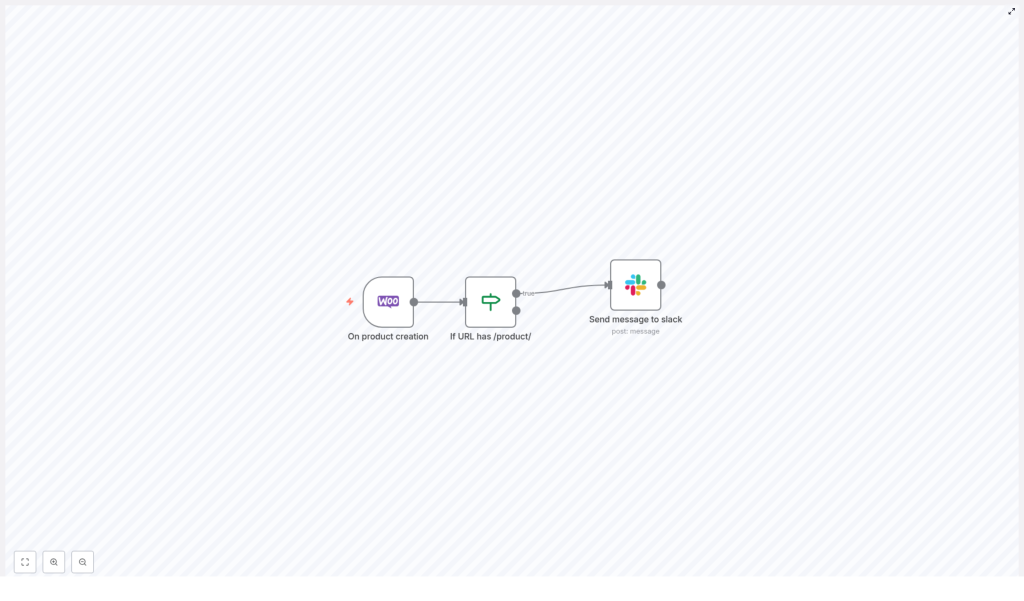
This template is built with three main nodes inside n8n. Here is how they work together behind the scenes.
1. WooCommerce Trigger – On Product Creation
The workflow starts with a WooCommerce trigger node that fires every time a new product is created. It captures key product data, including:
- Product name
- Product URL (permalink)
- Price information
- Creation date
This node is basically your automated scout, watching for new products so you do not have to.
2. Conditional Check – Only If URL Contains /product/
Next, the workflow runs a conditional check on the product permalink. It verifies that the URL starts with:
https://[add-your-url-here]/product/
This acts as a filter so only real product URLs trigger a Slack notification. No false alarms, no random pages pretending to be products.
3. Slack Notification – Send Message To newproducts
If the URL passes the condition, the workflow moves on to the Slack node. This is where the magic hits your team channel. The node sends a formatted message to the Slack channel named newproducts, including:
- The product name as the main highlight
- Regular price and any sale price
- A clickable link straight to the product page
- The product creation date in the footer for context
The message uses Slack blocks and attachments with a green color bar, so new products stand out visually in the channel feed.
Quick Setup Guide: From Zero To Automated Alerts
Getting this n8n workflow template running is much faster than writing yet another “New product just dropped!” Slack message. Here is what you need to do.
Step 1 – Update Your WooCommerce URL
In the workflow, replace the placeholder URL:
https://[add-your-url-here]/product/
with the actual base URL of your WooCommerce store. For example:
https://mystore.com/product/
This tells the workflow exactly what a valid product URL should look like.
Step 2 – Connect Your WooCommerce Account
In the WooCommerce trigger node, add your WooCommerce account credentials. This lets n8n securely listen for new product creation events in your store.
Step 3 – Add Slack API Credentials
Open the Slack node and configure your Slack API credentials. Once connected, choose the newproducts channel as the destination for your alerts. You can also rename the channel if your team prefers a different naming style.
Step 4 – Deploy And Activate The Workflow
After your credentials and URL are set, deploy the workflow in your n8n instance and activate it. From that point on, every new product that matches the product URL condition will trigger an automatic Slack notification.
Tips, Ideas, And Next Steps
Once you see how helpful this simple WooCommerce to Slack automation is, you might start wondering how you ever lived without it. A few suggestions to get even more value:
- Use the Slack message content to add internal notes or instructions for your team, such as “Ready for social promotion” or “Check inventory before running ads.”
- Combine this workflow with other n8n templates to create a full product launch pipeline, including notifications, backups, or marketing tasks.
- Adjust the Slack formatting to match your brand voice or add more product fields if needed.
By turning this once-annoying manual step into a smooth, automated workflow, you free up time and reduce the chance of forgetting to keep your team in the loop.
Wrap Up: Let Automation Handle The Boring Bits
Connecting WooCommerce to Slack with this n8n workflow template is a simple way to streamline communication around new product launches. You get instant, consistent notifications in Slack, your team stays aligned, and you stop doing the same repetitive copy-paste routine over and over.
Ready to upgrade your WooCommerce workflow? Set up this automation today, let n8n handle the notifications, and enjoy the quiet satisfaction of one less manual task on your plate.
