


Automate Invoices and Payment Reminders with Jotform, QuickBooks, and n8n
Consistent invoicing and structured payment follow-ups are essential for maintaining predictable cash flow and a professional client experience. This n8n workflow template connects Jotform and QuickBooks Online (QBO) to automate the full invoicing lifecycle, from order capture to reminder scheduling and reporting.
By orchestrating form submissions, customer management, invoice creation, and reminder sequences in a single workflow, you minimize manual data entry, reduce billing errors, and standardize your collections process.
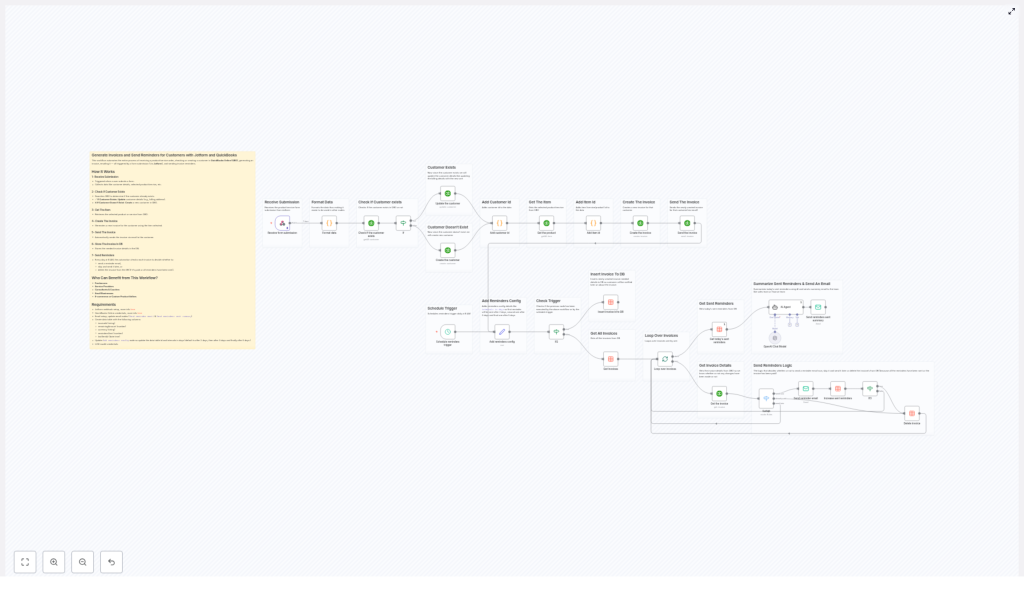
End-to-End Workflow Overview
This n8n template is designed as a complete billing pipeline. It performs the following core functions:
- Captures orders or service requests from Jotform submissions
- Normalizes and formats incoming data for consistent processing
- Creates or updates customer records in QuickBooks Online
- Retrieves product or service items from QuickBooks
- Generates and emails invoices directly from QuickBooks
- Stores invoice metadata in a database for reminder tracking
- Runs a scheduled reminder process each day at a fixed time
- Sends payment reminders based on configurable logic and intervals
- Provides a daily AI-generated summary of all reminders sent
The result is a repeatable, auditable workflow that aligns invoicing and collections activities with automation best practices.
Key Triggers, Nodes, and Integrations
1. Jotform as the Intake Trigger
The workflow begins with a Jotform trigger configured via webhook. When a customer submits a form for a product or service, the webhook sends the submission payload into n8n.
Typical captured fields include:
- Customer name
- Email address
- Phone number
- Selected product or service
- Billing address and related details
This trigger ensures that every new order or service request enters the automated invoicing pipeline in real time.
2. Data Preparation and Normalization
After the initial trigger, one or more Code or Function nodes normalize the raw form data. This step typically includes:
- Cleaning and validating customer contact information
- Mapping Jotform field names to QuickBooks compatible fields
- Structuring line item details and quantities
Well-structured data at this stage simplifies downstream API interactions with QuickBooks and reduces the risk of rejected requests or inconsistent records.
3. Customer Management in QuickBooks Online
Next, the workflow interacts with QuickBooks Online to manage customer records. Using the customer email as a unique identifier, n8n checks whether the customer already exists in QBO.
- If the customer exists, the workflow updates the existing record with any new billing address or contact information.
- If the customer does not exist, a new customer record is created in QuickBooks using the data from the Jotform submission.
This approach maintains a single source of truth for customer data and avoids duplicate records, which is a common issue in manual billing processes.
4. Product and Service Item Retrieval
Once the customer is resolved, the workflow identifies the correct product or service item in QuickBooks based on the selection in the Jotform submission.
A QuickBooks item lookup node retrieves the relevant item details, such as:
- Item name or SKU
- Price or rate
- Currency and tax configurations
These details are then used to construct an accurate invoice line item.
5. Invoice Creation and Delivery
With both customer and item information in place, the workflow uses QuickBooks API nodes to:
- Create the invoice for the customer, including the selected products or services, quantities, and pricing.
- Email the invoice directly to the customer via QuickBooks built-in email functionality.
Sending invoices from QuickBooks ensures that all financial documents are stored and tracked within the accounting system, which simplifies reconciliation and reporting.
6. Persisting Invoice Data for Reminders
After the invoice is successfully created and sent, the workflow stores key invoice metadata in a dedicated database table. This table is used exclusively for reminder tracking and decision-making.
Required columns typically include:
invoiceId– the QuickBooks invoice identifierremainingAmount– current outstanding balancecurrency– currency code used on the invoiceremindersSent– count of reminders already sentlastSentAt– timestamp of the last reminder email
This separation of invoice metadata supports flexible reminder logic without affecting the core accounting records.
Automated Reminder Engine
7. Scheduled Reminder Trigger
A scheduled trigger node runs the reminder sub-workflow every day at a fixed time, for example at 8:00 AM. This ensures reminders are processed consistently and at a predictable time for both internal teams and customers.
8. Reminder Logic and Decision Flow
During each scheduled run, the workflow executes the following steps:
- Fetch all tracked invoices from the database table.
- Iterate through each invoice using loop or item-based processing nodes.
- Check payment status in QuickBooks and compare it with stored data.
- Evaluate reminder history based on:
- Number of reminders already sent
- Time elapsed since the last reminder
- Configured intervals, for example after 2, then 3, then 5 days
- Decide the next action:
- Send a new reminder if the invoice is unpaid and within the allowed reminder count.
- Skip sending if conditions are not met, for example if it is too soon since the last reminder.
- Remove the invoice entry from the database if it is fully paid or if the maximum number of reminders has been reached.
Code or logic nodes handle this conditional decision-making, ensuring that customers are not over-contacted and that fully paid invoices are excluded from future runs.
9. Sending Reminder Emails
For invoices that qualify for follow-up, the workflow sends reminder emails using an email node configured with your SMTP or email server credentials.
The reminders typically include:
- A professionally styled HTML email template
- Invoice details such as amount due, currency, and due date
- A link or reference to the original QuickBooks invoice
Each time a reminder is sent, the workflow updates the corresponding database record, incrementing remindersSent and setting a new lastSentAt timestamp. This ensures accurate tracking for future reminder decisions.
10. Daily AI-Generated Summary
As a final step, an AI agent node aggregates all reminders sent during the daily run and generates a concise summary report. This report is then emailed to the sales or finance team.
The summary typically includes:
- Number of reminders sent
- Key invoices or customers contacted
- Any notable patterns or issues detected by the AI agent
This daily digest keeps stakeholders informed without requiring manual reporting or dashboard checks.
Implementation Requirements and Best Practices
To deploy this n8n template effectively, ensure the following prerequisites and configurations are in place:
- Jotform account with a form configured and a webhook URL pointing to your n8n workflow.
- QuickBooks Online account with OAuth2 API credentials correctly set up in n8n credentials.
- Email server or SMTP credentials for sending reminder and summary emails.
- Database table dedicated to invoice tracking, with at least:
invoiceIdremainingAmountcurrencyremindersSentlastSentAt
- Configured reminder intervals, for example:
- First reminder 2 days after invoice creation
- Second reminder 3 days after the first
- Third reminder 5 days after the second
- Code and logic nodes to:
- Format and validate incoming form data
- Implement conditional flows for reminders
- Handle API interactions and error cases gracefully
Following these best practices ensures a stable, maintainable automation that can scale with your transaction volume.
Business Impact and Advantages
- Operational efficiency – Manual data entry, invoice creation, and follow-up tasks are automated, freeing your team to focus on higher value work.
- Improved accuracy – Real-time integration with QuickBooks and consistent logic reduce errors in customer records, invoices, and reminder schedules.
- Healthier cash flow – Structured, timely reminders support better payment behavior and reduce aging receivables.
- Consistent customer experience – Customers receive standardized, professional invoices and courteous reminder communications.
- Transparent reporting – AI-generated daily summaries provide ongoing visibility into reminder activity and collections performance.
Getting Started with the Template
This workflow is particularly suitable for freelancers, agencies, small businesses, and service providers that want to modernize their invoicing operations without building a system from scratch.
To implement it:
- Configure your Jotform to send submissions to n8n via webhook.
- Set up QuickBooks Online OAuth2 credentials in n8n and test connectivity.
- Prepare the database table for invoice tracking with the required columns.
- Define your reminder intervals and maximum number of reminders.
- Connect your email server credentials and customize the HTML email templates.
If you need assistance tailoring the workflow to your specific billing model or tech stack, consider engaging automation specialists or exploring the n8n community for implementation patterns and best practices.
