


Automate Invoices & Reminders with Jotform, QuickBooks & Gmail: A Founder’s Story
Introduction: The Invoice Pileup
On a rainy Tuesday evening, Maya, a founder of a fast-growing design studio, stared at her inbox with a familiar sense of dread. New project requests were pouring in through her Jotform order form, which was great for business, but every new submission meant the same tedious routine.
Copy the customer details. Check if they already exist in QuickBooks Online. Create or update their profile. Add the right product or service item. Generate the invoice. Send it manually through Gmail. Then, a week later, remember to follow up on unpaid invoices, one by one.
By the time Maya finished a batch of invoicing and reminders, it was often late at night. She was spending more time chasing payments than crafting designs. Mistakes slipped in, some clients never received reminders, and unpaid invoices quietly piled up.
Something had to change.
Discovering an Automated Workflow
Maya was already using Jotform for order intake, QuickBooks Online (QBO) for accounting, and Gmail for communication. The tools were there, but they were not talking to each other in a smart way.
One day, while searching for “automated invoice reminders with QuickBooks and Jotform,” she stumbled on an n8n workflow template that promised to connect all three tools into a single automated process. The idea was simple but powerful:
- When a customer submits an order via Jotform, the workflow would automatically create or update the customer in QuickBooks.
- An invoice would be generated and emailed without Maya lifting a finger.
- Invoice details would be tracked in a database.
- Daily, at a set time, the system would send reminder emails through Gmail until the invoice was paid.
It sounded like exactly what she needed. The only question was whether it would really handle all the messy details she usually had to manage by hand.
Rising Action: Turning Chaos Into a Workflow
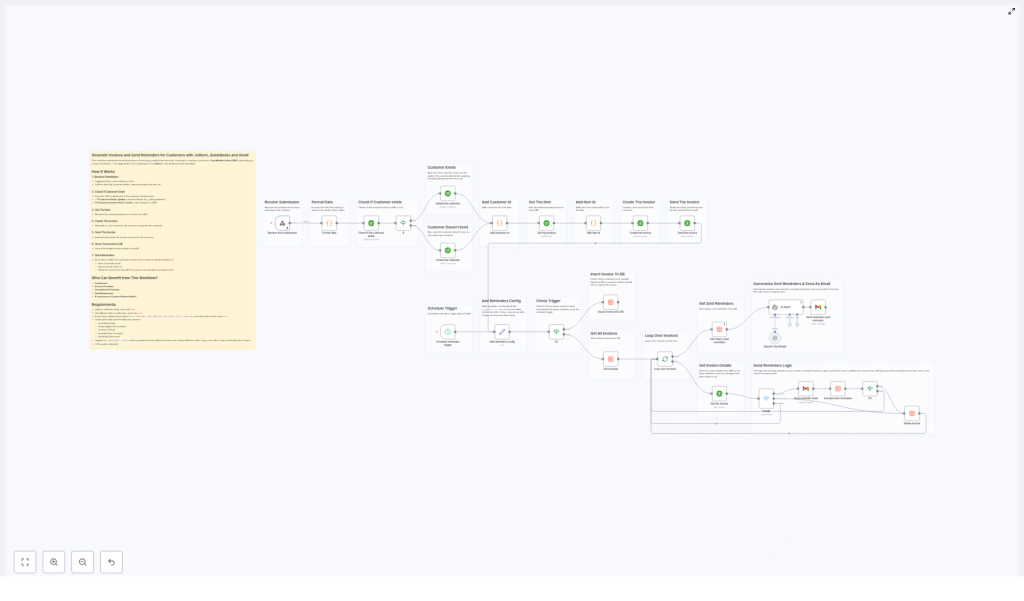
Maya opened the template in n8n and began to explore how it worked. Instead of a tangled mess of steps, she found a clear, logical flow. Each part of her manual process had been translated into an automated sequence.
Step 1: Every Order Starts With a Jotform Submission
In her old routine, Maya would log into Jotform, export or copy the latest submission, and paste details into QuickBooks. The n8n workflow replaced all of that with a single trigger.
The workflow began with a webhook node connected to Jotform. Whenever a customer submitted an order form, the webhook instantly captured:
- Customer name
- Billing address
- Email address
- Phone number
- Selected product or service
No more waiting, refreshing, or copying. The submission arrived in n8n in real time, ready for processing.
Step 2: Cleaning Up the Raw Data
Maya knew that addresses in form submissions could be messy. Sometimes customers wrote everything on one line, other times they mixed city and postal code. Previously, she had to fix this manually before QuickBooks would accept it.
The template handled this with a data formatting step. Using JavaScript inside a Code node, the workflow parsed the raw address field and extracted structured components like:
- Street
- City
- State or region
- Postal code
- Country
This meant that by the time the data reached QuickBooks, it was consistently formatted and ready for seamless integration.
Step 3: Checking If the Customer Already Exists
One of Maya’s biggest pain points was duplicate customer records. Some clients used different spellings or alternate emails, and she often ended up with multiple entries in QuickBooks that referred to the same person.
The n8n workflow tackled this using QuickBooks API calls combined with If nodes for conditional logic. It searched QuickBooks based on the customer’s primary email address:
- If the customer already existed, the workflow updated their information, including billing address, phone number, and name. Her records stayed accurate without manual edits.
- If the customer did not exist, the workflow created a brand new customer record in QuickBooks using the details from Jotform.
What previously took several minutes per client now happened instantly and reliably.
Step 4: Matching the Right Product or Service
Maya offered different design packages, each mapped to a product item in QuickBooks. In the past, she had to carefully select the right item every time she created an invoice.
The template included a step to look up the product or service in QuickBooks using the choice the customer made in Jotform. The workflow fetched the correct item ID that QuickBooks needed for the invoice. No more guessing, no more misaligned line items.
Step 5: Automatically Creating and Sending the Invoice
This was the moment Maya really felt the power of automation. Once the customer and product were identified, the workflow moved on to generate the invoice in QuickBooks.
Using the QuickBooks node, it created an invoice that:
- Referenced the correct customer record
- Included the selected product or service as a line item
- Added a descriptive note indicating that the invoice came from a Jotform submission
As soon as the invoice was created, QuickBooks automatically emailed it to the customer’s email address. Where Maya used to open Gmail, draft a message, attach or link the invoice, and double check everything, the workflow now did it in seconds.
Step 6: Logging Invoice Details for Future Reminders
Invoices sent was only half the story. Maya still needed a way to track unpaid invoices and follow up at the right time. The template handled this with a dedicated database table, using the DataTable node in n8n.
For each newly created invoice, the workflow stored key details, including:
- Invoice ID
- Balance amount
- Currency
- Number of reminders already sent
- Timestamps for tracking activity
This database became the central source of truth for the reminder system. Maya no longer had to maintain spreadsheets or handwritten lists of “who to chase this week.”
The Turning Point: Automated Daily Reminders
Before using n8n, Maya would set calendar reminders to check unpaid invoices. She still missed some, and the timing was never consistent. Some clients got reminded too late, others too often.
The workflow template changed that with a scheduled reminder system.
Step 7: Scheduling and Sending Reminder Emails
Every morning at 8 AM, a scheduler node in n8n woke up the workflow. It scanned the database table for invoices that still had an outstanding balance.
For each invoice, the workflow:
- Retrieved the latest invoice status from QuickBooks to ensure it was still unpaid.
- Checked how many reminders had already been sent and when the last one went out.
- Evaluated whether it was time to send another reminder, based on predefined intervals such as after 2, 3, and 5 days.
If the conditions were met, the workflow used Gmail to send a professionally formatted reminder email. The message included:
- Invoice details
- Outstanding balance
- A clear payment link
After sending the reminder, the workflow updated the database, increasing the reminder count and recording the latest timestamp.
If an invoice had been fully paid or had already gone through all allowed reminder attempts, the workflow removed that record from the database. This prevented customers from receiving unnecessary or redundant emails and kept the system clean.
Configurable Intervals and Smart Branching
What impressed Maya most was how flexible the logic was. Using conditional branching in n8n, the workflow decided whether to:
- Send a reminder
- Skip for now and check again later
- Delete the invoice record if it no longer needed attention
The reminder intervals were not hard coded. A dedicated configuration node allowed her to adjust the timing in a single place. If she wanted to change from reminders on days 2, 3, and 5 to a different schedule, she could do it in seconds without rewriting the whole workflow.
Technical Highlights Behind the Scenes
Although the story felt smooth on the surface, Maya knew a lot of smart engineering was working in the background. The template relied on several core n8n features to keep everything running reliably:
- Use of If nodes and Code nodes for branching logic and custom JavaScript.
- QuickBooks API calls to search customers, fetch products, create invoices, and check payment status.
- A DataTable node to store invoice IDs, balances, currencies, and reminder metadata.
- Dynamic data formatting to transform unstructured address inputs into structured fields that QuickBooks understands.
- Conditional flows to decide when to create or update customers and when to send, skip, or stop reminders.
- AI integration to generate a daily summary email for Maya’s internal team, listing which reminders went out and which invoices remained pending.
The result was not just automation, but a full orchestration of her invoicing and reminder lifecycle.
Resolution: From Late Nights to Predictable Cash Flow
A few weeks after turning on the n8n workflow, Maya noticed a quiet but dramatic shift in her business.
She was no longer spending evenings manually creating invoices or combing through QuickBooks to see who had not paid. New orders came in through Jotform, invoices were generated and sent automatically via QuickBooks, and reminders went out from Gmail at predictable intervals, all without her intervention.
Her customers appreciated the clear communication and timely reminders. Payments started arriving more consistently, and her cash flow stabilized. More importantly, Maya reclaimed hours each week to focus on the work that actually grew her studio.
Who This Workflow Helps
Maya’s story is not unique. This n8n template can transform the day to day operations of:
- Freelancers and consultants who send frequent invoices to clients
- Small business owners who want reliable billing automation without hiring extra staff
- Service providers and agencies managing ongoing client projects and retainers
- E commerce vendors who generate invoices for product orders
If you are juggling Jotform submissions, QuickBooks entries, and Gmail follow ups, this workflow can turn a scattered process into a clean, automated pipeline.
Start Your Own Automation Story
You do not need to be a developer to benefit from this setup. The template is ready to use, with all the core logic already in place. You can adapt it to your own forms, products, and reminder schedule with just a few configuration tweaks.
If you want to save time, reduce manual invoicing errors, and build a more predictable payment process, this n8n workflow can be the turning point in your own story.
Connect your form data to your financial and communication tools in a single automated flow and let the system handle the repetitive work for you.
