


Automate Zendesk to Asana Task Integration
What You Will Learn
In this guide you will learn how to use an n8n workflow template to automatically connect Zendesk tickets with Asana tasks. By the end, you will understand how to:
- Trigger an n8n workflow when a new Zendesk ticket is created or updated
- Retrieve full ticket details from Zendesk
- Check if a ticket already has a linked Asana task
- Automatically create a new Asana task when needed
- Sync Zendesk comments to an existing Asana task
- Store and reuse the Asana task ID in a Zendesk custom field
This is ideal if you want to reduce manual copying between tools and keep your support and project teams in sync.
Concept Overview: How the Automation Works
The idea behind this n8n template is simple but powerful:
- Zendesk is your customer support ticket system.
- Asana is your task and project management tool.
- n8n acts as the automation engine that listens to Zendesk events and talks to Asana.
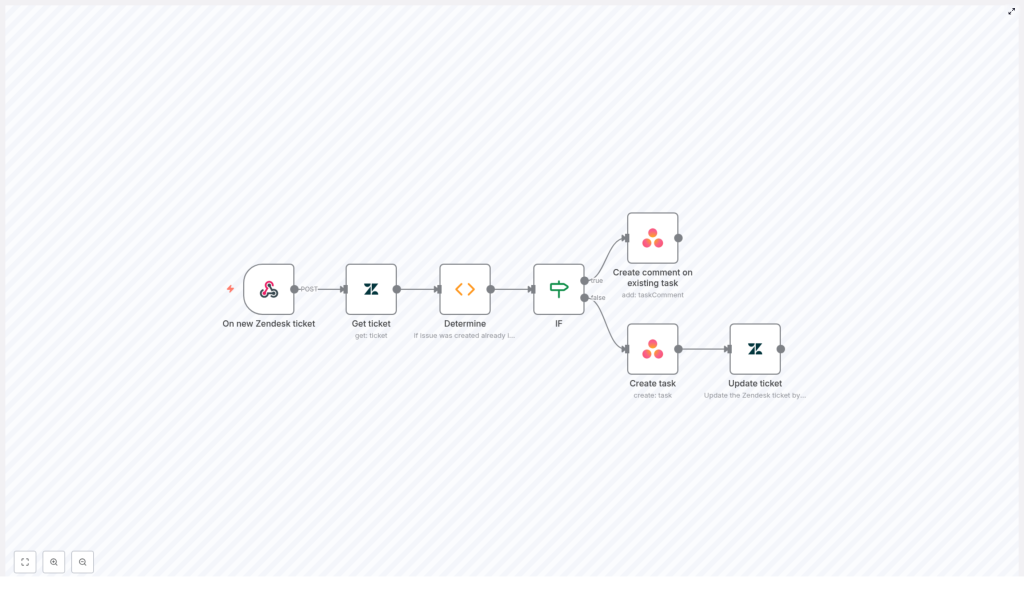
Whenever a ticket appears in Zendesk, the workflow checks if it has already been linked to an Asana task. It uses a Zendesk custom field to store the Asana task ID. Based on that, it follows one of two paths:
- If a task is already linked, n8n sends the latest Zendesk comments to the existing Asana task.
- If there is no linked task yet, n8n creates a new Asana task and then saves that task ID back in Zendesk.
This creates a closed loop between the two tools, so your support tickets and project tasks stay aligned.
Before You Start: Requirements & Setup
To use this n8n workflow template, you will need:
- Zendesk API credentials with permission to read and update tickets
- Asana API credentials with permission to create tasks and add comments
- An n8n instance where you can import and run the template
- A Zendesk custom field to store the Asana task ID (note the field ID)
In the n8n template you will need to replace placeholder values with your own:
- Zendesk and Asana credential names or API keys
- Asana workspace ID and assignee ID
- Zendesk custom field ID used to store the Asana task ID
Step-by-Step: Understanding the n8n Workflow
Step 1 – Trigger on New or Updated Zendesk Ticket
The workflow begins with a Zendesk webhook trigger (or equivalent trigger node in n8n). This node listens for new or updated tickets in your Zendesk account.
When a ticket event occurs, the trigger passes key data into the workflow, such as:
- The ticket ID
- Basic ticket information, like subject and requester
This ticket ID is essential, as it is used in the next step to fetch detailed information.
Step 2 – Retrieve Full Ticket Details from Zendesk
Next, an n8n Zendesk node is used to pull the complete ticket data. It uses the ticket ID from the trigger to query Zendesk and returns:
- The ticket subject
- All comments associated with the ticket
- Any custom fields, including the one that may store the Asana task ID
This detailed information is needed both to create a new Asana task and to decide whether a task already exists.
Step 3 – Check if an Asana Task Already Exists
To determine whether this Zendesk ticket is already linked to Asana, the workflow uses a Function node that runs custom JavaScript.
This Function node:
- Looks at the Zendesk ticket custom fields
- Searches for the specific custom field ID where the Asana task ID should be stored
- Extracts the Asana task ID value if it is present
If a value is found, the workflow knows there is an existing task in Asana associated with this ticket. If not, it treats the ticket as new and unlinked.
Step 4 – Branch the Logic with an IF Node
The next node is an IF node that splits the workflow into two paths based on the result from the Function node.
- IF Asana task ID exists: go to the path that updates an existing task.
- IF Asana task ID does not exist: go to the path that creates a new Asana task.
This conditional branching is what keeps the workflow efficient and avoids creating duplicate tasks for the same Zendesk ticket.
Path A – Add Comment to an Existing Asana Task
If the IF node finds that an Asana task ID is already stored in the Zendesk custom field, the workflow moves to the “existing task” branch.
In this branch, an Asana node is used to:
- Take the latest Zendesk comments from the ticket
- Post them as comments on the existing Asana task, using the stored task ID
This keeps the conversation history in sync so your Asana users can see the relevant support context without opening Zendesk.
Path B – Create a New Asana Task
If the IF node determines that there is no Asana task ID in the custom field, the workflow follows the “new task” branch.
Here, another Asana node is used to create a fresh task. Typical configuration includes:
- Using the Zendesk ticket subject as the Asana task title
- Assigning the task to a specific assignee ID
- Placing the task in the correct workspace or project
- Setting an initial status, for example an “inbox” type status
Once the task is created, Asana returns a new task ID, which the workflow will then store back in Zendesk.
Step 7 – Update the Zendesk Ticket with the Asana Task ID
After a new Asana task is created, the workflow returns to Zendesk using another Zendesk node. This node:
- Updates the original Zendesk ticket
- Writes the newly created Asana task ID into the designated custom field
From this point on, future updates to the ticket will follow the “existing task” path, because the workflow will find a valid Asana task ID already stored.
Why This n8n Automation Is Useful
- Efficiency: No more copying ticket details into Asana by hand. The workflow automatically creates and updates tasks for you.
- Better collaboration: Support and project teams can see the same information. Asana tasks include Zendesk context, and Zendesk tickets know which task they belong to.
- Clear accountability: Tasks are assigned to the right people, and updates from support are reflected in Asana comments, so nothing gets lost.
How to Get Started with the Template in n8n
To implement this workflow in your own environment:
- Open your n8n instance and import the Zendesk-to-Asana template.
- Configure your Zendesk credentials in the relevant nodes.
- Configure your Asana credentials, and set the correct workspace and assignee IDs.
- Update the custom field ID in the Function and Zendesk nodes so it matches the field where you store the Asana task ID.
- Set up the webhook or trigger integration in Zendesk so that new or updated tickets call your n8n webhook URL.
- Run a test by creating a new ticket in Zendesk and confirm that a task appears in Asana and that the ticket is updated with the task ID.
Quick Recap
- The workflow starts when Zendesk sends a ticket event to n8n.
- n8n fetches full ticket details and checks a custom field for an Asana task ID.
- If the ID exists, comments are added to the existing Asana task.
- If not, a new Asana task is created and the new task ID is written back to the Zendesk ticket.
- This creates a continuous link between your support tickets and project tasks.
FAQ
Do I need coding skills to use this template?
You do not need to write the workflow from scratch, but there is a Function node that uses JavaScript to read the custom field. In most cases you only need to adjust field IDs, not the core logic.
Can I change which Zendesk events trigger the workflow?
Yes. In the trigger configuration you can decide whether to run the workflow on new tickets, updated tickets, or both, depending on your process.
Can I customize the Asana task fields?
Absolutely. You can edit the Asana node to set additional fields like due dates, projects, tags, or custom fields in Asana.
Final Thoughts
By connecting Zendesk and Asana through an n8n workflow, you remove repetitive manual work and keep your support and project teams aligned. Start with the basic template, test it with a few tickets, then gradually refine the logic and fields to match your exact process.
Try the Zendesk-to-Asana n8n Template
If you are ready to streamline your support workflow, load this template into your n8n instance and start experimenting. A few minutes of setup can significantly improve collaboration and response times.
