


AI Recruiter Assistant: Automate CV Screening and JD Matching
What You Will Learn
In this guide, you will learn how to use an n8n workflow template to:
- Automatically collect candidate CVs from Gmail
- Handle different CV file formats like PDF and Word
- Store and organize CVs in Google Drive
- Match candidates to the most relevant job descriptions (JDs) using AI
- Generate detailed AI screening reports with Google Gemini
- Log all results in Google Sheets for tracking and audits
- Notify your hiring team in Slack with clear, actionable summaries
By the end, you will understand how each n8n node in this template works together to create a first-round AI recruiter assistant that saves time and improves consistency.
Concept Overview: How the AI Recruiter Assistant Works
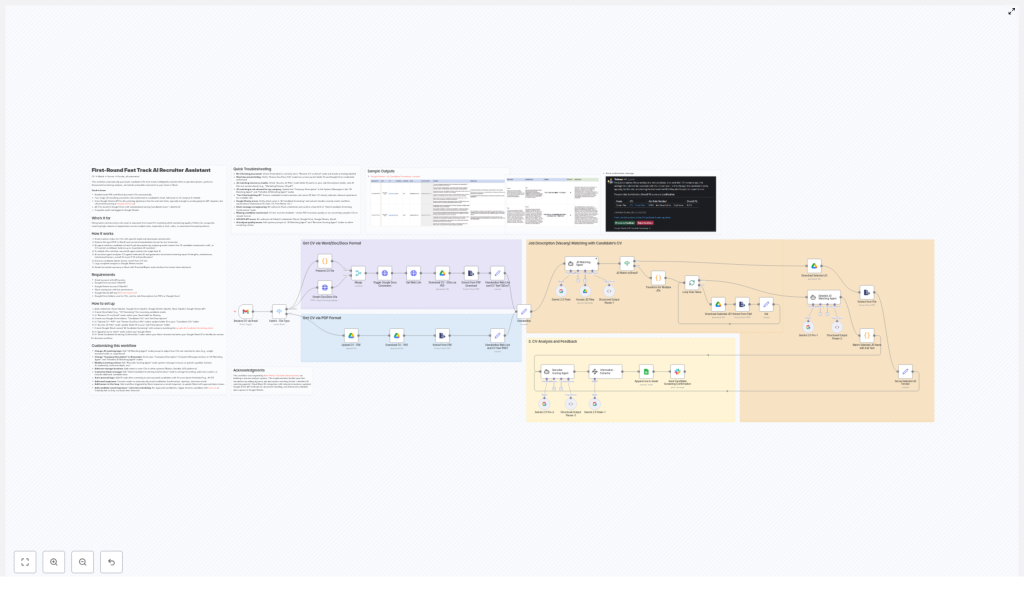
The First-Round Fast Track AI Recruiter Assistant is an n8n workflow that automates the early stages of recruitment. It starts when a candidate sends a CV to a specific email address, then processes the CV, matches it to job descriptions, scores the candidate, and delivers the results to your team.
At a high level, the workflow does the following:
- Monitors a Gmail label for new candidate emails with CV attachments
- Converts and extracts text from PDF or Word CVs
- Saves CV files in Google Drive with consistent naming
- Uses AI to match the candidate to the best job description
- Uses Google Gemini to evaluate the candidate and generate a report
- Extracts key personal details from the CV text
- Logs everything in Google Sheets
- Sends a well-structured summary to Slack with proceed or reject options
Key Features of the n8n AI Recruiter Template
- Multi-format CV handling – Accepts and processes CVs in PDF, Word, Doc, and Docx formats.
- Two-stage JD matching – First checks the candidate email for role mentions, then falls back to CV-based JD matching if needed.
- AI-powered screening – Uses Google Gemini API to score candidates, highlight strengths and weaknesses, and assess risk vs reward.
- Automated storage and naming – Stores CVs in Google Drive with a consistent naming scheme for easy retrieval.
- Audit trail in Google Sheets – Keeps a detailed log of each candidate, their matched JD, and the AI assessment.
- Slack integration for fast decisions – Sends formatted summaries with interactive proceed or reject buttons directly to your hiring channel.
What You Need Before You Start
To run this n8n workflow template successfully, prepare the following:
- Gmail account with API access and a dedicated label for CV emails (for example, label:Candidates).
- Google Drive with:
- A folder for Candidate CVs
- A folder for Job Descriptions that the AI will match against
- Google Sheets spreadsheet, for example named AI Candidate Screening, with columns that match the data you plan to log (candidate details, JD matched, scores, notes, and so on).
- Slack workspace with:
- A bot or app configured
- OAuth credentials and permissions to post messages to your chosen channel
- Google Gemini AI API key to access the language model for analysis and scoring.
Step-by-Step: How the n8n Workflow Operates
Step 1: Receiving CVs via Gmail
The workflow starts with a Gmail node that watches a specific label for new emails. Typically, you will configure it like this:
- Filter by label, for example Candidates or Applications
- Trigger when a new email arrives with an attachment
When a candidate sends an email with their CV attached, the Gmail node:
- Downloads the attachment
- Identifies the file type, such as PDF, Doc, Docx, or Word
This prepares the file for the next stage, where the text content is extracted.
Step 2: Handling Different CV File Formats
Candidate CVs often arrive in different formats. The workflow handles this automatically:
- Word / Doc / Docx files
- The file is converted into a Google Docs format using a Google Drive node.
- This conversion makes it easier to extract text reliably.
- PDF files
- The file is downloaded and stored directly in Google Drive.
- Another node then extracts the text from the PDF.
By the end of this step, every CV, regardless of original format, is both stored in Drive and ready for text extraction.
Step 3: Extracting CV Text and Generating Links
Next, the workflow focuses on turning the CV into structured data that AI can understand. Using Google Drive and text extraction nodes, it:
- Pulls the full text content from the CV (from the Google Doc or PDF)
- Stores a public or shareable link to the CV file in Google Drive
This step ensures that the AI has a clean text version of the CV for analysis, and that your team can click through to the original file later if needed.
Step 4: Intelligent Job Description (JD) Matching
Once the CV text is available, the workflow uses AI to find the most relevant job description. This happens in two stages to improve accuracy:
4.1 First-pass JD match from email content
An AI agent analyzes the candidate’s email body to see if they mention a specific role or job title. For example, the email might say:
I would like to apply for the Senior Backend Engineer position.
The AI then:
- Compares the mentioned role or title with the list of available JDs stored in Google Drive
- Selects the best matching JD based on this context
4.2 Fallback JD match from CV content
If the email does not clearly mention a role, or if the match is uncertain, the workflow falls back to the CV itself. Another AI step:
- Analyzes the CV text for skills, experience, and keywords
- Selects up to three relevant job descriptions from your JD folder
4.3 Final JD selection
A second AI agent then performs a more detailed comparison between the candidate profile and the shortlisted JDs. It:
- Evaluates how well the candidate matches each of the 2 or 3 JDs
- Chooses the single best job description to use for the final screening
This two-stage approach improves JD match accuracy and helps avoid obvious mismatches.
Step 5: AI-Powered Candidate Screening with Google Gemini
With the final JD selected, the workflow calls a Google Gemini API node to act as an AI recruiter scoring agent. It compares:
- The candidate’s CV text
- The selected job description
Using this input, the Gemini model generates a structured screening report that includes:
- Strengths and qualifications – What the candidate does well, relevant experience, key skills.
- Weaknesses and mismatches – Gaps in experience, missing skills, or concerns.
- Risk and reward factors – Potential upside if hired compared to possible risks.
- Overall fit score (0 to 10) – A clear numeric rating of how well the candidate matches the role.
- Justification for the score – A short explanation of why that score was given.
This output is what your hiring team will see summarized in Slack and logged in Google Sheets.
Step 6: Extracting Candidate Details from the CV
To maintain clean records, the workflow also extracts key personal information from the CV text. An Information Extractor node (another AI step) looks for:
- First name
- Last name
- Email address
These fields are then used in your Google Sheets log and Slack messages, so you can quickly identify and contact the candidate if needed.
Step 7: Logging Results in Google Sheets
For traceability and reporting, the workflow writes a full record of each candidate screening to a Google Sheets spreadsheet. Typical data points include:
- Candidate name and email
- Link to the CV in Google Drive
- Selected job description and its identifier
- AI-generated strengths and weaknesses
- Risk and reward notes
- Overall fit score and justification
- Date and time of screening
This sheet acts as an audit trail and a central place to track all first-round decisions.
Step 8: Sending Notifications to Slack
The final step is to notify your hiring team so they can move quickly. A Slack node sends a well-formatted message to a designated channel. The message typically contains:
- Candidate name and email
- Role or JD matched
- Overall fit score
- Short summary of strengths and weaknesses
- Link to the full CV and to the Google Sheets record
The message also includes interactive buttons, such as:
- Proceed – to move the candidate to the next stage
- Reject – to mark them as not moving forward
This allows recruiters and hiring managers to make fast, informed decisions directly from Slack, without digging through emails or files.
Benefits of Using This n8n AI Recruiter Workflow
- Significant time savings
Manual CV screening is slow. Automating the first round lets your team focus on interviews and deeper evaluations.
- Better JD matching
AI-based matching uses natural language understanding to pair candidates with the most relevant roles, even when titles vary.
- Consistent and transparent scoring
Each candidate is evaluated against the same criteria and logged in Google Sheets, which improves fairness and traceability.
- Faster team collaboration
Slack notifications with clear summaries and buttons help your hiring team respond quickly and keep the process moving.
Recap: How the Template Fits into Your Hiring Process
To summarize, the First-Round Fast Track AI Recruiter Assistant template in n8n:
- Listens to Gmail for new CVs
- Handles PDFs and Word files and stores them in Google Drive
- Extracts CV text and generates shareable links
- Uses AI to match the candidate to the right job description
- Calls Google Gemini to create a detailed screening report and fit score
- Extracts basic candidate details for clean records
- Logs all results into Google Sheets for tracking and audits
- Alerts your hiring team in Slack with actionable summaries
This makes it ideal for companies dealing with high volumes of applications, especially in technical or automation-focused roles where speed and consistency are critical.
Quick FAQ
Do I need coding skills to use this template?
No, the template is designed to be configured visually in n8n. You will need to connect your Gmail, Google Drive, Google Sheets, Slack, and Google Gemini accounts, but this is done through credentials and node settings, not code.
Can I change the scoring criteria or report format?
Yes. You can adjust the prompts sent to Google Gemini in the relevant nodes. This lets you customize how the AI evaluates candidates and what information appears in the final report.
What if a candidate applies for multiple roles?
The JD matching logic can select up to 3 relevant JDs based on the CV, then narrow down to the best one. You can also extend the workflow to log secondary matches if needed.
Is this suitable for non-technical roles?
Yes. The template is not limited to technical roles. As long as you have clear job descriptions and structured CVs, the AI can compare them for any type of position.
Get Started with the n8n AI Recruiter Assistant Template
This AI recruiter assistant workflow combines n8n automation, Google Gemini AI, Google Drive, Google Sheets, and Slack to deliver a scalable, consistent first-round screening process.
Ready to accelerate your hiring process? Implement the First-Round Fast Track AI Recruiter Assistant workflow in your organization today.
