


A Marketer’s Story: How One Simple n8n Workflow Turned Calendly Chaos Into Clean Google Sheets Data
By Tuesday afternoon, Mia’s calendar looked like a battlefield.
As a busy marketing consultant, she lived inside Calendly. Discovery calls, strategy sessions, onboarding meetings – they all flowed through her booking links. But when it came time to prepare reports for clients or plan her week, she always hit the same wall.
Her bookings were everywhere. Calendly showed the times, her email had confirmations, her notes were in a dozen places, and her Google Sheet – the one she used for tracking leads and revenue – was always behind.
Every Friday she spent an hour, sometimes more, copying booking details into a spreadsheet. Names, emails, phone numbers, event types, dates, times, meeting links, notes. One typo could mess up a report. One missed entry could mean forgetting to follow up with a promising lead.
She knew there had to be a better way.
The Pain Of Manual Calendly Tracking
Mia’s problem was not unique. Anyone who relies on Calendly bookings knows the drill:
- New meetings arrive in Calendly.
- You open your Google Sheet.
- You copy and paste details, row by row.
- You hope you did not miss anything.
It was slow, error-prone, and frustrating. Mia needed:
- More time for strategy and client work, not manual data entry.
- Accurate records without worrying about typos or missing bookings.
- Easy reporting from a single Google Sheet that she could share with her assistant and clients.
One afternoon, after fixing yet another spreadsheet mistake, she searched for “automate Calendly to Google Sheets” and discovered something that would change her weekly routine: an n8n workflow template that auto-logs Calendly bookings directly into Google Sheets.
The Discovery: An n8n Template That Does The Work For You
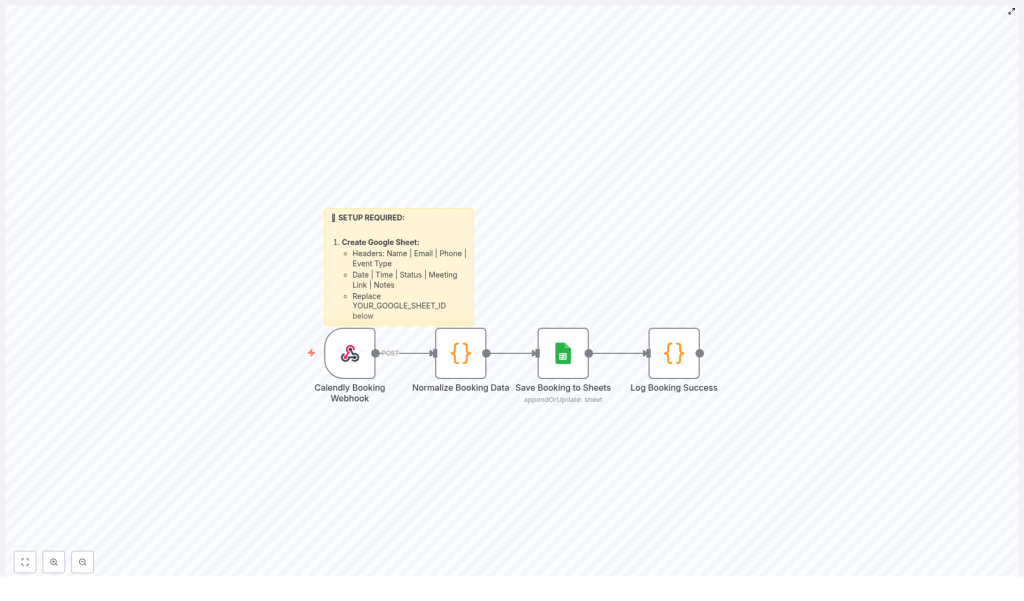
Mia was not a developer, but she was comfortable with tools. When she opened the n8n template, she saw that it already had everything wired together:
- A Calendly Booking Webhook that listens for new bookings in real time.
- A Normalize Booking Data step that cleans and organizes the raw Calendly JSON.
- A Save Booking to Sheets node that appends each booking as a new row in Google Sheets.
- A Log Booking Success node that confirms everything worked.
In theory, it meant this: every time someone booked a meeting with her, the details would automatically appear in her Google Sheet, perfectly formatted, ready for reporting or follow up.
It sounded ideal. But would it actually work for her setup?
Rising Action: Setting Up The Automation
Instead of a dry checklist, Mia treated the setup like a small project. Her goal was simple: “By tonight, I want every new Calendly booking to land in my Google Sheet automatically.”
Step 1 – Preparing The Google Sheet
First, she created a new Google Sheet called “Calendly Bookings – Master Log”. In the first row, she added the exact headers that the template expected:
- Name
- Phone
- Event Type
- Date
- Time
- Status
- Meeting Link
- Notes
Then she grabbed the Google Sheet ID from the URL and pasted it into the Save Booking to Sheets node in n8n, replacing the placeholder YOUR_GOOGLE_SHEET_ID. This was the bridge between her automation and her spreadsheet.
Step 2 – Connecting Calendly With A Webhook
Next came Calendly. The template included a Calendly Booking Webhook node, which generated a webhook URL. This URL would be the listener for all new booking events.
Following the template’s guidance, Mia went into her Calendly account:
- Opened Account → Integrations → Webhooks.
- Created a new webhook and pasted in the URL from the “Calendly Booking Webhook” node.
- Subscribed to the
invitee.createdevent so that every new booking would trigger the workflow.
She hit save, feeling that familiar mix of curiosity and skepticism. If this worked, it would remove an entire recurring task from her week.
Step 3 – Authorizing Google Sheets In n8n
To let n8n write into her spreadsheet, she needed to connect her Google account. Inside the Google Sheets node, she set up OAuth credentials and authorized n8n to access her Sheets.
Once the connection was confirmed, the pieces were in place. Calendly could send booking events, n8n could receive and process them, and Google Sheets was ready to store everything.
The Turning Point: Watching The First Booking Flow Through
Now came the moment of truth.
Mia opened her Calendly link in a private browser window and booked a fake test meeting with herself. She filled in the name, email, phone number, selected a time, and added a short note.
Within seconds, n8n showed activity. The workflow triggered, each node lit up, and the run completed successfully.
She switched to her Google Sheet.
There, in the second row, was the entire booking:
- Name: Her test name.
- Email: The address she had entered.
- Phone: Captured from Calendly’s form.
- Event Type: The Calendly event she had chosen.
- Date and Time: Properly split into separate columns.
- Status: The booking status, ready for filtering and reports.
- Meeting Link: The join link for the call.
- Notes: The message she had added.
The Normalize Booking Data node had done its job. Behind the scenes, a JavaScript code step had taken Calendly’s raw JSON payload and extracted all the essentials in a clean, human-friendly format.
The Save Booking to Sheets node appended this normalized data as a new row, and the Log Booking Success node recorded a confirmation message. Everything worked on the first test.
For the first time since she started her consulting business, Mia realized she might never have to manually log a Calendly booking again.
How The Workflow Actually Works (Behind The Scenes)
As Mia grew more comfortable with n8n, she started to appreciate how simple the architecture really was. The template followed a clear, logical flow.
1. Calendly Booking Webhook
This is the entry point. Whenever an invitee is created in Calendly, the webhook receives a real-time event. That event includes all the booking details in JSON format. The webhook node simply listens and passes that data to the next step.
2. Normalize Booking Data
This JavaScript code node is the translator. It:
- Takes the raw Calendly JSON.
- Extracts key fields like participant name, email, phone, event type, start time, end time, meeting link, and notes.
- Formats the date and time into a more readable structure.
- Outputs a clean, structured object that matches the columns in the Google Sheet.
If your Calendly setup includes custom questions, this is also the place you can customize the script to capture that extra data.
3. Save Booking To Sheets
Once the data is cleaned up, the Google Sheets node appends it as a new row in the target spreadsheet. Each booking becomes a single, complete record, which makes it perfect for tracking, filtering, and reporting.
4. Log Booking Success
Finally, the workflow logs a success message. For Mia, this meant peace of mind. If something went wrong, she could see where. If everything was fine, she had a clear record that the booking was processed and stored correctly.
From Simple Tracking To A Full Automation System
After a week of using the template, Mia noticed something interesting. She did not just save time. She also started thinking differently about her entire booking process.
With every Calendly booking now flowing into Google Sheets automatically, she had a reliable single source of truth. That opened the door to more automation.
Ideas Mia Explored Next
- Automatic confirmation emails sent from n8n using the same booking data.
- Slack notifications whenever a high-value event type was booked.
- Google Calendar event creation for specific bookings that needed extra preparation.
The original template had become the foundation for a broader automation system. Each new node she added built on the same core flow: Calendly event in, data normalized, actions triggered.
Keeping The Workflow Healthy
To make sure her automation stayed reliable, Mia followed a few simple habits:
- Regularly scanning the Google Sheet to check that each booking row looked correct.
- Testing webhook connectivity whenever she changed anything in Calendly or n8n.
- Adjusting the normalization script if she added new questions or fields to her Calendly forms.
These small checks kept her confident that the system was doing its job in the background while she focused on clients and strategy.
The Resolution: From Friday Night Data Entry To Fully Automated Scheduling
A month later, Mia opened her “Calendly Bookings – Master Log” sheet and scrolled.
Every call from the past weeks was there, neatly organized. No gaps, no mismatched dates, no forgotten notes. When a client asked for a breakdown of meetings by event type, she had the answer in seconds.
The stress she used to feel every Friday evening, staring at a half-updated spreadsheet, was gone.
All of that came from a single n8n workflow template that automated Calendly bookings into Google Sheets.
Start Your Own Story With This n8n Template
If you are still copying Calendly bookings into spreadsheets by hand, you are living in the part of the story before the turning point. The template Mia used is ready to go. You only need to:
- Create a Google Sheet with the right headers and plug in your
YOUR_GOOGLE_SHEET_ID. - Set up the Calendly webhook for the
invitee.createdevent. - Connect your Google account via OAuth in the Google Sheets node.
- Run a test booking and watch it appear automatically in your sheet.
From there, you can extend the workflow with emails, Slack alerts, or calendar events, and turn a simple automation into a powerful scheduling system.
Ready to skip the manual work and let n8n handle your Calendly bookings?
Happy scheduling, and enjoy getting your Fridays back.
