


Automate Invoices and Payment Reminders with Jotform, Xero, and n8n
Overview
For teams that manage recurring billing, manual invoice creation and chasing late payments can quickly become a bottleneck. This n8n workflow template connects Jotform, Xero, and AI-powered email generation to automate the full invoicing lifecycle: from capturing order data, to issuing invoices, to sending structured payment reminders and internal summaries.
The result is a consistent, auditable invoicing process that reduces human error, accelerates cash collection, and keeps both customers and internal stakeholders informed.
End-to-End Workflow Architecture
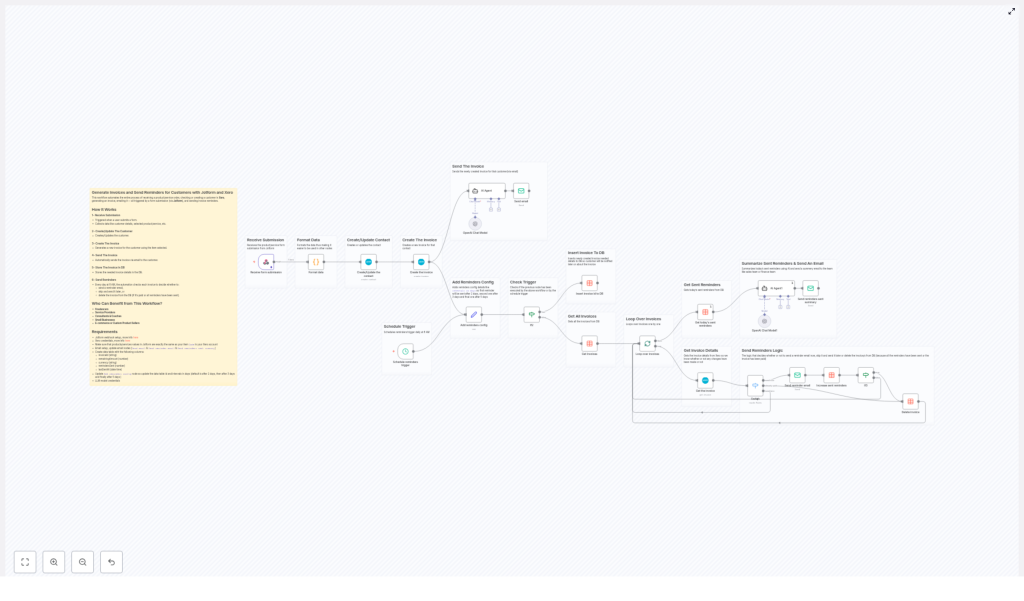
The automation is built around a simple principle: any new Jotform submission triggers a sequence of actions in Xero and supporting systems. Below is a high-level view of the stages involved:
- Capture customer and order data from Jotform
- Normalize and structure that data for downstream systems
- Create or update the customer contact in Xero
- Generate an invoice tied to a specific product or service
- Use AI to draft and send a professional invoice email
- Persist invoice metadata in a tracking data table
- Run a daily reminder scheduler to follow up on unpaid invoices
- Summarize daily reminder activity for the sales or finance team
Trigger and Data Ingestion
1. Jotform Submission as the Entry Point
The workflow starts when a customer completes and submits a Jotform. The form should be configured to collect all essential billing and contact details, including:
- Customer name
- Email address
- Phone number
- Selected product or service
- Billing address
A Jotform webhook is configured to POST this data into n8n, which then initiates the rest of the automation.
2. Data Parsing and Normalization
Once the submission reaches n8n, the workflow parses the payload and formats it into structured fields that align with Xero’s data model. Typical processing includes:
- Splitting the billing address into components such as street, city, postal code, and country
- Normalizing customer names and contact details
- Mapping the selected product or service to the corresponding Xero item code
This preparation step is critical for reliable integration with Xero and prevents failures caused by inconsistent or unstructured input.
Customer and Invoice Management in Xero
3. Contact Creation or Update in Xero
With clean data available, the workflow checks whether the customer already exists as a contact in Xero. The logic typically follows this pattern:
- If no matching contact is found, a new contact record is created
- If a contact exists, the workflow updates key fields, including phone number, email, and billing address
This ensures that Xero remains the single source of truth for customer information and that all invoices are linked to up-to-date contact records.
4. Automated Invoice Generation
After the contact step, the workflow creates a new invoice in Xero for the product or service selected in the Jotform. Key characteristics of this step include:
- Invoices are associated with the correct Xero contact
- Line items use the same item codes as configured in Xero for consistency
- Amounts, currency, and descriptions are taken from the form submission and your Xero configuration
This eliminates manual invoice creation and ensures that every customer submission results in a standardized invoice in your accounting system.
AI-Driven Communication and Email Delivery
5. Generating and Sending the Invoice Email
Once the invoice is created, the workflow uses an OpenAI-based node to generate a professional, HTML-formatted invoice email. The AI agent can incorporate:
- Customer name and contact details
- Invoice number, amount, and due date
- Payment instructions or links
The finalized email is then sent to the customer using your configured SMTP or email provider. This guarantees that invoices are delivered promptly and with a consistent tone and structure.
Invoice Tracking and Reminder Logic
6. Persisting Invoice Metadata
To enable reminder scheduling and tracking, the workflow stores key invoice attributes in a dedicated data table. Typical columns include:
invoiceId– the unique identifier from XeroremainingAmount– the outstanding balancecurrency– the invoice currencyremindersSent– the number of reminders already issuedlastSentAt– timestamp of the most recent reminder
This table acts as the control layer for the reminder system and allows the workflow to make decisions based on current payment status.
7. Daily Reminder Scheduler
A scheduled trigger runs every day at 8 AM and evaluates all stored invoices. For each record, the workflow decides whether to:
- Send a new reminder email
- Defer the reminder until the configured interval is reached
- Remove the invoice from tracking if it is fully paid or has reached the maximum number of reminders
Reminder intervals are configurable, for example 2, 3, or 5 days after invoice creation or after the last reminder. This ensures that customers are followed up with at a cadence that aligns with your credit control policies.
8. Reminder Decision Logic
Within the scheduler, the workflow applies a set of business rules:
- If the invoice still has an outstanding amount and the defined interval has elapsed, a reminder email is sent to the customer
- After each reminder, the workflow updates
remindersSentandlastSentAtin the tracking table - If the invoice is fully paid or the maximum reminder threshold is exceeded, the invoice record is removed from the reminder table
This approach keeps the reminder process both automated and controlled, avoiding over-contacting customers while ensuring overdue invoices are not forgotten.
Internal Reporting and Oversight
9. Daily Summary for Sales or Finance Teams
To maintain transparency, the workflow uses AI to compile a daily summary of all reminder emails sent. The summary can include:
- Number of reminders issued
- Key invoice identifiers and customers contacted
- Any notable patterns or follow-up suggestions generated by the AI
This report is emailed to the designated sales or finance distribution list, providing a clear overview of collections activity and enabling timely human follow-up where necessary.
Ideal Users and Business Scenarios
This n8n template is particularly valuable for organizations that issue frequent invoices and rely on prompt payments but want to avoid manual chasing. Typical users include:
- Freelancers and independent professionals
- Service providers with recurring or project-based billing
- Consultants and coaches
- Small businesses across various industries
- E-commerce operators or custom product sellers
Any team that uses Jotform for data capture and Xero for accounting can benefit from this end-to-end automation.
Prerequisites and Configuration Requirements
To deploy this workflow template effectively in n8n, ensure the following components are in place:
- A Jotform webhook configured to POST form submission data into n8n
- A Xero account with OAuth2 credentials set up for API access
- Aligned product or service item codes between Jotform form options and Xero items
- An email SMTP configuration in n8n for sending invoices and reminders
- A data table or database collection with at least the following fields:
invoiceId,remainingAmount,currency,remindersSent,lastSentAt - Defined reminder intervals, for example 2, 3, and 5 days after invoice creation or last reminder
Once these elements are configured, you can plug in the template, map your fields, and adapt the business rules to match your internal credit control strategy.
Conclusion
By combining Jotform for data capture, Xero for financial records, and AI for communication, this n8n workflow template delivers a robust, fully automated invoicing and reminder system. It reduces manual workload, shortens payment cycles, and ensures that every customer receives clear and timely communication about their invoices.
Ready to streamline your invoicing and collections process? Deploy this template in n8n to improve billing efficiency, enhance customer experience, and give your finance team better visibility into outstanding payments.
