


How a Stressed Founder Turned Telegram Into a Smart AI Calendar Assistant
The Problem: Too Many Meetings, Not Enough Brainspace
By Thursday afternoon, Lena’s week was already a blur.
As a startup founder, her days lived inside Telegram chats. Investors pinged her there, her team shared updates there, and even her closest customers preferred quick Telegram messages over email. But her calendar lived somewhere else entirely.
Every time someone wrote, “Can we meet tomorrow at 3?” Lena had to pause, open Google Calendar, check availability, create or update events, and then go back to Telegram with a reply. She missed a few calls, double booked herself once, and spent way too much time context switching between apps.
One evening, while scrolling through automation ideas, she stumbled on something that sounded almost too perfect: a Telegram AI calendar bot built with n8n, powered by Google Gemini and Google Calendar.
“What if my calendar just lived in Telegram,” she thought, “and I could talk to it like a human?”
The Discovery: An n8n Template That Spoke Her Language
Lena opened the template description and realized it did exactly what she needed. It promised that, with a single n8n workflow, she could:
- Create, update, and delete Google Calendar events directly from Telegram
- Ask for upcoming events in plain language and get answers instantly
- Rely on an AI agent using Google Gemini to interpret natural language requests
- Keep conversation context with Simple Memory so the bot “remembered” what they were talking about
Instead of typing event details into forms, she could simply write:
- “Schedule a call with Alex tomorrow at 3 pm for 30 minutes”
- “Move my 10 am meeting to 11”
- “Delete my coffee chat with Sam on Friday”
- “What is on my calendar this afternoon?”
The more she read, the more it clicked. The workflow was not just a random bot. It was a carefully designed automation that connected Telegram, Google Gemini, and Google Calendar into one intelligent assistant.
Rising Action: Wiring Telegram to an AI-Powered Calendar
Lena imported the template into n8n and started exploring how everything fit together. Instead of a dry list of nodes, she began to see it as the story of a conversation.
Step 1: The Telegram Trigger – Where the Conversation Begins
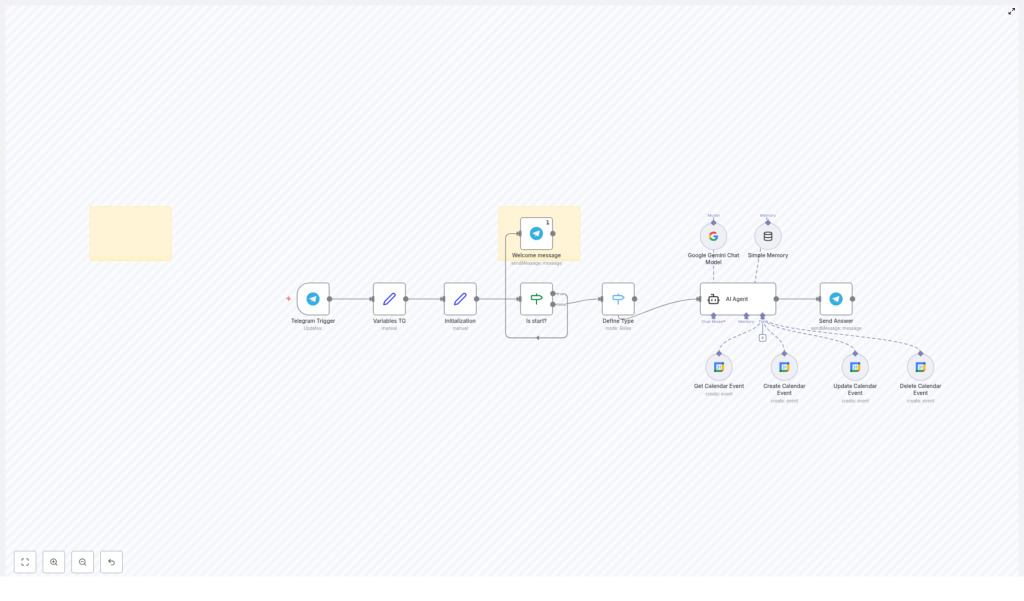
At the very front of the workflow sat the Telegram Trigger node. This was the gatekeeper. Every time Lena or anyone else sent a message to the Telegram bot, this node would listen and fire up the entire automation.
To Lena, it felt like giving her bot ears. The trigger captured messages in real time and passed them into the rest of the workflow for interpretation.
Step 2: Getting the Bot Ready – Variables and Initialization
Right after the trigger, the workflow moved into preparation mode. The Variables TG and Initialization set nodes quietly did their job in the background.
They:
- Stored key information from Telegram, like chat IDs and message text
- Set up internal variables to control how the flow would move from one step to another
- Ensured each new message started with a clean, predictable state
It was like the bot taking a deep breath and getting organized before answering.
Step 3: The Welcome Moment – “Is start?” Check
Next came a crucial fork in the story: the Is start? node.
This IF node checked whether the message was the first interaction with the bot, for example a start command. If the condition was true, it would trigger a friendly welcome message flow. Lena customized this part to greet new users and briefly explain what the bot could do.
If it was not the start of a session, the workflow skipped the welcome and went straight into understanding what the user wanted.
Step 4: Understanding Intent – The “Define Type” Node
The next piece was where the bot started feeling smart. The Define Type node was a Switch node that categorized what the user was asking for.
Based on the content of the message, it would route the request into one of several intent types:
- Get events
- Create events
- Update events
- Delete events
For Lena, this meant the workflow could distinguish between “What is on my calendar tomorrow?” and “Create a meeting with Sarah at 4 pm” and send each one down the right path.
The Turning Point: Letting Google Gemini Take Over
The real magic happened when the workflow reached the heart of the system: the AI Agent node.
The AI Agent: Google Gemini With Tools and Memory
This node connected the conversation to the Google Gemini Chat Model, enhanced with Simple Memory and a set of calendar tools. Instead of rigid commands, Lena could talk naturally, and the AI would interpret her intent.
The AI Agent was configured to use specific tools that represented different Google Calendar operations:
- Get Calendar Event
- Create Calendar Event
- Update Calendar Event
- Delete Calendar Event
Simple Memory kept track of recent context, so if Lena wrote, “Move that meeting to 3 pm instead,” the AI could understand what “that meeting” referred to in the ongoing conversation.
Behind the scenes, the AI Agent would:
- Read the incoming Telegram message
- Use natural language processing to figure out the user’s intent
- Decide which calendar tool to call, and with what parameters
- Trigger the appropriate Google Calendar node to perform the action
Google Calendar Tool Nodes: Where Changes Really Happen
The AI Agent did the thinking, but the Google Calendar tool nodes did the doing.
Each node was responsible for a specific type of calendar operation:
- Get events – Retrieve upcoming or specific events from a chosen calendar
- Create events – Add new events with title, date, time, duration, and description
- Update events – Modify existing entries, such as time, attendees, or notes
- Delete events – Remove events that were no longer needed
These nodes communicated directly with the Google Calendar API, turning the AI’s decisions into real calendar changes.
Sending the Answer Back to Telegram
Once the AI Agent finished its work and the calendar nodes completed their tasks, the workflow reached its final step: the Send Answer node.
This node took the AI’s response, formatted it as a Telegram message, and sent it back to the user. In Lena’s chat, it looked like a helpful assistant replying in seconds:
- “I have created your meeting with Alex tomorrow at 3 pm.”
- “You are free at 11 am, would you like me to move the 10 am meeting there?”
- “Here are your events for this afternoon…”
The Payoff: Life With a Telegram AI Calendar Bot
Within a day of connecting everything, Lena stopped opening Google Calendar directly. Instead, she simply talked to her bot inside Telegram.
Practical Benefits She Noticed Quickly
- Seamless calendar management She could perform all key calendar operations directly from Telegram. No more switching between apps or losing track of conversations.
- Natural language interactions Thanks to Google Gemini, she no longer had to remember strict commands. Plain English like “What is on my calendar after 4 pm?” just worked.
- Context-aware replies With Simple Memory, the bot understood follow-up messages in context, which made the experience feel much more human.
- Automated workflows Routine tasks like creating, updating, or deleting events became quick one-line messages instead of multi-step manual actions.
Customizing the Bot: Making It Truly Hers
Once the core workflow was running smoothly, Lena started to customize it.
She:
- Adjusted the welcome message to match her brand voice and explain available commands
- Improved intent recognition by refining how the Define Type node categorized requests
- Considered extending the logic to connect with additional calendar services in the future
Because the whole solution lived inside n8n, she could visually tweak nodes, add new branches, or insert additional checks without rewriting everything from scratch.
Resolution: From Overwhelmed to Orchestrated
A week later, Lena realized something simple but powerful had changed. Her calendar had stopped being a separate tool she had to manage, and had become a quiet assistant that lived inside the chat app she already used all day.
No more missing events, no more constant context switching, and far fewer mental notes like “Remember to add that to the calendar later.”
All of it was powered by a single n8n workflow template that connected Telegram, Google Gemini, and Google Calendar into one AI-driven system.
Start Your Own Story: Build Your Telegram AI Calendar Bot
If you spend your day inside Telegram and juggle a busy schedule, you can follow the same path Lena did. Use this n8n workflow template as your blueprint, connect your Telegram bot, plug in Google Gemini and Google Calendar, and let automation take over the repetitive work.
Try this Telegram AI calendar bot template in n8n and transform how you manage your schedule.
