


Automating Airtable Image Attachments with n8n
Efficient image handling is a recurring requirement in modern data operations and content pipelines. Airtable provides attachment fields for storing images, yet teams often receive or maintain image references as URLs rather than files. Manually converting those URLs into attachments is error-prone and does not scale.
This article explains how to implement an n8n workflow template that automatically converts image URLs stored in Airtable into attachment records. The approach is lightweight, repeatable, and suitable for production-grade no-code and low-code environments.
Solution Overview
The automation uses n8n to:
- Identify Airtable records that contain an image URL.
- Transform the URL into an Airtable-compatible attachment object.
- Update the corresponding attachment field on the same record.
The workflow is intentionally minimal and built around three core nodes so it can be easily audited, extended, or integrated into larger automation chains.
Prerequisites
Before you configure the workflow, ensure the following are in place:
- An Airtable base with a table that includes:
- A text field to store the image URL, for example
Image source URL. - An attachment field to store the actual image file, for example
Image attachment.
- A text field to store the image URL, for example
- An operational n8n instance with:
- A configured Airtable credential using your Airtable API key or token.
- Network access to both Airtable and the image host serving the URLs.
Designing the Airtable Structure
Start by modeling the Airtable table to support the automation clearly and predictably.
Define the key fields
At minimum, your table should contain:
- Image source URL (text field) – holds the raw URL pointing to the image.
- Image attachment (attachment field) – the destination field where n8n will write the image as an attachment.
Use descriptive field names that match your internal naming conventions. The field labels you choose will be referenced in n8n, so consistency is important for maintainability.
Workflow Architecture in n8n
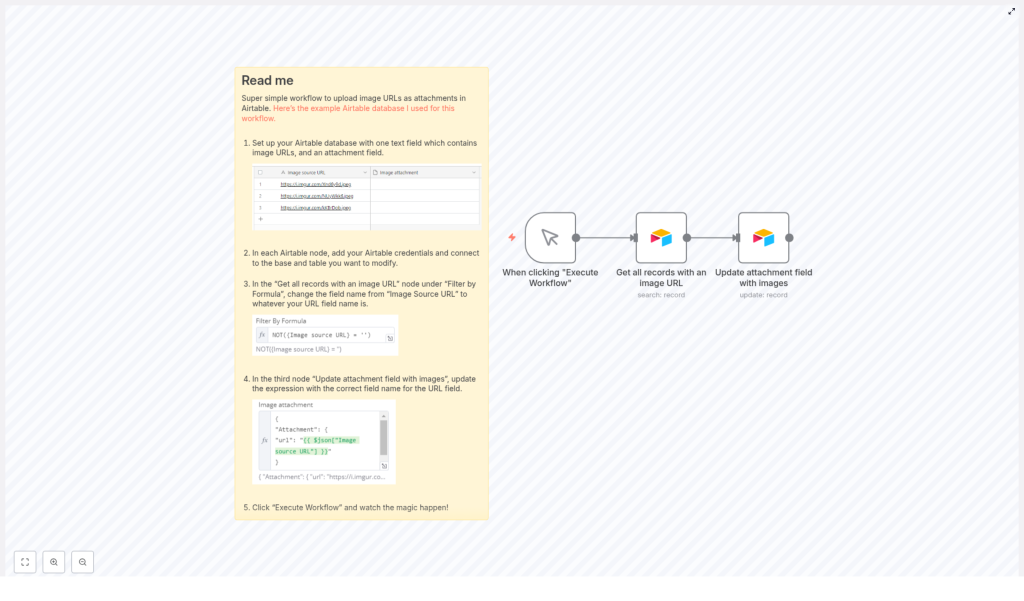
The workflow consists of three nodes that work in sequence:
- Manual Trigger – initiates the workflow on demand.
- Airtable: Get Records with Image URLs – retrieves all records that contain a non-empty URL in the configured text field.
- Airtable: Update Attachment Field – writes the attachment object back to Airtable using the URL from each record.
This simple architecture is easy to reason about and can be extended later with scheduling, error handling, or conditional logic.
Configuring Each Node
1. Manual Trigger Node
Add a Manual Trigger node as the entry point of the workflow. This trigger is suitable for testing, ad hoc runs, or controlled batch operations. In production, you can optionally replace or complement it with a scheduled trigger or a webhook trigger, depending on your use case.
2. Airtable Node – Get Records with Image URLs
Next, add an Airtable node responsible for retrieving only the records that contain an image URL.
Key configuration steps:
- Select your Airtable credentials, base, and table.
- In the node settings, configure a Filter formula so that only records with a populated URL field are returned.
Use a formula similar to the following, adjusting the field name to match your schema:
NOT({Image source URL} = '')
This formula ensures the node only fetches records where the Image source URL field is not empty. If your field uses a different label, update the expression accordingly.
3. Airtable Node – Update Attachment Field
The third node updates the attachment field on each record using the URL retrieved by the previous node.
Configuration guidelines:
- Set the operation to Update (or the equivalent update mode in your n8n version).
- Map the Record ID from the output of the “Get Records” node so each record is updated in place.
- Configure the Attachment field to use a JSON expression that converts the URL into the structure Airtable expects.
Use a JSON mapping similar to this, replacing the field name with your own if necessary:
{  "Attachment": {  "url": "{{$json["Image source URL"]}}"  }
}
The expression {{$json["Image source URL"]}} reads the value of the Image source URL field from the current item in the workflow. Ensure that the key in the JSON object matches the exact label of your attachment field in the Airtable node configuration.
Executing and Validating the Workflow
With all nodes configured, run the workflow from n8n:
- Click Execute Workflow in the n8n editor.
- The Manual Trigger node starts the execution.
- The Airtable “Get Records” node fetches all records that have a non-empty image URL.
- For each returned record, the “Update Attachment Field” node sends an update to Airtable, instructing it to create or update the attachment using the provided URL.
After the run completes, open your Airtable base and verify that the Image attachment field is populated for the records that had URLs in the Image source URL field. The images should now be stored as native attachments, ready for use in views, interfaces, and downstream processes.
Operational Benefits and Best Practices
Implementing this n8n template for Airtable image uploads provides several operational advantages:
- Reduced manual effort – Eliminates repetitive copy-paste tasks when transforming image URLs into attachments.
- Improved data consistency – Ensures that any record with a valid URL can be programmatically synchronized to an attachment field, reducing mismatches between references and stored files.
- Scalability – Handles large batches of records without additional manual work, ideal for content catalogs, asset libraries, or media-heavy databases.
- Extensibility – The workflow can be expanded with additional nodes for validation, logging, notification, or integration with other systems.
Suggestions for Further Enhancement
For production scenarios or more advanced automation needs, consider:
- Adding a Cron or Schedule trigger to run the workflow at regular intervals.
- Inserting a Function or IF node to validate URLs or skip records that already have attachments.
- Sending notifications (for example via email or Slack) when an image fails to load or when a batch completes.
Next Steps
Automating the conversion of image URLs into Airtable attachments is a straightforward improvement that delivers immediate value to content operations and data management workflows. By leveraging n8n, you can maintain a clean, attachment-ready Airtable base without manual intervention.
Deploy this workflow in your n8n environment, adapt the field names to your schema, and integrate it into your broader automation strategy.
Additional Resources
For deeper technical details and configuration options, refer to:
