


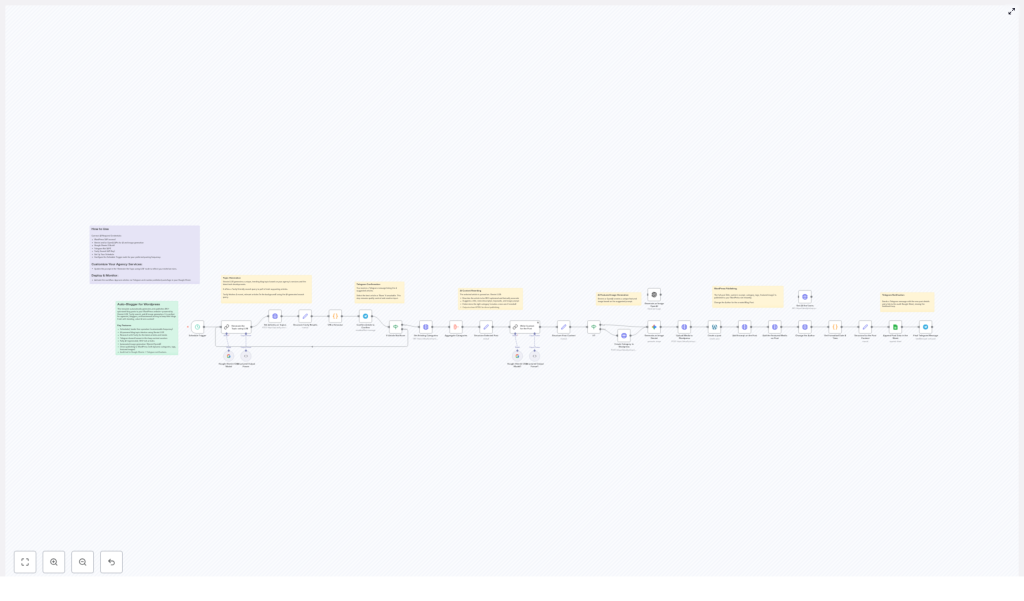
Auto-Blogger for WordPress: AI-Powered SEO Blog Automation
Overview
The Auto-Blogger for WordPress is an n8n workflow template that automates the entire content pipeline for a WordPress site. It combines scheduled triggers, AI content generation, web research, human approvals, image generation, and WordPress publishing into a single orchestrated workflow.
This template is designed for users who already understand the basics of n8n, WordPress APIs, and AI providers such as Google Gemini or OpenAI. It focuses on reliably producing SEO-optimized articles on a defined cadence, while still allowing human supervision at key control points.
High-Level Capabilities
- Generate SEO-focused topics aligned with your niche using Google Gemini LLM.
- Collect fresh research via Tavily search and select the most relevant source article.
- Transform the selected article into a unique, HTML-formatted blog post with title, excerpt, keywords, and category.
- Create an AI-generated featured image for each post.
- Publish posts to WordPress via the REST API, including metadata, categories, tags, and author assignment.
- Maintain an audit trail in Google Sheets and send operational notifications through Telegram.
Architecture & Data Flow
The Auto-Blogger workflow can be viewed as a linear but supervised pipeline with several integration points:
- Trigger Layer – A schedule-based trigger initiates the workflow at defined intervals.
- Topic Ideation Layer – Google Gemini LLM generates topic ideas and Tavily-ready search queries.
- Research Layer – Tavily search returns a set of candidate articles for the chosen topic.
- Human Approval Layer – Telegram-based interaction lets you approve or reject candidate articles.
- Content Generation Layer – Gemini (or compatible LLM) rewrites the selected article into an SEO-optimized post.
- Media Generation Layer – An AI image generator creates a featured image based on the article context.
- Publishing Layer – WordPress API nodes create the post, assign metadata, upload the featured image, and set the author.
- Logging & Notification Layer – Google Sheets logs publishing metadata and Telegram sends status notifications.
All data flows between nodes are handled inside n8n, so there is no manual copy-paste. Once credentials and prompts are configured, the workflow can run unattended, with optional manual approvals via Telegram.
Node-by-Node Breakdown
1. Schedule Trigger
Purpose: Define when new posts are created and published.
Typical node: Cron or Schedule Trigger in n8n.
- Configuration: Set the frequency (daily, weekly, or custom intervals) according to your publishing strategy.
- Behavior: On each trigger, the workflow starts a new run that attempts to generate and publish a single post.
Edge cases: If the trigger frequency is high but the approval step is delayed (via Telegram), multiple runs can wait for human input at the same time. Plan your schedule according to expected response times.
2. Topic Generation with Google Gemini LLM
Purpose: Generate strategic topics and structured search queries for Tavily.
Typical node: Google Gemini (or compatible LLM node in n8n).
- Inputs:
- Static prompt text describing your niche, target audience, and tone of voice.
- Optional variables such as current focus area or campaign theme.
- Outputs:
- One or more SEO-friendly blog topic ideas.
- At least one Tavily-compatible search query derived from the chosen topic.
Configuration notes:
- Adjust the prompt to reflect your agency services, brand positioning, and desired style (e.g. technical, beginner-friendly, etc.).
- Ensure the node returns both a human-readable topic and a machine-usable search query string for Tavily.
3. Research Retrieval with Tavily Search
Purpose: Fetch up-to-date research articles to serve as the factual base for the post.
Typical node: Tavily search node.
- Inputs: Search query generated by the Gemini node.
- Outputs: A list of 4 relevant article options, typically including titles, URLs, and short snippets or summaries.
Configuration notes:
- Set the node to return exactly 4 results, as the downstream Telegram step expects this number for selection.
- Use Tavily’s default freshness settings or adjust them if you need more recent content for time-sensitive niches.
Edge cases: If Tavily returns fewer than 4 articles or no results at all, you should consider adding a conditional check in n8n to handle this gracefully (e.g. send a Telegram message indicating insufficient research results). The template assumes that Tavily returns 4 valid options.
4. Human-in-the-Loop Supervision via Telegram
Purpose: Allow a human to select the best research article or reject all options.
Typical nodes: Telegram (Send Message) and a corresponding interaction mechanism (e.g. callback via commands, buttons, or replies).
- Inputs: The 4 Tavily article options (titles and URLs at minimum).
- Outputs: A single selected article URL or an indication that all options were rejected.
The workflow sends a message to a Telegram channel or chat that contains the 4 candidate articles. From there, you or your team can:
- Choose the article that best fits your audience and topic.
- Reject all 4 options if none meet your quality or relevance criteria.
Configuration notes:
- Configure your Telegram Bot credentials in n8n.
- Ensure that the receiving chat or channel is correctly linked to the bot and that the selection mechanism (buttons, commands, or a follow-up node) is implemented consistently.
Edge cases:
- If no response is received, the workflow may remain waiting at this step depending on how you design the interaction. The base template expects that a human will respond.
- If the user rejects all options, you may choose to terminate the run or loop back to topic generation. The template emphasizes the ability to reject, but does not enforce a specific retry strategy.
5. Content Generation with Gemini LLM
Purpose: Convert the chosen research article into a complete, SEO-optimized WordPress post.
Typical node: Google Gemini (or compatible LLM node).
- Inputs:
- The selected article URL or content from Tavily.
- A structured prompt instructing the model to produce a title, excerpt, keywords, category, and HTML body.
- Outputs:
- Compelling blog title.
- SEO-conscious excerpt.
- Relevant keywords for search optimization.
- A suggested category that fits your WordPress taxonomy.
- Full HTML-formatted body ready for direct insertion into WordPress.
Behavior: The AI does more than paraphrasing. It restructures content, improves readability, and integrates SEO elements while maintaining factual alignment with the source article.
Configuration notes:
- Customize tone, format, and depth in the prompt so output matches your brand voice.
- Ensure the model returns HTML-safe output, especially if your WordPress theme expects specific tag structures.
6. AI Featured Image Generation
Purpose: Generate a unique featured image for each post based on the article topic.
Typical node: An AI image generation node (for example, an image model integrated via HTTP Request or a dedicated provider node, depending on your setup).
- Inputs: A descriptive prompt derived from the article topic, keywords, or summary.
- Outputs: A single image file or image URL to be used as the WordPress featured image.
Configuration notes:
- The prompt should reflect your brand style and visual guidelines as much as possible.
- Make sure the output format (e.g. PNG or JPEG) is compatible with your WordPress installation.
Edge cases: If the image generation fails or returns an invalid URL, you may want to add fallback logic, such as using a default featured image. The base description assumes successful image generation.
7. Automated WordPress Publishing
Purpose: Create and publish the blog post in WordPress, including all metadata and media.
Typical node: WordPress node using the REST API.
- Inputs:
- Title, excerpt, HTML body from the Gemini node.
- Category and keywords for taxonomy fields.
- Generated featured image file or URL.
- Outputs: A newly created WordPress post with a live URL.
Publishing actions handled by the workflow:
- Setting the post title and content.
- Adding the excerpt for theme previews and SEO plugins.
- Assigning categories and tags based on AI output.
- Uploading the featured image to the WordPress media library and linking it to the post.
Configuration notes:
- Configure WordPress API credentials (application passwords or OAuth, depending on your setup).
- Map AI-generated categories and tags to your existing taxonomy. The template supports dynamic category creation if needed.
- Decide whether posts should be created with status
publishordraftif you want a final manual review inside WordPress.
8. Consistent Author Assignment
Purpose: Ensure that all posts appear under the correct author identity.
Typical node: Part of the WordPress node configuration or an additional update call.
- Inputs: Author ID or username configured in the workflow.
- Outputs: Posts consistently attributed to a specific author or brand account.
This step is important for maintaining a coherent blog identity, especially when multiple automated posts are created over time.
9. Logging and Notifications
Purpose: Provide transparency, traceability, and operational awareness.
Typical nodes: Google Sheets and Telegram.
Google Sheets Audit Log
- Inputs:
- Post title, URL, publication date.
- Topic, category, and possibly keywords.
- Outputs: A continuously updated spreadsheet that acts as an audit trail of all auto-published posts.
This log can be used for performance analysis, reporting, and content planning.
Telegram Notifications
- Inputs: Post metadata and status messages from the WordPress node.
- Outputs: Real-time Telegram messages confirming successful publishing or highlighting issues.
This allows you to stay informed without logging into WordPress or n8n for every run.
Required Integrations & Credentials
To run the Auto-Blogger workflow end-to-end, configure the following credentials in n8n:
- WordPress API credentials for post creation, taxonomy management, and media uploads.
- Gemini or OpenAI API keys for topic generation and article rewriting.
- Google Sheets credentials for logging and reporting.
- Telegram Bot token for supervision and notifications.
- Tavily API key for research and article retrieval.
Once these are set, the workflow can operate without manual data transfers between systems.
Configuration Guide
1. Connect and Test Credentials
In n8n, add and test each credential:
- Verify WordPress connection by creating a test draft post.
- Call the Gemini or OpenAI endpoint with a simple prompt to confirm access.
- Check Google Sheets access by reading and writing a sample row.
- Send a test message via your Telegram bot to the target chat or channel.
- Run a sample Tavily search to ensure valid responses.
Testing each integration in isolation reduces debugging complexity when you run the full workflow.
2. Customize AI Prompts and Content Scope
Adjust the prompts in the Gemini nodes so the Auto-Blogger outputs content that fits your brand and audience:
- Define your services or business focus (e.g. SaaS, marketing, development, design).
- Specify your ideal reader profile (e.g. technical leads, founders, marketers).
- Set the tone of voice (e.g. formal, conversational, highly technical, educational).
This ensures that topics, angles, and final posts are aligned with your SEO strategy and brand positioning.
3. Configure the Publishing Schedule
Use the Schedule Trigger (or Cron) node to define how often the workflow runs:
- Start conservatively, for example 1 post per week, while you validate quality and process.
- Increase to multiple posts per week or daily publishing once you are comfortable with the results.
You can always adjust the schedule based on performance, capacity, and approval bandwidth.
4. Set Up Telegram Review and Approval
Configure the Telegram-related nodes to support your supervision process:
- Ensure the bot is added to the correct chat or channel.
- Format the message to clearly list the 4 Tavily article options, including titles and URLs.
- Define how the user selects an article or rejects all options (e.g. reply with index, use inline buttons, or predefined commands).
Use this channel to:
- Review the 4 research options.
- Select the best one or reject all if they are off-topic.
- Receive notifications when posts are successfully published.
Advanced Customization
Dynamic Category Management
The template supports automatic creation or assignment of WordPress categories based on AI output:
- Map generated categories to existing slugs where possible.
- Optionally create new categories when a novel topic appears.
This helps keep your taxonomy aligned with evolving content themes while minimizing manual admin work.
Human Review Before Final Publish
If you prefer an additional quality gate, configure the WordPress node to create posts with status
