


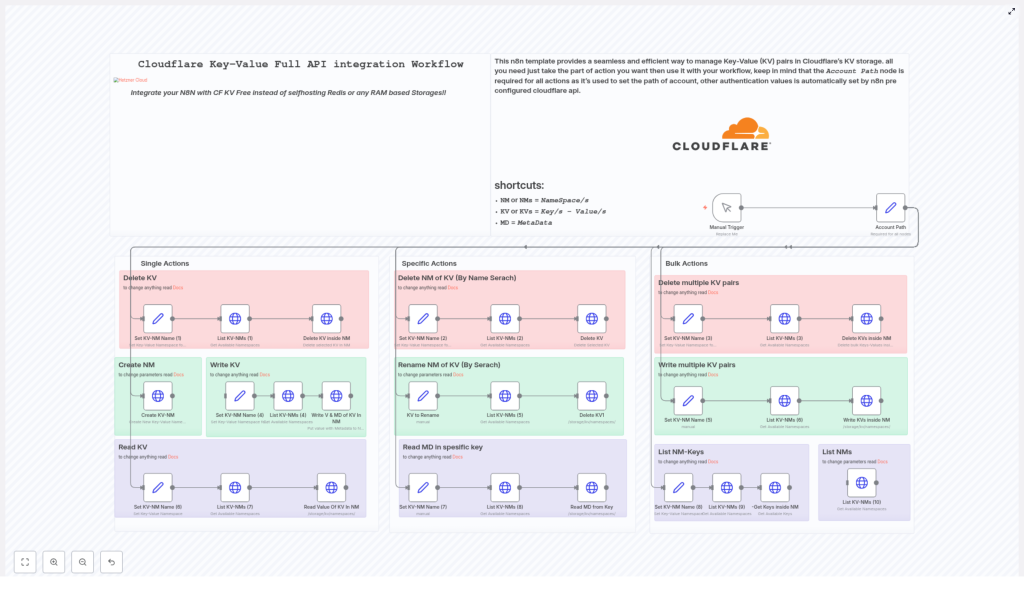
Cloudflare Key-Value (KV) Full API Integration Workflow
If you are tired of jumping between Cloudflare dashboards to rename namespaces, clean up keys, or seed data in multiple environments, this n8n workflow template is built for you. It connects directly to the official Cloudflare KV API so you can manage your storage from one automated workflow instead of manual clicks.
What You Will Learn
By the end of this guide, you will understand:
- What Cloudflare KV is and how this n8n workflow integrates with it
- How the central Account Path node controls all API calls
- How to run single, specific, and bulk KV actions from n8n
- How to set up and customize the workflow template for your own use cases
Core Concept: Cloudflare KV + n8n Integration
What is Cloudflare KV?
Cloudflare KV is a globally distributed, low-latency key-value store that runs at the edge. It is ideal for simple, fast reads and writes, such as configuration values, feature flags, or small data objects.
With this workflow, n8n talks directly to Cloudflare KV using the official Cloudflare KV API. That means you can:
- Avoid running your own Redis or in-memory cache
- Use n8n to orchestrate and automate all KV operations
What This Workflow Template Automates
The template provides a full API integration between n8n and Cloudflare KV so you can manage:
- Namespaces (NMs) – logical containers for your key-value data
- Key-value pairs (KVs) – the actual stored data
- Metadata (MD) – additional information attached to keys
These operations are organized into three main categories:
- Single actions – one-off operations on a single key or namespace
- Specific actions – more targeted namespace and metadata operations
- Bulk actions – batch operations on many keys or namespaces
The Central Piece: The Account Path Node
Every API call in this workflow starts from one required node: the Account Path node.
What the Account Path Node Does
This node stores your Cloudflare account identifier. It is used to build the correct API path for all subsequent KV requests and to ensure that:
- Requests are routed to the right Cloudflare account
- All operations are authenticated against your Cloudflare KV resources
Once the Account Path node is configured, the workflow branches out into multiple flows that each perform a different type of KV action. You can think of it as the main key to your account. After you unlock the door, the rest of the workflow lets you walk through all your namespaces and keys.
Feature Overview: What You Can Automate
1. Single Actions – Everyday Operations
Single actions are ideal when you want to work with one key or one namespace at a time. These are the basic operations you will likely use most often.
- Delete KV
Remove a specific key from a namespace by providing:- The namespace
- The key name
Use this when you want to clean up individual entries without affecting other keys.
- Create NM
Create a new namespace by specifying a title. This is useful when:- Spinning up a new environment (for example, staging or production)
- Grouping keys for a new feature or service
- Write KV
Store or update a value for a key in a specific namespace. You can write:- The main value
- Optional metadata (MD) to add more context
For example, you might store a configuration value as the main value and attach version or environment information as metadata.
- Read KV
Retrieve the value of a single key inside a namespace. This is helpful for:- Sanity checks while testing
- Passing the retrieved value into later n8n nodes in the same workflow
2. Specific Actions – Namespace and Metadata Management
Specific actions operate at a higher level or focus on metadata. They are useful for maintenance, refactoring, or cleanup tasks.
- Delete NM of KV (By Name Search)
Delete a namespace by searching for it by name. This action:- Finds a namespace using its title
- Removes the entire namespace when it is no longer required
Use this after experiments, temporary environments, or old deployments that you want to fully remove.
- Rename NM of KV
Rename an existing namespace to a new title using the API. This is helpful when:- You want clearer naming conventions
- You need to align namespace names across environments or teams
- Read Metadata (MD) in specific key
Fetch only the metadata attached to a particular key within a namespace, without reading or modifying the value itself. This is useful if:- You track extra attributes like version, owner, or tags in metadata
- You need to inspect context around a key without touching its content
3. Bulk Actions – Batch Operations at Scale
Bulk actions are designed to save time when dealing with many keys at once. They are especially valuable for migrations, cleanups, and seeding data.
- Delete multiple KV pairs
Remove multiple keys from a namespace in a single run. This is ideal for:- Clearing outdated or deprecated data
- Removing test keys after QA cycles
- Performing periodic maintenance
- Write multiple KV pairs
Insert or update a batch of key-value pairs in one namespace. Common use cases include:- Seeding initial data for a new environment
- Syncing configuration across regions or services
- Rolling out new features that depend on many KV entries
- List NM-Keys
List all keys in a given namespace. This is often the first step before running bulk operations, because it lets you:- See what data currently exists
- Decide which keys to update or delete
- List NMs
List all namespaces in your Cloudflare account. Use this for:- Auditing and reviewing your storage layout
- Discovering old or unused namespaces
- Understanding how past naming conventions evolved
Step-by-Step: How To Use the n8n Cloudflare KV Workflow Template
You do not need deep Cloudflare API knowledge to start. Follow these steps to get the template running in n8n.
Step 1 – Configure the Account Path Node
- Open the workflow template in n8n.
- Locate the Account Path node. This node is mandatory.
- Replace the placeholder value with your actual Cloudflare account identifier.
This step ensures that all subsequent API calls are correctly authenticated and routed to your account.
Step 2 – Select the Actions You Want to Run
The workflow is organized into separate branches that correspond to different operations, for example:
- Creating namespaces (NMs)
- Writing or reading single KV pairs
- Deleting one key or several keys
- Deleting or renaming namespaces
- Listing namespaces or listing keys in a namespace
In n8n, you can:
- Enable only the nodes or branches that match your current task
- Disable or ignore flows you do not need yet
Step 3 – Fill in Required Inputs for Each Node
Before running the workflow, configure the input fields of the nodes you plan to use. Typical inputs include:
- Namespace name or ID – to target the correct namespace
- Key names – for single or bulk key operations
- Values – the data you want to store in Cloudflare KV
- Metadata (optional) – extra information you want to attach to keys
Adjust these values for your environment, such as staging vs production, and for the specific task you are automating.
Step 4 – Run and Test the Workflow
There are two typical ways to execute the workflow:
- Manual execution inside n8n while you are testing or performing one-off operations.
- Automated triggers such as webhooks, schedules, or other events inside n8n for ongoing automation.
Once triggered, the workflow will call the Cloudflare KV API based on the nodes you configured, and handle the repetitive KV operations for you.
Why Automate Cloudflare KV Management With n8n?
Using this template gives you more than just convenience. It also provides:
- Direct official API integration
The workflow uses the official Cloudflare KV API endpoints, so you are not relying on workarounds or unofficial tools. - Modular and flexible design
Single, specific, and bulk actions can be combined or rearranged to match small tweaks, large migrations, or anything in between. - Metadata support
You can read and write metadata alongside key-value pairs, which allows you to store richer, structured information when required. - Efficient bulk operations
Batch writes and deletes can reduce API overhead, speed up maintenance, and lower latency for large sets of data. - No self-hosted cache layer
Instead of running your own cache, you can rely on Cloudflare’s global edge network for fast, distributed storage and let n8n orchestrate the workflows on top.
Practical Use Cases
Once configured, you can use this n8n + Cloudflare KV workflow to:
- Automate namespace creation across multiple environments
- Keep KV data synchronized between different systems or services
- Clean up old or unused keys without manually searching in the dashboard
- Run repeatable KV operations as part of your deployment or maintenance pipelines
Clone the template, plug in your Cloudflare account details, and adapt the flows to your own storage strategy so that n8n can handle the repetitive KV tasks for you.
Quick FAQ
Do I need to know the Cloudflare API in detail?
No. The workflow already uses the official Cloudflare KV API endpoints. You only need your account identifier and the relevant namespace, key, value, and metadata details for your operations.
Can I run only part of the workflow?
Yes. The workflow is modular. You can enable or execute only the branches you need, such as listing namespaces, writing a single key, or running a bulk delete.
Is metadata required for every key?
No. Metadata is optional. You can store keys with just a value, or add metadata when you need extra context.
Can this workflow be scheduled?
Yes. In n8n you can attach triggers like cron nodes, webhooks, or other event-based triggers to run these KV operations on a schedule or in response to other events.
Official Cloudflare KV API References
If you want to understand or extend the underlying API calls, these are the Cloudflare KV API docs used by this integration:
- Cloudflare API: List Namespaces
- Create Namespace API Docs
- Delete Namespace API Docs
- Rename Namespace API Docs
- Read Metadata API Docs
- List Namespace Keys API Docs
