


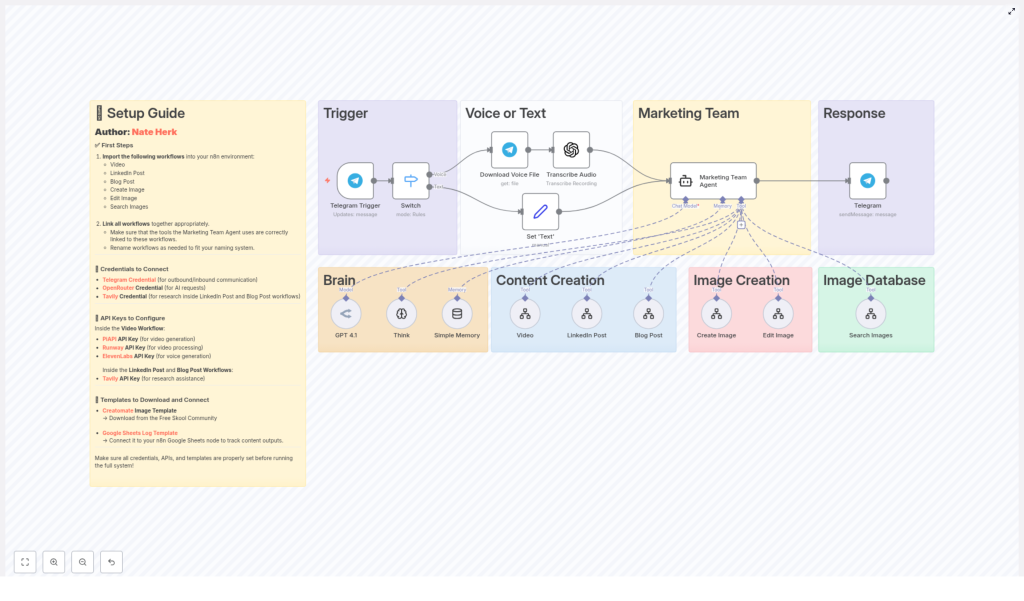
Comprehensive Setup Guide for Marketing Team Automation
A Marketer, A Telegram Bot, And Too Many Tabs
On a rainy Tuesday afternoon, Lara, a growth marketer at a small SaaS startup, stared at her browser. Nineteen tabs were open.
One for LinkedIn scheduling, one for a blog draft, three for stock images, two for AI tools, another for video generation, and a lonely Google Sheet where she tried to track what had gone live. Her founder had just Slacked her:
“Can we start pushing more short videos and LinkedIn posts this week? Also, can we log everything we publish? Would love more visibility.”
Lara sighed. She knew the answer was technically yes, but only if she worked late every night.
That was when she remembered a template someone had mentioned in a community call: a complete n8n marketing automation setup built around a Marketing Team Agent that could orchestrate everything through Telegram.
One Telegram bot, one workflow, and all her tools talking to each other. It sounded almost too good to be true.
Discovering The Marketing Team Agent
That evening, Lara opened n8n and the template link. Instead of another scattered how-to, she found a full architecture for a unified marketing assistant:
- A single Telegram entry point where she could send text or voice requests
- A Marketing Team Agent that would interpret what she wanted
- Dedicated workflows for:
- Video generation and processing
- LinkedIn post creation
- Blog post creation
- Image creation and editing
- Image search and retrieval
- Automatic Google Sheets logging so nothing was lost
The promise was simple: Lara could type a message into Telegram like, “Create a LinkedIn post about our new feature and a matching hero image”, and the Marketing Team Agent would decide which workflows to run, call the right APIs, and bring everything back to her in the chat.
She decided to set it up in one sitting.
The Architecture Behind Lara’s New Assistant
Before she touched any nodes, Lara wanted to understand how this thing actually worked. The high-level architecture looked like a relay race:
- Entry channel – A Telegram Trigger node waited for her messages.
- Processing layer – Optional nodes could turn voice into text or normalize messy input.
- Orchestration brain – The Marketing Team Agent, powered by OpenRouter, decided what tools to use.
- Specialist workflows – Separate child workflows handled:
- Video
- LinkedIn Post
- Blog Post
- Create Image
- Edit Image
- Search Images
- External services – The workflows talked to:
- Telegram API
- OpenRouter for AI models
- Tavily for research
- PiAPI, Runway, and ElevenLabs for video and voice
- Creatomate for image templates
- Google Sheets for logging
- Response channel – Final outputs returned to her in Telegram as text, links, or media.
In other words, the Marketing Team Agent would act like a team lead. It would listen to her request, pick the right specialist workflow, send the work out, gather the results, and report back to her in chat.
Rising Action: Importing The “Team” Into n8n
Lara started by importing the core workflows. The template bundle came with a set of n8n workflows that each acted like a separate tool the agent could call.
Bringing The Core Workflows Online
She imported them one by one into her n8n instance:
- Video workflow
- LinkedIn Post workflow
- Blog Post workflow
- Create Image workflow
- Edit Image workflow
- Search Images workflow
Together, they covered all the tasks that used to live in separate tabs: video generation, long-form content, social posts, and image handling from scratch or by editing existing assets.
Each one would later be registered as a tool inside the Marketing Team Agent configuration.
The Telegram Entrance: Where Lara Would Talk To Her Agent
The story of every request would start in the same place: the Telegram Trigger node.
Lara created a Telegram bot and connected it using the Telegram Credential. Inside n8n, that credential powered both the trigger and any send-message nodes.
From there, the flow looked like this:
- A user (usually Lara) sends a text or voice message to the Telegram bot.
- The Telegram Trigger node receives it.
- Optional nodes convert voice to text or clean up the input.
- The normalized text is passed into the Marketing Team Agent.
- The agent calls the right workflows and gathers results.
- A Telegram send node replies with content or status updates.
For Lara, this meant that her entire marketing engine would be reachable from her phone, on the same app where she already talked to colleagues and friends.
The Turning Point: Teaching The Agent What Tools It Can Use
The real magic, and the real tension, sat inside the Marketing Team Agent configuration. If she mislinked even one workflow, her “team” would not know how to do its job.
Configuring The Marketing Team Agent Node
Inside n8n, Lara opened the agent node and began wiring in the tools:
- She added each imported workflow as a tool:
- Video
- LinkedIn Post
- Blog Post
- Create Image
- Edit Image
- Search Images
- She attached her OpenRouter Credential so the agent could:
- Interpret natural language requests
- Decide which workflow to call
- Generate content where needed
One detail almost tripped her up. The agent expected workflows to be referenced by specific internal names or IDs. She liked to rename things for clarity, but if she changed any titles, she had to update the tool references inside the agent node as well.
It felt a bit like teaching a new hire where everyone sits in the office. Once that was clear, everything else could flow.
Deep In The Weeds: How Each Workflow Helped Lara
With the high-level setup in place, Lara walked through each specialist workflow to make sure its credentials and APIs were correctly set. This was where most hidden errors usually lurked.
Video Workflow: From Script To Final Clip
Lara had been putting off video content for months, because stitching tools together manually was painful. The Video workflow in this template changed that.
It relied on three key API keys, each for a different part of the pipeline:
- PiAPI API Key – for the core video generation.
- Runway API Key – for video processing, enhancements, or transformations.
- ElevenLabs API Key – for generating voiceovers and integrating audio into the video.
Inside the workflow, she checked that:
- All PiAPI nodes referenced the correct PiAPI credential or environment variable.
- Runway-related nodes used the Runway API Key.
- Voice generation nodes pointed to the ElevenLabs API Key.
Once those were in place, a simple Telegram request like “Create a 30-second video explaining our new pricing page” could trigger a full pipeline behind the scenes.
LinkedIn Post Workflow: Research-Backed Posts In Minutes
Lara’s next pain point was LinkedIn. She wanted posts that sounded smart, not generic. The LinkedIn Post workflow was designed exactly for that.
It used:
- Tavily API Key via a Tavily Credential for research queries.
In practice, this meant:
- Research nodes called Tavily using the shared credential to gather context, statistics, or references.
- AI generation nodes could use OpenRouter through the same OpenRouter Credential that powered the agent.
Now, if she messaged, “Write a LinkedIn post about the impact of AI on small marketing teams, include one recent stat”, the workflow could actually go out, research, and then write something grounded in real data.
Blog Post Workflow: Long-Form Content Without The Blank Page
Next was the Blog Post workflow, Lara’s new antidote to blank-page syndrome. It mirrored the LinkedIn workflow in structure, but for longer-form content.
It also depended on:
- Tavily API Key for external research.
Inside the workflow:
- Research steps used the Tavily Credential to gather background material.
- AI content generation used the shared OpenRouter Credential for model access.
Instead of starting from scratch, Lara could say, “Draft a 1,200 word blog post about how we automated our marketing with n8n, include a short introduction and clear headings”, and get a solid first draft back in Telegram.
Image Workflows: Creating, Editing, And Finding Visuals
Visuals had always been a bottleneck. The template split image work into three dedicated workflows, all coordinated by the Marketing Team Agent.
Create Image Workflow
The Create Image workflow generated new images based on prompts or structured parameters that came from the agent.
Key aspects Lara checked:
- It used a Creatomate Image Template so new images followed consistent branding and layout.
- It could plug into external image generation APIs, depending on her implementation.
Edit Image Workflow
The Edit Image workflow handled tweaks to existing assets, like adding overlays, text, or style changes.
Important details:
- It also relied on the same Creatomate Image Template to keep everything visually aligned.
- It accepted image references or parameters passed in from the agent or other workflows.
Search Images Workflow
Finally, the Search Images workflow helped Lara find suitable assets when she did not want to generate from scratch.
Its role was simple but crucial:
- It queried an image database or external service based on prompts or keywords.
- It returned image URLs or metadata, which could either be sent directly to Lara or fed into the Create/Edit workflows.
Logging Everything To Google Sheets
Lara knew her founder would eventually ask, “What did we publish this week?” She wanted the answer to be one click away.
The template included a Google Sheets node connected to a Google Sheets Log Template. This log captured:
- Timestamp
- Content type (video, blog, LinkedIn, image)
- Request metadata (prompt, user ID)
- Output URLs or IDs
To make it work, she:
- Authorized the Google Sheets node with the correct Google account.
- Referenced the log template by spreadsheet ID and worksheet name.
From then on, every new piece of content created by the workflows could be recorded automatically, giving her a simple analytics and tracking layer without extra effort.
Credentials: The Hidden Gatekeepers
By this point, Lara’s n8n canvas looked impressive. But she knew from experience that misconfigured credentials could break everything silently.
Core Credentials To Configure
She opened the Credentials section in n8n and double-checked the essentials:
- Telegram Credential
- Used by the Telegram Trigger and all send-message nodes.
- Responsible for all inbound and outbound Telegram messaging.
- OpenRouter Credential
- Used by the Marketing Team Agent and any AI nodes that talk directly to OpenRouter.
- Handled AI model requests for interpreting prompts and generating content.
- Tavily Credential
- Used inside the LinkedIn Post and Blog Post workflows.
- Powered all research queries through the Tavily API.
API Keys By Workflow
Then she mapped each API key to the right place.
Video Workflow API Keys
- PiAPI API Key – for video generation.
- Runway API Key – for video processing and enhancements.
- ElevenLabs API Key – for voice generation in videos.
She stored them either as n8n credentials or environment variables and made sure each relevant node referenced the right one.
LinkedIn Post And Blog Post API Keys
- Tavily API Key – for research steps in both workflows.
All Tavily nodes were configured to use the same Tavily Credential, which wrapped this key.
Templates And External Assets: Branding And Tracking
Two templates tied the whole system together visually and operationally.
Creatomate Image Template
Lara downloaded the Creatomate Image Template from the Free Skool Community as recommended in the documentation.
She then:
- Linked this template inside the Create Image and Edit Image workflows.
- Verified that all image operations referenced it where required.
The result was consistent branding across generated and edited images, without manually policing fonts, colors, and layouts.
Google Sheets Log Template
The Google Sheets Log Template became her single source of truth for outputs.
- She connected the sheet to the Google Sheets node in n8n.
- Configured each workflow to log its outputs:
- Video links
- Blog URLs or drafts
- LinkedIn post content
- Image URLs
Instead of chasing down content across tools, she could open one spreadsheet and see what had been created, when, and for whom.
Tension Peaks: The Pre-Run Checklist
Everything looked ready. But Lara had been burned before by rushing to activate workflows without a final review. This time, she walked through a mental checklist.
Her Pre-Run Checklist
- Core workflows imported:
- Video
- LinkedIn Post
- Blog Post
