


Automate Court Date Reminders with n8n
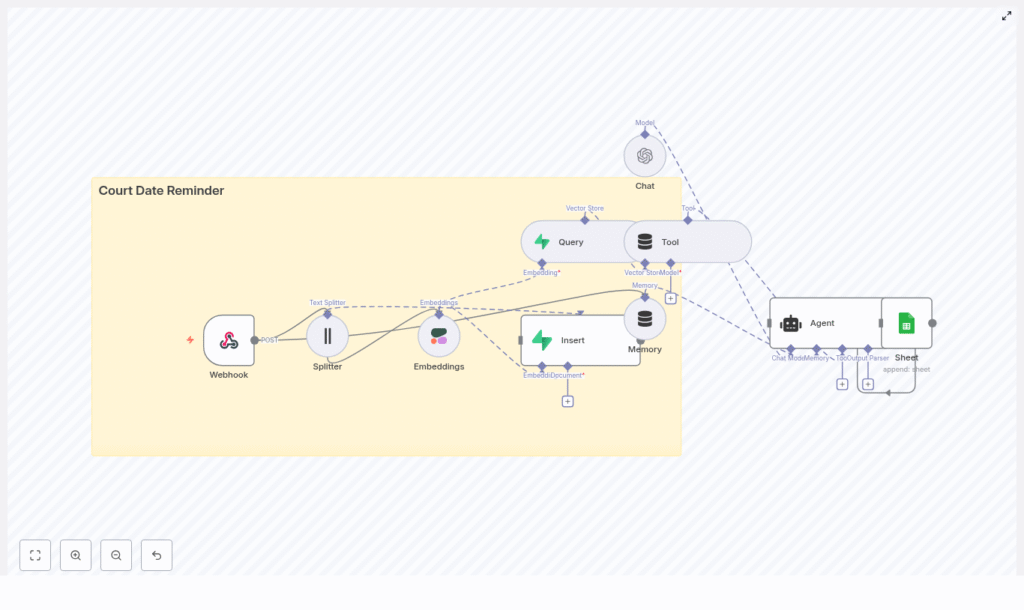
Automating court date reminders is a practical way to reduce risk, improve client communication, and centralize case information. In this guide, you will learn how to implement a production-ready reminder workflow in n8n that uses a webhook for intake, Cohere embeddings, a Supabase vector store, an n8n agent backed by OpenAI, and Google Sheets for logging. The result is a searchable, auditable, and extensible automation pipeline tailored to legal and case-management scenarios.
Use case and business value
Court dates are legally binding and time-critical. Missed appearances can trigger penalties, defaults, or lost strategic opportunities. Manual reminder processes are error-prone and difficult to audit, especially when case volumes scale.
By implementing an n8n-based automation, you can:
- Systematically capture court date information from upstream systems or forms.
- Store case details in a vector database for semantic search and retrieval.
- Leverage an agent to reason over stored data and maintain conversational context.
- Log all reminder-related actions in Google Sheets for transparency and review.
This architecture combines modern NLP techniques (embeddings and vector search) with n8n’s visual workflow engine and integrations, without requiring a heavy custom engineering effort.
High-level architecture of the n8n workflow
The workflow is built as a modular pipeline. Each node covers a specific responsibility, which makes the system easier to maintain and extend.
Core components
- Webhook – Receives POST requests containing court date data.
- Text Splitter – Breaks long text fields into smaller chunks.
- Embeddings (Cohere) – Converts text chunks into numeric vectors.
- Supabase Vector Store (Insert + Query) – Persists and retrieves embeddings with metadata.
- Memory (Buffer Window) – Maintains short-term conversational context for the agent.
- Chat Model (OpenAI) – Interprets queries and generates structured responses.
- Agent – Orchestrates tools and reasoning, then triggers downstream actions.
- Google Sheets – Stores a log of reminders and agent decisions.
The workflow starts with data ingestion through the webhook, then enriches and indexes that data using embeddings and Supabase, and finally leverages an agent to answer questions and log reminder activity.
Data ingestion: designing the webhook
1. Configure the Webhook node
Begin by creating a Webhook node in n8n and set it to accept POST requests on a path such as /court_date_reminder. This endpoint acts as the intake layer for new court dates, whether they originate from a case management system, an internal form, or another automation.
A typical JSON payload might look like this:
{  "case_id": "ABC123",  "name": "Jane Doe",  "court_date": "2025-09-15T10:00:00Z",  "court_address": "123 Main St, City, State",  "notes": "Bring exhibits A and B"
}
Best practices at this stage include:
- Validating required fields such as
case_idandcourt_date. - Normalizing date formats (for example, ISO 8601) so downstream nodes can parse them reliably.
- Sanitizing free-text inputs to avoid injection issues and to ensure clean embeddings.
- Minimizing stored PII or encrypting sensitive fields at rest where required.
Preparing text for vector search
2. Chunking with the Text Splitter node
Long-form text, such as case notes or history, should be broken into smaller segments before embedding. This improves semantic search quality and avoids truncation issues in embedding models.
Use the Text Splitter node and configure parameters similar to:
- Chunk size: around 400 characters.
- Chunk overlap: around 40 characters.
The overlap ensures that important context is not lost between adjacent chunks. Each resulting chunk is then passed to the embedding model.
3. Creating embeddings with Cohere
Connect the output of the Text Splitter to an Embeddings node configured with Cohere (or another supported provider). The Embeddings node transforms each chunk of text into a numeric vector that captures semantic meaning.
These vectors are the foundation for semantic retrieval: they allow the system to answer questions such as “When is Jane Doe’s next hearing?” even if the query wording does not exactly match the stored text.
Persisting and querying case data with Supabase
4. Inserting embeddings into a Supabase vector store
Next, add a Supabase Vector Store Insert node. Configure it to write to an index or table dedicated to this workflow, for example court_date_reminder.
For each embedded chunk, store:
- The embedding vector itself.
- Key metadata such as
case_id,court_date, andname. - The original text chunk (for example, the specific notes segment).
This structure allows you to perform fast semantic lookups while preserving the ability to reconstruct the relevant text for context.
5. Configuring a Supabase query tool
To enable retrieval, create a Query node that targets the same Supabase vector store. This node will perform similarity searches based on an incoming query or question.
When the agent receives a request such as When is Jane Doe’s next hearing?
, it will:
- Transform the question into an embedding.
- Use the Supabase Query node to retrieve the most similar stored vectors.
- Return the associated metadata and text chunks to the agent for reasoning.
Fine-tuning similarity thresholds and result limits in this node can significantly impact response relevance.
Adding conversational intelligence with memory and a chat model
6. Memory and Chat nodes
To support multi-step reasoning and follow-up questions, introduce a Memory node configured as a buffer window. This node retains a short history of the conversation or interaction so the agent can respond with context-aware answers.
Then, add a Chat node configured with OpenAI as the language model. This node is responsible for interpreting user queries, synthesizing retrieved information, and formatting outputs for downstream systems such as Google Sheets or notification channels.
Typical responsibilities of the Chat node include:
- Parsing natural language questions into structured intents.
- Combining retrieved Supabase records into a cohesive answer.
- Generating structured data (for example, JSON-like summaries) for further automation steps.
Orchestrating logic with an agent and logging to Google Sheets
7. Building the agent workflow
The Agent node ties together the Query tool, Memory, and Chat model. It acts as the orchestration layer that decides when to call the Supabase tool, how to interpret the results, and when to log or trigger reminders.
A typical agent flow might:
- Receive a question or event related to a court date.
- Use the Supabase Query tool to retrieve relevant case records.
- Apply the Chat model, with Memory, to interpret the retrieved data.
- Decide whether a reminder should be logged or sent.
8. Appending logs to Google Sheets
To maintain an auditable record of reminders and agent decisions, connect a Google Sheets node after the Agent. Configure it to append a new row each time an action is taken.
Recommended columns include:
timestampcase_idnamecourt_datereminder_sent(boolean or status)notesoragent_comment
This log provides a simple but effective audit trail, which can be exported, filtered, or joined with other reporting tools.
Testing the workflow with sample payloads
Before moving to production, validate the end-to-end workflow using test requests. You can use curl, Postman, or any HTTP client to send sample payloads to the webhook.
Example curl command:
curl -X POST https://your-n8n.example/webhook/court_date_reminder \ -H "Content-Type: application/json" \ -d '{"case_id":"ABC123","name":"Jane Doe","court_date":"2025-09-15T10:00:00Z","notes":"Bring exhibits A and B"}'
During testing, verify that:
- The Webhook node receives and parses the payload correctly.
- Text is split into chunks, embedded, and inserted into Supabase without errors.
- The agent can query the vector store and retrieve the correct case data.
- A corresponding row is appended to Google Sheets with the expected values.
Use n8n’s execution logs to inspect intermediate outputs and quickly identify configuration issues.
Security, privacy, and compliance considerations
Legal workflows often involve sensitive personal and case information. Treat this automation as part of your broader compliance posture.
- PII protection: Encrypt personally identifiable information in storage where appropriate and limit access with role-based permissions across n8n, Supabase, and Google Sheets.
- Regulatory compliance: Consult legal counsel regarding jurisdiction-specific rules for storing court-related data and sending reminders via SMS or email.
- Secrets management: Store API keys and credentials for Cohere, OpenAI, Supabase, and Google in n8n’s credentials store. Avoid hardcoding secrets in node parameters.
- Rate limiting: Monitor API usage and configure alerts to avoid hitting provider rate limits or incurring unexpected costs.
Scaling, reliability, and observability
Scaling the solution
For production deployments, design for resilience and horizontal scale:
- Run n8n in a containerized environment such as Kubernetes or Docker Compose with a process manager.
- Use a managed Supabase instance and configure automated backups for both vector and metadata tables.
- Implement retry and error handling patterns in n8n, for example with Error Trigger or Catch nodes, to handle transient failures gracefully.
Monitoring and observability
Establish metrics and logging from day one. Track:
- Webhook throughput and latency.
- Embedding generation failures or timeouts.
- Vector query latency and error rates.
- Agent errors or unexpected outputs.
Forward n8n logs to a centralized platform such as Datadog, Grafana, or an ELK stack. Configure alerts for anomalies so issues can be addressed before they affect users.
Extending the workflow: common enhancements
Once the core pipeline is stable, you can extend it with additional automations that leverage the same data foundation.
- SMS and email notifications: Integrate Twilio or n8n’s email nodes to send scheduled reminders ahead of each court date.
- Two-way communication: Capture replies from clients and feed them back into the workflow for status updates, rescheduling logic, or confirmation tracking.
- Advanced search and filters: Add query parameters for court location, date ranges, or attorney identifiers to refine Supabase queries.
Because the system is built on n8n, you can add new branches and nodes without rewriting the core architecture.
Troubleshooting and operational tips
If issues arise, focus on validating each stage of the pipeline independently.
- Embeddings not inserting into Supabase: Confirm Cohere API credentials, verify that embedding vectors are present in node output, and check Supabase schema and permissions.
- Irrelevant or low-quality query results: Experiment with different chunk sizes and overlaps, adjust similarity thresholds, or review the embedding model configuration.
- Agent fails to log to Google Sheets: Recheck Google Sheets OAuth credentials, ensure the target spreadsheet ID and sheet name are correct, and verify that the account has write access.
Conclusion
By combining n8n’s visual workflow engine with embeddings, a Supabase vector store, and an intelligent agent, you can build a robust court date reminder system that is both searchable and auditable. This design centralizes case context, automates reminder-related actions, and provides a clear log of what was done and when.
From here, you can iterate: add communication channels, refine search behavior, or integrate with existing case management platforms, all while keeping the core pipeline intact.
Next step: Deploy the workflow, send a test payload to your webhook, and use the resulting execution trace as a checklist to harden the system for production.
