


Cross-Post YouTube Uploads to Facebook with n8n (So You Never Copy-Paste Again)
If you have ever copied a YouTube title, description, and link into Facebook for the 47th time and thought, “There has to be a better way,” you are in the right place.
This guide walks you through an n8n workflow template that automatically cross-posts new YouTube uploads to Facebook. Under the hood it uses webhooks, LangChain tools, embeddings, Pinecone, and a RAG agent to make smart, context-aware decisions. It also logs everything to Google Sheets and pings Slack if something breaks, so you do not have to babysit it.
In other words, you get to stop doing repetitive admin work and let your automation take the night shift.
What This n8n Workflow Actually Does
Here is the big picture: whenever a new YouTube video goes live, this workflow:
- Receives a notification via a Webhook Trigger with the video details
- Breaks up long descriptions using a Text Splitter
- Generates embeddings with OpenAI and stores them in Pinecone
- Uses a Vector Tool and RAG Agent to generate smart, Facebook-ready copy
- Logs what happened in Google Sheets
- Sends a Slack alert if anything fails
You can then plug in your Facebook posting logic on top, either fully automated or with a human review step.
Why Automate YouTube to Facebook Cross-Posting?
Copying content between platforms sounds easy until you realize you are doing it for every single upload, across multiple channels, on multiple days, forever. Automation politely steps in and says, “I got this.”
By using n8n to automate YouTube to Facebook cross-posting you:
- Eliminate manual copy-paste of titles, descriptions, and links
- Reduce human error like broken links or missing hashtags
- Add logic, such as:
- Post only videos that match certain keywords
- Auto-summarize long descriptions for Facebook
- Keep messaging consistent across platforms
By layering in vector embeddings and RAG, you also get smarter decisions. The workflow can:
- Pull semantic context from similar videos
- Choose the best excerpt or angle for the Facebook post
- Stay aligned with previous captions and brand style
So instead of a dull copy of your YouTube description, you get an informed, context-aware Facebook post that actually makes sense for that platform.
How the Architecture Fits Together
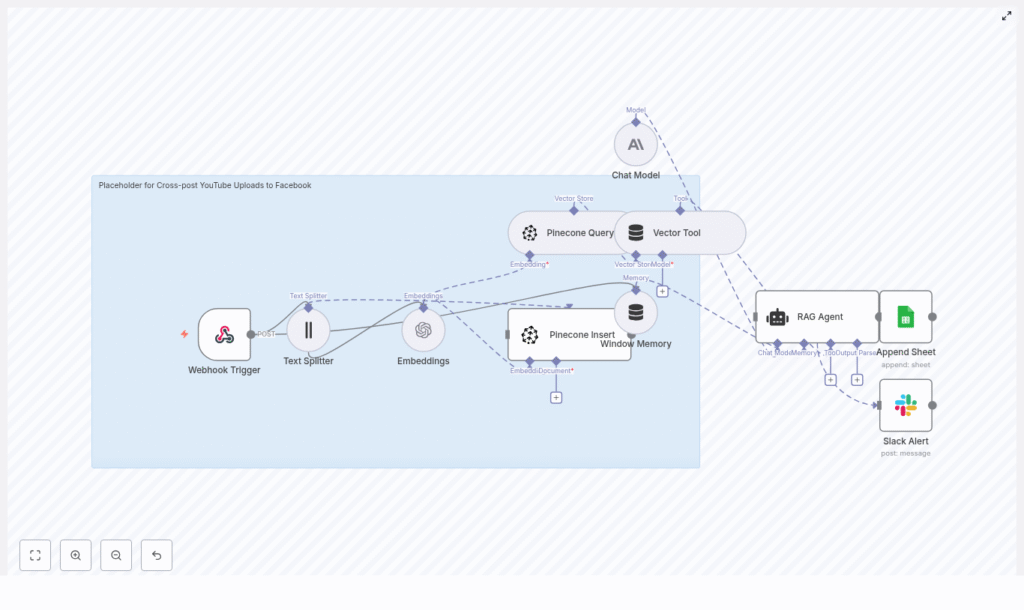
At a high level, the workflow looks like this:
- Webhook Trigger – Listens for new YouTube uploads and receives a JSON payload
- Text Splitter – Splits long descriptions into smaller chunks
- Embeddings (OpenAI text-embedding-3-small) – Turns text chunks into vectors
- Pinecone Insert – Stores vectors plus metadata in a Pinecone index
- Pinecone Query + Vector Tool – Retrieves relevant chunks for context
- Window Memory + Chat Model – Maintains context and generates copy
- RAG Agent – Orchestrates tools and writes the final Facebook caption
- Append Sheet – Logs the result in Google Sheets
- Slack Alert – Notifies you on errors so silent failures do not pile up
The result is a small but mighty cross-posting pipeline that is both auditable and intelligent.
The Incoming Data: Sample Webhook Payload
Your journey starts with a webhook that receives data about each new YouTube upload. It typically looks like this:
{  "videoId": "abc123",  "title": "My New Video",  "description": "Long video description...",  "url": "https://youtube.com/watch?v=abc123",  "publishedAt": "2025-08-01T12:00:00Z"
}
This payload gives the workflow everything it needs to generate a Facebook-ready post and log the outcome.
Step-by-Step: Setting Up the n8n Workflow
Let us walk through the setup in a simple, no-drama sequence.
1. Create the n8n workflow and add the nodes
In n8n, create a new workflow and add the following nodes in roughly this order:
- Webhook Trigger
- Text Splitter
- Embeddings
- Pinecone Insert
- Pinecone Query
- Vector Tool
- Window Memory
- Chat Model
- RAG Agent
- Google Sheets (Append Sheet)
- Slack (for alerts)
Do not worry if the canvas looks busy. Each node has a clear job and they play nicely together.
2. Configure your credentials
In the n8n credentials section, add and configure:
- OpenAI (for embeddings) and optionally Anthropic or another LLM for the chat model
- Pinecone (for vector storage and retrieval)
- Google Sheets OAuth (for logging)
- Slack (for alerts)
Keep API keys in n8n credentials, not in plain text in nodes. Your future self will thank you.
3. Webhook Trigger configuration
Set up the Webhook Trigger node:
- Method:
POST - Path:
/cross-post-youtube-uploads-to-facebook
This webhook will receive the payload with videoId, title, description, url, and publishedAt. Make sure your n8n instance is reachable from the outside world, either via a public URL or a tunnel.
4. Split the text like a pro: Text Splitter
Long YouTube descriptions are great for SEO, not so great for token limits. Use the Text Splitter node with:
- chunkSize:
400 - chunkOverlap:
40
This keeps chunks manageable for embedding, while overlapping enough to preserve context between them.
5. Generate embeddings
Use the Embeddings node with the OpenAI text-embedding-3-small model. For each chunk of text, the node:
- Sends the chunk to the OpenAI API
- Receives a dense vector representation
You can embed not only the description chunks but also additional metadata if needed.
6. Store vectors in Pinecone
Next, use the Pinecone Insert node to write embeddings into your index, for example:
- Index name:
cross-post_youtube_uploads_to_facebook
Along with each vector, store useful metadata such as:
videoIdtitlechunkIndextimestamp
This metadata lets your RAG agent later pull relevant context or check for similar past content.
7. Query Pinecone and expose it as a tool
When the agent needs context, you use:
- Pinecone Query to fetch semantically similar chunks
- Vector Tool to wrap that query so the agent can call it as a tool
This lets your agent do things like:
- Find the best excerpt for a Facebook caption
- See if similar videos were already posted
- Stay consistent with previous messaging
8. Window Memory and Chat Model
Add a Window Memory node so the agent can keep track of recent context, especially if you are iteratively refining captions or doing follow-up enrichment.
Then configure your Chat Model node, typically with Anthropic or another LLM, which the RAG agent will use to actually write the Facebook post. This is where the magic “turn description into social caption” happens.
9. Configure the RAG Agent
Set up your RAG Agent with a system message such as:
“You are an assistant for Cross-post YouTube Uploads to Facebook.”
Connect the agent to:
- The Vector Tool for context retrieval
- The Chat Model for generation
- Window Memory for recent history
The agent should output a Facebook-ready caption that can include:
- A short description or summary
- A clear call to action (CTA)
- Relevant hashtags
- Shortened or formatted links
This is the content you will later send to Facebook or a review queue.
10. Log everything with Google Sheets
Use the Google Sheets node in Append mode to keep an easy audit trail. Typical columns include:
timestampvideoIdtitlegeneratedPoststatuspostUrl(if you auto-post to Facebook)
This sheet can double as a manual review queue if you prefer humans to approve posts before they go live.
11. Add Slack alerts for when things go wrong
Because something will go wrong at 2 am at some point, connect Slack to the onError path of the RAG Agent or other critical nodes.
Configure it to send messages to an #alerts channel with:
- The error message
- The relevant videoId
This makes triage much easier than “something broke somewhere at some time.”
12. Test the webhook end-to-end
Before wiring up Facebook, test the workflow with a manual request using curl, Postman, or your favorite tool. Use the sample payload above and confirm that:
- The webhook receives the request
- Text chunks are created
- Embeddings are generated and stored in Pinecone
- The RAG Agent produces a Facebook post
- A new row appears in Google Sheets
Once all that works, you are ready for the final step.
13. Connect your Facebook posting logic
The template focuses on the intelligence and logging side. To actually post to Facebook, you can:
- Call the Facebook Graph API directly from n8n, using page access tokens and required permissions
- Send the final post content to a human review queue (for example, Google Sheets or a separate approval workflow) and let a human click “post”
If you automate posting, handle tokens and permissions carefully. Facebook is not fond of misconfigured apps spraying content everywhere.
Best Practices for a Smooth Cross-Posting Workflow
To keep your automation reliable and friendly, follow these tips.
Security
- Store all API keys as n8n credentials, not hard coded in nodes
- Use least privilege access for OpenAI, Pinecone, and other services
Rate limits and performance
- Batch embedding calls when possible to stay within OpenAI and Pinecone limits
- Use retry logic in n8n node settings for temporary failures
- If semantics feel “off,” adjust
chunkSizeandchunkOverlapinstead of just throwing more tokens at the problem
Content moderation and brand safety
- Optionally run a moderation check before posting, using a moderation endpoint or classifier
- If brand voice is sacred, keep a human-in-the-loop review step via Google Sheets or another approval system
Monitoring and visibility
- Use Slack alerts for fast visibility into errors
- Review Google Sheets logs for repeated failures or odd patterns, such as the same video ID failing multiple times
Troubleshooting: When Automation Gets Moody
Webhook not firing
If the workflow does not trigger:
- Check that the webhook URL is publicly accessible
- If you are running n8n locally, use a tunnel service like ngrok for testing
Embeddings failing or taking too long
If embedding calls fail or feel sluggish:
- Verify your API keys and network connectivity
- Check whether you are hitting rate limits
- Reduce concurrency or tweak
chunkOverlapandchunkSizeif context quality drops
Pinecone index errors
If Pinecone complains:
- Confirm the index exists and is correctly named
- Ensure the vector dimension matches the
text-embedding-3-smallmodel output - Validate the upsert payload format and metadata fields
Why Use RAG for Cross-Posting?
Retrieval-Augmented Generation (RAG) gives your agent a memory of past content, instead of relying on the model’s general knowledge alone.
By storing embeddings in Pinecone and querying them at generation time, the agent can:
- Consult previous descriptions, brand guidelines, or past captions
- Stay consistent with your existing messaging and style
- Reduce hallucinations and random phrasing
So your Facebook captions feel like they came from your brand, not from a model that just woke up and decided to improvise.
Scaling Up: Where to Go Next
Once your core YouTube to Facebook workflow is stable, you can extend it in several directions:
- Auto-scheduling for timezone-aware posting, so content goes live when your audience is awake
- Multi-channel expansion
