


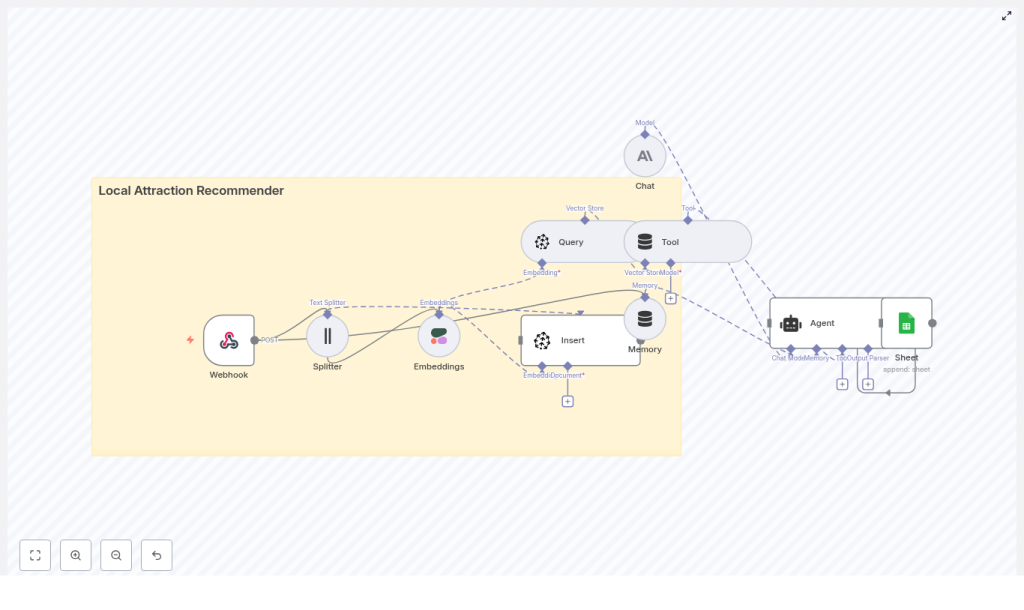
Build a Local Attraction Recommender with n8n
Imagine having your own smart local guide that knows what people like, understands their preferences, and instantly suggests great places nearby – all without writing a full backend from scratch. That is exactly what this n8n workflow template helps you do.
In this guide, we will walk through a ready-to-use n8n automation that:
- Ingests attraction data (like parks, cafes, museums)
- Turns that text into embeddings with Cohere
- Stores and searches vectors in Pinecone
- Uses an Anthropic-powered agent to respond to users
- Logs everything neatly into Google Sheets
It is lightweight, production-ready, and surprisingly easy to customize once you see how the pieces fit together.
What this n8n template actually does
At a high level, this workflow acts as a local attraction recommender system. You send it either:
- Attraction data to index, or
- A user query asking for recommendations
Behind the scenes, it uses vector search to find relevant places, then passes that context to an AI agent that explains the suggestions in a friendly, human way. Finally, it logs each interaction so you can analyze performance later.
So what can you build with it?
- A city guide for tourists
- A “things to do nearby” feature for your app
- A concierge-style chatbot for hotels or coworking spaces
If you are looking for a no-code friendly way to mix semantic search, LLMs, and logging, this template gives you a solid, practical starting point.
Why this architecture works so well
Traditional recommendation systems often lean on collaborative filtering and heavy infrastructure. That is great if you have tons of user behavior data and a big ML team, but not so great if you just want a smart, flexible local recommender quickly.
This architecture takes a different approach:
- Semantic vector search finds attractions that are meaningfully similar to what the user describes, not just keyword matches.
- Managed services like Cohere, Pinecone, and Anthropic handle the hard ML problems so you can focus on your data and experience.
- n8n as the glue keeps everything transparent and easy to tweak, with each step visible as a node.
- Google Sheets logging gives you a simple, accessible audit trail for analytics and improvements.
The result is a context-aware recommender that is easier to maintain, cheaper to run, and much more flexible than a monolithic “black box” solution.
How the workflow is structured
Let us break down the main stages of the n8n template. You will see how data flows from a simple HTTP request to a polished recommendation response.
- Webhook – receives incoming POST requests with either data to index or user queries.
- Splitter – breaks long attraction descriptions into smaller chunks.
- Embeddings (Cohere) – converts text chunks into vectors.
- Insert (Pinecone) – stores those vectors in a Pinecone index.
- Query (Pinecone) + Tool – retrieves similar attractions for a user query.
- Memory – keeps short-term conversation state for multi-turn chats.
- Chat (Anthropic) + Agent – turns raw results into a friendly, structured answer.
- Sheet (Google Sheets) – logs each interaction for monitoring and analysis.
Now let us walk through each component in a bit more detail, starting from how data enters the system.
Input: how you talk to the workflow
Webhook – your single entry point
The Webhook node exposes a POST endpoint at:
/local_attraction_recommender
You send JSON to this endpoint with a type field that tells the workflow what you want to do:
type: "index"– add or update attraction data in the vector store.type: "query"– ask for recommendations.
For indexing, you will typically send fields like:
- Attraction name
- Description
- Address or neighborhood
- Tags (for filtering and metadata)
For a user query, it looks something like this:
{  "type": "query",  "user_id": "user_123",  "location": "San Francisco, CA",  "preferences": "family-friendly parks, outdoor markets",  "limit": 5
}
The workflow then decides whether to route the request through the indexing path or the recommendation path.
Indexing attractions: from text to searchable vectors
Before you can recommend anything, you need a set of attractions indexed in Pinecone. The template handles this for you using a few key steps.
Splitter – chunking long descriptions
Some attraction descriptions can be long, or you might upload a bulk dataset. To keep things efficient and context-aware, the Splitter node breaks text into smaller pieces, for example:
- Chunk size: about 400 characters
- Overlap: around 40 characters
This overlap helps preserve context between chunks, so the embeddings still understand the full meaning of the description without creating huge vectors.
Cohere embeddings – turning text into vectors
Next, the Cohere node takes each chunk and converts it into a dense vector representation. You will want to pick a Cohere model that is tuned for semantic search.
Make sure you:
- Configure the chosen Cohere embedding model in the node settings.
- Store your Cohere API key in n8n credentials and link it to the node.
These embeddings are what Pinecone uses to perform fast semantic similarity search later on.
Pinecone insert – building your attraction index
Once you have embeddings, the workflow inserts them into a Pinecone index, for example named:
local_attraction_recommender
Each record in Pinecone typically includes:
- The embedding vector itself
- A unique ID
- Metadata such as:
- Attraction name
- Neighborhood or city
- Tags (e.g. “family-friendly”, “outdoor”, “museum”)
- A text snippet or full description for context
Good metadata makes it much easier to filter, re-rank, and debug results later, so it is worth setting this up carefully.
Serving recommendations: from query to friendly answers
Once your index is populated, the fun part starts: answering user questions with relevant suggestions.
Pinecone query + Tool – finding similar attractions
When a user sends a query, the workflow:
- Uses the same Cohere embedding model to embed the query text.
- Sends that query vector to Pinecone.
- Retrieves the top K nearest neighbors from the index.
This ensures that the query and the stored items live in the same vector space, which is critical for good results. If you ever see irrelevant recommendations, this is one of the first things to double-check.
The Tool node then wraps the Pinecone response in a format that the downstream agent can easily consume. Think of it as turning “raw search results” into a structured tool the agent can call.
Memory – keeping the conversation going
If you want your recommender to feel more like a conversation than a one-off lookup, the Memory node helps with that.
It stores:
- Recent messages and responses
- The user ID
- A short interaction history
This allows the agent to do things like remember that the user prefers outdoor activities or that they did not like a previous suggestion, at least within the same session.
Anthropic chat + Agent – generating the final response
This is where everything comes together. The Agent node coordinates three ingredients:
- The Anthropic chat model
- The vector store tool (Pinecone results)
- The buffer memory
The agent takes the retrieved attraction data, the user’s preferences, and any recent context from memory, then crafts a human-friendly answer. It can include:
- Why each place fits the user’s request
- Helpful details like distance or neighborhood
- Opening hours or other practical notes, if present in your data
Because this is all inside n8n, you can refine the prompt, adjust tools, or add extra logic without touching any backend code.
Google Sheets logging – simple analytics and audits
Finally, every interaction is written to a Google Sheet so you have a record of what happened. Typical fields include:
user_id- Original query text
- Top retrieved results
- Timestamp
- Agent output
This gives you an easy way to:
- Review relevance over time
- Spot patterns in user behavior
- Iterate on prompts, ranking, or index content
Step-by-step: getting the template running
Ready to try it out? Here is a clear setup path you can follow.
- Spin up n8n
Use either n8n Cloud or a self-hosted instance, depending on your infrastructure preferences. - Add your credentials
In n8n, configure credentials for:- Cohere API key
- Pinecone API key and environment
- Anthropic API key
- Google Sheets OAuth credentials
- Import the workflow template
Bring the template into your n8n instance and connect each node to the appropriate credential you just created. - Configure and test the Webhook
Set the Webhook path to/local_attraction_recommender(or your preferred path) and test it with a tool like curl or Postman. - Index a sample dataset
Start small with a CSV or JSON list of attractions. Send POST requests withtype: "index"and include fields like:namedescriptiontags
This will populate your Pinecone index.
- Send some queries
Once you have data indexed, issue POST requests withtype: "query"and confirm that the agent returns relevant, well-explained suggestions.
Prompting tips for better recommendations
The agent prompt is where you “teach” the system how to talk to users. A concise, clear prompt usually works best. You will want to include:
- User preferences and constraints
For example: budget, accessibility needs, indoor vs outdoor, family-friendly, etc.
Recent choices, likes or dislikes, and previous feedback.- A structured output format
This makes it easier to display results in your app or website.
Here is a simple output schema you can ask the agent to follow:
1) Name
2) Short description (20-30 words)
3) Why it matches the user's preference
4) Practical details (address, hours, approximate distance)
You can tweak this format to match your UI, but giving the model a structure usually leads to more consistent results.
Testing and evaluating your recommender
Once everything is wired up, it is time to see how well the system performs in real scenarios. Try queries across different:
- Neighborhoods or cities
- Activity types (outdoor, nightlife, family, culture)
- User personas (tourist, local, family, solo traveler)
Useful metrics to track include:
- Click-through or follow-up rate
Are users actually visiting the suggested places or asking for more details? - Relevance scores
Manually review and label some suggestions as “good” or “off” to see where to improve. - Latency
Measure end-to-end response time so you know if the experience feels snappy enough.
Your Google Sheets logs are a goldmine here. You can filter by query type, location, or user segment, then adjust prompts, metadata, or index content based on what you see.
Costs, scaling, and security considerations
Even though this setup avoids heavy infrastructure, it is still worth thinking about how it behaves as you scale.
- Pinecone
Storage and query costs grow with:- Number of indexed attractions
- Query volume (QPS)
Plan your index size and query patterns accordingly.
- Cohere embeddings
You are billed per embedding call, so:- Batch embeddings when indexing large datasets.
- Avoid re-embedding unchanged text.
- Anthropic chat
Chat calls can be your biggest variable cost if you have many conversational sessions. You can:- Cache responses for common queries.
- Use simpler heuristic responses for very basic questions.
- Security
- Store all API keys in n8n credentials, never hard-code them.
- Protect the Webhook with an auth token or signed headers.
Troubleshooting common issues
If something feels “off” with the recommendations, here are a few things to check first:
- Irrelevant results?
Confirm that the same Cohere embedding model is used for both:- Indexing attractions
- Embedding user queries
- Weak filtering or odd matches?
Inspect your metadata. Missing or inconsistent tags, neighborhoods, or location fields make it harder to filter and rank results properly. - Slow responses?
Monitor Pinecone index health and query latency in your deployment region, and check whether you are adding unnecessary steps in the workflow.
Ideas for next-level customizations
Once you have the basic recommender working, you can start layering on more intelligence and nicer user experiences. For example, you could:
- Add personalized ranking based on user history or explicit thumbs-up / thumbs-down feedback.
- Enrich attractions with photos, ratings, or external data using APIs like Google Maps or Yelp.
- Build a lightweight frontend (a static site, chatbot widget, or mobile app) that simply calls the Webhook endpoint.
Because the workflow is modular, you can swap
