


Automate Your Spotify “Downloads” Playlist With n8n And Free Up Your Focus
Imagine opening Spotify and seeing a single “Downloads” playlist that always has your latest liked songs at the top, never bloated, never outdated, and always ready for offline listening. No more manual sorting, no more pruning old tracks by hand, and no more wondering whether your favorite new song actually made it into your downloads.
This guide walks you through an n8n workflow template that does exactly that. It automatically syncs your Liked Songs into a dedicated “Downloads” playlist, trims older tracks to a limit you choose, and keeps everything updated on a reliable schedule. Along the way, you will see how a simple automation like this can be a stepping stone toward a more focused, streamlined, and automated life.
The Problem: Manual Playlists, Scattered Focus
If you use Spotify regularly, you probably “like” tracks as you discover them. Over time, your Liked Songs become a huge archive of your musical history. That is great for nostalgia, but not so great for offline listening, limited phone storage, or staying organized.
Many listeners try to manage this by manually adding songs to a special playlist, or by juggling multiple playlists set to download. It works, but it costs time and attention that could be spent on deeper work, creativity, or simply enjoying the music itself.
The Possibility: Let Automation Handle The Repetition
Automation with n8n is not just about saving clicks. It is about reclaiming mental energy. When you delegate repetitive tasks to a workflow, you free yourself to focus on higher value work, strategic thinking, or personal projects.
This “Downloads” playlist workflow is a small but powerful example. It takes a routine task you probably do on autopilot and turns it into a background process that runs for you, every day, without fail. Once you experience this, you start to see other parts of your digital life that could be automated too.
The Vision: A Single, Smart “Downloads” Playlist
The goal of this n8n template is simple and powerful:
- Keep one Spotify playlist named “Downloads” always in sync with your most recent Liked Songs.
- Automatically remove older tracks once a configurable limit is reached.
- Run on a schedule so your offline playlist is always fresh without manual effort.
This is ideal if you rely on Spotify’s offline download feature and want just one curated playlist set to download. You choose how many songs to keep, and n8n quietly does the rest in the background.
How The n8n Workflow Transforms Your Routine
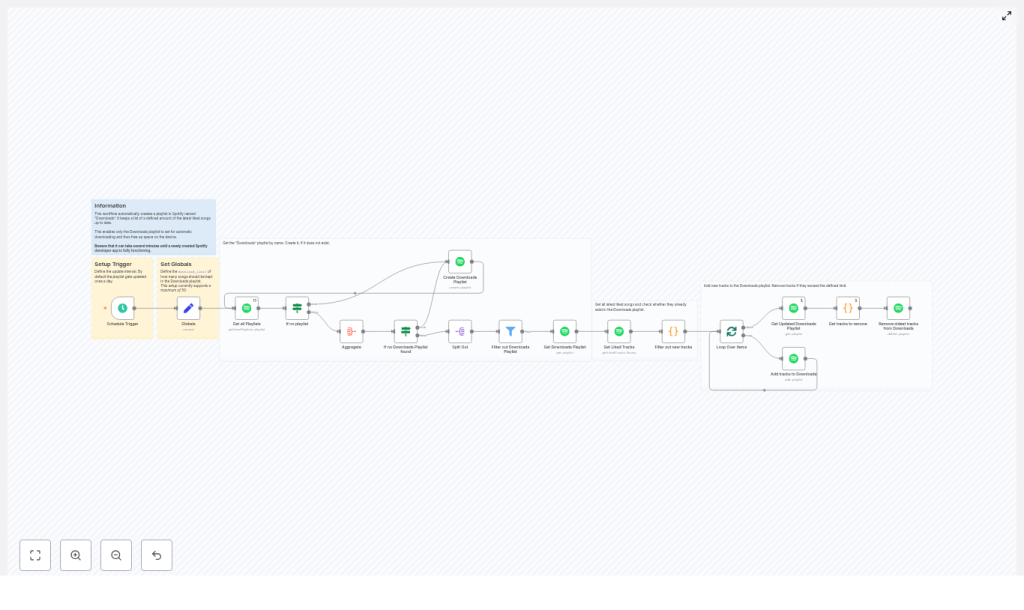
At a high level, this n8n workflow template:
- Looks for a playlist called “Downloads” and creates it if it does not exist.
- Fetches your latest Liked Songs up to a limit you define.
- Adds any newly liked tracks to the top of your Downloads playlist.
- Prunes older or no-longer-liked tracks so the playlist never exceeds your chosen size.
- Runs on an automated schedule, such as daily, so it becomes a habit-free system.
Think of it as your personal assistant for Spotify. You keep discovering and liking music, and the workflow quietly keeps your download-ready playlist perfectly tuned.
Step Into The Flow: Key Nodes And How They Work Together
The workflow uses several core n8n nodes to bring this automation to life. Understanding them will help you customize and extend the template later.
1. Schedule Trigger – Let It Run While You Focus
The journey starts with a Schedule Trigger. You decide how often your automation should run: daily, hourly, or at any interval that fits your listening habits.
Once set, the Schedule Trigger kicks off the workflow at your chosen times. No more remembering to update your playlist. n8n does it for you.
2. Globals (Set Node) – Define Your Download Limit
Next, a Set node named Globals defines a crucial variable: download_limit.
This value represents how many songs you want to keep in your Downloads playlist. The example uses 50 tracks by default. The template supports a maximum of 50 out of the box, but you can adjust this later where noted if you want to experiment with different limits.
This is your first conscious choice in the workflow: how big should your “always ready” playlist be so it fits your storage and your style of listening.
3. Get All Playlists – Find Your “Downloads” Home
The Get all Playlists node uses the n8n Spotify node to retrieve your playlists. The workflow then searches through them to see whether a playlist named Downloads already exists.
This step is about finding the “home base” for your automation. If the playlist is there, the workflow will reuse it. If not, it will create it for you.
4. If / Filter Nodes – Create Or Reuse The Downloads Playlist
Using a combination of If and filter logic, the workflow checks the playlists retrieved in the previous step:
- If a playlist called
Downloadsexists, its URI is extracted and stored for later use. - If it does not exist, the workflow uses the Spotify node to create a new playlist named “Downloads” (the node often labeled “Create Downloads Playlist”).
This makes the template resilient. Whether you are starting from scratch or plugging into an existing playlist, the workflow adapts and keeps going.
5. Get Liked Tracks – Sync With Your Latest Favorites
The Get Liked Tracks node calls Spotify’s Library endpoint to fetch your saved or liked tracks. This is where your recent musical discoveries enter the automation.
To keep the process efficient, the node sets a limit using the value from your Globals node:
{{ $('Globals').item.json.download_limit }}This means the workflow only fetches the most recent liked songs up to the configured maximum. You stay focused on your newest favorites instead of your entire listening history.
6. Filter Out New Tracks (Code Node) – Add Only What Is Missing
Now the workflow needs to figure out which of your liked tracks are not yet in the Downloads playlist. A Code node compares the URIs of tracks already in Downloads with the ones it just fetched from your Liked Songs.
It returns only the tracks that are truly new and need to be added. This keeps your workflow efficient and avoids unnecessary API calls or duplicates.
The logic looks like this in simplified JavaScript:
var downloades_uris = [];
for (const download of $('Get Downloads Playlist').first().json.tracks.items) {  downloades_uris.push(download.track.uri);
}

var result = [];
for (const item of $input.all()) {  if (!downloades_uris.includes(item.json.track.uri)) {  result.push(item);  }
}

return result.reverse();
Notice the reverse() at the end. This ensures that when tracks are added, the newest liked songs end up at the top of the playlist in the right order.
7. Add Tracks To Downloads (Loop + Spotify Node) – Keep The Top Fresh
Once the new tracks are identified, a SplitInBatches node loops over them. Combined with the Spotify node, it adds each track (or batches of tracks) to the top of your Downloads playlist.
The workflow uses the Spotify “add to playlist” operation with position = 0. This means your newest liked songs always appear first, so your offline playlist feels fresh every time you hit play.
8. Prune Old Tracks (Code + Delete) – Stay Within Your Limit
After new tracks are added, the workflow updates its view of the playlist, then runs another Code node to decide which tracks should be removed.
This node compares the current tracks in Downloads with your liked tracks:
- If a song is in Downloads but is no longer liked, it can be queued for removal.
The core logic to identify tracks that should be removed looks like this:
var liked_uris = [];
for (const liked of $('Get Liked Tracks').all()) {  liked_uris.push(liked.json.track.uri);
}

var result = [];
for (const item of $input.first().json.tracks.items) {  if (!liked_uris.includes(item.track.uri)) {  result.push(item);  }
}

return result;
Once the tracks to remove are identified, the Spotify delete operation removes them, keeping the playlist within your chosen download_limit. The result is a clean, focused Downloads playlist that never grows out of control.
Important Code Snippets To Understand And Customize
The workflow includes small JavaScript snippets in n8n Code nodes. You have already seen two representative examples:
- Filtering out new tracks by comparing Downloads playlist URIs to Liked Songs.
- Finding tracks to remove by identifying playlist entries that are no longer in your Liked Songs.
These snippets are intentionally simple and readable so you can tweak them as your needs evolve. For example, you might later add additional conditions, such as filtering by artist or audio features.
Before You Start: Spotify App And n8n Configuration
To let n8n talk to Spotify securely, you need a Spotify Developer App and proper OAuth scopes. Setting this up is a one-time investment that unlocks ongoing automation.
- Create a Spotify Developer App at developer.spotify.com.
- Configure the Redirect URI to match what n8n expects for Spotify OAuth.
- Ensure the OAuth scopes include:
playlist-read-privateplaylist-modify-publicand/orplaylist-modify-private(depending on whether your Downloads playlist is public or private)user-library-read
- In n8n, create a Spotify OAuth2 credential and authorize it using your new Spotify app.
Note that newly created Spotify apps sometimes take a few minutes before OAuth works reliably. If authentication fails at first, give it a short time and try again.
Limitations, Tips, And Troubleshooting For A Smooth Experience
To keep your automation reliable and scalable, keep these practical points in mind:
- Rate limits: Spotify enforces API rate limits. If you add or remove many tracks at once, consider batching them or adding short delays between requests using n8n’s control nodes.
- Maximum limit: The example workflow uses a default
download_limitof 50. You can change this, but be mindful that larger limits might trigger more API calls and increase the chance of rate limiting. - Pagination: If you have a very large library with thousands of liked songs, you may want to extend the workflow with pagination logic to fetch more than the Spotify API’s default page size.
- Permissions: If playlist operations fail, double check your OAuth scopes and re-authorize the Spotify credential in n8n.
- Testing: Run the workflow manually at least once and inspect the execution log in n8n. Use nodes like SplitOut to inspect playlist entries and confirm the JSON structure matches what your Code nodes expect.
Security And Privacy: Protecting Your Spotify Data
As you automate more of your life, security matters. With n8n, your Spotify credentials are stored using the built-in credentials feature, which keeps them separate from your workflow logic.
- Never hardcode client secrets or tokens directly into public workflows.
- Use n8n credentials to handle authentication securely.
- Remember that the workflow only reads and modifies your Spotify data according to the permissions you grant through OAuth.
This gives you the freedom to experiment and extend your automation without exposing sensitive information.
Ideas To Grow This Workflow As Your Automation Skills Expand
Once you see this template working, you may feel inspired to personalize it. That is where the real power of n8n and this Spotify automation shows up.
- Rename the playlist: Change “Downloads” to any name you like, such as “Offline Favorites” or “Daily Discoveries”.
- Use batch operations: Replace per-track calls with Spotify’s batch add/remove endpoints to reduce API calls and improve performance.
- Add logging: Log additions and removals to a Google Sheet, Notion, or a database, so you have a history of how your playlist evolves.
- Send notifications: Trigger Slack or email notifications whenever tracks are added or removed, so you stay aware of changes.
- Filter by criteria: Add extra filters based on artist, genre, or audio features, so only certain kinds of tracks make it into your Downloads playlist.
Each small improvement teaches you more about n8n and builds your confidence to automate other parts of your work and life.
Final Checklist Before You Hit “Execute”
Before you let this workflow run on autopilot, walk through this quick checklist:
- Set
download_limitin the Globals Set node to your desired playlist size. - Configure the Schedule Trigger with the frequency that matches your listening habits.
- Confirm that your Spotify OAuth credential in n8n is connected and has the correct scopes.
- Run the workflow manually once and verify that:
- The Downloads playlist exists and is updated.
- Newly liked tracks are added to the top.
- Old or unliked tracks are removed to respect your
download_limit.
From One Playlist To A More Automated Life
With this n8n workflow in place, you gain more than a tidy Spotify playlist. You get a glimpse of what is possible when you let automation handle the repetitive work. Your “Downloads” playlist becomes a living example of how small systems can quietly support your day, protect your focus, and free you to do more meaningful work.
Use this template as a starting point. Tune the limit, adjust the schedule, and then ask yourself: what else in my digital life could be automated like this? Each new workflow you build is an investment in your future time and attention.
If you would like to go further with n8n, subscribe to our newsletter for more automation tutorials and ready-to-use workflow templates. Need a copy of the workflow JSON or help adapting it to your setup? Reach out or leave a comment and we will help you tailor it to your needs.
