

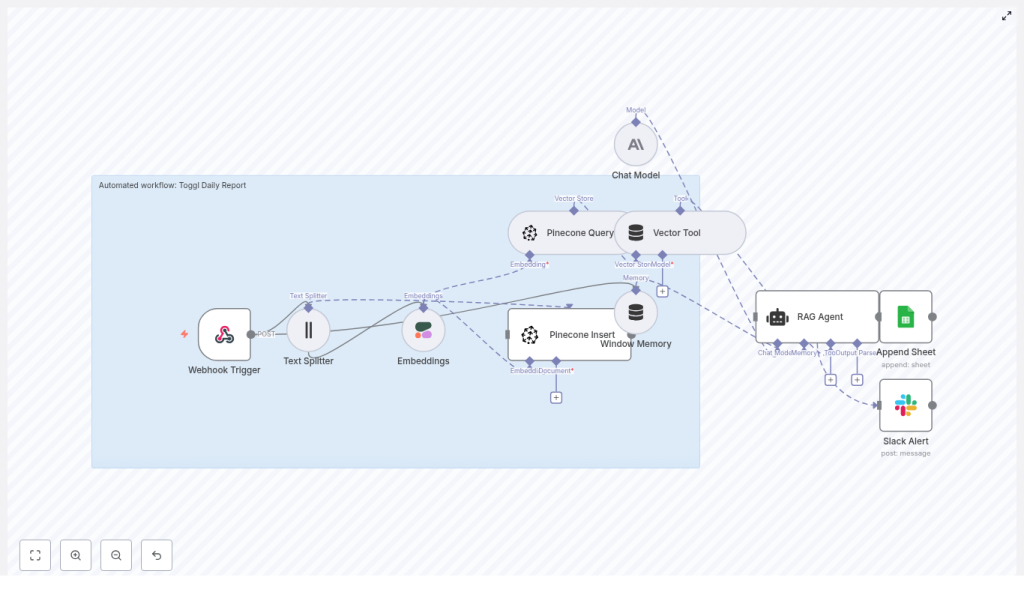
Automate Toggl Daily Reports with n8n, Pinecone and Cohere
Imagine wrapping up your workday and having a clean, human-friendly summary of everything you did just appear in your Google Sheet or Slack. No copy-pasting from Toggl, no guesswork, no “what did I actually do between 2 and 4 pm?”
That is exactly what this n8n workflow template helps you do. It takes raw Toggl time entries, turns them into embeddings, stores them in a vector database, and uses a RAG (Retrieval-Augmented Generation) agent to generate concise daily reports you can actually use.
In this guide, we’ll walk through what the template does, when it’s useful, and how all the pieces fit together so you can set it up with confidence and tweak it for your own needs.
Why bother automating Toggl daily reports?
If you’ve ever tried to write daily summaries from Toggl manually, you know the drill. It’s repetitive, easy to forget, and surprisingly time-consuming. On top of that, manual summaries are often inconsistent and miss context that would be helpful later.
Automating your Toggl daily reports helps you:
- Get consistent summaries for managers, clients, or your future self
- Simplify billing, invoicing, and project reviews
- Spot where your time really goes across projects and tasks
- Free up mental energy for actual work instead of admin
By combining n8n with Pinecone (as a vector database), Cohere embeddings, and an LLM-powered RAG agent, you can turn messy raw logs into context-rich summaries and save them wherever you want: Google Sheets, Slack, or other tools in your stack.
What this n8n template actually does
At a high level, the template implements a pipeline that:
- Receives Toggl time entry data via a webhook
- Splits long text into smaller chunks for better embeddings
- Uses Cohere to generate embeddings for each chunk
- Stores those embeddings and metadata in a Pinecone index
- Queries Pinecone to retrieve relevant context later
- Uses a RAG agent with an Anthropic chat model to create a human-readable daily report
- Appends the final summary to a Google Sheet
- Alerts a Slack channel if something goes wrong (or optionally for daily digests)
Think of it as a little reporting assistant that quietly runs in the background, reads your Toggl logs, and writes a neat summary for you.
When should you use this automation?
This workflow is especially helpful if you:
- Log your time in Toggl every day and want a structured daily recap
- Need a record of what happened for billing, compliance, or client communication
- Manage a team and want quick visibility into how time is being spent
- Prefer storing reports in Google Sheets, Slack, or other tools accessible to your team
You can use it for individuals, teams, or even multi-tenant setups, as long as you structure your metadata and Pinecone namespaces correctly.
How the architecture fits together
Here’s the high-level architecture of the n8n workflow template:
- Webhook Trigger – Accepts Toggl time entries or a batch payload via POST
- Text Splitter – Breaks large text into smaller chunks for consistent embeddings
- Embeddings (Cohere) – Converts each text chunk into a vector representation
- Pinecone Insert – Stores vectors and metadata in a Pinecone index
- Pinecone Query & Vector Tool – Fetches relevant vectors as context for the RAG agent
- Window Memory – Keeps recent context if you want conversational or multi-step behavior
- Chat Model (Anthropic) – The LLM that generates the natural language report
- RAG Agent – Orchestrates retrieval and generation, using both raw data and vector context
- Append Sheet (Google Sheets) – Saves the final summary in a spreadsheet
- Slack Alert – Sends error notifications or optional summary messages
Now let’s walk through each piece so you know exactly what’s going on under the hood.
Step-by-step walkthrough of the workflow
1. Webhook Trigger – your entry point for Toggl data
The journey starts with a Webhook Trigger node in n8n. This exposes an HTTP endpoint that Toggl (or a custom exporter) can call with your time entries.
You’ll typically:
- Set the path to something like
/toggl-daily-report - Use the POST method
- Send a payload that includes at least:
dateprojectuserdescriptionduration
This can be hooked up via Toggl webhooks if available, or via a scheduled script that exports daily entries and posts them to the webhook.
2. Text Splitter – keeping chunks manageable
Long descriptions and big batches of entries can cause trouble for embedding models. They might hit token limits or simply produce lower-quality embeddings.
The Text Splitter node solves this by splitting large blocks of text into smaller pieces. In this template, the default settings are:
chunkSize = 400chunkOverlap = 40
That overlap is important. It keeps context flowing across chunks so the model does not lose important details at the boundaries. You can tweak these values depending on your embedding model and the style of your Toggl descriptions.
3. Embeddings with Cohere – turning text into vectors
Next up is the Embeddings (Cohere) node. This is where the text chunks get transformed into dense vectors that capture semantic meaning.
The template uses the embed-english-v3.0 model from Cohere. Along with each vector, you should store useful metadata so you can filter and query later. Common metadata fields include:
- Date of the entry
- Project name or ID
- User or team member
- Entry ID or a unique reference
This metadata is what lets you later pull vectors only for a specific day, project, or user when building the report.
4. Pinecone Insert – storing everything for retrieval
Once you have embeddings, they need a home. The Pinecone Insert node sends them to a Pinecone index, which in this template is named toggl_daily_report.
Inside Pinecone you can:
- Use namespaces to separate environments (dev vs prod) or tenants
- Store both the text chunks and the metadata alongside the vectors
This step is crucial for the RAG agent, because later it will query this index to find the most relevant context when generating your daily summary.
5. Pinecone Query & Vector Tool – fetching relevant context
When it is time to create a daily report, the workflow needs to know which entries are relevant. That is where the Pinecone Query node and Vector Tool come in.
The workflow queries Pinecone for vectors that match the day’s logs or a specific prompt. The Vector Tool wraps this behavior in a way that the RAG agent can call dynamically, so the agent can say, in effect, “go fetch me the most relevant entries for this date or project” while it is generating the summary.
6. Window Memory – short-term context for multi-step runs
The Window Memory node acts like short-term memory for the agent. It keeps a sliding window of recent messages or intermediate results.
That is especially helpful if:
- You want the agent to behave in a conversational way
- You run multi-step workflows that build on previous summaries
- You want the model to reference earlier outputs within the same run
You can tune how much history is kept based on your needs and token limits.
7. Chat Model (Anthropic) & RAG Agent – generating the daily report
This is where the magic happens. The RAG agent combines:
- The raw Toggl data
- The retrieved vector context from Pinecone
- A clear prompt and system message
The template uses an Anthropic chat model as the LLM that actually writes the summary. The RAG setup ensures the model is grounded in real data from your time entries instead of guessing.
A good prompt is critical here. You will typically include:
- A system message like “You are an assistant for Toggl Daily Report.”
- Instructions on what to include in the summary (projects, total hours, highlights, etc.)
- Formatting guidance so the output is easy to parse later
Well-crafted system messages and examples can dramatically improve the quality and reliability of the reports you get.
8. Append Google Sheet – storing the final summary
Once the RAG agent has generated your daily report, the Append Sheet (Google Sheets) node writes it into a new row.
The example template uses a schema like:
dateusersummaryraw_count(number of entries)status(where the RAG output is mapped in the example)
You can easily customize this structure. For instance, you might add:
- Per-project totals
- Billable vs non-billable hours
- Client names or tags
9. Slack Alert – handling errors (and optional digests)
Things go wrong sometimes. To avoid silent failures, the template includes a Slack Alert node for error handling.
On failure, it sends a message like:
“Toggl Daily Report error: {error.message}”
to a designated Slack channel so you or your team can jump in quickly. You can also repurpose or duplicate this node to post successful daily summaries into Slack as a digest if that fits your workflow.
What you need to configure before running it
Before you hit “activate” in n8n, you’ll need to set up a few accounts and credentials:
- Cohere API key for embeddings
- Pinecone API key, environment, and index (named
toggl_daily_reportin this template) - Anthropic (or other LLM) API key for the chat model
- Google Sheets OAuth2 credentials so n8n can append rows
- Slack API token for sending alerts
Best practice is to store these as n8n credentials or environment variables, not hard-coded values. In Pinecone, you can use namespaces to separate dev and prod data, or to isolate different teams or clients.
Start with a small dataset and a test sheet so you can verify everything works before rolling it out to your entire team.
Prompting tips to get better RAG results
The RAG agent lives or dies on the quality of your prompts. A few practical tips:
- Be explicit about the agent’s role.
Use a system message like: “You are an assistant for Toggl Daily Report. You create concise, factual summaries of daily work based on the provided entries.” - Define the output format clearly.
Decide whether you want:- Bullet lists
- Plain text paragraphs
- JSON objects
- Table-like text
This makes it much easier for Sheets, Slack, or other tools to parse the result.
- Ask the agent to ground its claims.
To reduce hallucinations, instruct the model to base all statements on entries retrieved from Pinecone and, where appropriate, reference those entries when stating hours or project details.
Best practices to keep things fast, accurate, and affordable
Use rich metadata and smart filtering
Whenever you insert vectors into Pinecone, attach metadata such as:
- Date
- Project
- User
- Billable flag
This lets you filter queries by day, project, or user, which:
- Prevents “cross-day” contamination in your summaries
- Improves relevance of retrieved context
- Speeds up vector searches
Refine your chunking strategy
Chunking is a balancing act. Larger chunks mean fewer embeddings and lower cost, but risk losing nuance. Smaller chunks preserve detail but can be more expensive and noisy.
Using overlap, like the default chunkOverlap = 40, helps maintain continuity across chunks. Keep an eye on embedding costs and experiment with chunkSize and chunkOverlap until you find a sweet spot for your data.
Watch costs and rate limits
Your main cost drivers here are:
- Embedding calls to Cohere
- LLM calls to Anthropic (or your chosen model)
To keep things under control:
- Batch embeddings where possible instead of sending one entry at a time
- Avoid re-indexing entries that have not changed
- Consider retention strategies or TTLs in Pinecone if you do not need vectors forever
Testing and monitoring your workflow
Before you trust this automation with your daily reporting, it is worth investing a bit of time in testing and monitoring.
Some ideas:
- Use sample Toggl payloads to validate the entire flow end-to-end
- Check that embeddings are generated correctly and stored in the right Pinecone namespace
- Verify that the RAG agent output matches your expectations for tone and structure
- Configure Slack alerts for critical errors so you know when something breaks
- Optionally, send logs to platforms like CloudWatch or Datadog for deeper observability
Ways to customize this template
The template is meant as a solid starting point, not a rigid solution. A

