


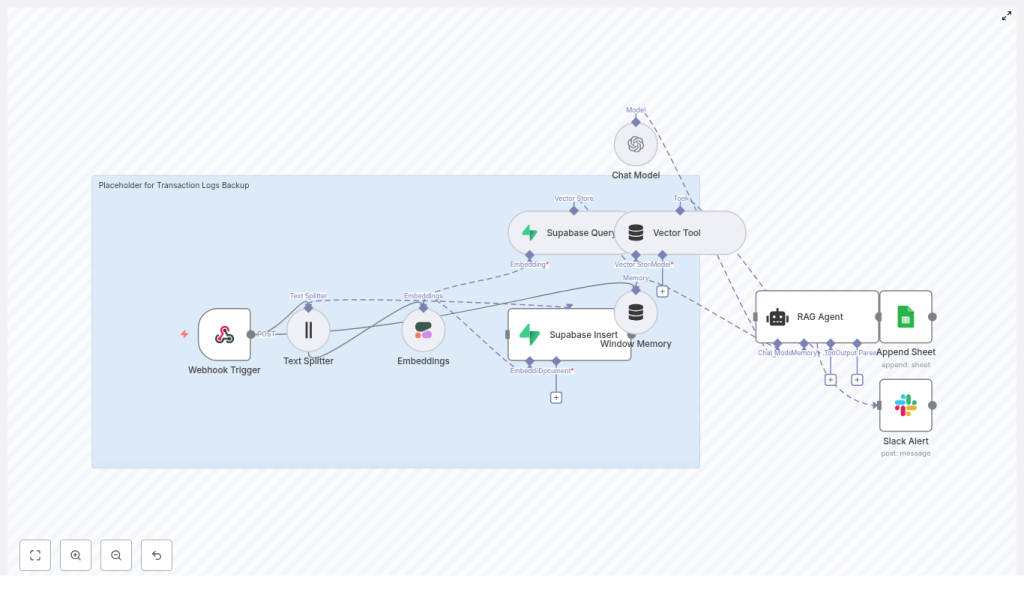
n8n RAG Workflow for Transaction Logs Backup
This guide teaches you how to set up and understand a production-ready n8n workflow that turns raw transaction logs into a searchable, semantic backup.
You will learn how to:
- Receive transaction logs through an n8n Webhook
- Split and embed logs using a Text Splitter and Cohere embeddings
- Store and query vectors in a Supabase vector table
- Use a RAG Agent with OpenAI to answer natural language questions about your logs
- Track executions in Google Sheets and send Slack alerts on errors
By the end, you will understand each component of the workflow and how they fit together so you can adapt this template to your own environment.
Concept overview: What this n8n workflow does
This n8n workflow implements a Retrieval-Augmented Generation (RAG) pipeline for transaction logs. Instead of just storing logs as raw text, it turns them into vectors and makes them queryable by meaning.
High-level capabilities
- Receives transaction logs via a POST Webhook trigger
- Splits long log messages into manageable chunks for embeddings
- Creates semantic embeddings using the Cohere API
- Stores vectors and metadata in a Supabase vector table named transaction_logs_backup
- Provides a Vector Tool that feeds data into a RAG Agent using OpenAI Chat
- Appends workflow results to a Google Sheet and sends Slack alerts when errors occur
Why use RAG for transaction log backups?
Traditional log backups usually involve:
- Flat files stored on disk or in object storage
- Database rows that require SQL or log query languages
These approaches work, but they are not optimized for questions like:
- “Show failed transactions for customer X in the last 24 hours.”
- “What errors are most common for payment gateway Y this week?”
A RAG workflow improves this by:
- Embedding logs into vectors that capture semantic meaning
- Indexing them in a vector store (Supabase) for similarity search
- Using a language model (OpenAI) to interpret the retrieved context and answer natural language questions
The result is a backup that is not only stored, but also easy to search for audits, troubleshooting, anomaly detection, and forensic analysis.
Prerequisites and setup checklist
Before you import and run the template, make sure you have the following in place:
- Access to an n8n instance (self-hosted or cloud) with credential support
- A Cohere API key configured in n8n (for embeddings)
- A Supabase project with:
- Vector extension enabled
- A table or index named transaction_logs_backup for embeddings and metadata
- An OpenAI API key configured in n8n (for the Chat Model)
- Google Sheets OAuth credentials configured in n8n (the Sheet ID will be used by the Append Sheet node)
- A Slack API token with permission to post messages to the desired alert channel
Step-by-step: How the workflow runs in n8n
In this section, we will walk through each node in the workflow in the order that data flows through it.
Step 1 – Webhook Trigger: Receiving transaction logs
The workflow begins with a POST Webhook trigger named transaction-logs-backup. Your application sends transaction logs as JSON payloads to this webhook URL.
Example payload:
{  "transaction_id": "abc123",  "user_id": "u456",  "status": "FAILED",  "timestamp": "2025-09-01T12:34:56Z",  "details": "...long stack trace or payload..."
}
Typical fields include:
transaction_id– a unique identifier for the transactionuser_id– the user or account associated with the transactionstatus– for example, SUCCESS or FAILEDtimestamp– ISO 8601 formatted date and timedetails– the long log message, stack trace, or payload
Security tip: Keep this webhook internal or protect it with an auth token or IP allowlist to prevent abuse.
Step 2 – Text Splitter: Chunking large logs
Many transaction logs are long and exceed token or size limits for embedding models. The Text Splitter node breaks the log text into smaller segments.
Typical configuration:
- Splitter type: Character based
- chunkSize: 400
- chunkOverlap: 40
How it helps:
- chunkSize controls the maximum length of each chunk. In this example, each chunk has about 400 characters.
- chunkOverlap ensures some characters overlap between chunks so context is preserved across boundaries.
You can adjust these values based on:
- Typical log length in your system
- Token limits and cost considerations for your embedding model
Step 3 – Embeddings (Cohere): Turning text into vectors
After chunking, each text segment is converted into a vector using a Cohere embeddings model. The workflow is configured to use:
- Model: embed-english-v3.0
Configuration steps in n8n:
- Set up a Cohere API credential in n8n
- In the Embeddings node, select the Cohere credential and specify the embedding model
Cohere embeddings provide high-quality semantic representations of English text, which is ideal for logs that contain error messages, stack traces, and human-readable descriptions.
Step 4 – Supabase Insert: Storing vectors and metadata
Once the embeddings are generated, they are stored in a Supabase vector table named transaction_logs_backup. Each row typically contains:
- The original text chunk (
document_text) - The embedding vector (
embedding) - Metadata such as
transaction_id,status, andtimestamp
Example minimal table definition:
-- Minimal table layout
CREATE TABLE transaction_logs_backup (  id uuid PRIMARY KEY DEFAULT gen_random_uuid(),  document_text text,  embedding vector(1536), -- match your model dims  transaction_id text,  status text,  timestamp timestamptz
);

-- create index for vector similarity
CREATE INDEX ON transaction_logs_backup USING ivfflat (embedding vector_l2_ops) WITH (lists = 100);
Important details:
- The vector dimension
vector(1536)must match the embedding model output size. Adjust this if you use a different model. - The IVFFLAT index with
vector_l2_opsenables fast similarity search on embeddings. - Metadata fields let you filter or post-process results (for example, only failed transactions, or a specific time range).
Step 5 – Supabase Query: Retrieving relevant logs
When you want to query the logs, the workflow uses a Supabase Query node to fetch the top matching vectors based on similarity. This node:
- Accepts a query embedding or text
- Runs a similarity search against the
transaction_logs_backuptable - Returns the most relevant chunks and their metadata
These results are then passed into the RAG layer as contextual information for the language model.
Step 6 – Vector Tool, Window Memory, and Chat Model
To build the RAG pipeline in n8n, the workflow combines three key components:
Vector Tool
- Acts as a bridge between Supabase and the agent
- Exposes the Supabase vector store as a retriever
- Supplies relevant log chunks to the RAG Agent when a query is made
Window Memory
- Maintains a short history of recent conversation or queries
- Gives the agent context about prior questions and answers
- Helps the agent handle follow-up questions more intelligently
Chat Model (OpenAI)
- Uses an OpenAI Chat model to generate responses
- Requires an OpenAI API key configured in n8n
- Receives both:
- Context from the Vector Tool (retrieved log chunks)
- Context from the Window Memory (recent conversation)
Step 7 – RAG Agent: Retrieval plus generation
The RAG Agent orchestrates the entire retrieval and generation process. It:
- Uses a system prompt such as: “You are an assistant for Transaction Logs Backup”
- Calls the Vector Tool to fetch relevant log chunks from Supabase
- Incorporates Window Memory to maintain conversation context
- Passes all context to the OpenAI Chat model to generate a human-friendly answer or structured output
Typical use cases for the RAG Agent include:
- Answering questions about failed transactions
- Summarizing error patterns over a time range
- Explaining the root cause of a recurring issue based on logs
Step 8 – Append Sheet: Tracking results in Google Sheets
When the RAG Agent successfully completes its work, the workflow uses an Append Sheet node to log the outcome.
Configuration highlights:
- Target Google Sheet name: Log
- Requires Google Sheets OAuth credentials and the correct
SHEET_ID - Can store fields such as:
- Transaction ID
- Status
- Timestamp
- Agent response or summary
This gives you a lightweight, human-readable record of what the workflow processed and how the agent responded.
Step 9 – Slack Alert: Handling errors
If any part of the workflow fails, an error path triggers a Slack node that sends an alert to a designated channel.
Typical configuration:
- Channel: #alerts
- Message content: includes the error message and possibly metadata about the failed execution
This ensures that operators are notified quickly and can investigate issues in n8n or the connected services.
End-to-end flow recap
Here is the entire process in a concise sequence:
- Your application sends a transaction log as JSON to the n8n Webhook.
- The Text Splitter breaks the log into smaller chunks.
- The Cohere Embeddings node converts each chunk into a vector.
- The Supabase Insert node stores vectors and metadata in the
transaction_logs_backuptable. - When you query logs, the Supabase Query node retrieves the top matching vectors.
- The Vector Tool passes these vectors to the RAG Agent, together with context from Window Memory.
- The RAG Agent uses an OpenAI Chat model to generate a context-aware answer.
- The Append Sheet node logs the result to a Google Sheet for tracking.
- If an error occurs at any point, a Slack alert is sent to
#alerts.
Best practices for a robust RAG log backup
Security
- Protect the Webhook with a token or IP whitelist.
- Avoid exposing the endpoint publicly without authentication.
Privacy
- Do not embed highly sensitive PII directly.
- Consider hashing, masking, or redacting fields before storing or embedding logs.
Chunking strategy
- Experiment with chunkSize and chunkOverlap for your specific logs.
- Too-large chunks can waste tokens and reduce retrieval accuracy.
- Too-small chunks can lose important context.
Metadata usage
- Store fields like
transaction_id,timestamp,status, andsource system. - Use metadata filters to narrow search results at query time.
Cost management
- Embedding and storing every log can be expensive.
- Consider:
- Batching inserts to Supabase
- Retention policies or TTLs for older logs
- Cold storage for very old or low-value logs
Testing and debugging the workflow
To validate your setup, start small and inspect each stage:
- Use controlled payloads Send a few well-understood test logs to the Webhook and observe the execution in n8n.
- Check Text Splitter output Confirm that chunks are logically split and not cutting through critical information in awkward places.
- Validate embeddings Inspect the Embeddings node output to ensure vectors have the expected shape and dimension.
- Test Supabase similarity search Run sample queries against Supabase and check if known error messages or specific logs are returned as top results.
- Review agent answers Ask the RAG Agent questions about your test logs and verify that the responses match the underlying data.
Scaling and maintenance
As your volume of logs grows, plan for scalability and ongoing maintenance.
Performance and throughput
- Use job queues or batch processing for high-throughput ingestion.
- Batch multiple log chunks into a single Supabase insert operation where possible.
Index and embedding maintenance
- Monitor Supabase index performance over time.
- If you change embedding models, consider:
- Recomputing embeddings
- Rebuilding or reindexing the vector index
Retention and storage strategy
- Implement TTL or retention rules for old logs.
- Move older entries to cheaper storage if you only need them for compliance.
Extension ideas for more advanced use cases
Once you have the base workflow running, you can extend it in several useful ways:
- Anomaly detection Add a node or external service that tags suspicious logs before embedding and storage, so you can quickly focus on outliers.
- Admin dashboard Integrate a dashboard where operators can run ad hoc RAG queries, view aggregated metrics, and visualize error trends.
