


Automate Invoice Processing with n8n & Airtable
Every invoice that lands in your inbox is a tiny distraction. Downloading, checking, typing amounts into a spreadsheet or accounting tool, chasing missing data – it all adds up and quietly steals time from the work that actually moves your business forward.
What if every new invoice could glide into your system automatically, neatly structured and ready to reconcile, while you stay focused on strategy, clients, or growth?
This is exactly what the “Invoice Categorizer” n8n template helps you do. By combining n8n, Telegram, OpenAI (via a LangChain agent), and Airtable, you can turn messy, manual invoice handling into a calm, predictable, and scalable workflow.
In this guide, you will walk through that transformation step by step. You will see how each node works, how the data is formatted, and how to adapt the template to your own stack. Most importantly, you will see how this workflow can be a starting point for automating much more of your financial operations.
The pain of manual invoices and the opportunity behind it
Manual invoice processing is not just tedious, it is a growth bottleneck. Every minute you or your team spend on repetitive data entry is a minute not spent on higher value work.
Typical manual workflows:
- Download invoices from email or portals
- Open each PDF and scan for totals, dates, and suppliers
- Re-type amounts into a spreadsheet or accounting tool
- Try to keep a record that is searchable and auditable
- Chase team members or vendors for missing information
It is slow, error-prone, and expensive. Yet, it is also one of the best places to start automating because the process is structured, repetitive, and high volume.
By automating invoice processing with n8n you can:
- Reduce manual data entry and errors so your numbers are more reliable.
- Speed up vendor reconciliation and approvals, which improves relationships and cash flow.
- Keep a searchable, auditable record in Airtable that your team can trust.
- Enable remote invoice submission via Telegram, so vendors or teammates can send invoices from anywhere.
Instead of being stuck in “invoice admin mode,” you move into a mindset where automation quietly handles the routine, and you focus on decisions, strategy, and growth.
From possibility to practice: what this n8n template actually does
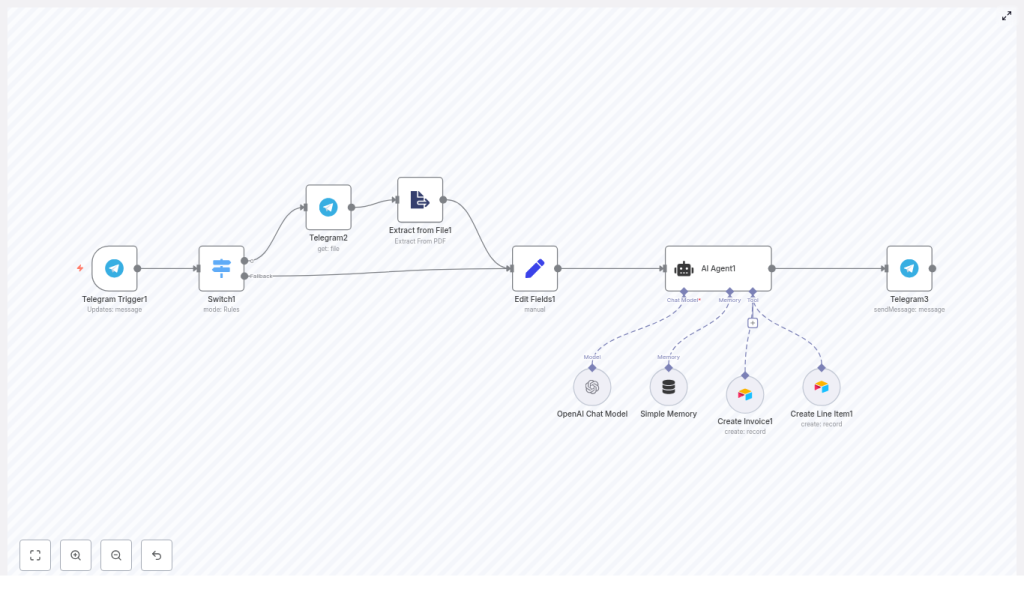
The “Invoice Categorizer” template is a complete, ready-to-use pipeline. It starts when someone sends a PDF invoice to your Telegram bot and ends with structured records in Airtable plus a confirmation message back to the user.
At a high level, the workflow:
- Receives a PDF invoice via Telegram
- Validates that the uploaded file is a PDF
- Downloads the file and runs OCR/text extraction
- Sends the extracted text to an AI Agent (LangChain + OpenAI)
- The AI agent parses invoice fields and line items
- Creates a structured Invoice record in Airtable
- Creates linked Line Item records in Airtable
- Sends a confirmation message via Telegram to close the loop
This is not just a demo. With the right credentials and a few tweaks, you can have a production-ready invoice automation pipeline in minutes, and then extend it as your needs grow.
Core building blocks of the workflow
Before diving into the journey step by step, it helps to know the main components you are working with. These are the “lego bricks” you can later rearrange or expand.
Key n8n nodes and services
- Telegram Trigger: Listens for new messages and files sent to your Telegram bot.
- Switch node: Validates the file MIME type and ensures only PDFs continue through the workflow.
- Telegram file download: Downloads the invoice PDF using its
file_id. - Extract from File (pdf): Runs text extraction or OCR on the PDF to obtain raw text.
- Set / Edit Fields: Combines extracted text with user-provided details and prepares the prompt for the AI agent.
- AI Agent (LangChain + OpenAI): Parses invoice-level fields and line items, and calls Airtable tools based on a carefully designed system prompt.
- Airtable “Create Invoice”: Creates a new invoice record and returns the Airtable record ID.
- Airtable “Create Line Item”: Creates one record per line item and links each item to the parent invoice using the record ID.
- Telegram sendMessage: Sends success or failure messages back to the user.
Each of these nodes is already wired together in the template. Your job is to understand them, configure your own credentials, and then adapt the structure to your own business logic.
Critical data rules that keep your automation stable
Automation is only as strong as the data that flows through it. The template includes strict formatting rules so that Airtable receives clean, predictable values. Respecting these rules will save you from subtle bugs later.
- Numeric fields:
Total_TaxandTotal_Amountmust be numbers only.- Remove currency symbols.
- Remove or normalize commas so they do not break number parsing.
- Invoice_linked field (for line items):
- When creating line items in Airtable, the Invoice (linked) field must be passed as a JSON array string containing the invoice record ID.
- Example:
["rec123abc"]. - This is essential for Airtable relationships to work correctly.
- Date fields:
- Use YYYY-MM-DD format for all dates.
- Example:
2025-09-01.
- Missing values:
- If a field is missing from the invoice, set its value to
"MISSING". - This prevents downstream automations from failing due to null or undefined values.
- If a field is missing from the invoice, set its value to
- Line items:
- Ignore items with zero quantity.
- For each valid line item, extract:
- Product code
- Description
- Unit price
- Quantity
- Unit type
- Sub total
Think of these rules as the guardrails that keep your automation reliable as you scale it and feed it more invoices from different suppliers.
Your automation journey, step by step
Now let us walk through the workflow in the same order your invoices will follow. As you read, imagine how each piece could be adapted, improved, or reused for other document flows in your business.
1. Telegram Trigger – inviting invoices into your system
Your journey starts in Telegram. Configure your bot token in n8n and set the Telegram Trigger node to fire on new messages.
The template:
- Captures the chat id so you can maintain session context.
- Prompts the user for the company or client name if needed.
- Then asks the user to upload the PDF invoice.
This simple interaction turns Telegram into a friendly intake portal for invoices, especially useful for distributed teams or vendors who are always on the go.
2. Switch node – validating that the file is a PDF
Next, the workflow needs to make sure it is processing the right kind of file. The Switch node checks the MIME type at $json.message.document.mime_type and confirms that it equals application/pdf.
If the file is not a PDF, you can:
- Route it to a fallback path.
- Send a Telegram message asking the user to upload a valid PDF.
This small check prevents the rest of the workflow from failing and keeps the experience smooth for your users.
3. Downloading the file and extracting text
Once the file is confirmed as a PDF, the template uses the Telegram (get file) node to download it by file_id. The downloaded file is then passed directly into the Extract from File (pdf) node.
In the Extract from File node you can:
- Run text extraction on digital PDFs.
- Enable OCR for scanned invoices.
- Adjust language and OCR settings to improve accuracy for your specific documents.
The output of this step is the raw text of the invoice, which then becomes the raw material for the AI agent to work with.
4. Set / Edit Fields – preparing the AI prompt
The Set / Edit Fields node is where you shape the data into a clear instruction for the AI agent.
This node:
- Combines the extracted text with any user-provided client name.
- Builds a single prompt string that gives the agent all the context it needs.
- Stores the Telegram chat id as a session key so you can send follow-up messages or confirmations.
Spending a bit of time refining this prompt can significantly improve extraction quality, so treat it as a powerful tuning lever rather than a static piece of configuration.
5. AI Agent (LangChain + OpenAI) – turning text into structured data
Now the magic happens. The AI Agent node uses LangChain and OpenAI to interpret the invoice text, extract the right fields, and interact with Airtable through tools defined in the system prompt.
The system message given to the agent encodes several important behaviors:
- Request missing context: If the client or company name was not provided earlier, the agent is instructed to ask for it.
- Extract invoice-level fields: It must return values in the exact formats required by Airtable:
- Numbers only for numeric fields like
Total_TaxandTotal_Amount. - Dates in YYYY-MM-DD format.
"MISSING"for fields that are not present on the invoice.
- Numbers only for numeric fields like
- Create the Invoice record: The agent calls the Create Invoice Airtable tool and stores the returned record ID.
- Create linked line items: For each non-zero quantity item, the agent:
- Creates a line item record.
- Passes the invoice record ID in a JSON array string for the
Invoice_linkedfield, for example["recAbC123"].
You can configure the OpenAI model according to your needs:
- Use gpt-4o or gpt-4 for higher accuracy.
- Use gpt-3.5 for lower cost or less complex invoices.
The template expects the AI Agent to use the same OpenAI API key that you have configured in the OpenAI node. With a few tweaks, you can strike the right balance between accuracy and cost for your use case.
6. Airtable: Create Invoice and Create Line Item – building your structured record
After the AI agent finishes its work, the workflow uses two Airtable nodes to persist the data:
- Create Invoice:
- Configured with your Airtable base ID and the invoice table ID.
- Maps extracted fields like invoice number, dates, supplier, tax, and totals into the right columns.
- Returns the record ID (for example
recAbC123), which is crucial for linking line items.
- Create Line Item:
- Also configured with your base and table IDs.
- Creates one record per line item.
- Uses the invoice record ID in the
Invoice_linkedfield as a JSON array string, for example["recAbC123"].
The template is already set up to use numeric types for tax and total amount in Airtable, so as long as you follow the formatting rules, the records will slot in cleanly.
7. Telegram confirmation – closing the loop with your users
Finally, the workflow uses Telegram sendMessage to confirm success or failure back to the user.
This small step makes your automation feel trustworthy and transparent. Users send an invoice, receive a confirmation, and quickly learn that the system “just works” in the background.
Testing, learning, and improving your workflow
Every automation improves with feedback and iteration. Start small, observe how the workflow behaves, and then refine.
- Begin with a single sample PDF: Upload it via Telegram and inspect the raw text output from the Extract from File node.
- Enable temporary debug output: Log the structured JSON returned by the AI agent so you can see exactly what it is extracting.
- Validate Airtable mappings: Before enabling real record creation, have the agent produce a JSON payload that you can paste into the Airtable API explorer as a dry run.
- Watch for common issues:
- OCR misreads, especially on dates and numbers.
- Currency symbols left in numeric fields.
- Incorrect date formats that do not match YYYY-MM-DD.
Each test invoice is a chance to tune prompts, fix mappings, and strengthen the workflow. Over time, your pipeline becomes more resilient and accurate, and you gain the confidence to feed it higher volumes of invoices.
Security and compliance as you scale automation
As you automate more of your financial operations, security and compliance become even more important. The template is flexible enough to support best practices without adding friction.
- Protect credentials:
- Store your Telegram bot token, OpenAI key, and Airtable tokens in n8n credentials.
- Never hard-code secrets directly inside nodes.
- Handle sensitive data carefully:
- If invoices contain P
- If invoices contain P
