


Build a Telegram Voice AI Agent with n8n
This guide walks you through an n8n workflow template that turns Telegram voice messages into intelligent spoken replies. You will learn how the workflow captures voice notes, transcribes them with OpenAI, processes them with an AI agent that has memory, converts the reply to speech with ElevenLabs, and sends the audio response back to the user on Telegram.
What you will learn
By the end of this tutorial, you will be able to:
- Set up a Telegram bot and connect it to n8n
- Configure an n8n workflow that listens for Telegram messages
- Transcribe Telegram voice messages to text using OpenAI
- Use an AI agent with memory to generate context-aware replies
- Convert AI replies to natural-sounding audio with ElevenLabs
- Send the generated audio back to Telegram as a voice reply
Why build a Telegram voice AI agent?
Voice-first interfaces are increasingly popular for:
- Hands-free interactions
- Accessibility and assistive experiences
- More natural, conversational user interfaces
This n8n template is ideal if you want to create a Telegram voice assistant that can:
- Transcribe voice messages into text
- Generate replies using a language model with short-term memory
- Convert replies back into high-quality speech
- Return the audio response directly in the Telegram chat
Concept overview: how the workflow works
Main building blocks
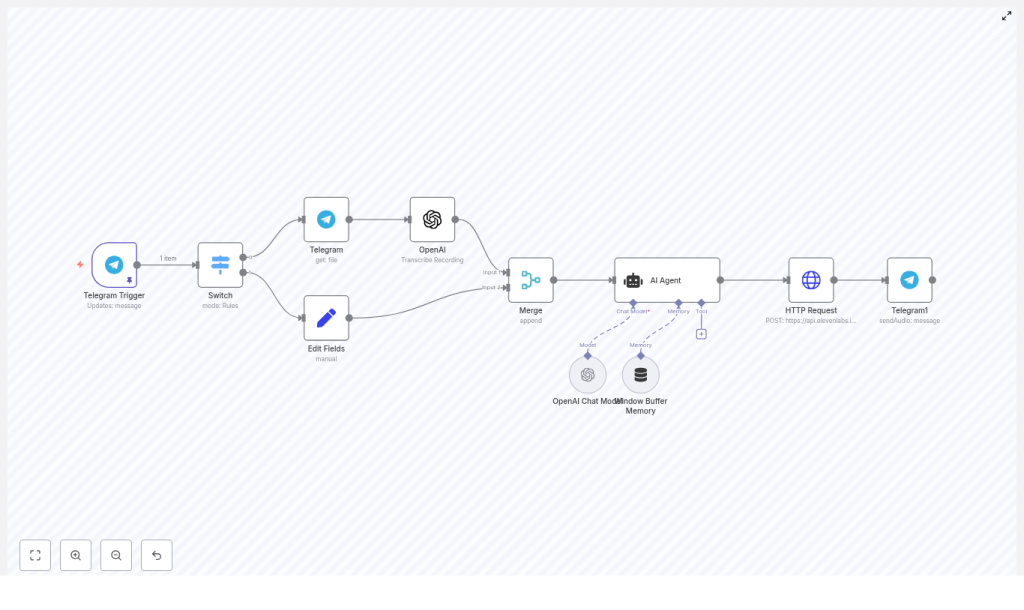
The workflow is built from several n8n nodes that work together in sequence:
- Telegram Trigger – Listens for incoming Telegram messages
- Switch – Detects if the message is voice or text and routes accordingly
- Telegram (get file) – Downloads the voice file from Telegram
- OpenAI (Transcribe) – Converts the audio file into text
- Set / Edit fields – Normalizes text so it is ready for the AI agent
- Merge – Combines different text inputs into a single message
- AI Agent – Uses an OpenAI chat model with memory and rules to generate a reply
- HTTP Request (ElevenLabs) – Sends the reply text to ElevenLabs for text-to-speech
- Telegram (sendAudio) – Sends the generated audio back to the user
High-level flow
- The Telegram Trigger node receives a new message.
- The Switch node checks if the message contains a voice note.
- If it is a voice note, the file is downloaded and transcribed to text.
- If it is text, it can be passed directly to the AI agent.
- The AI agent uses a language model plus memory to generate a response.
- The response text is sent to ElevenLabs, which returns an audio file.
- The audio file is sent back to the user via Telegram as an audio message.
Step-by-step setup in n8n
Step 1: Prepare your accounts and keys
- Create a Telegram bot
Use@BotFatherin Telegram to create a new bot and get your bot token. - Set up n8n
Install n8n and make sure your instance can receive webhooks. This usually means:- Using a public URL, or
- Using a tunnel tool like ngrok during development
- Get an OpenAI API key
You will use this key for:- Audio transcription (Whisper-based)
- Chat completion with the language model
- Get an ElevenLabs API key
This will be used in the HTTP Request node for text-to-speech (TTS).
Step 2: Configure credentials in n8n
- Telegram credentials
In n8n, create a Telegram credential and paste your bot token from BotFather. - OpenAI credentials
Add a new OpenAI credential in n8n and insert your OpenAI API key. This will be referenced by:- The transcription node
- The AI agent node (chat model)
- ElevenLabs credentials
In the HTTP Request node that calls ElevenLabs, set the required headers, typically:xi-api-key: <your_elevenlabs_api_key>- Content type and other headers, depending on the ElevenLabs API version you use
Step 3: Import and connect the workflow template
- Download or copy the provided workflow JSON for the Telegram Voice Chat AI Agent.
- In n8n, go to Workflows and import the JSON template.
- Open the workflow and update credential references:
- Point Telegram nodes to your Telegram credential
- Point OpenAI nodes to your OpenAI credential
- Configure the HTTP Request node to use your ElevenLabs API key
Step 4: Configure Telegram Trigger and routing
Telegram Trigger node
The Telegram Trigger node listens for incoming updates from Telegram. You can configure it to listen to:
- Private chats
- Group chats (if your use case requires it)
Check your bot’s privacy settings in BotFather. For group chats, you may need to allow the bot to receive all messages, not just those that mention it.
Switch node
The Switch node decides whether the incoming message is a voice message or text. It typically checks if message.voice exists in the incoming data.
- If
message.voiceexists, the message is routed to the voice processing branch. - If it does not exist, the message can be treated as plain text and sent directly to the AI agent or handled with different logic.
Step 5: Handle voice messages – download and transcribe
Telegram (get file) node
For voice messages, the Telegram (get file) node:
- Uses the file ID from the message
- Downloads the voice note, usually as an OGG/Opus file
OpenAI (Transcribe) node
The OpenAI Transcribe node then sends this audio file to OpenAI’s transcription endpoint (Whisper-based). It returns:
- Text content that represents what the user said
This transcription becomes the text input that will be passed to the AI agent.
Step 6: Normalize text and merge inputs
Set / Edit fields node
The Set or Edit fields node is used to clean up or standardize the text payload. Typical uses include:
- Renaming fields so the AI agent always receives text in a consistent property
- Removing unnecessary metadata
- Adding any extra context you want the agent to see
Merge node
The Merge node combines different types of input into a single structure. In this template it is used to:
- Merge text that came from transcription (voice messages)
- Merge text that came directly from the Telegram message (text messages)
The result is a unified message object that the AI agent can process regardless of the original format.
Step 7: Configure the AI Agent, language model, and memory
AI Agent node
The AI Agent node is at the core of this workflow. It receives the final text prompt and is configured with:
- Language model: An OpenAI chat model, for example
gpt-4o-miniin the template. - Memory: A windowed buffer memory that keeps the last N messages for short-term context.
- System message (rules): Instructions that control how the agent should respond.
In the template, the system message includes rules such as:
- Return plain text only
- Avoid special characters that might break formatting
- Do not include explicit line breaks in the JSON field
You can adjust these rules to fit your use case, for example:
- Making responses shorter or more detailed
- Giving the agent a specific persona
- Structuring output for downstream tools
Step 8: Convert the agent reply to audio with ElevenLabs
HTTP Request (ElevenLabs) node
Once the AI agent generates a text reply, that text is sent to ElevenLabs using an HTTP Request node. This node typically includes:
- The reply text in the request body
- A
model_idsuch aseleven_multilingual_v2to choose the TTS model - The required headers with your ElevenLabs API key
ElevenLabs returns an audio binary, which represents the spoken version of the AI agent’s reply. This binary data will then be passed to the Telegram sendAudio node.
Step 9: Send the audio reply back to Telegram
Telegram (sendAudio) node
The final step uses the Telegram (sendAudio) node to send the generated audio file back to the original chat. Make sure that:
- The node is configured to send binary data from the previous HTTP Request node
- The correct chat ID from the original Telegram message is used
Once configured, the user will receive an audio message that sounds like a natural spoken reply to their original voice note or text.
Step 10: Test the complete flow
- Activate the workflow in n8n.
- Send a voice message to your Telegram bot.
- Watch the execution in n8n as it goes through:
- Telegram Trigger
- Switch
- File download
- Transcription
- AI Agent
- ElevenLabs TTS
- Telegram sendAudio
- Confirm that you receive an audio reply in Telegram.
Security, reliability, and best practices
Protect your API keys
- Do not hardcode or share API keys in public templates or screenshots.
- Always store keys in n8n credentials, not in plain text fields.
Rate limits and performance
- OpenAI and ElevenLabs both enforce rate limits.
- For production, consider adding retry logic or throttling if you expect high traffic.
Privacy considerations
- Inform users that their voice data is processed by external services.
- Use encryption in transit and, where possible, at rest.
- Be careful about how long you store transcriptions or audio files.
Input sanitization and safety
- If you use transcriptions for further automation, sanitize or validate inputs.
- Guard against prompt injection and malicious content when passing user text to the AI agent.
Error handling
- Add error branches or catch nodes in n8n to handle failures gracefully.
- Provide user-friendly fallback messages, for example: “I’m having trouble generating an audio reply right now.”
Ways to customize your voice AI agent
- Voice style: Change the TTS voice, pitch, or speed in ElevenLabs to match your brand or persona.
- Agent behavior: Modify the system prompt to:
- Give the agent a personality
- Make responses more concise or more detailed
- Turn it into a coach, tutor, or assistant for a specific domain
- Memory configuration: Adjust the window size of the buffer memory or connect the agent to a database for longer-term memory across sessions.
- Additional tools: Integrate extra tools into the agent, such as:
- Calendar APIs
- Knowledge bases or documentation
- Web search for up-to-date information
- Audio formats: Extend the workflow to support more audio formats or add a normalization step if users upload non-OGG recordings.
Troubleshooting guide
- Poor transcription quality:
- Encourage clearer audio or use better microphones.
- Check if you can enable or adjust model-specific options in the transcription node.
- No audio returned to Telegram:
- Verify that the HTTP Request node is returning a valid audio binary.
- Make sure the Telegram
sendAudionode is configured to read binary data from the correct property.
- Unexpected behavior in the workflow:
- Inspect node input and output in the n8n execution logs.
- Check the Switch conditions and Merge configuration to confirm that data flows as expected.
Example use cases
- Personal voice assistant on Telegram that answers questions and performs quick tasks.
- Voice-based customer support prototype that handles common queries and forwards complex issues to humans.
- Language-learning bot that responds in natural speech and can help with pronunciation or practice.
- Accessibility assistant for visually impaired users who prefer voice over text.
Recap
This n8n template combines three powerful components:
- Telegram for messaging and voice input
- OpenAI for speech-to-text and intelligent chat responses
- ElevenLabs for high-quality text-to-speech output
Together, they create a fully automated voice AI agent on Telegram that can listen, understand, think, and speak back to the user.
To get started, import the template into your n8n instance, connect your Telegram, OpenAI, and ElevenLabs credentials, and send a test voice message to your bot.
Quick FAQ
Do I need to write code to use this template?
No. The workflow is built using n8n’s visual editor. You mainly need to configure nodes, credentials, and prompts.
Can I use a different OpenAI model?
Yes. The template uses <
