


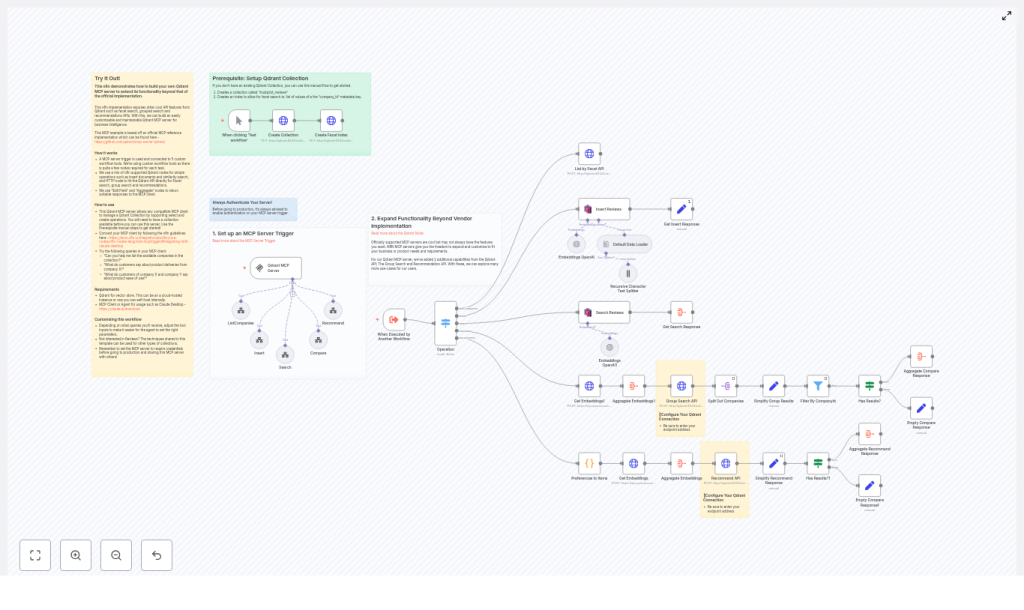
Build a Qdrant MCP Server with n8n (Without Writing a Monolith)
Imagine you could plug Qdrant, OpenAI, and your favorite MCP client together without spinning up a big custom backend. That is exactly what this n8n workflow template does.
In this guide, we will walk through an n8n-based Qdrant MCP (Model-Controller-Provider) server that adds some real power on top of Qdrant’s vector search. With this workflow, you can handle:
- Facet search (like listing companies)
- Grouped search (great for side-by-side comparisons)
- Recommendations (based on what users like or dislike)
All of this is wired up using an MCP trigger, OpenAI embeddings, Qdrant’s API, and n8n’s built-in Qdrant nodes. Think of it as a flexible integration layer that you can tweak anytime, without redeploying an entire service.
What this n8n Qdrant MCP template actually does
At a high level, this workflow listens for requests from an MCP client (like Claude Desktop or any MCP-compatible agent), then runs the right “tool” behind the scenes.
Those tools handle operations such as:
- Insert – Ingest and embed new documents into Qdrant.
- Search – Run standard similarity search over your collection.
- Compare – Compare results across companies or groups.
- Recommend – Suggest similar items based on positive/negative examples.
- listCompanies – Use Qdrant’s facet API to list available companies.
The workflow uses:
- MCP Trigger node to accept incoming MCP requests.
- OpenAI embeddings to convert text into vectors.
- Qdrant vector store nodes for insert/load operations.
- HTTP Request nodes to hit Qdrant’s grouped search, facet, and recommend endpoints.
- Transform nodes like
Set,Aggregate, andSplit Outto shape clean, predictable responses.
The result is a modular MCP server that sits on top of your Qdrant collection and exposes richer tools than “just search”.
Why build your Qdrant MCP server in n8n?
You could rely on a vendor implementation or write your own service from scratch. So why bother with n8n?
Because n8n gives you a visual, flexible layer where you can:
- Expose more Qdrant features like facet search, grouped search, and recommendations through your MCP interface.
- Mix and match APIs such as OpenAI for embeddings and Qdrant for search and recommendations, without building a monolithic backend.
- Iterate quickly on tools your agents use, so you can tweak behavior, add logging, or change response formats without touching server code.
- Add business logic like access control, analytics, or notifications right inside the workflow.
If you are experimenting with agent workflows or want tight control over how your MCP tools behave, this pattern is a very practical sweet spot.
What you need before you start
Here is the short checklist to follow along with the template:
- An n8n instance (cloud or self-hosted).
- A Qdrant collection set up. The example uses a collection named
trustpilot_reviews. - An OpenAI API key (or compatible provider) for generating embeddings.
- Basic familiarity with vector search concepts and how n8n nodes work.
Once those are in place, you are ready to plug in the workflow template.
How the architecture fits together
Let us break down the moving parts so the whole picture feels clear before we dive into each tool.
MCP Trigger as the entry point
Everything starts with the MCP Trigger node. It listens for incoming requests from your MCP client or agent and hands the payload off to the rest of the workflow.
Operation routing with a Switch node
Right after the trigger, a Switch (Operation) node inspects the request and routes it to the correct tool workflow. For example:
listCompaniesinsertsearchcomparerecommend
This keeps each operation isolated and easy to test on its own, while still sharing the same MCP entry point.
Embedding and Qdrant access
- OpenAI Embeddings nodes create vector representations for text queries, documents, and user preferences.
- Qdrant vector store nodes handle the standard insert and load operations directly from n8n.
- HTTP Request nodes call Qdrant’s advanced endpoints for grouped search, faceting, and recommendations.
Response shaping
To make sure your MCP client gets neat, predictable responses, the workflow uses:
- Set nodes to rename and clean up fields.
- Aggregate nodes to combine embeddings or results.
- Split Out nodes to break apart arrays into separate items when needed.
The end result is a consistent, client-friendly JSON structure, even when Qdrant returns complex grouped or recommendation data.
Diving into each tool workflow
Insert workflow: getting data into Qdrant
When you insert documents, the template follows a robust ingestion pipeline:
- Generate embeddings using OpenAI for your document text.
- Split large text into smaller, manageable chunks using the
Recursive Character Text Splitter. - Enrich metadata with fields like
company_idso you can later filter, facet, and group by company. - Insert vectors into Qdrant using the Qdrant insert vector store node.
The template includes a Default Data Loader and the text splitter to make sure even big documents are chunked and indexed in a way that plays nicely with search and recommendation queries later.
Search and grouped search: from simple queries to comparisons
There are two flavors of search in this setup.
Standard similarity search
For straightforward “find similar documents” queries, the workflow uses an n8n Qdrant load node. It takes your query embedding, hits the collection, and returns the top matches.
Grouped search for side-by-side insights
When you want results grouped by company or another field, the workflow switches to Qdrant’s grouped search endpoint:
- It calls
/points/search/groupsvia an HTTP Request node. - Results are then transformed into easy-to-consume categories and hit lists.
This is especially handy when you want to compare companies side by side. For example, “show me how customers talk about delivery for company A vs company B”. Grouped search does the heavy lifting of organizing results by company for you.
Facet search: listing companies with listCompanies
Sometimes an agent just needs to know what is available. That is where the listCompanies tool comes in.
Under the hood, it uses Qdrant’s facet API:
/collections/<collection>/facet
It is configured to return unique values for metadata.company_id. The workflow wraps this in a tool called listAvailableCompanies so an agent can ask something like:
“Which companies are available in the trustpilot_reviews collection?”
and get back a clean, structured list of companies that exist in the index.
Recommendations: turning preferences into suggestions
The recommendation tool is built to answer questions like “What should I show next if the user liked X and disliked Y?”
Here is how that pipeline works:
- Convert user preferences (positive and negative examples) into embeddings using OpenAI.
- Aggregate those embeddings into a combined representation that reflects what the user likes and dislikes.
- Call Qdrant’s recommendation endpoint:
/points/recommend - Simplify the response so the MCP client receives the most relevant items, including payload and metadata, in a clean JSON structure.
This makes it easy to plug into an agent that wants to suggest similar reviews, products, or any other vectorized content.
Step-by-step: setting up the template
Ready to get it running? Here is the setup flow you can follow:
- Create your Qdrant collection if you do not already have one.
- The example uses
trustpilot_reviews. - Vector size:
1536. - Distance:
cosine.
- The example uses
- Create a facet index for
metadata.company_idso facet queries can quickly list companies. - Configure credentials in n8n:
- Qdrant API endpoint and API key or auth method.
- OpenAI API key (or compatible embedding provider).
- Import the workflow template into n8n.
- Set the MCP Trigger path.
- Secure it with authentication before you use it in production.
- Test each tool:
- Trigger operations from an MCP client.
- Or execute individual tool workflows directly in n8n to verify behavior.
Example MCP queries you can try
Once everything is wired up, here are some sample queries you can send through your MCP client:
- “List available companies in the trustpilot_reviews collection.”
- “Find what customers say about product deliveries from company: example.com”
- “Compare company-a and company-b on ‘ease of use’”
- “Recommend positive examples for a user who likes X and dislikes Y”
These map to the different tools in the workflow, so they are a great way to sanity-check that search, grouping, faceting, and recommendations all behave as expected.
Security and production best practices
Since this workflow exposes a powerful interface into your Qdrant data, it is worth taking security seriously from day one.
- Protect the MCP Trigger
- Enable authentication on the MCP Trigger node.
- Do not expose it publicly without proper auth and rate limiting.
- Lock down network access
- Use VPCs, firewall rules, or private networking for your Qdrant instance and n8n.
- Validate user input
- Sanitize query text and parameters.
- Enforce reasonable limits like
topKorlimitto avoid very expensive queries.
- Monitor costs
- Keep an eye on embedding API usage.
- Watch Qdrant compute and storage usage as your collection grows.
Ways to extend the workflow
One of the nicest parts about doing this in n8n is how easy it is to keep evolving it. Once the basics are running, you can:
- Add more Qdrant API calls, for example:
- Collection management
- Snapshots and backups
- Layer in business logic after search results:
- Analytics on which companies are trending.
- Alerting when certain sentiment thresholds are met.
- Connect downstream systems using n8n nodes:
- Send summaries to Slack.
- Email periodic reports.
- Push data into dashboards or CRMs.
Because it is all visual and modular, you can experiment without risking the core MCP tools.
Troubleshooting common issues
If something feels off, here are a few quick checks that often solve the problem.
- Grouped search returns empty results?
- Confirm your embedding pipeline is running and storing vectors correctly.
- Verify that
metadata.company_idis present on stored payloads. - Make sure the collection name in your Qdrant nodes matches the actual collection.
- Facet (listCompanies) not returning values?
- Check that the facet index for
metadata.company_idexists. - Verify that documents actually have that metadata field populated.
- Check that the facet index for
- Recommend calls failing or returning odd results?
- Ensure embeddings for positive and negative examples are generated and aggregated correctly.
- Confirm that the
/points/recommendendpoint is reachable from n8n.
Wrapping up and what to do next
This n8n template gives you a practical way to turn a Qdrant collection into a full MCP server that goes far beyond simple vector search. It works especially well for:
- Review analytics across multiple companies.
- Side-by-side company comparisons.
- Agent-driven workflows that need modular, testable tools.
The path forward is pretty straightforward:
- Import the template into your n8n instance.
- Hook it up to your Qdrant and OpenAI credentials.
- Secure the MCP Trigger with proper authentication.
- Iterate on prompts, aggregation settings, and response formats until they fit your agent’s needs.
Call to action: Import this template into n8n and point it at a sample collection. Play with the example queries, then start adapting the tools to match your own data and use cases. If you get stuck or want to go deeper, the Qdrant and n8n docs are great companions for adding features like snapshots, access control, or monitoring.
