


n8n Recruitment Automation: Build a Smart Hiring Pipeline
Every hiring cycle starts with good intentions: find the right people, move fast, and give every candidate a great experience. Then the reality hits. Inboxes fill up, spreadsheets get messy, and manual follow-up drags you away from what really matters – evaluating fit and building your team.
It does not have to stay that way. With a simple mindset shift and the right tools, you can turn recruitment from a reactive grind into a smooth, largely automated pipeline that works for you in the background.
In this guide, you will walk through a production-ready n8n recruitment workflow template that:
- Captures applications from Indeed or Gmail
- Uses OpenAI to extract the job title automatically
- Writes structured candidate data to Google Sheets
- Sends onboarding emails and test requests
- Schedules and tracks interviews via Cal.com
Think of this template as your starting point. It is a working foundation you can adapt, extend, and refine as your hiring process grows more sophisticated.
From manual chaos to an automated hiring system
Recruitment is full of repetitive, interrupt-driven tasks that quietly consume your day. You copy names into spreadsheets, search through email threads, paste links, send reminders, and try to remember who is at which stage.
Those tasks are important, but they do not require your creativity or judgment. They are exactly the kind of work automation is built for.
n8n, an open-source automation tool, lets you connect your hiring tools so that your pipeline reacts instantly and consistently. When you wire these steps together, you unlock benefits such as:
- Faster responses so candidates feel acknowledged quickly
- Consistent onboarding and screening steps across roles
- Reduced manual data entry and fewer spreadsheet errors
- Clear visibility through an audit trail in Google Sheets
Instead of juggling tabs and emails, you can focus on conversations, culture, and decision making. Automation takes care of the rest.
Adopting an automation-first mindset
Before diving into nodes and triggers, it helps to approach this workflow with the right mindset. You are not just building a one-off script. You are creating a system that can grow with your team.
As you follow the steps below, keep asking:
- What repetitive action can I remove from my plate?
- What information do I always need but currently hunt for manually?
- Where are candidates waiting on me instead of a system?
This template answers many of those questions out of the box. It captures applications, structures data, and nudges candidates forward. Once it is running, you can extend it with more advanced steps like resume parsing or scoring, all from the same foundation.
The recruitment automation journey with n8n
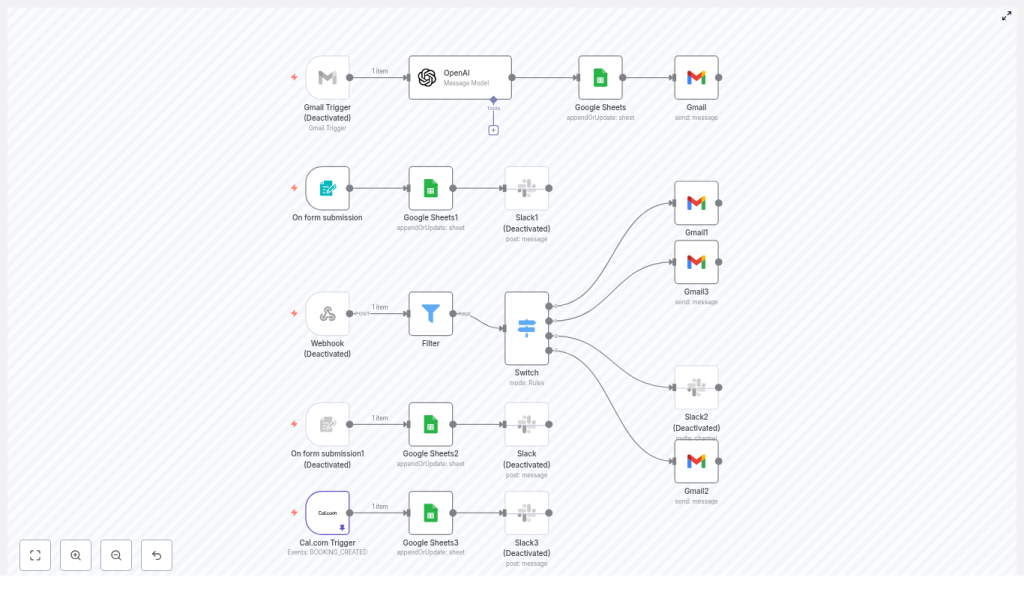
The template workflow connects your tools in a clear, logical sequence:
- Gmail Trigger listens for new application emails
- OpenAI node parses the email subject and extracts the job title
- Google Sheets appends or updates a candidate row
- Gmail sends an onboarding email with a unique code
- Form submission node collects onboarding responses and updates the sheet
- Webhook + Switch routes sheet updates to the right next step
- Cal.com Trigger captures booked interviews and marks the sheet
Let us walk through this pipeline step by step so you can understand not just how to set it up, but how to adapt it to your own hiring style.
Step 1: Capture incoming applications with Gmail Trigger
Everything begins when a candidate applies. Instead of manually scanning your inbox, you let n8n listen for you.
Start with the Gmail Trigger node:
- Filter by sender or subject so you only catch job application messages
- Example filter:
indeed subject:applied on Indeed - Choose a poll frequency (for example, every hour) or use push-style triggers if available
Make sure the trigger captures key fields that you will need downstream:
subjectfrom.namefrom.addressdatemessage body
This single step turns your inbox into a structured input stream for your hiring pipeline.
Step 2: Use OpenAI to extract the job title
Application subjects are rarely tidy. They might look like:
Freelance Video Editor - Grace-Elyse Pelzer applied on Indeed
Instead of manually parsing these lines, you can let the OpenAI node pull out exactly what you need: the job title.
Configure the OpenAI (or LangChain) node to:
- Send a clear system instruction, for example:
You are an intelligent bot capable of pulling out the job title from an email subject line. - Pass the subject dynamically:
{{ $json.subject }} - Ask for JSON-only output, such as:
{  "job": ""
}
By constraining the prompt and requiring JSON, you get a robust, structured value even when subjects vary. Save the parsed job field so downstream nodes, especially Google Sheets, receive a clean, normalized job title.
Step 3: Build your single source of truth in Google Sheets
Next, you want every candidate to appear in a central place where you can filter, sort, and track progress. Google Sheets is perfect for this, especially in the early stages of building out your hiring stack.
Use the Google Sheets node with the appendOrUpdate operation, keyed on the candidate email or the unique code you generate. Map columns such as:
- First Name
- Last Name (you can split this from
from.name) - Job (from the OpenAI node)
- Date Added
- Code (generated with
Math.randomor a deterministic hash) - Indeed Email or source email
This sheet becomes your candidate pipeline dashboard and audit log. It is where you can monitor stages, trigger bulk actions, and later connect analytics tools.
Step 4: Send a personalized onboarding email automatically
Once the candidate is safely recorded, it is time to make a strong first impression without manually drafting the same message over and over.
Use a Gmail node to send an onboarding email that includes:
- A link to your onboarding form
- The unique code that will match form responses to their row in the sheet
- Clear, friendly next-step instructions
Personalize the message with variables, for example:
Hey {{ $json['First Name'] }},

Thanks for applying for the {{ $('OpenAI').item.json.message.content.job }} position...
This small touch keeps your process human and warm, even though the workflow is doing the heavy lifting behind the scenes.
Step 5: Collect onboarding and test submissions with n8n Forms
Now that candidates have their link and code, you want their responses to flow directly into your system. No more copy and paste, no more lost forms.
Create an n8n Form Trigger for your onboarding and test forms. In your form:
- Include a required Code field
- Use that code to match responses back to the correct row in Google Sheets
In the Sheets node, still using appendOrUpdate, set the matching column to Code. This keeps each candidate’s data unified, even as they submit multiple forms.
You can also introduce basic screening logic at this stage. For example:
- If Years Of Experience is less than or equal to 3, set
Rejected = TRUE
These simple rules free you from manually scanning every response and let you focus your time on the most promising candidates.
Step 6: Route next steps with a Webhook and Switch node
As your sheet updates, different candidates will hit different milestones. Some finish onboarding, others complete tests, some are approved for interviews.
To keep the flow organized, use a Webhook or a Filter + Switch combination that evaluates which column changed, for example:
- Questions
- Test Complete
- Test Approved
- Interview Scheduled
Based on these values, route candidates to the right Gmail node to send:
- Test instructions when onboarding is complete
- An interview scheduling link when the test is approved
- Rejection or follow-up messages when criteria are not met
This modular routing keeps the workflow maintainable and easy to extend. You can add new branches and conditions without rewriting the entire pipeline.
Step 7: Track interviews with the Cal.com Trigger
When a candidate reaches the interview stage, you want scheduling to be smooth and transparent.
Use the Cal.com Trigger node to listen for booked interviews. When an event is created, update the corresponding row in Google Sheets to mark that the interview is scheduled.
This closes the loop between your calendar and your hiring dashboard, so you always know who is at which stage without manual reconciliation.
Tips and best practices for a reliable n8n recruitment workflow
To keep your automation stable and trustworthy, build in a few best practices from the start.
Design focused OpenAI prompts
- Keep prompts constrained to extract only the fields you need
- Require strict JSON output
- Add a few examples if your subjects are especially noisy or varied
Avoid duplicate candidates
- Use email or the generated Code as the match column in Google Sheets
- Rely on appendOrUpdate so repeated applications update instead of duplicating
Protect candidate data
- Store only the minimal PII you actually need
- Secure Google and Gmail credentials with OAuth
- Limit spreadsheet access to the smallest group necessary
Test thoroughly before going live
- Use test values for the Form Trigger and Webhook, n8n offers a test mode
- Confirm that code matching and sheet updates work from end to end
- Check that each branch of your Switch node sends the correct email
Plan for failures and limits
- Configure retry logic on network-dependent nodes
- Add a Slack or email alert for failed executions
- Respect Gmail and Google Sheets API limits by batching or spacing actions
Extending your recruitment automation as you grow
Once the core flow is stable, you have a powerful platform to build on. You can start simple and layer in sophistication as your needs evolve.
Here are some ideas to extend the template:
- Automated resume parsing to extract skills, seniority, or key qualifications from attachments
- Candidate scoring using an evaluation node, where OpenAI summarizes strengths and flags potential concerns
- HRIS integrations that trigger background checks or payroll onboarding once a candidate is hired
- Analytics dashboards by connecting Google Sheets to Looker Studio for pipeline metrics and conversion rates
Each improvement turns your n8n setup into more of a strategic asset, not just a time saver.
Security and compliance reminders
Recruiting data is sensitive, and a professional automation setup respects that from day one. Keep in mind:
- Use least-privilege OAuth tokens for Gmail and Google Sheets
- Enable 2FA on service accounts and Google accounts
- Restrict who can view or edit the candidate sheet
- Adopt a data retention policy and remove old candidate data according to local regulations
Final checklist before you switch this workflow to live
Before you trust this automation with real candidates, walk through this quick checklist:
- Confirm Gmail trigger filters capture only application emails
- Validate your OpenAI prompt against multiple real subject variations
- Ensure Code generation is unique and consistently used for matching
- Test form submissions and verify sheet updates and routing paths
- Enable logging and alerts so you see and fix failures quickly
Take the next step toward a smarter hiring pipeline
Every hour you spend on manual recruitment admin is an hour you are not talking to great candidates or shaping your culture. This n8n template is your shortcut to reclaiming that time.
You do not need to automate everything at once. Start with this workflow, connect your accounts, and run it in a staging spreadsheet. Watch how it handles the basics. Then iterate, improve, and expand it as you gain confidence.
Ready to reduce busywork and build a smarter hiring pipeline?
Call to action: Try the template now, then share one sample email subject you receive. I will provide a tuned OpenAI prompt that you can paste directly into your OpenAI node so your extraction is even more accurate for your specific use case.
