


Fetch HubSpot Contacts with n8n: Step-by-Step Teaching Guide
Connecting HubSpot to n8n is a powerful way to automate contact retrieval, keep your systems in sync, and eliminate manual exports. This guide walks you through, in a teaching-friendly way, how to use an n8n workflow template that fetches all HubSpot contacts using the HubSpot node.
You will learn how to:
- Understand the basic structure of an n8n workflow that retrieves HubSpot contacts
- Set up and secure your HubSpot credentials in n8n
- Configure the HubSpot node to use the
getAlloperation with pagination - Handle large datasets and HubSpot API rate limits
- Send the retrieved contacts to tools like Google Sheets or databases
- Troubleshoot common issues and apply best practices for production workflows
Concepts You Need Before You Start
Why fetch HubSpot contacts with n8n?
Using n8n to pull contacts from HubSpot lets you:
- Automate data syncs between HubSpot and other systems such as CRMs, databases, and analytics tools
- Feed marketing and sales workflows with fresh, automatically updated contact lists
- Reduce manual exports and the risk of human error
Prerequisites
Before you follow the steps, make sure you have:
- An n8n instance (cloud or self-hosted)
- An active HubSpot account with API access
- HubSpot API key or OAuth credentials, depending on your HubSpot plan and security requirements
What the example workflow does
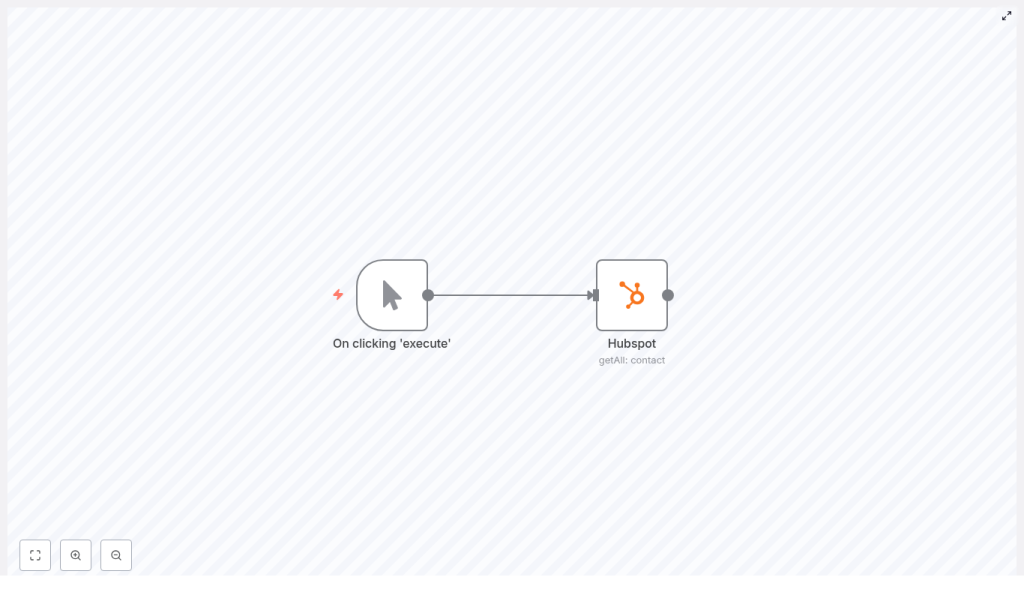
The template workflow is intentionally simple so you can focus on understanding how the HubSpot node works:
- A Manual Trigger node starts the workflow
- A HubSpot node retrieves all contacts using the
getAlloperation
In JSON form, the core idea looks like this:
{  "nodes": [  {"name": "Manual Trigger"},  {"name": "HubSpot", "resource": "contact", "operation": "getAll", "returnAll": true}  ]
}
Later, you can replace the manual trigger with a Cron node or Webhook to run the sync automatically.
Step-by-Step: Build and Understand the Workflow
Step 1 – Create and configure HubSpot credentials
The first step is to give n8n secure access to your HubSpot account.
- In n8n, open the Credentials section.
- Create new credentials of type HubSpot API.
- Choose your authentication method:
- OAuth (recommended in most cases)
- API key, if your HubSpot plan still supports it and it fits your security policy
- If using OAuth:
- Enter the Client ID and Client Secret from your HubSpot app
- Authorize n8n to access your HubSpot account when prompted
Tip: Use a dedicated service account or HubSpot app with only the scopes required to read contacts. This limits risk if credentials are ever compromised.
Step 2 – Add a trigger node
You need a trigger node to start the workflow. For learning and testing, the manual trigger is easiest.
In n8n:
- Add a Manual Trigger node and keep the default settings
For production use, you will usually replace the manual trigger with one of these:
- Cron node – to run the sync on a schedule (for example hourly or daily)
- Webhook node – to start the workflow when an external system calls your n8n webhook URL
Step 3 – Configure the HubSpot node to get all contacts
Now connect the trigger to a HubSpot node that actually fetches the contact data.
- Add a HubSpot node and connect it after the Manual Trigger (or your chosen trigger).
- Select your HubSpot credentials in the node so it can authenticate.
- Configure the core fields:
- Resource:
contact - Operation:
getAll - Return All: set to true
- Resource:
- Optionally, open Additional Fields to:
- Specify which contact properties to retrieve
- Add filters or other options if needed
When Return All is set to true, n8n automatically handles HubSpot pagination behind the scenes. Instead of you having to loop through pages, n8n follows HubSpot’s pagination links and returns a single combined array with all contacts.
Selecting only the properties you need
To improve performance and reduce payload size, it is good practice to request only the properties that your workflow actually uses.
In the HubSpot node’s Additional Fields section, you can list specific property names such as:
emailfirstnamelastnamephonelifecyclestage
By limiting properties, the workflow runs faster and uses less memory, which is especially important with large contact databases.
Step 4 – Handle large datasets and HubSpot rate limits
When you start fetching thousands or hundreds of thousands of contacts, you need to think about performance and API limits.
HubSpot enforces rate limits, so keep these practices in mind:
- Use Return All carefully for very large contact bases. For very large datasets, consider:
- Splitting retrieval by date ranges, such as using a last modified date filter
- Segmenting by lists or other properties
- Add error handling in n8n:
- Use an Error Trigger workflow to react to failures
- Use an IF node to branch logic if a request fails
- Monitor your HubSpot API quotas in the HubSpot dashboard.
- If you receive HTTP 429 responses (too many requests), implement retry logic with exponential backoff in n8n.
Step 5 – Process or export the fetched contacts
Once the HubSpot node returns the contact array, you can send the data almost anywhere supported by n8n.
Common follow-up actions include:
- Saving contacts to a data store:
- Google Sheets
- Airtable
- SQL databases such as MySQL or Postgres
- Enriching contacts by:
- Calling external enrichment APIs
- Writing enriched data back into HubSpot
- Sending contacts into marketing tools:
- Mailchimp
- SendGrid
- Other email or marketing automation platforms
Example: Save HubSpot contacts into Google Sheets
To make things concrete, here is how you can store the retrieved contacts in a Google Sheet:
- Add a Google Sheets node after the HubSpot node.
- Choose the Append operation in the Google Sheets node.
- Select the target spreadsheet and worksheet.
- Map properties from each contact to columns using:
Item.jsonreferences in the expression editor, or- The visual UI mapper
- For example, map:
emailto the Email columnfirstnameto the First Name columnlastnameto the Last Name column
Testing Your Workflow Before Production
Before running this at full scale, always test with a small sample.
- In the HubSpot node, temporarily set a small Limit instead of using Return All.
- Run the workflow with the Manual Trigger.
- Inspect the execution log and review the JSON output to confirm:
- The correct properties are returned
- Mappings to downstream nodes (such as Google Sheets) are correct
Once everything looks good, you can switch back to Return All or increase the limit, and then attach a Cron node for scheduled execution.
Security and Compliance Checklist
Working with contact data often involves personal information, so treat it carefully.
- Store HubSpot credentials only in n8n’s built-in credential manager. Do not hard-code keys directly in node parameters.
- Use OAuth where possible:
- It avoids long-lived API keys
- It makes revoking access easier if needed
- Respect GDPR and other privacy regulations:
- Do not pull sensitive fields unless necessary
- Keep audit logs for who accessed what data and when
Common Issues and How to Fix Them
1. The workflow returns no contacts
If the result is empty, check the following:
- Are your HubSpot credentials valid and authorized to read contacts?
- Are your property filters correct?
- A single incorrect property name or filter can remove all records from the result
- Try:
- Disabling filters temporarily
- Turning off Return All and using a small Limit to test connectivity
2. Permission or scope errors
If you see permission errors from HubSpot:
- Confirm that your HubSpot app, OAuth client, or API key has scopes that allow reading contacts.
- If scopes have changed recently, re-authenticate your credentials in n8n.
3. Performance and speed problems
If the workflow feels slow or heavy:
- Reduce the number of properties requested in the HubSpot node.
- Split large syncs into multiple runs based on:
- Date ranges, such as
lastmodifieddate - Specific contact lists or segments
- Date ranges, such as
- Consider running some parts of the workflow in parallel if your infrastructure allows it.
Advanced Ideas for Production Workflows
Once you have the basic template working, you can extend it to handle more complex use cases.
- Transform and clean data:
- Use a Function node to normalize fields, deduplicate contacts, or apply custom business logic before sending data downstream.
- Use HubSpot Contact Lists:
- Instead of always pulling your entire contact base, use the HubSpot Contact Lists API to fetch only specific lists or segments.
- Incremental syncs:
- Store the last sync timestamp in a database or table.
- On each run, filter HubSpot contacts by
lastmodifieddateso you only retrieve new or updated records.
Recap and Next Steps
To summarize, fetching all HubSpot contacts with n8n involves a clear sequence:
- Create secure HubSpot credentials in n8n.
- Add a trigger node (Manual Trigger for testing, Cron or Webhook for production).
- Configure the HubSpot node with:
- Resource set to contact
- Operation set to getAll
- Return All enabled for automatic pagination
- Optional property selection to control the payload
- Handle large datasets by respecting rate limits, adding error handling, and segmenting data when needed.
- Send the retrieved contacts to tools like Google Sheets, databases, or marketing platforms.
- Test with small limits first, then scale up and schedule the workflow.
By following these steps and best practices, you can build reliable, scalable automations that keep HubSpot contacts synchronized with the rest of your stack.
Next action: Import the template into your n8n instance, run it with a Manual Trigger to verify everything, then swap the trigger for a Cron node to put your sync on a schedule.
Quick FAQ
Do I have to use Return All?
No. For smaller datasets, Return All is convenient. For very large datasets, you might prefer using a limit or segmenting your sync by date or list to better control performance and API usage.
Can I use this workflow on a schedule?
Yes. After testing with a Manual Trigger, replace it with a Cron node to run hourly, daily, or on any schedule you choose.
Is OAuth required for HubSpot?
OAuth is recommended because it is more secure and easier to revoke or rotate. However, if your HubSpot plan and policy allow API keys, you can configure the HubSpot node with an API key instead.
What if I only want certain contacts?
You can filter by properties or use HubSpot Contact Lists to fetch only specific segments instead of the full contact base. This is often more efficient and more relevant for targeted workflows.
