


Build an AI Email Assistant with n8n & Gmail
Your inbox does not have to run your day. With the right automation, it can quietly support your focus instead of constantly demanding it. In this guide, you will turn a busy Gmail inbox into a calm, organized system using an n8n workflow template that listens for new messages, classifies them with LangChain and OpenAI, labels and organizes them, drafts replies, and taps into Supabase and Google Sheets for context-aware responses.
Think of this workflow as your first step toward a more automated, intentional workday. You stay in control, while your AI email assistant handles the repetitive parts.
From inbox overload to intentional focus
Email is often where focus goes to die. Messages pile up, priorities blur, and important conversations get buried under newsletters and notifications. You probably know the feeling of:
- Spending too much time sorting, labeling, and triaging messages
- Writing the same types of replies over and over
- Missing opportunities because your inbox is simply too full
Automation with n8n, Gmail, and AI gives you a different path. Instead of reacting to every new email, you can design a system that:
- Surfaces what truly needs your attention
- Prepares thoughtful draft replies for you
- Organizes and labels messages for future workflows and reporting
The workflow you are about to build is not just a technical exercise. It is a mindset shift: from manual, reactive work to deliberate, automated systems that support your growth.
What an AI email assistant can do for you
This n8n AI email assistant template is built to remove friction from your daily communication, while keeping you firmly in the loop. Once configured, it can:
- Automatically categorize incoming Gmail messages into clear buckets such as Reply Required, Action Required, Invoices, and Marketing
- Create draft replies using OpenAI, ready for your quick review or approval
- Apply Gmail labels and mark messages as read to keep your inbox clean and searchable
- Use context from Google Sheets or a Supabase vector store to personalize and enrich responses
Instead of wondering where to start every time you open Gmail, you will see a curated, labeled inbox and a set of AI-generated drafts that move conversations forward faster.
How the n8n email assistant template works
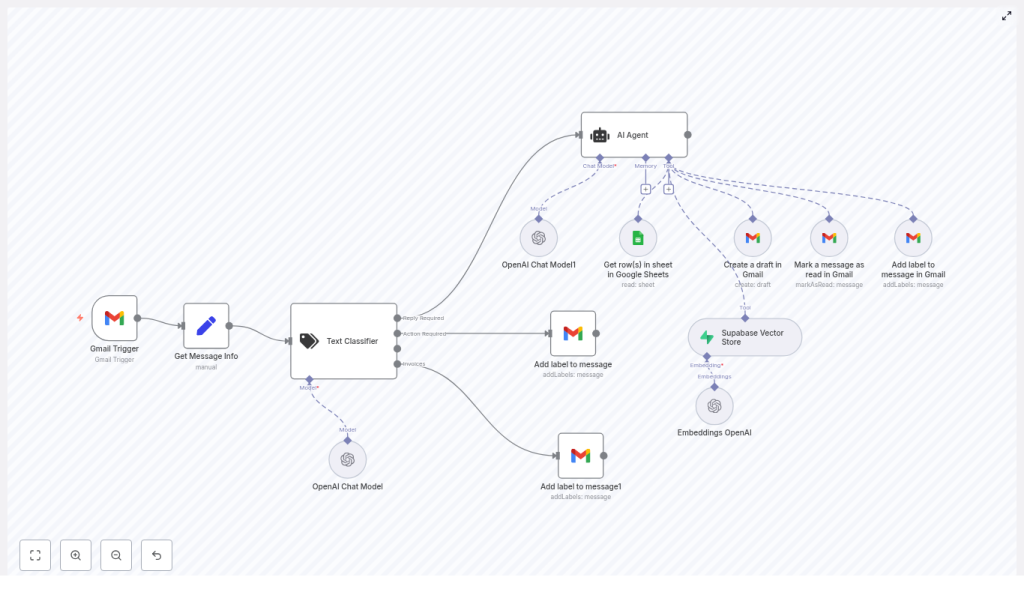
At its core, this workflow is a set of n8n nodes working together to watch your Gmail, understand each message, and respond intelligently. Here is the high-level flow you will be building:
- Gmail Trigger – Listens for new incoming emails
- Set (Get Message Info) – Extracts key fields like From, Subject, Body, and Message ID
- LangChain Text Classifier – Classifies the message into categories you define
- Gmail nodes – Add labels, mark messages as read, and manage drafts
- OpenAI Chat Model nodes – Generate professional draft replies
- AI Agent – Coordinates drafting, storing Gmail drafts, labeling, and marking messages as read
- Google Sheets – Optionally enrich replies with lead or account data
- Embeddings + Supabase Vector Store – Store and query contextual data to make replies smarter
Individually, these are simple building blocks. Together, they form a powerful pattern you can reuse across many workflows: trigger, enrich, classify, act, and store context.
Step-by-step: building your AI email assistant in n8n
Now let us turn the concept into a working automation. You can follow these steps using the provided n8n template or recreate the flow node by node. Either way, you will end up with a repeatable system you can refine over time.
1. Start with the Gmail Trigger
Begin by adding a Gmail Trigger node. This node is the entry point of your workflow and will fire whenever a new email arrives that matches your criteria.
Configure it as follows:
- Connect your Gmail OAuth2 credentials in n8n
- Choose your preferred trigger mode, such as polling at a specific interval or using push / webhook if available
- Set filters to limit which emails are processed, for example:
- Only unread messages
- Messages with specific labels
This filtering step is crucial. It keeps your automation focused and prevents the workflow from processing every single message in your account.
2. Extract the message data you care about
Next, add a Set node, often called Get Message Info in this template. This is where you map the raw Gmail trigger data into clear, reusable fields.
From the trigger payload, extract values such as:
FromSubjectBodyMessage ID
These fields will feed into your AI prompts, classification logic, and Gmail operations. Clean, well-structured data here makes the rest of the workflow easier to maintain.
3. Classify each email with LangChain
With the message details ready, connect a LangChain Text Classifier node. This is where your workflow starts to think about each email, instead of treating them all the same.
Configure the classifier to evaluate the email content against predefined categories, for example:
- Reply Required
- Action Required
- Marketing Emails
- Invoices
Provide clear category descriptions in your classifier configuration, such as:
- “Does this message require a reply?”
- “Is this a marketing email?”
The classifier output lets your workflow branch intelligently. You might, for instance:
- Send marketing emails to a specific label without drafting replies
- Only generate AI drafts for messages that truly require a response
- Route invoices into a finance-related label for later processing
4. Label and route messages in Gmail
Once an email has been classified, you can use the result to organize your inbox automatically. Connect the classification outputs to Gmail addLabels nodes.
Examples of useful label logic include:
- Apply a
Reply Requiredlabel when the classifier says a response is needed - Attach an
Invoiceslabel to financial or billing messages - Keep marketing or low-priority messages grouped under a dedicated label
These labels are more than visual tags. They become anchors for future automations, filters, and dashboards.
5. Generate AI draft replies with OpenAI
For messages that need a response, it is time to let AI help you write. Route the relevant branches into an OpenAI Chat Model node or into an AI Agent that wraps the chat model and Gmail tools.
Provide a focused system prompt. For example:
You are a helpful assistant. Write a brief, professional reply to the email below. Keep it under 5 sentences and include any requested next steps.

From: {{ $json.From }}
Subject: {{ $json.Subject }}
Body: {{ $json.Body }}
Let the model generate both the subject and body of the reply. Then use n8n’s $fromAI helper to map the model outputs into the fields required by the Gmail Draft node.
This is where the time savings become very tangible. Instead of starting from a blank screen, you review and tweak a solid draft that already reflects the original message and your instructions.
6. Save the draft, mark the email as read, and finalize labels
With your AI-generated reply ready, add a Gmail tool node to create an actual draft in Gmail. Map the AI-generated subject and message body into the appropriate fields.
After the draft is created, chain additional Gmail operations to:
- Mark the original message as read, once it has been processed
- Add any final labels that indicate the email has been handled or is awaiting your quick review
These steps help your inbox reflect reality. You will see at a glance which emails have drafts waiting, which ones are fully processed, and where your attention is still required.
7. Personalize replies with Google Sheets and Supabase
To move from generic replies to deeply relevant responses, integrate your existing data sources.
Use a Google Sheets node to pull rows that match the sender or subject. This can provide:
- Lead details
- Account status
- Customer preferences or notes
For more advanced context, connect Embeddings (OpenAI) with a Supabase Vector Store:
- Create embeddings from email texts, documents, or previous interactions
- Store them in Supabase for long-term semantic search
- Query relevant entries at runtime to give the AI concrete policies, past conversations, or FAQs to reference
This combination turns your email assistant into a context-aware companion that can respond with the nuance of your existing knowledge base.
Prompting tips for better AI email replies
Strong prompts are the difference between average and excellent AI responses. As you refine your workflow, experiment with:
- Always including a clear system instruction that defines role, tone, and length constraints
- Passing structured context such as
From,Subject,Body, and any row lookups from Google Sheets - Testing with multiple real examples, such as common customer questions, invoice notices, and marketing emails
- Iterating on your classifier categories and prompts as you see how the model behaves
Think of prompting as an ongoing design process. Each small improvement compounds into more accurate, more helpful replies.
Security and privacy: build with confidence
Automating email means handling sensitive information, so it is important to design responsibly. As you implement this n8n template, keep these practices in mind:
- Limit the data you send to OpenAI and other external services, and redact personally identifiable information if it is not required
- Use least-privilege credentials for Gmail and Google Sheets so the workflow only has access to what it truly needs
- Store API keys, OpenAI secrets, and Supabase credentials securely using n8n’s credentials storage
- Log actions thoughtfully and avoid storing unnecessary sensitive content in external vector stores
By designing with privacy in mind from the start, you can scale your automation without compromising trust.
Testing, debugging, and building confidence
Before you let your new assistant touch your main inbox, give it a safe space to grow.
- Start with a test Gmail account or a small subset of emails
- Add debug nodes or manually execute nodes in n8n to inspect outputs at each step
- Use temporary labels such as
n8n-testso you can quickly identify which messages the workflow has touched
This gradual approach lets you adjust prompts, labels, and thresholds until you are happy with the results, then confidently roll it out to your primary account.
Common pitfalls and how to overcome them
Every automation journey includes a few bumps. Here are typical issues and how to address them:
- Duplicate triggers
If messages are processed more than once, tighten your Gmail Trigger filters. Use labels or the “mark as read” step to ensure that already-processed emails do not fire the workflow again. - Model hallucinations
If AI replies occasionally invent details, constrain your prompts. Explicitly instruct the model to only use verified data from Google Sheets or the vector store, and to say when information is not available. - Rate limits
When you hit OpenAI or Gmail rate limits, consider batching operations, adding delays, or throttling your workflow. Monitor usage so you can scale gracefully.
Each fix strengthens your workflow and teaches you something valuable for future automations.
Advanced ideas to grow your automation
Once the core template is running smoothly, you can extend it to match your unique workflow and goals. For example, you can:
- Auto-reply to low-risk messages, such as simple confirmations, while saving drafts for higher-risk or sensitive conversations that need human review
- Integrate Slack or Microsoft Teams notifications for messages classified as urgent, so the right person is alerted instantly
- Create a runtime dashboard in Google Sheets or Notion that lists processed messages, categories, and AI decisions for easy auditing
- Use supervised data to fine-tune your classification thresholds and category definitions over time
Every improvement you make here becomes a reusable pattern for future automations in sales, support, operations, and more.
Bringing it all together
This n8n AI email assistant template brings together Gmail, LangChain, OpenAI, Google Sheets, and Supabase into one cohesive workflow. It listens to new messages, classifies them, labels and organizes them, generates AI-powered draft replies, and stores context for smarter responses in the future.
The result is not just a tidier inbox. It is a foundation for a more focused, scalable way of working. You reclaim time, reduce cognitive load, and build a system that grows with you.
To start using the exact workflow described here, import the provided n8n JSON into your n8n instance. Then connect your Gmail, OpenAI, Google Sheets, and Supabase credentials, and test everything with a dedicated inbox first.
Your next step: experiment, customize, and expand
You now have a practical path from idea to implementation. The most important step is the next one you take.
- Import the n8n AI email assistant template
- Adjust classifier categories to reflect your real-world priorities
- Refine AI prompts so replies sound like you or your brand
- Iterate as you observe how the system behaves on real emails
Every small tweak is an investment in a workflow that serves you, your team, and your customers better.
Happy automating, and enjoy the feeling of opening an inbox that finally works for you.
