


Ever wished you could just tell your calendar what to do and have it figure out the details for you? That is exactly what this n8n workflow template, called CalendarAgent, is built for. It uses OpenAI, a LangChain-style agent, and Google Calendar to turn natural language requests into real calendar events, complete with attendees and schedule summaries.
In this guide, we will walk through what the template does, when you might want to use it, and how it works under the hood. We will also cover setup, customization tips, testing ideas, and a few gotchas to watch out for.
What this AI calendar agent actually does
At a high level, the CalendarAgent template lets you manage your Google Calendar just by writing or saying what you want, in plain language. You can:
- Create calendar events from natural language, like “Book a meeting tomorrow at 2 pm called Design Review.”
- Add attendees to events, for example “Schedule a call with alex@example.com next Friday at 10 am.”
- Check availability or summarize what is happening on or around a specific date.
Behind the scenes, the workflow uses an OpenAI Chat Model and a LangChain-style Calendar Agent node to understand your intent, then passes structured data into Google Calendar nodes that perform the actual API calls.
Why bother with an AI calendar agent?
Scheduling is one of those tasks that feels simple but eats up time. You have to:
- Read messages or requests
- Check your current availability
- Create events with the right title, time, and duration
- Add the correct attendees
All of that is repetitive, but it still needs context and attention. An AI calendar agent handles the repetitive parts and lets you interact with your calendar in a way that feels more natural. Instead of clicking through interfaces, you just say what you want.
This n8n template ties that all together by combining:
- OpenAI Chat Model as the language model
- Calendar Agent (LangChain-style agent node) to decide which calendar action to take
- Google Calendar nodes to actually read and create events
If you are already using n8n for automation, this template drops right into your setup and instantly upgrades your scheduling workflow.
How the workflow is structured
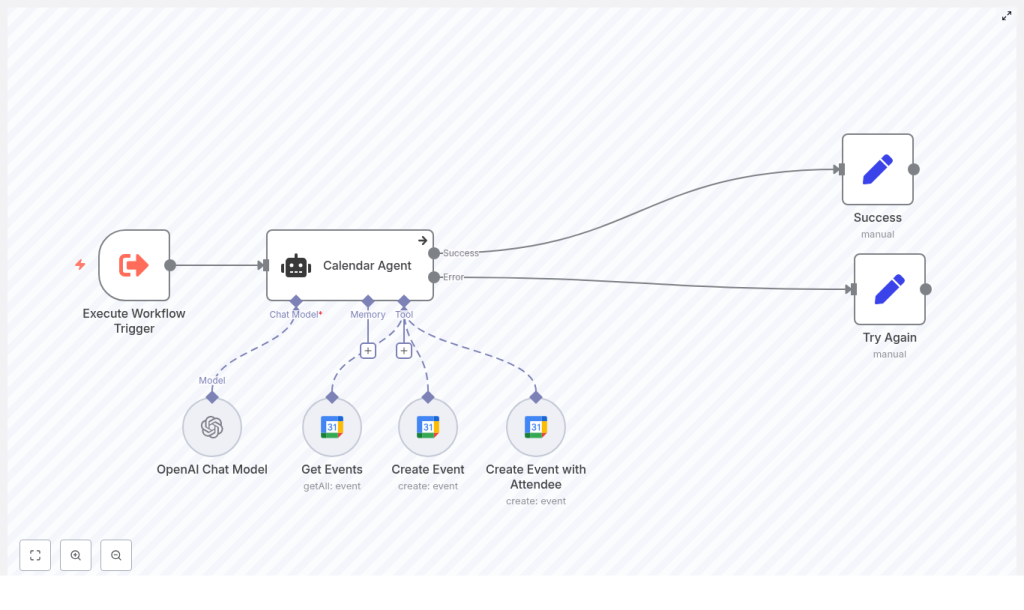
The CalendarAgent template is built from several key nodes that work together. Here is an overview of the main pieces and what they do:
- Execute Workflow Trigger – kicks off the workflow when input is received, for example from another workflow or a webhook.
- Calendar Agent (LangChain agent) – the central brain. It reads the user’s request, looks at the current date and time, and chooses the right tool:
- Get Events to summarize or check availability
- Create Event to create an event without attendees
- Create Event with Attendee to create an event and invite someone
- OpenAI Chat Model – the language model that understands the user’s message and extracts structured information like start time, end time, event name, and attendee email.
- Get Events – a Google Calendar node that fetches events around a specific date so the agent can describe availability or summarize the schedule.
- Create Event – a Google Calendar node that creates events without attendees.
- Create Event with Attendee – a Google Calendar node that creates events and adds an attendee email address.
- Success and Try Again nodes – handle final user feedback, depending on whether the task worked or not.
Inside the logic: how the agent decides what to do
The magic of this workflow lives in the Calendar Agent node. It is configured with a system message that describes:
- What tools it has access to
- When to use each tool
- Some simple business logic to keep things consistent
Here are a few key behaviors that are built into that agent prompt:
- Default duration – if the user does not specify an end time, the event is set to last 60 minutes by default.
- Attendee handling – if the user mentions someone to invite, the agent uses the Create Event with Attendee tool instead of the basic event tool.
- Availability checks – when the user wants to see availability or a summary, the agent calls the Get Events tool with a one day buffer on both sides of the requested date. That means it looks one day before and one day after to capture nearby events reliably.
The agent uses the current date and time, along with these rules, to figure out the right action and fill in any missing details.
Extracting data from natural language
To move from a casual request like “Book a call with Sam next Tuesday at 4 pm” to a proper calendar event, the workflow needs structured fields. This is where the OpenAI Chat Model and n8n expressions come in.
The agent uses expressions such as:
{{$fromAI("starttime","the time the user asks for the event to start")}}
{{$fromAI("attendeeEmail","the email of the user asks the event to be scheduled with")}}
These expressions tell n8n to pull specific values from the AI response, such as:
starttimefor when the event startsattendeeEmailfor the invitee’s email address
Those extracted values are then passed directly into the Google Calendar nodes, which actually create or read events through the Google Calendar API.
Error handling and user feedback
Not every request will be perfectly clear, and sometimes APIs misbehave. The workflow handles this by routing the Calendar Agent output into two branches:
- Success node – used when the agent can confidently understand the request and the calendar action runs without issues. It returns a success message and details about the event or the retrieved schedule.
- Try Again node – used when something is off, such as:
- Ambiguous or incomplete input
- Missing permissions
- Google Calendar or OpenAI API errors
In those failure cases, the workflow returns a friendly fallback like “Unable to perform task. Please try again.” You can customize this message to better fit your tone or UX.
What you need before you start
To get this n8n AI calendar template up and running, you will need three things in place:
- OpenAI API credential
Add your OpenAI API key inside n8n and connect it to the OpenAI Chat Model node used by the agent. - Google Calendar OAuth2 credential
Set up a Google OAuth credential in n8n with access to the calendar you want to manage. The template usesthataiBuddy3@gmail.comas an example, but you should replace this with your own account or the calendar you want the agent to control. - Working n8n environment
Make sure your n8n instance can reach both the OpenAI API and the Google Calendar API from its network environment.
When this template is especially useful
You might find this CalendarAgent template particularly handy if you:
- Handle lots of meeting requests across email, chat, or support tools.
- Want to let teammates or users schedule meetings by sending natural language requests into n8n.
- Are building an internal assistant or chatbot that should “understand” calendar-related questions.
- Need a reusable pattern for combining AI with Google Calendar in other workflows.
Customizing the CalendarAgent for your use case
The template works out of the box, but you can easily tailor it to match your workflow or organization.
- Change the default event duration
Do not like the 60 minute default? Adjust the agent system prompt and the logic that calculates theendtime when none is provided. - Support multiple calendars
If you manage more than one calendar, you can:- Expose a calendar selector in the trigger payload.
- Map that value into the Google Calendar nodes to dynamically choose which calendar to use.
- Richer attendee handling
Expand beyond a single attendee by:- Allowing multiple email addresses.
- Configuring calendar invites with RSVP behavior.
- Making invites more robust to timezones by enhancing the extraction logic and node fields.
- Add notifications
After creating an event, you can trigger:- Email confirmations
- Slack or other chat notifications
- Internal logs or CRM updates
This turns the template into a complete scheduling flow, not just a calendar writer.
How to test the workflow effectively
Once you have your credentials connected, it is worth doing a few structured tests to make sure everything behaves as you expect.
- Start with clear, simple requests
Try something like:
“Create a meeting called Project Sync on June 10 at 3 pm.”
Then check that the event appears in the correct Google Calendar with the right title and time. - Test attendee invites
Use a request such as:
“Schedule a 30 minute call with alice@example.com next Monday at 10 am.”
Confirm that:- The event is created.
- The attendee receives an invite (depending on your calendar settings).
- Try ambiguous input on purpose
For example:
“Set up a meeting next week.”
See how the agent responds. You may get:- A request for clarification, or
- A fallback “Try Again” style message.
If the behavior is not what you want, you can refine the system prompt or adjust the extraction logic.
Security and privacy: what to keep in mind
Because this workflow touches both AI services and calendar data, it is worth being deliberate about security and privacy.
- Limit OAuth scopes
Give your Google credential only the minimum scopes required to read and create events. Avoid overly broad access if you do not need it. - Treat calendar data as sensitive
Event descriptions, attendee emails, and dates can all be sensitive information. Store them carefully and avoid logging more than you need. - Watch API quotas and limits
Both OpenAI and Google Calendar have usage limits. If your workflow will run frequently or at scale, consider:- Monitoring your API usage
- Adding retry or backoff logic inside n8n for transient errors
Troubleshooting common issues
If something does not behave quite right, here are a few common problems and how to approach them:
- Ambiguous times
If the agent struggles with time interpretation, make sure your system message:- Clarifies how to use the current date context with
{{$now}} - Encourages the model to infer or request timezone details when needed
- Clarifies how to use the current date context with
- Permissions or access errors
When Google Calendar calls fail, double check:- Your OAuth scopes
- The consent screen configuration
- Which calendar the credential actually has access to
- Parsing or extraction failures
If the AI is not reliably returning the fields you expect, try:- Making the agent system message more explicit about the required fields.
- Adding clearer examples of the format you want.
- Introducing an extra clarification step in the workflow if the input is too vague.
Where to go from here
The CalendarAgent template is a compact, practical example of how you can combine language models with n8n automation and Google Calendar to simplify scheduling. With a few tweaks, it can easily become:
- A booking assistant for sales or customer calls
- An internal scheduler for interviews or team meetings
- A building block inside a larger AI-powered assistant
To try it out:
- Import the template into your n8n instance.
- Connect your OpenAI and Google Calendar credentials.
- Run through the test scenarios above and adjust prompts or logic as needed.
If you want a quicker starting point, you can simply clone the template and customize it to match your organization’s naming conventions, timezones, or calendar structure.
Call to action: Give the CalendarAgent a spin in your n8n environment and see how much calendar friction you can remove. If you end up extending it or run into questions, share your version and you can iterate on the prompts and logic to get it working exactly the way you like.
