


Automate ActiveCampaign Contacts with n8n
On a gray Tuesday afternoon, Maya stared at her ActiveCampaign dashboard and sighed.
As the marketing lead at a growing SaaS startup, she lived inside spreadsheets, CRMs, and form tools. Every new lead that came in through a landing page, webinar, or demo request had to end up in ActiveCampaign. In theory, this would keep her email campaigns sharp and her sales team happy.
In reality, it meant endless copy-paste work, duplicate contacts, and a constant fear that an important lead had slipped through the cracks.
One missed contact might mean one lost customer. And Maya knew she could not afford that.
The problem: manual chaos in a world that should be automated
Maya’s workflows looked something like this:
- Export CSVs from form tools several times a week
- Manually import them into ActiveCampaign
- Try to remember which contacts were already there and which were new
- Keep track of tags, lists, and custom fields by hand
She had already run into a few painful issues:
- Duplicate contacts when someone filled out multiple forms
- Leads missing from lists because she forgot to import a CSV
- Wrong or missing custom field values for important segments
Her team had started to ask uncomfortable questions. Why did some leads not get welcome emails? Why were some prospects not tagged with the right interests? Why did the data in ActiveCampaign feel out of sync with the rest of their tools?
Maya knew she needed automation, not more spreadsheets. That is when she discovered n8n.
The discovery: a template that could change everything
Maya had heard about n8n before: a flexible, node-based automation platform that could connect to dozens of tools. She had used it once to send Slack alerts, but never for anything as central as contact management.
While browsing for solutions, she found an n8n workflow template designed to automate ActiveCampaign contacts. The promise was simple but powerful:
- Automatically create or update contacts in ActiveCampaign
- Use a trigger (manual, webhook, or Cron) instead of manual imports
- Map fields dynamically from real data sources
- Handle lists, tags, and custom fields programmatically
If this worked, she could turn her messy, manual process into a reliable, automated pipeline. No more guessing whether a lead had made it into ActiveCampaign. No more copy-paste marathons.
She decided to try the template and adapt it to her needs.
Setting the scene: what Maya needed to get started
Before she could build anything, Maya gathered the basics:
- An n8n instance, hosted in the cloud
- An ActiveCampaign account with her API URL and API key
- Her existing knowledge of n8n nodes and credentials
That was enough to follow the template and start small. Her plan was to begin with a test workflow, then slowly move to production.
Rising action: building the first working workflow
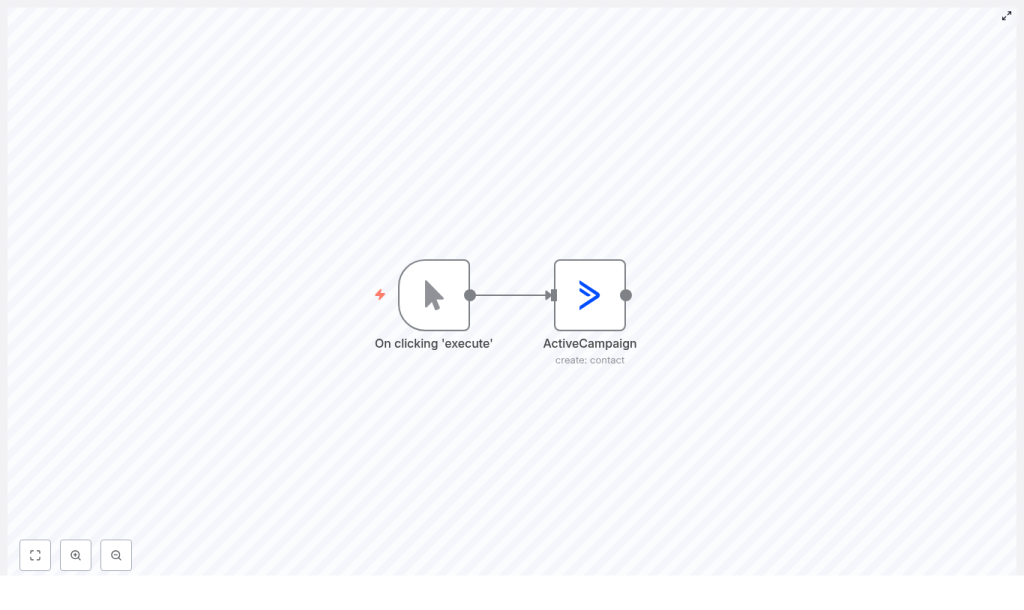
Maya opened her n8n workspace and began with a minimal version of the template. The idea was to create a simple workflow that she could trigger manually, just to see a contact appear in ActiveCampaign.
The basic structure looked like this:
{  "nodes": [  {"name": "On clicking 'execute'", "type": "n8n-nodes-base.manualTrigger"},  {  "name": "ActiveCampaign",  "type": "n8n-nodes-base.activeCampaign",  "parameters": {  "email": "",  "updateIfExists": true,  "additionalFields": {  "firstName": "",  "lastName": ""  }  }  }  ]
}
It was simple, but it captured the core logic she needed: a trigger and an ActiveCampaign node that could create or update a contact.
Maya’s first step: choosing the right trigger
For her first experiment, she did not want to worry about webhooks or external tools. She just needed a reliable way to run the workflow.
So she started with the Manual Trigger node.
In her mind, she already knew where this would go next: in production, she would replace the manual trigger with one of these options:
- A Webhook node to receive live form submissions
- An HTTP Request node to pull data from another service
- A Cron node to run scheduled imports from a CSV or database
But for now, all she needed was a button to click: “Execute.”
Adding the ActiveCampaign node: where the magic happens
Next, Maya dropped an ActiveCampaign node onto the canvas and began to configure it carefully.
- She searched for the ActiveCampaign node in n8n and added it to the workflow.
- She set the operation to create (in her version of n8n it appeared as “create: contact”).
- She filled in the email field. At first she used a test email, but she knew she would later map it dynamically using expressions like
{{$json["email"]}}. - She enabled updateIfExists, so that if a contact with that email already existed, it would be updated instead of duplicated.
- Under Additional Fields, she set values for firstName and lastName, and noted that she could later add phone, tags, and custom field values there too.
This node would become the heart of her automation. If it worked correctly, every incoming lead would be created or updated in ActiveCampaign with the right data.
Connecting the accounts: credentials that unlock everything
Of course, none of this would work unless n8n could talk to ActiveCampaign securely.
Maya opened the Credentials section in n8n and created a new ActiveCampaign credential. She switched to her ActiveCampaign account, navigated to Settings > Developer, and copied the:
- API URL
- API key
She pasted them into n8n, double-checked there were no extra spaces, and saved the credential. Then she linked this credential to her ActiveCampaign node.
Her workflow was now connected end to end, at least in theory.
The turning point: the first successful test
This was the moment of truth.
Maya clicked on the Manual Trigger node and hit Execute. The workflow ran, the ActiveCampaign node lit up, and she watched as the output appeared in n8n.
To confirm it really worked, she went back to ActiveCampaign and searched for the test email address.
There it was, a new contact, created automatically.
She ran it again with the same email but different first and last names. This time, instead of creating a duplicate, the contact was updated. The updateIfExists setting was doing exactly what she needed.
The manual chaos that had haunted her spreadsheets suddenly felt optional.
Leveling up: mapping real data and handling complexity
With the basics working, Maya turned to the next challenge: feeding the workflow with real data from forms and other sources.
Dynamic field mapping with n8n expressions
Her forms were sending payloads with nested JSON fields like formData.email, formData.first_name, and formData.last_name. She needed to map these into the ActiveCampaign node fields.
She updated her node like this:
email: {{$json["formData"]["email"]}}
firstName: {{$json["formData"]["first_name"]}}
lastName: {{$json["formData"]["last_name"]}}
For more complex payloads, she experimented with the Set node to normalize incoming data, and sometimes a Function node when she needed custom logic. This let her reshape inconsistent form submissions into a clean structure before they reached the ActiveCampaign node.
Her workflow was no longer just a test. It was starting to look like a real, production-ready automation.
Facing reality: troubleshooting when things go wrong
As Maya expanded her workflow, she discovered that not everything would be smooth all the time. A few early tests surfaced common problems she had to solve.
- Authentication errors When she accidentally pasted an API key with a trailing space, the workflow failed. The fix was simple: re-check the API URL and API key in the credentials and ensure there were no hidden spaces.
- Duplicate contacts In one test, she forgot to enable updateIfExists and ended up with multiple entries for the same person. She learned to always verify that the email mapping was correct and that updateIfExists was turned on.
- Missing custom fields Some of her segments relied on custom fields in ActiveCampaign. She discovered that these fields often required specific field IDs or exact slugs. She took time to map them carefully in the Additional Fields section.
- Rate limits and timeouts When she tried to push a large batch of historical contacts, she hit rate limits. The solution was to batch the imports and apply throttling or retry logic where needed.
Each problem made her workflow stronger. Instead of giving up, she refined the automation step by step.
From test to production: turning a simple flow into a system
Once the core contact creation and update logic worked reliably, Maya shifted her focus. It was time to transform this simple workflow into a robust, production-ready system that could run 24/7.
Replacing the Manual Trigger with Webhook or Cron
Her first big change was the trigger.
For live form submissions, she added a Webhook node. She copied its URL and plugged it into her form handler so that every new submission would instantly hit n8n.
The flow now looked like this:
- Webhook node receives form data
- Optional Set or Function nodes normalize the payload
- ActiveCampaign node creates or updates the contact
For periodic imports from internal systems, she also experimented with a Cron node that ran on a schedule, pulling data from a CSV or database, then passing it through the same ActiveCampaign logic.
Adding error handling so nothing gets lost
Maya knew that in production, silent failures were not acceptable. If a contact could not be created or updated, she needed to know about it.
She added error handling in two ways:
- Using the Error Trigger node to catch workflow failures globally
- Connecting the error output of key nodes (like ActiveCampaign) to notification nodes
For notifications, she used Slack and email, so that if something went wrong she would see it quickly. She also logged failed records to a Google Sheet, which made it easy to review and fix issues later.
Using batching for large imports
For big historical data imports, she turned to the SplitInBatches node. Instead of sending thousands of contacts at once, she processed them in smaller groups.
This helped her:
- Stay within ActiveCampaign’s rate limits
- Reduce the chance of timeouts
- Handle errors more gracefully, batch by batch
Her contact automation was no longer fragile. It was resilient.
Going advanced: tags, lists, custom fields, and logic
With the core workflow stable, Maya started to think like a strategist again. It was not enough to simply get contacts into ActiveCampaign. She wanted them enriched, segmented, and ready for targeted campaigns.
- Applying tags for segmentation She used the ActiveCampaign node to apply tags based on the source or behavior of the lead. For example, “webinar-registrant,” “ebook-download,” or “pricing-page-visitor.” These tags powered highly targeted automations inside ActiveCampaign.
- Managing list membership When creating contacts, she configured the node to add them directly to the appropriate lists. This ensured they received the correct campaigns from day one.
- Mapping custom fields For important attributes like “plan interest” or “company size,” she mapped values to custom fields using the correct field keys or IDs inside Additional Fields.
- Adding conditional logic Using IF nodes, she set rules such as “only create a contact if email is present” or “apply specific tags only if a certain form field is true.” This gave her fine-grained control over how each lead was handled.
At this point, her workflow no longer felt like a simple connector. It felt like an intelligent entry point into her entire marketing system.
Security and privacy: protecting real people’s data
As the workflow grew, Maya remained conscious of one important reality: she was handling personal data. Names, email addresses, and other PII needed to be treated carefully.
She followed key security and privacy practices:
- Using encrypted storage for n8n credentials
- Restricting access to both her n8n instance and her ActiveCampaign account
- Ensuring compliance with GDPR and CCPA by:
- Obtaining consent before adding people to marketing lists
- Respecting unsubscribe preferences and suppression lists
Automation did not mean ignoring responsibility. It meant handling data consistently and securely.
A new normal: from firefighting to focus
Weeks later, the difference in Maya’s workday was obvious.
New contacts flowed into ActiveCampaign automatically from forms, internal tools, and imports. Each one was created or updated with the right fields, tags, and list memberships. Errors were caught and reported. Large imports were batched. Custom fields were consistent.
Instead of spending hours on manual imports, she could finally focus on strategy: better campaigns, smarter segments, and new experiments.
Her team’s questions changed too. Instead of “Why is this lead missing?” they were asking “What else can we automate?”
Where you fit in: your next step with n8n and ActiveCampaign
Maya’s story is not unique. If you are a marketer, founder, or developer struggling with manual contact management, the same n8n-to-ActiveCampaign automation can transform your workflow.
You can follow the same path:
- Start with a Manual Trigger and a simple ActiveCampaign node to create or update contacts.
- Configure credentials using your API URL and key.
- Test with a few sample contacts and confirm they appear in ActiveCampaign.
- Introduce dynamic field mapping with expressions.
- Replace the Manual Trigger with a Webhook or Cron for real-world data.
- Add error handling, batching, and conditional logic as you move into production.
