


Automated Lead Nurturing with n8n and OpenAI
Imagine this: a new lead fills out your form, you think “I’ll email them in a minute,” then you blink, it is three days later, and that lead is now happily chatting with your competitor. Ouch.
If you are tired of copy-pasting the same follow-up emails, guessing who is “hot” or “meh,” and pinging your team manually every time a form comes in, this workflow is your new favorite coworker. It uses n8n, Google Sheets, OpenAI, Gmail, and Slack to handle lead nurturing for you while you focus on actual conversations, not busywork.
Below you will find what this automation does, how the pieces fit together, and a friendly setup guide so you can go from “I should really follow up” to “it is already done” on autopilot.
Why bother automating lead nurturing?
Manual lead nurturing is like watering plants one drop at a time. It technically works, but it is painfully slow and you will forget some of them.
With a simple n8n lead nurturing workflow you can:
- Respond faster – your workflow replies in minutes, not “whenever you remember.”
- Scale personalization – OpenAI writes tailored emails that reference the lead’s own answers.
- Prioritize the best leads – tags like High, Medium, Low, and Hot help your team know who to call first.
- Keep everyone in the loop – Slack notifications and Google Sheets updates keep your sales team aligned without extra meetings.
In short, automation takes the repetitive stuff off your plate so you can spend more time on calls and less time wrestling spreadsheets and email drafts.
What this n8n workflow actually does
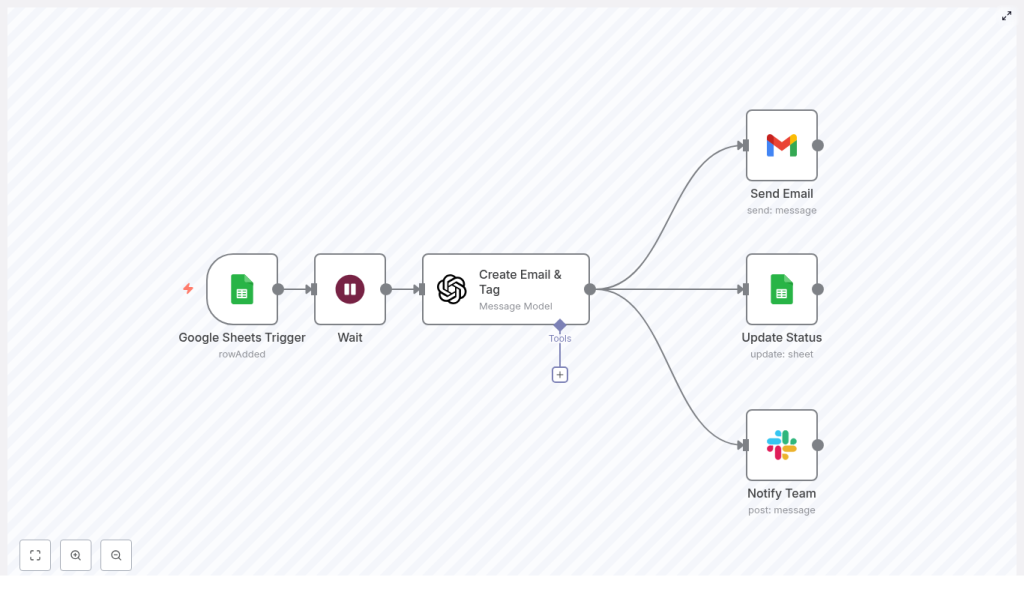
This template connects your form responses in Google Sheets to OpenAI, Gmail, and Slack, then quietly runs in the background like a very organized assistant. Here is the high-level flow:
- Google Sheets Trigger – wakes up when a new form response row is added.
- Wait – pauses briefly so any other automations can finish updating the row.
- Create Email & Tag (OpenAI) – generates a personalized subject line, email body, and a lead tag (High-Value, Medium-Value, Low-Value, or Hot).
- Send Email (Gmail) – delivers that customized email to the lead.
- Update Status (Google Sheets) – writes back the contact status, tag, and timestamp to the original row.
- Notify Team (Slack) – sends a short summary to your Slack channel so the team can jump on hot leads quickly.
The result: every new form response gets a timely, on-brand reply, a clear priority tag, and a Slack ping to your team, without you lifting a finger after the initial setup.
Quick start: how to set up the workflow in n8n
Let us walk through the setup from top to bottom. You will configure each node once, then let n8n do the repetitive work forever.
1. Google Sheets Trigger – listen for new form responses
First up is the Google Sheets Trigger node. This is what tells n8n, “Hey, a new lead just landed in the sheet.”
- Set the trigger event to
rowAddedso it fires whenever a new response is added. - Specify the Spreadsheet ID and the exact sheet/tab with your form data, for example
Form Responses 1. - Use a Google account that has the right permissions to read and update that sheet.
Once configured, every new row becomes the starting point for your entire lead nurturing flow.
2. Wait node – give other automations a moment
Next, add a Wait node. It might feel odd to add a pause on purpose, but it helps avoid weird race conditions if you have multiple tools touching the same sheet.
- Set a short delay, for example 1 minute.
- This ensures any parallel integrations or updates have time to complete before you start composing emails and tagging leads.
Think of it as a tiny coffee break for your data so everything is in place before AI jumps in.
3. Create Email & Tag (OpenAI) – your AI copywriter and lead scorer
Now for the fun part. This node sends your form data to OpenAI with a carefully designed prompt so the model returns three things:
- Subject – must begin with
ABC Corp:to keep your subject lines consistent. - Body – a personalized email that references the lead’s answers, such as services they are interested in, their timeline, budget, and any comments.
- Tag – one of High-Value, Medium-Value, Low-Value, or Hot, based on your lead criteria.
To make this reliable, you will want a solid system prompt. It should describe:
- How the form fields map to the email content and tagging logic.
- The exact tagging criteria, for example budget ranges, services requested, and timeline.
- The required output keys:
Subject,Body, andTag, so n8n can parse the response without guesswork.
Prompt best practices for consistent OpenAI output
A good prompt turns OpenAI from “creative chaos” into a dependable teammate. When configuring the node, keep these tips in mind:
- Be explicit about format – ask for JSON-like output or clear key/value pairs so you can easily map fields in n8n.
- Include tagging examples – show what High-Value, Medium-Value, Low-Value, and Hot leads look like and why they get that label.
- No placeholders – tell the model never to use fake text like “{{name}}” and instead always fill in real values from the inputs.
- Lock in tone and signer – specify a consistent voice, for example “Pam, customer service at ABC Corp,” so every email feels on-brand.
Once this is in place, OpenAI becomes your always-on copywriter that never forgets to follow up.
4. Send Email (Gmail) – deliver the personalized follow-up
With the subject and body in hand, the Send Email (Gmail) node takes over.
- Map the To field to the lead’s email address from the Google Sheets row.
- Insert the Subject and Body from the OpenAI node output.
- Use a Gmail OAuth2 credential, ideally from a dedicated sending account, to keep deliverability and tracking consistent.
Now every lead gets a tailored email that feels manually written, even though you did not touch a keyboard.
5. Update Status (Google Sheets) – keep your sheet in sync
Next, you want your spreadsheet to tell the truth about what happened. The Update Status node writes everything back to the original row.
- Mark that the lead was contacted or similar status.
- Store the Tag value from OpenAI, for example High-Value or Hot.
- Add a timestamp for when the email was sent.
This closes the loop so anyone looking at the sheet can see who was contacted, when, and how important they are.
6. Notify Team (Slack) – surface leads where your team lives
Finally, the Notify Team (Slack) node makes sure your sales or success team sees new leads in real time, right inside Slack.
- Send a short message to a chosen Slack channel.
- Include key details like lead name, service interest, budget, and a direct link to the Google Sheets row.
- Use the Tag value to help triage, for example highlight Hot or High-Value leads so they get immediate attention.
Instead of your team asking, “Any new leads today?” they will just see them appear, nicely summarized, ready for follow-up.
How the lead tagging logic works
Good tagging is what turns a messy list of contacts into a clear priority queue. This template uses simple but effective rules for lead scoring based on budget, services, and timeline.
- High-Value Lead – Budget over $10,000, interest in premium services such as Consulting or a Premium Package, or a timeline marked as Immediate.
- Medium-Value Lead – Budget between $5,000 and $10,000, or interest in standard services with a timeline within about 1 month.
- Low-Value Lead – Budget under $5,000, or interest in basic packages with a more flexible or long-term timeline.
- Hot Lead – Timeline set to Immediate or language that screams urgency, such as “ASAP”, “urgent”, or “start immediately.”
Note: Hot can overlap with other tags. Think of it as a bright red flag that says “call this person first.”
These rules are baked into the OpenAI prompt so the model can consistently assign the correct tag for each new lead.
Sample email your workflow might send
To give you a sense of the tone and structure, here is an example email that fits this automation:
Subject: ABC Corp: Quick next steps for your AI consulting request
Body:
Hi Maria,
Thanks for reaching out and sharing details about your interest in AI consulting. I reviewed your notes about a three-month timeline and your $15,000 budget. Based on that, we can propose a tailored pilot that focuses on rapid value delivery in the first 4-6 weeks and a roadmap for full implementation.
If you want, we can schedule a 30-minute discovery call to walk through our approach and timing. Are you available tomorrow between 10-12 PM or Thursday afternoon?
Best regards,
Pam
Customer Service, ABC Corp
Your actual emails will be generated dynamically by OpenAI, but this gives you a template for style and structure.
Testing your n8n lead nurturing workflow
Before you unleash this on real leads, take a few minutes to test and validate. It is much nicer to catch issues in a test sheet than in someone’s inbox.
- Use a staging Google Sheet and run the entire automation on a few test rows.
- Inspect the input and output of each node in n8n to confirm fields are mapped correctly.
- Check that OpenAI always returns consistent keys:
Subject,Body, andTag. - Preview how emails render in Gmail, especially line breaks, formatting, and signatures.
- Verify that Slack notifications include the right context and a correct link back to the Google Sheets row.
A little testing now saves you from awkward “sorry about that weird email” messages later.
Security and compliance tips
Even though this workflow is friendly and helpful, you still want it to behave like a responsible system.
- Use OAuth credentials for Google and Slack with the least privilege necessary.
- Avoid sending sensitive personal data in Slack messages, or mask it where possible.
- Rate-limit OpenAI calls and consider caching repeated prompts to keep costs predictable.
- Make sure your Gmail sending account has proper DKIM and SPF configured to improve email deliverability.
Advanced tweaks to level up your automation
Once the basic flow is running smoothly, you can get fancy. Here are some ideas built into the template as options:
- Add an error handling branch to retry failed API calls and alert an admin if problems keep happening.
- Include extra scoring criteria, such as company size or domain, to refine your tags beyond just budget and timeline.
- Provide a calendar booking link in the OpenAI prompt so the email can include a direct call-to-action with availability.
- Log data to a separate sheet or database for analytics, conversion tracking, and reporting.
These enhancements help you turn a simple lead follow-up flow into a lightweight, custom CRM assistant.
From “I should follow up” to “it is already done”
This n8n lead nurturing workflow takes leads from form submission to personalized outreach, tagging, and team notification with almost no manual effort.
It combines:
- Speed – fast, automated responses.
- Personalization – OpenAI-crafted emails tailored to each lead’s answers.
- Visibility – Slack alerts and updated Google Sheets rows so your team always knows what is happening.
If you want to skip the manual setup and jump straight to a working automation, you can import the ready-made template or get help tailoring it to your CRM and lead-scoring rules.
Schedule a demo | Contact our team
