


Automated Weather Alerts with n8n & SIGNL4
Introduction
Timely weather information is critical for operations, facilities management, and field teams. This guide explains how to implement a production-ready, no-code weather alert workflow in n8n that checks current conditions for a specific location on a defined schedule and escalates alerts via SIGNL4 whenever a temperature threshold is reached.
The workflow leverages OpenWeatherMap as the data source, n8n as the orchestration and logic layer, and SIGNL4 as the operational alerting channel. The resulting solution is robust, low maintenance, and suitable for professional on-call and incident response environments.
Use case overview
The template is designed for teams that need:
- Automated temperature monitoring for a specific city or coordinates
- Scheduled checks at fixed times or intervals
- Conditional alerting when a threshold is crossed (for heat or cold)
- Structured, location-aware notifications in SIGNL4
- Simple manual testing and troubleshooting within n8n
Typical applications include facility heating or cooling monitoring, weather-dependent field operations, and safety-related temperature thresholds.
Core workflow behavior
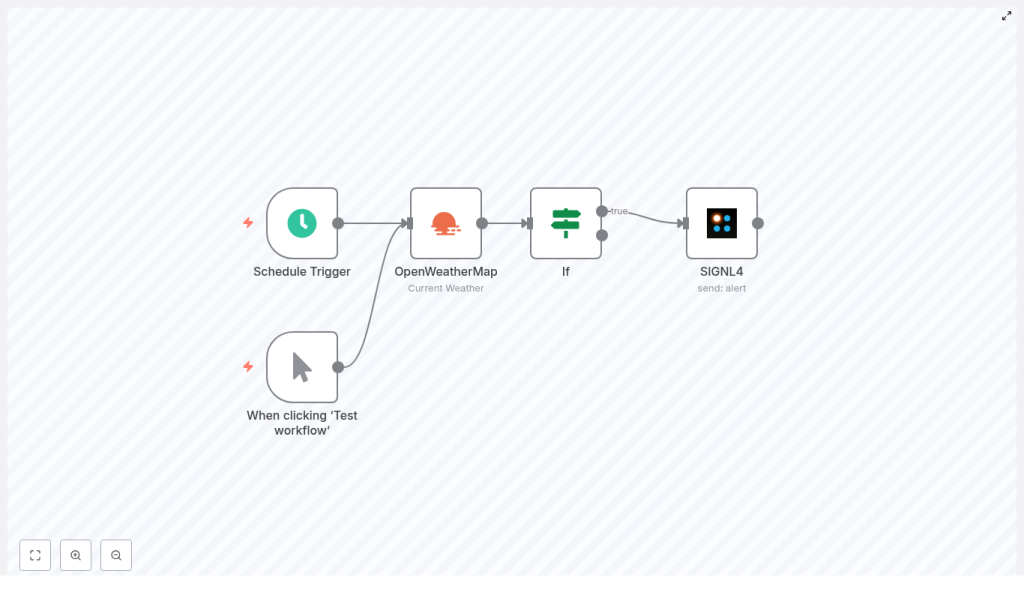
The n8n workflow performs the following actions:
- Starts on a schedule, for example daily at 06:15
- Calls the OpenWeatherMap API to retrieve current weather data for a configured city
- Evaluates the current temperature against a numeric threshold
- Triggers a SIGNL4 alert if the condition evaluates to true
- Supports manual execution in n8n for development and testing
Why combine n8n, OpenWeatherMap and SIGNL4?
This integration pattern uses each platform for its strengths:
- n8n – A visual, extensible automation platform that orchestrates APIs, logic, and data transformations without custom code for most use cases.
- OpenWeatherMap – A widely used and reliable weather API that provides current conditions, including temperature and coordinates, with flexible units.
- SIGNL4 – A specialized alerting and on-call tool that ensures critical notifications are delivered, acknowledged, and tracked by operational teams.
Together they form a scalable weather alerting solution that is easy to maintain, transparent to audit, and adaptable to evolving business requirements.
Workflow architecture
The template consists of four primary nodes. Understanding the role of each node is essential for reliable operation and future extensions.
1. Schedule Trigger node
The Schedule Trigger node initiates the workflow execution at defined times. In the template, it is configured to run every day at 06:15. You can adjust this to match your operational needs:
- Daily checks at specific times (for example 06:15, 18:00)
- Hourly or every N minutes
- Custom cron expressions for more complex schedules
For production scenarios, align the schedule with your alerting requirements and API usage limits.
2. OpenWeatherMap (Current Weather) node
The OpenWeatherMap node retrieves the current weather data. In the template, the cityName parameter is set to Berlin, but any supported city or geographic coordinates can be used.
Key configuration aspects:
- Units: Set to
metricto receive temperature in Celsius. If omitted, OpenWeatherMap may return values in Kelvin, which can lead to incorrect comparisons. - Credentials: Store your OpenWeatherMap API key in n8n credentials and reference it from the node. Avoid hardcoding keys in node fields or sharing them in exported workflows.
- Location: Use city name for simplicity or latitude/longitude for precise targeting, for example specific facilities or remote sites.
3. If node (temperature condition)
The If node evaluates whether the current temperature satisfies your alert criteria. In the template, the condition uses the temperature from the OpenWeatherMap response:
{{ $json.main.temp }} < 25This expression is interpreted as: if the temperature is less than 25 degrees Celsius, follow the true branch. You can adapt this according to your use case:
- Use
<for cold alerts, for example below 0 or 5 degrees - Use
>for heat alerts, for example above 30 degrees - Adjust the numeric threshold to your operational limits
Ensure that the field is treated as a numeric value and that the correct JSON path is used (main.temp in the OpenWeatherMap payload).
4. SIGNL4 node (alert delivery)
When the condition evaluates to true, the workflow passes control to the SIGNL4 node. This node is responsible for creating and sending an alert to your SIGNL4 team.
The template uses expressions to inject real-time data into the alert message and to attach location metadata. An example message configuration is:
Weather alert ❄️ Temperature: {{ $json.main.temp }} °CAdditionally, the node maps geographic coordinates from the OpenWeatherMap response to SIGNL4 fields for map-based visualization:
latitude: ={{ $json.coord.lat }}
longitude: ={{ $json.coord.lon }}
You can also configure:
- Title for quick identification in the SIGNL4 app
- externalId for deduplication or correlation of repeated events
- Custom parameters for severity, category, or system identifiers
Step-by-step configuration guide
- Create and configure the Schedule Trigger
Add a Schedule Trigger node as the entry point. Use the rule editor to define:- Basic schedule (time of day, day of week)
- Or a cron expression for advanced timing requirements
- Set up the OpenWeatherMap node
Add the OpenWeatherMap node and configure:- Location: city name or latitude/longitude
- Units: set to
metricfor Celsius - Credentials: select your OpenWeatherMap API key from n8n credentials
- Insert the If node for threshold logic
Place an If node after the OpenWeatherMap node and configure:- Left expression:
{{ $json.main.temp }} - Operator: numeric comparison such as
<or> - Right value: your numeric temperature threshold
- Left expression:
- Connect the true branch to SIGNL4
Add the SIGNL4 node to the true branch of the If node and:- Configure SIGNL4 credentials (API key or webhook)
- Define the alert title and message body using expressions
- Map
latitudeandlongitudefrom$json.coord.latand$json.coord.lonif you want location-aware alerts - Optionally set
externalIdfor deduplication
- Test and activate the workflow
Use n8n’s manual trigger execution mode to validate:- That weather data is retrieved correctly
- That the condition behaves as expected
- That SIGNL4 receives and displays the alert correctly
Once validated, enable the workflow so it runs according to the configured schedule.
Expression usage and common pitfalls
Accurate expressions are crucial for consistent behavior. Consider the following best practices:
- Unit consistency: Ensure OpenWeatherMap is configured with the expected unit system. If you receive Kelvin values, convert them explicitly, for example
C = K - 273.15, before comparison. - Numeric comparisons: Avoid comparing numbers as strings. Use expressions like
= {{ $json.main.temp }}to work with numeric values in the If node. - Correct JSON paths: OpenWeatherMap uses:
main.tempfor temperaturecoord.latandcoord.lonfor coordinates
Double check these paths in n8n’s execution preview if conditions do not behave as expected.
- Manual testing: Use manual execution to iterate quickly during development instead of waiting for the scheduled run.
Security and operational best practices
For production deployments, follow these guidelines:
- Credential management: Always store API keys in n8n credentials. Do not embed keys in node descriptions, environment variables visible to all users, or shared JSON exports.
- Alert deduplication: Use
externalIdor similar mechanisms in SIGNL4 to avoid repeated alerts for the same condition, especially when the threshold is persistently exceeded. - Alert history and throttling: If you need historical records or wish to prevent frequent alerts, integrate a lightweight datastore such as Google Sheets, Airtable, or Postgres. Track the last alert timestamp and implement a cooldown period.
- Rate limiting: Align the schedule with OpenWeatherMap API quotas and SIGNL4 alerting policies to avoid unnecessary load.
Advanced enhancements
Once the basic workflow is operational, you can extend it to support more complex operational scenarios.
- Configurable thresholds: Store city-specific or team-specific thresholds in Google Sheets or Airtable and read them at runtime. This allows non-technical stakeholders to adjust alert levels.
- Multi-criteria alerts: Combine temperature with other OpenWeatherMap fields, such as wind speed, precipitation probability, or severe weather codes, to drive different alert severities or channels.
- Multi-channel notifications: Add additional nodes for Slack, SMS, Microsoft Teams, or email to complement SIGNL4 and provide broader visibility.
- Error handling and retries: Implement error handling to catch failed OpenWeatherMap calls and either retry or raise a separate operational alert if the API is unavailable.
Troubleshooting checklist
If the workflow does not behave as expected, use this checklist:
- No data from OpenWeatherMap: Verify API credentials, confirm that the city name or coordinates are valid, and check that your API quota has not been exceeded.
- Unexpected temperature values: Confirm that the units are set to
metricor convert from Kelvin if necessary. - No alerts in SIGNL4: Check SIGNL4 credentials, review
externalIdor deduplication settings, and inspect the SIGNL4 node execution logs in n8n. - If node never evaluates to true: Inspect the incoming JSON in the execution preview and confirm that
$json.main.tempexists and is numeric. Adjust the expression or threshold if needed.
Useful expression examples
The following snippets can be used directly in n8n node fields:
- Temperature value:
{{ $json.main.temp }} - Latitude:
= {{ $json.coord.lat }} - Longitude:
= {{ $json.coord.lon }} - SIGNL4 message body:
Weather alert ❄️ Temperature: {{ $json.main.temp }} °C
Conclusion and next steps
With a small number of well configured nodes, n8n enables a dependable, scalable weather alerting workflow that integrates seamlessly with SIGNL4. By importing the template, configuring OpenWeatherMap and SIGNL4 credentials, defining your temperature thresholds, and validating via manual execution, you can move quickly from concept to production-ready monitoring.
Once the workflow is active on a schedule, it will continuously monitor conditions and notify your teams without manual intervention. You can then iterate by adding additional channels, refining thresholds, or implementing cooldown and deduplication logic as your operational needs evolve.
To get started, import the template into your n8n instance, update the credentials, run a few manual tests, and then enable the schedule.
Subscribe to receive more n8n automation patterns, alerting workflows, and best practices for operations and on-call teams.
