


Automate Orlen Invoices with n8n (So You Never Hunt Attachments Again)
Picture this: it is 23:45, you are ready to close your laptop, and then you remember you still have to dig through Gmail for Orlen invoices, download each PDF, drop them in the right Google Drive folder, mark the emails as read, and ping your team on Slack. Repetitive, boring, and just annoying enough to ruin your evening.
Now imagine all of that happening automatically while you are busy doing literally anything else. That is exactly what this n8n workflow template does. It scans Gmail for Orlen invoices, saves them into a tidy Year/Month folder structure in Google Drive, marks the emails as read, and sends a Slack notification so everyone stays in the loop.
Below you will find what the workflow does, how it works under the hood, and how to set it up step by step. Same technical details as the original guide, just with fewer yawns and more automation joy.
What this n8n workflow actually does
This template is built to handle incoming Orlen invoices from Gmail and keep everything clean and organized in Google Drive, with Slack notifications on top. In one run, the workflow will:
- Trigger on a schedule (or manually when you feel like testing)
- Figure out the current year and month for folder names
- Find or reference the correct Year and Month folders in Google Drive
- Search Gmail for unread Orlen invoices that have attachments
- Upload the invoice attachment files into the right Google Drive folder
- Mark the email as read so it is clear the invoice is handled
- Post a Slack message so your team knows where the new invoice lives
All of this runs on n8n, a flexible, self-hosted automation platform that plays nicely with Gmail, Google Drive, and Slack. Ideal for turning a simple invoice pipeline into something that quietly runs in the background while you focus on work that is not copy-paste.
Why automate Orlen invoices at all?
Manually processing supplier invoices might feel manageable for a while, until the day you forget one, lose one, or spend 20 minutes trying to find “that one attachment from Orlen from last Tuesday.” Automation helps you:
- Remove manual steps like downloading, renaming, and dragging files around
- Reduce the risk of missed invoices since every unread Orlen email with an attachment is processed
- Keep accounting files organized in a consistent Year/Month folder structure
- Keep your team informed with automatic Slack notifications
Once this is in place, you get a repeatable, reliable invoice intake flow that does not depend on someone remembering “to do the thing.”
High-level workflow flow (so you know what is going on)
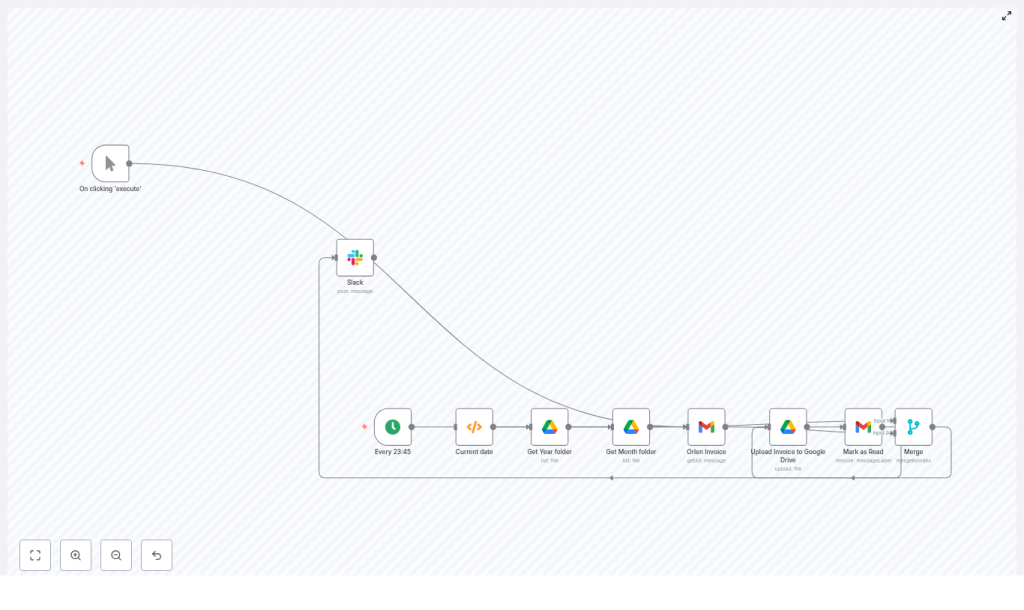
The workflow follows a simple, linear pattern. In n8n terms, it goes like this:
- Start with a trigger node (Cron or Manual)
- Use a Function node to get the current date (year, month, day)
- Look up the Year folder in Google Drive
- Look up the Month folder inside that Year folder
- Search Gmail for unread Orlen invoices with attachments
- Upload the attachment(s) to the right Month folder in Drive
- Mark the Gmail message as read
- Send a Slack notification with the file path
The template comes pre-wired so you can import it, connect your credentials, tweak a few details, and hit run.
Step-by-step: setting up the template in n8n
1. Choose how the workflow starts: Cron and Manual triggers
You get two ways to kick off the workflow:
- Cron node – This is your “set it and forget it” option. In the template it is configured to run every day at 23:45 local time. You can adjust that to whatever time makes sense for your accounting routine.
- Manual Trigger node – Perfect for testing or for those moments when you think “did I set this up right?” You can run it on demand from within n8n.
The workflow is wired so that either trigger can lead to the same processing path, which keeps things neat for both testing and production use.
2. Get the current date using a Function node
Next, the workflow needs to know where to put your invoices in Google Drive. To do that, it calculates the current year, month, and day using a simple JavaScript Function node.
Here is the exact code used in the template:
var today = new Date();
var year = today.getFullYear();
var month = today.getMonth() + 1;
var day = today.getDate();

if(month < 10) {  month = "0" + month;
}

items[0].json.year = year;
items[0].json.month = month;
items[0].json.day = day;

return items;
This fills the workflow data with year, month, and day, for example 2025 and 03, which are then used to find or create matching folders in Google Drive.
3. Locate the Year and Month folders in Google Drive
Now that the date is known, the workflow goes into Google Drive and looks for the correct folders. It uses two Google Drive nodes with the list operation:
- Get Year folder – Searches for a folder with:
name = {{$json["year"]}}mimeType = folder
- Get Month folder – Looks for a child folder inside that Year folder using a query like:
='{{$json["id"]}}' in parents and name = '{{$node["Current date"].json["month"]}}'
If there is a chance the folders do not exist yet, you can add an If node or separate create-folder steps to build the Year and Month folders when needed. More on that in the enhancements section below.
4. Find Orlen invoice emails in Gmail
Time to go invoice hunting, but in a civilized, automated way. The workflow uses the Gmail getAll (messages) operation with a query that targets unread Orlen invoices with attachments:
from:(orlenpay@orlen.pl) has:attachment is:unreadKey configuration details:
- Format set to
resolvedso n8n can access the attachment content - returnAll set to
trueif you expect multiple invoices in a single run
The template returns binary attachment data, so those files are ready to be sent straight to Google Drive without extra conversion steps.
5. Upload invoice attachments to Google Drive
Once the attachments are in hand, the workflow uses a Google Drive node with the upload-file operation and binaryData enabled. That way, it can take the binary attachment directly from Gmail and drop it into your Month folder.
An example file name expression used in the template is:
=Orlen {{$binary.attachment_0.directory}}.{{$binary.attachment_0.fileExtension}}You can absolutely improve on this naming, for example by including:
- Invoice number extracted from the email or PDF
- Date of the invoice
- Original filename
Make sure the parents parameter is set to the Month folder id, for example:
parents: [={{$node["Get Month folder"].json["id"]}}]That keeps everything neatly sorted into Year/Month folders instead of piling up in some random Drive root.
6. Mark the Gmail message as read
After the attachment is safely in Google Drive, the workflow cleans up your inbox by marking the original email as read. This is done with another Gmail node using the remove messageLabel operation.
- Set messageId to the id returned from the Gmail search step
- Remove the UNREAD label
Result: you can visually see which invoices are already processed, and your inbox looks a little less like a to-do list.
7. Notify your team in Slack
Finally, the workflow lets your team know that a new invoice has arrived and where it is stored. The Slack node sends a message with the path to the file in Google Drive.
An example message expression used in the template is:
=Kapitanie!
Dodano fakturę {{$node["Orlen Invoice"].binary.attachment_0.directory}} do Firma/{{$node["Current date"].json["year"]}}/{{$node["Current date"].json["month"]}}
You can customize the Slack channel, language, and tone to match your team culture, whether that is playful, formal, or full of internal jokes about invoices.
Template-specific details you should know
- Dual trigger path – The workflow merges nodes so that the same Slack notification logic runs whether you start it manually or via the scheduled Cron trigger. That makes it easy to test without maintaining two separate flows.
- Binary attachment name – In this template, the Gmail node uses
attachment_0as the binary property name for the attachment. If you have more than one attachment per email, you will need to iterate through those binary keys or use a SplitInBatches node. - Credentials setup – The template expects:
- OAuth2 credentials for Google Drive
- OAuth2 credentials for Gmail
- Slack OAuth2 credentials with permission to write to the target channel
Make sure these are configured in n8n before you hit “Execute workflow.”
Recommended enhancements & best practices
Once the basic workflow is running, you can level it up with a few improvements.
Automatically create folders if they do not exist
If you are starting fresh or a new month has just begun, your Year or Month folder might not exist yet. To keep the workflow from failing, you can:
- Add checks after the Get Year folder and Get Month folder nodes
- When a folder is not found, use the Google Drive create operation to build it
- Pass the newly created folder id to the following nodes so uploads still land in the right place
Handle multiple attachments like a pro
If Orlen or other suppliers start sending multiple files per email, you do not need to panic. You can:
- Use a SplitInBatches node to loop over each binary attachment
- Or implement a small loop that walks through all binary properties
- Ensure each file gets a unique name, for example by prefixing with a timestamp or invoice number
Extract and use invoice metadata
For more advanced workflows, you can pull out structured data from the invoice:
- Parse the email body for invoice number, date, or amount
- Use OCR or a PDF parsing tool to read the invoice content
- Include metadata in:
- File names
- Folder structure
- Payloads sent to accounting or ERP systems
This turns your Google Drive from “file storage” into a more searchable and useful archive.
Set up retries and error handling
APIs sometimes have bad days. To keep your workflow resilient, consider:
- Wrapping critical nodes in dedicated error-handling branches
- Using Execute Workflow or webhook fallbacks to surface failures elsewhere
- Enabling execution retries in n8n settings for transient errors like timeouts or rate limits
That way, a temporary hiccup in Gmail or Google Drive does not silently drop an invoice.
Security and permissions best practices
Invoices contain sensitive data, so treat this workflow like part of your finance stack:
- Use dedicated service accounts for Google and Slack with limited scopes
- Rotate OAuth credentials regularly
- If you self-host n8n, place it behind your secure network and follow your organization’s security policies
Troubleshooting common issues
If something does not work quite as expected, these checks usually help:
- No emails found – Copy the Gmail query:
from:(orlenpay@orlen.pl) has:attachment is:unreadand paste it into Gmail’s own search bar. If it returns nothing there, adjust the query or confirm the sender and labels.
- Google Drive permission errors – Make sure your OAuth2 app has the right scopes, such as
Drive.fileorDrive.appdatadepending on your setup. - Missing IDs or paths – Log intermediate outputs using a Set node or by inspecting execution data in n8n. Check folder ids coming from the Drive nodes and message ids from Gmail.
Ideas for future upgrades
Once the basic automation is saving you time, you can keep building on it:
- Store invoice data in a database like Postgres or Airtable for reporting, dashboards, or reconciliation.
- Send a daily summary email or Slack digest listing all invoices saved that day.
- Verify file integrity by checking file size or checksum to make sure the uploaded file matches the email attachment.
Wrapping up: your new invoice autopilot
This n8n template gives you a simple but solid automation for handling Orlen invoices: Gmail in, Year/Month folders in Google Drive out, and a Slack message to keep everyone informed. No more hunting through emails, no more “where did I save that PDF,” and fewer chances to miss an important invoice.
With a few small enhancements like automatic folder creation, better multi-attachment handling, and invoice metadata extraction, you can turn this into a production-ready automation that quietly removes a chunk of manual bookkeeping from your life.
Call to action: Import the template into your n8n instance, hook it up to your Gmail, Google Drive, and Slack OAuth credentials, and run the workflow. If you would like help with customizations such as OCR, database storage, or smarter file naming, reach out to our team or subscribe for more advanced automation tutorials.
