


Automate Zoom Meeting Summaries with n8n AI
Still typing up meeting notes like it is 2004? This n8n workflow quietly stalks your Zoom recordings, grabs the transcript, asks an AI to summarize everything like a diligent assistant, creates tasks, schedules follow-ups, and emails everyone a clean recap – all while you move on with your life.
In this guide, you will see how to use a ready-to-import n8n workflow that connects Zoom, OpenAI, ClickUp, and Outlook so your meetings stop living and dying in recording archives.
Imagine this: another Zoom meeting, another pile of notes
You join a Zoom call, someone says “We will send out the minutes later,” and everyone silently knows that means “Never.” If you are lucky, someone copy-pastes a messy transcript into a doc and calls it a day.
Manual note-taking is:
- Time-consuming
- Easy to forget
- Inconsistent from meeting to meeting
- Suspiciously prone to missing the part where you got assigned five action items
This is where n8n and AI come in. Instead of spending your afternoon editing transcripts and chasing tasks, you can let a workflow do the boring parts for you.
What this n8n Zoom AI workflow actually does
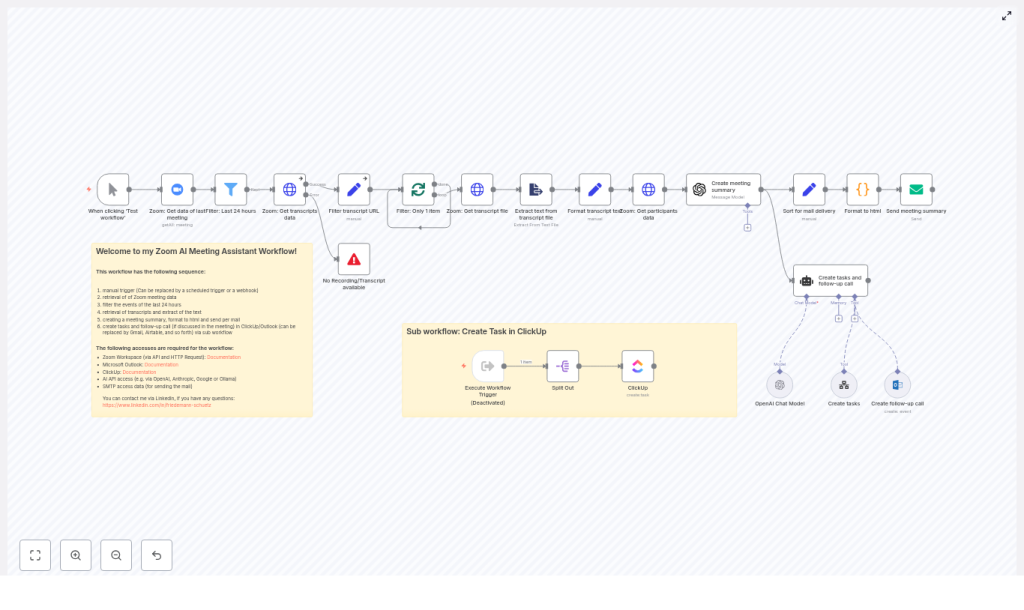
This workflow is a linear pipeline you can run manually or on a schedule. It turns your Zoom cloud recordings into:
- Clean, structured meeting minutes
- Actionable tasks in ClickUp
- Optional follow-up meetings in Outlook
- HTML email summaries for participants
Behind the scenes, it:
- Looks for recent Zoom meetings from the last 24 hours
- Finds the recording transcript file
- Downloads and cleans the transcript text
- Pulls the participant list
- Feeds everything to an LLM (like OpenAI) with a structured prompt
- Generates minutes with participants, summary, tasks, and dates
- Sends the formatted summary by email
- Uses a sub-workflow to create ClickUp tasks and schedule Outlook follow-ups when needed
So yes, it is basically the colleague who always takes perfect notes, never forgets a task, and does not complain about back-to-back meetings.
What you need before you start
Before you import the workflow into n8n, you will need to set up a few credentials. The good news: you do this once, then enjoy ongoing laziness productivity.
Required integrations
- Zoom (OAuth2) – to list past meetings and download cloud recordings and transcripts.
- OpenAI (or another LLM provider) – for summarization, task extraction, and structured meeting minutes.
- SMTP (or another mail provider) – to send HTML meeting summaries by email.
- ClickUp (OAuth2) (optional) – to create tasks directly inside your ClickUp lists.
- Microsoft Outlook (OAuth2) (optional) – to create follow-up calendar events.
For security and sanity, grant only what is needed: read recordings and participants in Zoom, send mail, create calendar events in Outlook, and create tasks in ClickUp.
Quick start: how to import and run the template
If you just want this thing working as fast as possible, here is the basic setup flow. You can tweak and nerd out later.
- Open your n8n instance and go to Workflows → Import.
- Paste or upload the JSON template and save it as a new workflow.
- Configure your credentials:
- Zoom
- OpenAI (or your preferred LLM)
- SMTP or email provider
- ClickUp (optional)
- Outlook (optional)
- Test it with a recent Zoom meeting using the manual trigger.
- Fine tune prompts and filters so it matches your team’s style and process.
Once this is done, you can schedule the workflow to run automatically or just trigger it when needed.
How the workflow actually works, step by step
Now for the curious minds who want to know what is happening under the hood. Here is a node-by-node breakdown of the n8n Zoom meeting summary workflow.
1. Trigger and Zoom: grab recent meetings
The workflow starts with a trigger node. You can:
- Run it manually after a meeting
- Use a schedule to process meetings from the last 24 hours
- Hook it to a webhook if you want something more advanced
It then calls the Zoom API to list recent meetings and filters them to only include those from the last 24 hours. This prevents reprocessing older meetings every time the workflow runs.
2. Fetch recordings and find the transcript file
Zoom’s recording endpoint returns multiple file types for each meeting, for example:
- Video files
- Audio-only files
- Transcript files
The workflow looks for the file where file_type == "TRANSCRIPT" and grabs its download URL. If Zoom did not generate a transcript for that meeting, the workflow stops gracefully with an informative error node so you know the problem is with transcription, not n8n.
3. Download transcript and extract clean text
Next, an HTTP Request node downloads the transcript file. An extract-from-file node then converts it into plain text that is easier to work with.
The workflow also runs a quick cleanup step to strip out timestamps and speaker metadata. The idea is to give the AI a clean transcript rather than a cluttered wall of text full of timecodes, so you get better summaries and fewer weird outputs.
4. Get participants and prep the AI prompt
The workflow calls the Zoom participants endpoint to retrieve attendee names and emails. This information is used to:
- List participants in the meeting minutes
- Know who to email the summary to
Then the workflow builds a structured prompt for the LLM. The prompt instructs the model to produce clear sections such as:
- Participants
- Summary
- Tasks
- Important Dates
This structure is important because it makes later parsing and automation far less fragile and less “AI is being creative again.”
5. Create the meeting summary with OpenAI (or another LLM)
An AI node sends the cleaned transcript and the prompt to OpenAI or your chosen LLM provider. The model returns a formal meeting minutes document with clearly separated sections.
The workflow then:
- Captures the AI output
- Formats it into HTML
- Prepares it for email delivery so it looks decent in most mail clients
The prompt is designed so the output is predictable, structured, and easy to reuse for task creation and scheduling.
6. Task creation and follow-up scheduling
A sub-workflow handles the “turn this into real work” part.
- The AI output is parsed to extract action items.
- Those tasks are passed to a ClickUp node, which creates corresponding tasks in your chosen list.
- If the summary includes a next meeting date or time, the workflow uses that to create an Outlook calendar event.
- If no specific follow-up date is mentioned, it can fall back to a reasonable default, for example next Tuesday at 10:00 AM.
This means your meeting outcomes do not just live in an email. They show up where work actually happens.
7. Email delivery of the meeting summary
Finally, the workflow sends out the HTML summary via your configured SMTP or mail provider. Recipients can be:
- The meeting participants from Zoom
- A specific distribution list
- A designated owner who forwards or archives the minutes
The styling is intentionally minimal and professional so it looks clean across different email clients without breaking into weird layouts.
Prompt design tips and AI best practices
The quality of your meeting minutes depends heavily on the prompt you give the LLM. The template already includes a solid instruction block, but you can tune it for your team.
- Limit output length so the minutes stay concise and readable.
- Ask for tasks in a consistent JSON schema if you want to reliably create tasks programmatically in ClickUp or other tools.
- Provide example outputs in the prompt so the model learns the exact formatting you expect.
Here is an example JSON-style instruction for tasks you can include in the prompt:
{  "tasks": [  {"title": "Prepare budget slides", "assignee": "Anna", "due_date": "2025-02-15", "priority": "High"}  ]
}
By being strict about structure, you avoid those moments where the AI decides that “Task list” is actually a poetic paragraph.
Customization ideas to fit your workflow
The template works out of the box, but n8n is all about bending things to your will. Here are some ways to customize the Zoom meeting summary automation.
- Swap the LLM provider Replace OpenAI with Anthropic, Google models, or local models supported in n8n.
- Adjust filters Process only meetings longer than a certain duration, or only meetings hosted by specific people or with specific topics.
- Change transcript cleaning Keep or enhance speaker labels if you want more detailed attribution in the minutes.
- Upgrade the email template Use a richer HTML and CSS layout to match your brand, including logos and colors.
- Attach more context Include links to the original Zoom recording or attach files in the summary email.
Troubleshooting and common issues
1. No transcript found
If Zoom did not generate a transcript, the workflow will stop with a clear error message so you are not guessing what went wrong.
Check:
- Zoom cloud recording settings
- Whether transcription is enabled for your account
- Whether that specific meeting had cloud recording and transcription turned on
2. Authentication and permission problems
OAuth tokens like to expire at the worst possible time. If the workflow suddenly fails when calling Zoom, ClickUp, Outlook, or your mail provider, verify that:
- Credentials in n8n are still valid and refreshed
- The connected apps have the right scopes for:
- Recordings and participants in Zoom
- Calendar events in Outlook
- Task creation in ClickUp
- Sending email via SMTP
3. AI output is messy or inconsistent
If the AI output looks different every time or breaks your parsing logic:
- Tighten the prompt and clearly define expected sections and formats.
- Use JSON or other strictly delimited formats for tasks and dates.
- Add concrete examples of “good” output so the model has a template to follow.
Security and privacy considerations
Meeting transcripts often include sensitive information, so treat this workflow like it has access to your brain.
- Limit storage Do not keep transcripts longer than necessary. Delete or archive them securely after processing.
- Restrict access Control who can import, edit, and run this workflow in n8n.
- Review third-party policies Check how Zoom, OpenAI, ClickUp, and Outlook handle and store your data.
- Use organization-level API keys Combine this with audit logs so you know who did what and when.
Where to go from here
With this n8n Zoom AI Meeting Assistant, you can turn your pile of recordings into structured minutes, actionable tasks, and scheduled follow-ups without lifting a finger after the call ends.
Next steps:
- Import the template into your n8n instance.
- Connect Zoom, OpenAI, SMTP, ClickUp, and Outlook.
- Run a manual test on a recent meeting.
- Tweak prompts and filters until the summaries sound like your team.
If you want to integrate a different task manager or calendar, just clone the workflow and swap out the ClickUp or Outlook nodes for your preferred tools.
Need help customizing it? Reach out to the n8n community or your internal automation team and show them how you never want to write manual meeting minutes again.
