

How a Busy Founder Turned Telegram Into an AI Personal Assistant with n8n, OpenAI & Pinecone
By Tuesday afternoon, Nikhil’s Telegram was a war zone.
Investors, suppliers, team members, and friends all used the same chat app to reach him. Some sent voice notes while walking between meetings, others fired off quick messages like “Can you confirm the call for Thursday?” or “Email the supplier about the shipment delay.”
Every ping felt urgent. Every task felt small. Together, they were slowly burning him out.
Nikhil did not need another productivity app. He needed something that lived where his chaos already existed: inside Telegram. That is where he decided to build his own AI personal assistant, powered by n8n, OpenAI, and Pinecone.
The Problem: Telegram Messages That Never Turn Into Actions
Nikhil ran a growing startup. His day was a mix of quick decisions and tiny follow-ups that were easy to forget:
- “Schedule a call with Mark next Monday at 2pm.”
- “Email the new client with onboarding details.”
- “Call the supplier and confirm delivery.”
- “What did we decide in last week’s pricing meeting?”
Most of these came in as Telegram texts or rushed voice notes. He tried to keep up by forwarding messages, setting reminders, and manually updating his calendar and inbox. It worked, until it didn’t.
One day he missed a critical client call because he forgot to add it to his calendar after a voice note. That was the final straw.
He had already been experimenting with n8n for automation. So he asked himself a simple question:
What if Telegram itself could understand my messages, look up contacts, schedule meetings, send emails, and even trigger phone calls, all by itself?
The Vision: A Telegram AI Assistant That Actually Gets Things Done
Nikhil sketched out what his ideal assistant would do. It had to:
- Accept both text and voice messages directly in Telegram.
- Transcribe voice notes accurately, then interpret what he wanted.
- Access his contacts and calendar without breaking security rules.
- Use a knowledge base to answer questions based on his own docs and SOPs.
- Delegate work to specialized “agents” for email, calendar, and phone calls.
He wanted something reliable and extensible, not a quick hack. That is when he found an n8n workflow template designed exactly for this: a Telegram AI personal assistant that connects:
- Telegram for messages and voice notes
- OpenAI as a LangChain-style agent
- Pinecone as a vector store for his knowledge base
- Google Sheets for contact data
- Dedicated calendar, email, and phone-call agents
It was not just a chatbot. It was an orchestration layer for his entire communication workflow.
The Architecture Behind the Magic
Before Nikhil deployed anything, he wanted to understand how this assistant would think and act.
The Core Building Blocks
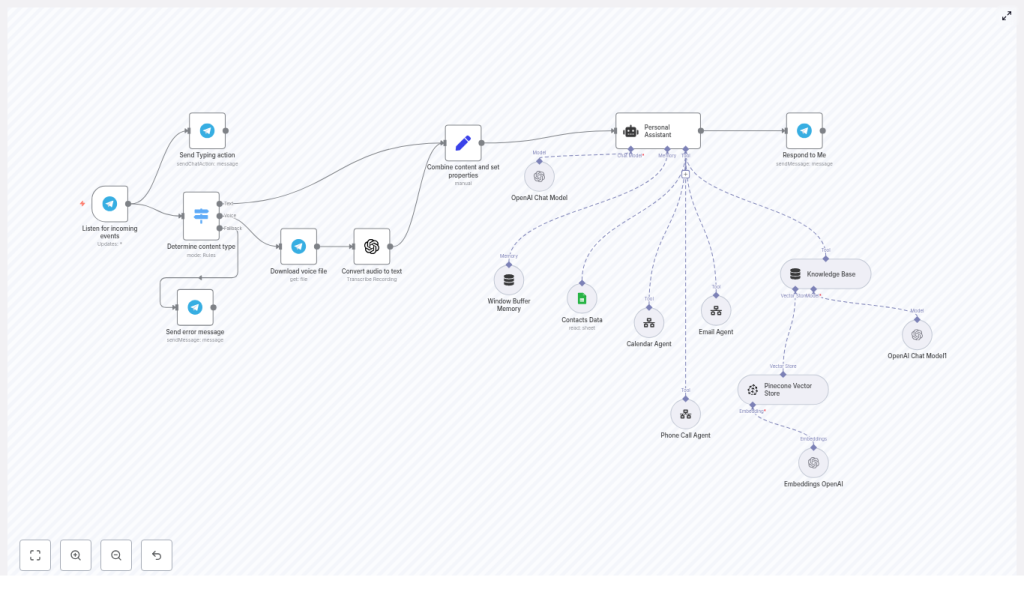
The template was built around a clear flow:
- Telegram trigger – Listens for incoming messages and voice notes.
- Content-type switch – Routes text, voice, or unsupported content.
- Audio downloader + transcription – Downloads voice files and uses OpenAI speech-to-text.
- Personal Assistant agent – A LangChain-style agent implemented as an n8n agent node.
- Tools – Contacts (Google Sheets), Calendar Agent, Email Agent, Phone Call Agent, and Knowledge Base (Pinecone + embeddings).
- Memory buffer – Keeps recent chat history for coherent conversations.
- Response node – Sends the final answer or confirmation back to Telegram.
In other words, Telegram became the front door. The agent became the brain. The tools became the hands.
Rising Action: Turning a Telegram Bot Into a Real Assistant
With the architecture clear, Nikhil started wiring everything up in n8n. Each node in the workflow became part of the story of how his assistant would handle a single message.
Step 1: Listening to Every Ping (Telegram Trigger)
First, he set up the Telegram Trigger node. This node would be the official entry point for every message and voice note.
He added his bot token, configured the webhook URL, and confirmed that the node was outputting Telegram message objects correctly. From that moment on, every “Hey, can you…” entered the workflow through this trigger.
Step 2: Teaching the Workflow to Recognize Message Types
Next came the Content-type switch. The assistant needed to know if someone sent:
- Plain text
- A voice note
- Something unsupported like stickers or random files
If the content was unsupported, the workflow would send back a friendly message explaining what the bot could handle. That way, users were guided instead of left confused.
Step 3: Turning Voice Notes Into Usable Text
Voice notes were Nikhil’s biggest source of missed tasks, so he paid close attention to this part.
For messages marked as voice, the workflow used the Telegram file API node to download the audio file. Then it passed that file to OpenAI’s speech-to-text (or a Whisper node) to generate a clean transcription.
The final text was stored as a CombinedMessage property. From the assistant’s perspective, a voice note and a typed message now looked the same.
Step 4: Normalizing Everything Into a Single Payload
To keep the logic simple, Nikhil added a step to combine content and set properties. Regardless of the source, every message ended up with:
CombinedMessage– the final text the user intendedMessage Type– text or voiceSource Type– where it came from
This uniform payload made it much easier for the Personal Assistant agent to reason about what to do next.
The Turning Point: The Agent Starts Making Decisions
The real shift happened when Nikhil wired up the Personal Assistant agent.
The Agent as the Brain
Inside n8n, the template used an agent node that behaved like a LangChain-style decision-maker. This node read the CombinedMessage, reviewed recent chat history from the memory buffer, and then decided which tools to call.
Its responsibilities were clear:
- Choose the right tool or combination of tools (email, calendar, phone call, knowledge base).
- Fetch contact details from the Contacts Data tool when communication was needed.
- Ensure emails were only sent to verified addresses and always signed as Nikhil.
- Pass clean, well-structured JSON payloads to the Calendar, Email, and Phone Call agent workflows.
Instead of building dozens of rigid if-else rules, Nikhil let the agent interpret natural language and orchestrate everything.
The Tools: Modular Workflows That Do the Heavy Lifting
Behind the scenes, each “action” the agent could take was implemented as a separate workflow. This made the system modular and easier to audit.
- Contacts Data
Powered by Google Sheets, this tool stored names, phone numbers, and email addresses. The workflow always verified numbers and formatted them in E.164 format before triggering any phone calls.
- Calendar Agent
This workflow created, updated, or canceled events. The agent passed it a structured payload with start and end times, context, and who the meeting was with.
- Email Agent
Emails were only sent to validated addresses from the Contacts Data tool. Every message was signed as Nikhil, so the assistant never pretended to be anyone else.
- Phone Call Agent
This triggered an external calling workflow, along with concise instructions for what the call should achieve, such as “Confirm delivery details with supplier.”
Because each tool was its own workflow, Nikhil could update or replace them without touching the main assistant logic.
Adding a Brain for Knowledge: Pinecone + OpenAI Embeddings
Nikhil also wanted his assistant to answer questions like:
“What is our refund policy?” or “Summarize the onboarding SOP for new hires.”
To handle this, he used the Embeddings OpenAI node to convert his documentation, SOPs, and FAQs into embeddings, then stored them in Pinecone.
When a question came in, the Personal Assistant agent could query the Pinecone vector store, retrieve the most relevant chunks, and respond with accurate, context-aware answers. If needed, it could even cite sources.
Deployment: From Prototype to Production-Ready Assistant
Once the logic worked in tests, Nikhil shifted his focus to deploying the assistant safely and reliably.
Deployment Checklist Nikhil Followed
- Set up an n8n instance (cloud or self-hosted) and secured it with HTTPS and authentication.
- Configured the Telegram Bot token and webhook URL inside the Telegram Trigger node.
- Provisioned OpenAI API keys for both chat and speech-to-text, then stored them as credentials in n8n.
- Created a Pinecone account and configured the Pinecone Vector Store node.
- Built a Google Sheets document for Contacts Data and set the Sheets node credential with the right scope.
- Installed and tested separate agent workflows for Email, Calendar, and Phone Call, confirming they accepted the expected JSON schema.
- Tested voice transcription accuracy and adjusted model choice or sampling if needed.
- Enabled logging and alerting to monitor workflow health and failures.
Keeping It Safe: Security, Compliance, and Best Practices
Because this assistant touched contacts, emails, and phone calls, Nikhil treated security as a first-class requirement.
- He never stored API keys or tokens in plain text, using n8n credentials and vault features instead.
- Access to the Google Sheets contact list was restricted to only necessary accounts.
- All inputs were validated and sanitized before being passed to external APIs or agent workflows.
- Phone numbers were always formatted in E.164 for reliable calling and privacy compliance.
- He logged audit trails for key actions like emails sent, calls placed, and calendar events changed.
When Things Go Wrong: How Nikhil Debugged His Assistant
No automation is perfect on the first run. Nikhil hit a few bumps and used the template’s troubleshooting guidance to fix them.
Transcription Issues
In noisy environments, voice notes were sometimes mis-transcribed. To improve accuracy, he:
- Encouraged users to send shorter, clearer voice messages.
- Tested a more robust speech model when background noise was common.
Missing Contacts
When the assistant could not find a contact, it was usually because:
- The Google Sheet ID or sheet name in the Contacts Data node was incorrect.
He fixed the configuration and added a polite fallback response when a contact was not found, avoiding any use of placeholder emails.
Tool Invocation Failures
Occasionally, a tool workflow failed to execute. The usual culprits were:
- Incorrect workflow IDs when the agent tried to call another workflow.
- Payloads that were too large or not structured as expected.
By verifying the invoked workflow IDs and keeping agent payloads small and well-structured, he eliminated most of these issues.
Real-Life Moments: How the Assistant Changed Nikhil’s Day
Example 1: Scheduling a Meeting Without Leaving Telegram
One morning, Nikhil typed into Telegram:
“Schedule a call with Mark next Monday at 2pm.”
Behind the scenes, the assistant:
- Looked up Mark’s contact details in the Google Sheets-based Contacts Data tool.
- Invoked the Calendar Agent with structured timing and context.
- Created the event, then replied in Telegram confirming the meeting.
There was no manual calendar entry, no context switching, and no risk of forgetting.
Example 2: Turning a Voice Note Into a Phone Call
Later that week, while walking between buildings, Nikhil sent a voice note:
“Call supplier and confirm delivery details.”
The assistant quietly:
- Downloaded the voice file and transcribed it using OpenAI speech-to-text.
- Fetched the supplier’s phone number from the Contacts Data sheet.
- Formatted the number in E.164 format.
- Triggered the Phone Call Agent with a concise instruction set for the call.
By the time he reached his next meeting, the call was already in motion.
Growing the Assistant: How Nikhil Plans to Extend the Template
Once the core assistant was stable, ideas for improvement came quickly. The template made it easy to extend the system with additional features:
- Add two-way calendar confirmations with inline Telegram buttons.
- Integrate a CRM like HubSpot or Pipedrive instead of Google Sheets for richer contact data.
- Implement role-based access or multi-user support so multiple principals can safely share the same bot.
- Introduce rate limiting or budget tracking for expensive API calls to OpenAI.
Because each capability was just another tool or workflow, the assistant could grow alongside his business.
Resolution: From Overwhelmed to Orchestrated
What started as a chaotic stream of Telegram messages turned into a calm, orchestrated system.
Nikhil no longer worried about missing calls or forgetting to send follow-up emails. His Telegram AI assistant, built with n8n, OpenAI, and Pinecone, was quietly:
- Listening to every message and voice note.
- Understanding intent using a LangChain-style agent.
- Pulling in contacts, calendar data, and knowledge base entries.
- Delegating tasks to specialized Email, Calendar, and Phone Call agents.
- Sending clear

