


Automate Email Workflows with n8n & OpenAI
If you spend way too much time reading, searching, and writing emails, this n8n Email Agent template might feel a bit like magic. It connects OpenAI (via LangChain) with Gmail so you can hand off routine email work to an automated agent. In this guide, we will walk through what the template actually does, when you would want to use it, and how to set it up in n8n without stress.
Think of it as your own AI-powered email assistant that understands natural language, looks up messages, drafts replies, and sends emails for you, all inside a single n8n workflow.
Why use this n8n Email Agent template?
Let’s start with the big picture. This template is perfect if you want to:
- Automate repetitive email tasks like follow-ups, summaries, or quick replies.
- Use natural language prompts instead of building complex logic for every scenario.
- Combine OpenAI’s language skills with Gmail’s search and sending features.
- Keep control with clear rules, validation, and retry logic.
In other words, it helps you delegate email busywork to an AI agent while you stay in charge of the important decisions.
What this template actually does
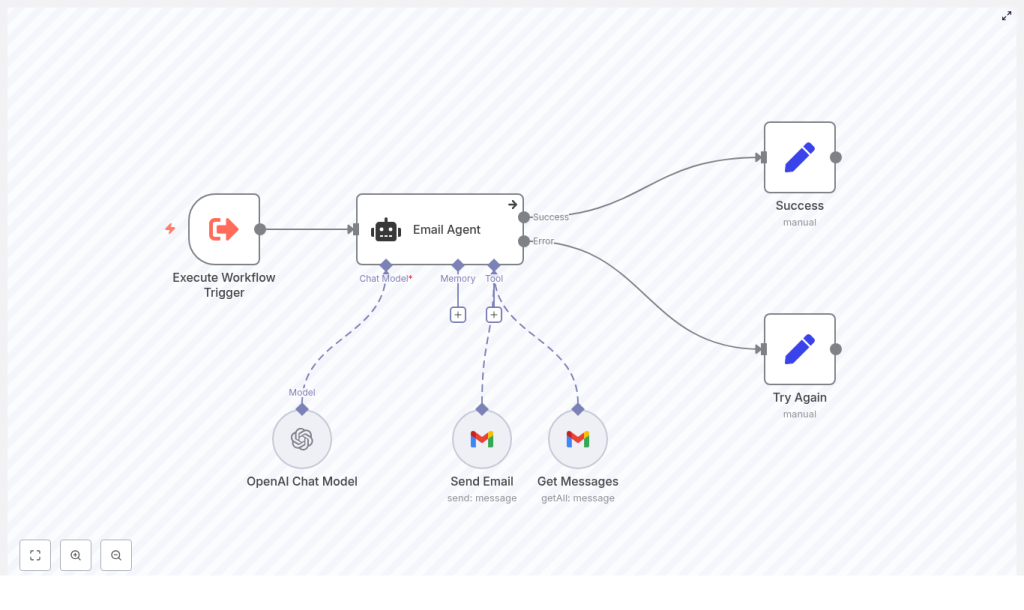
At its core, the Email Agent template orchestrates a small “team” of n8n nodes that work together to manage email tasks. Once it is running, the workflow can:
- Receive a trigger to start an email workflow (for example from a manual run, schedule, or webhook).
- Use an OpenAI chat model via LangChain to understand what you want and decide on the next actions.
- Search Gmail for messages, like unread emails or messages from a specific sender.
- Send emails on your behalf using Gmail OAuth2 credentials.
- Return a clear success result or follow an error path with retry logic.
You can ask it to do things like “Send a follow-up email to Sam about our pricing” or “Show me unread emails from john@example.com and summarize them”, and the workflow figures out which tools to call and how to respond.
Meet the key pieces of the workflow
The template is built from several n8n nodes that each play a specific role. Let’s walk through them in a friendly, non-intimidating way.
1. Execute Workflow Trigger
This is where everything starts. The Execute Workflow Trigger node kicks off the workflow and can be configured in different ways:
- Run it manually from the n8n editor.
- Schedule it to run at specific times.
- Call it via a webhook or from another workflow.
It is the entry point that receives your instructions, either as natural language (“Draft an email to…”) or as structured data.
2. Email Agent (LangChain Agent)
This is the brain of the operation. The Email Agent node uses LangChain to connect to the OpenAI chat model and to the Gmail tools available in the workflow.
What it does behind the scenes:
- Reads your input and figures out your intent.
- Extracts important details like recipient email, subject line, number of messages to fetch, and email body.
- Decides whether it needs to read messages from Gmail or send a new email.
- Uses a system message (included in the template) that tells it how to behave, how to write emails, and how to handle unread-email queries.
You can think of the Email Agent as a smart router that understands language and picks the right Gmail action to use.
3. OpenAI Chat Model
The OpenAI Chat Model node is the language model that powers the agent’s intelligence. It is responsible for:
- Parsing intent from your prompt.
- Filling in “slots” such as recipient, subject, and email body.
- Implementing the logic defined in your system message, including how to format outputs and which tools to call.
This is where your prompt engineering skills come into play, since the behavior of the agent depends heavily on how you instruct this model.
4. Get Messages (Gmail)
Whenever the agent needs to read existing messages, the Get Messages Gmail node steps in. For example, if you say:
“Show unread emails from john@example.com.”
The workflow will use this node to search Gmail and return the matching messages. You can configure:
- Filters like sender or labels.
- Limits on how many messages to fetch.
- Other search parameters to refine results.
5. Send Email (Gmail)
When it is time to actually send something, the Send Email Gmail node takes over. It:
- Builds a plain-text email using the agent’s output.
- Uses Gmail OAuth2 credentials to send the message from your account.
- Fills in recipient, subject, and body with values returned by the Email Agent.
This is how your AI-generated drafts turn into real emails sent from your Gmail account.
6. Success / Try Again
To keep things clean and easy to monitor, the template ends with two simple Set nodes:
- Success – captures the agent’s final response when everything works as expected.
- Try Again – handles errors and gives you a clear path to add retry logic or alerts.
This structure makes it much easier to debug and to extend the workflow later.
How to set up the n8n Email Agent template
Ready to get this running in your own n8n instance? Here is a straightforward setup flow you can follow.
- Create or open your n8n account
Log in to n8n and open the workflow editor where you will import or recreate the template. - Import or rebuild the template
Add the nodes shown in the template diagram or import the workflow directly from the shared template. Make sure all the key nodes are included: Execute Workflow Trigger, Email Agent, OpenAI Chat Model, Gmail Get Messages, Gmail Send Email, Success, and Try Again. - Configure credentials
You will need two main sets of credentials:- OpenAI API key – set this in the OpenAI Chat Model node credentials.
- Gmail OAuth2 credentials – used by both the Get Messages and Send Email Gmail nodes.
Store these in n8n’s credential manager rather than hard-coding them.
- Tune the Email Agent system message
Open the Email Agent node and review the system message. This is where you:- Set the tone of voice for emails.
- Define how the agent should sign off (for example, with your name or company name).
- Add any business rules or constraints that matter for your organization.
The template comes with explicit instructions, such as signing emails as a specific name. Edit these so they match your own brand and policies.
- Run a few test prompts
Try something simple like:
“Send an email to alice@example.com with subject ‘Meeting’ and body ‘Can we reschedule to Thursday?’”
Check how the agent fills in the fields, sends the email, and what the Success output looks like. Adjust your prompts and system message as you go.
Best practices for a reliable email automation setup
Once the template is working, you can make it more robust with a few smart configuration choices.
Security and privacy first
Since this workflow touches both your email and OpenAI, treat credentials carefully:
- Store OpenAI and Gmail credentials securely in n8n’s credential manager.
- Use a Gmail account or service account with restricted access whenever possible.
- Be cautious about sending sensitive information in prompts or email content.
Prompt engineering for predictable behavior
The more explicit your instructions, the more consistent the agent becomes. In the Email Agent system message, consider:
- Defining clear rules for tone, structure, and length of emails.
- Adding examples for common email types, such as:
- Order confirmations
- Meeting requests
- Follow-up emails
- Specifying exactly what information the model should always return.
This helps the OpenAI Chat Model behave more like a well-trained assistant instead of a freeform writer.
Control and validate outputs
Before anything gets sent out to real people, you want to be sure the details are right. The template already uses expressions to map values from the agent’s output, but you can go further:
- Validate recipient email formats before sending.
- Check that the subject line is present and not empty.
- Add extra n8n nodes for stricter validation if your use case requires it.
This small bit of extra checking can save you from awkward mistakes.
Keep an eye on rate limits and costs
Both OpenAI and Gmail APIs have usage limits and potential costs attached. To stay on the safe side:
- Monitor your OpenAI token usage.
- Watch Gmail API quotas, especially if many workflows run in parallel.
- Use batching or throttling nodes in n8n if you expect high volume.
Ways to customize and extend the template
Once the basic version is working, you can turn this into a more advanced email management system. Here are some ideas that build directly on the existing template:
- HTML email templates
Use the Gmail node’s HTML body option to send nicely formatted emails instead of plain text. - Attachments
Add nodes that fetch files from storage or other apps, then include them using MIME encoding so the agent can send attachments. - Multi-step approvals
Insert a manual confirmation step, a Slack message, or a dashboard check before sending certain emails, especially for sensitive communication. - Logging and audit trails
Store copies of sent emails in a database or Google Sheet so you have a history of what the agent has done. - Advanced email parsing
Use OpenAI to summarize incoming emails, extract action items, or pull out structured data from long threads.
Troubleshooting common issues
If something feels off, you are not alone. Here are a few typical issues and how to fix them.
Agent returns incorrect fields
If the agent is mixing up recipient and subject, or not returning the fields you expect, tighten up the system message. You can:
- Ask the model to return a very specific JSON format.
- Define the keys it must use, for example:
email_addresssubjectemail_body
- Give one or two examples of valid outputs in the instructions.
Gmail authentication fails
If Gmail nodes are failing to connect:
- Double-check your OAuth2 credentials in n8n.
- Make sure the Gmail account actually has API access enabled.
- Reauthorize the credential if tokens have expired or if you changed scopes.
Too many emails returned from Gmail
When the Get Messages node returns more emails than you want, try:
- Lowering the limit in the Get Messages node configuration.
- Using more specific filters, like date ranges, labels, or sender filters.
- Letting the agent set dynamic limits, as demonstrated in the template, but with clear maximums.
Example workflows you can build with this template
Need some inspiration? Here are two concrete ways you can use the Email Agent template right away.
1) Read unread emails and summarize them
Set up the workflow so that when it is triggered, it:
- Fetches all unread emails from a specific sender or with certain filters.
- Uses the OpenAI model to summarize the content.
- Returns a concise digest you can read in seconds.
This is great for daily or weekly briefings, especially if you get a lot of similar emails.
2) Draft and send follow-up emails
In another scenario, you can have the agent:
- Find the last message thread with a specific contact.
- Draft a follow-up email based on that context.
- Pause for manual review and approval.
- Send the email via Gmail once you confirm.
This keeps you in the loop while saving time on writing repetitive follow-ups.
When this template is the right choice
You will get the most value from this Email Agent template if you:
- Handle lots of repetitive email tasks like sales outreach, customer follow-ups, or internal notifications.
- Want automation, but still need the option for human oversight.
- Care about consistent branding and tone across all emails.
By pairing n8n automation with well-designed prompts, you get a flexible system that feels personal but runs on autopilot most of the time.
Wrap-up and next steps
The n8n Email Agent template gives you a no-code way to blend OpenAI’s language intelligence with Gmail’s powerful tools. With thoughtful prompt design, access controls, and a bit of validation, you can safely offload a lot of your everyday email work.
Ready to see it in action?
Call-to-action: Import the template into your n8n instance, connect your OpenAI and Gmail credentials, and try a few test prompts. If you would like a downloadable version of the workflow or a step-by-step video walkthrough, subscribe to our newsletter or get in touch with our team for a guided setup.
