


Build a Slack AI Bot in n8n with Google Gemini
Imagine opening Slack in the morning and finding routine questions already answered, teammates guided, and ideas drafted before you even start typing. That is the power of a simple, well-designed automation. This n8n workflow template is not just a technical setup, it is a small but meaningful step toward reclaiming your time, focusing your energy, and building a more automated, intentional way of working.
In this guide, you will walk through a complete journey: starting from the problem of constant Slack interruptions, shifting into a mindset of automation and leverage, then using a practical n8n template to build a Slack AI assistant powered by Google Gemini and LangChain. By the end, you will have a working Slack bot that keeps short-term memory, responds naturally, and becomes a foundation you can keep improving over time.
The problem: Slack pings, context switching, and lost focus
Slack is where conversations happen, but it is also where focus goes to die. Repetitive questions, status updates, and quick “how do I…” messages slowly eat away at your day. You know some of these could be automated, but building a bot can feel like a big project.
The reality is that you do not need a massive system to start winning back time. A single, focused workflow that listens to Slack, routes questions to an AI assistant, remembers the recent conversation, and sends a clear response back can already transform how you and your team work.
Shifting the mindset: from manual replies to automated assistance
Automation is not about replacing you, it is about amplifying you. When you connect Slack, n8n, and an LLM like Google Gemini, you create a supportive layer that handles the repetitive and predictable, so you can focus on the strategic and creative.
Think of this template as a starting point:
- A place to test ideas safely and quickly
- A way to build confidence with AI-driven workflows
- A foundation you can extend into richer automations and tools
Once you have this Slack bot running, you will start to see new opportunities everywhere: onboarding assistants, internal knowledge helpers, automation coaches, and more. You are not just building a bot, you are building your automation muscle.
The core idea: a conversational Slack AI bot in n8n
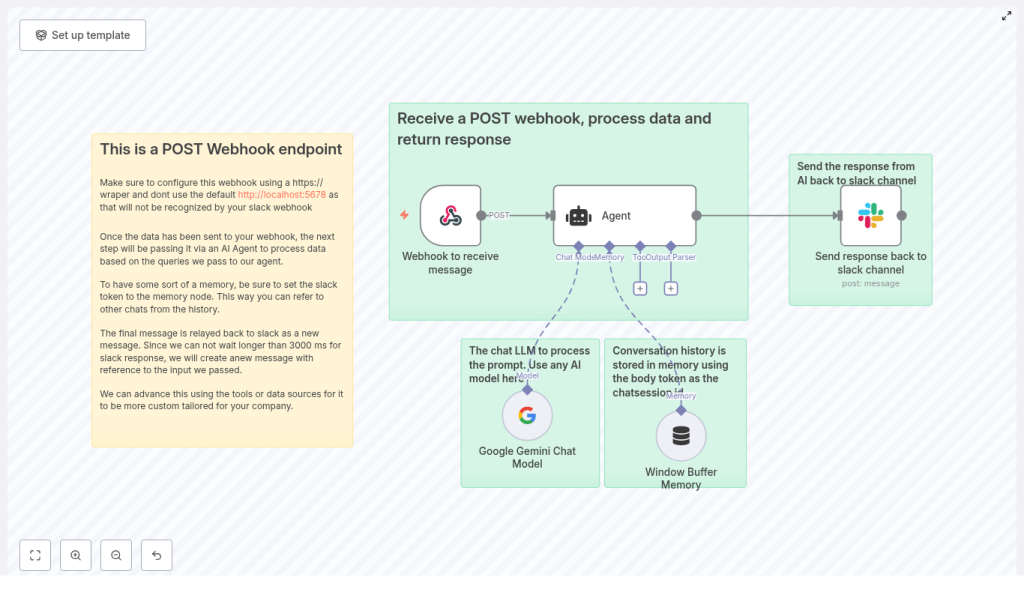
This template shows a practical architecture that balances speed, context, and flexibility. At a high level, the workflow does the following:
- Receives a Slack POST webhook at a public HTTPS endpoint
- Routes the incoming message to a LangChain Agent powered by Google Gemini
- Uses a Window Buffer Memory to keep short-term conversation context
- Sends a polished AI response back to the Slack channel
The result is a responsive Slack assistant that:
- Understands recent messages instead of replying in isolation
- Uses a modern LLM for natural, helpful responses
- Can be extended with tools, knowledge bases, and custom logic over time
Why this n8n architecture works so well
This specific structure is designed to be both powerful and approachable. It combines key n8n and LangChain components into a simple, repeatable pattern:
- Webhook node captures Slack messages through a public HTTPS endpoint that Slack can call.
- Agent node orchestrates prompts, tools, and logic using LangChain’s agent framework.
- Google Gemini Chat model delivers high quality chat completions for natural conversation.
- Window Buffer Memory keeps recent messages in a rolling window so the bot remembers context.
- Slack node posts the AI response back to the originating Slack channel.
This architecture is intentionally modular. Each part can be swapped, tuned, or extended, which makes it a great stepping stone for your broader automation journey.
What you need before you start
To follow along and use the template, make sure you have:
- An n8n instance reachable via HTTPS
- Self-hosted with a proper certificate, or
- Exposed via a reverse proxy or HTTPS tunnel
- A Slack app configured to send events or outgoing webhooks to your n8n endpoint
- Access to Google Gemini (or another LLM) and the API credentials configured in n8n’s LangChain nodes
- n8n’s LangChain integration enabled, with Agent and Memory nodes available
Once these pieces are in place, you are ready to turn a basic Slack message into an intelligent conversation.
Understanding the example workflow at a glance
The provided template includes the following main nodes, from left to right in your n8n editor:
- Webhook to receive message
- HTTP POST endpoint path:
/slack-bot
- HTTP POST endpoint path:
- Agent
- Receives the incoming text, applies a system prompt, and orchestrates the AI call
- Google Gemini Chat Model
- The LLM that generates the conversational reply
- Window Buffer Memory
- Stores recent conversation items keyed by a session identifier
- Send response back to Slack channel
- A Slack node that posts the AI answer back to the original channel
Now let us walk through how to configure each part, step by step, and see how it all comes together.
Step 1: Configure the Webhook node as your Slack entry point
Your journey starts with a single HTTPS endpoint. This is how Slack reaches your n8n workflow.
- Set the Webhook node’s HTTP method to POST.
- Choose a path, for example:
/slack-bot. - Ensure the endpoint is available over HTTPS. Slack will not accept plain HTTP.
If you are testing locally, you can use a tool like ngrok or another secure tunnel to expose your local n8n instance as a public HTTPS URL.
In the Webhook node parameters:
- Set HTTP Method to
POST. - Set responseData to an empty string if you prefer not to send a direct HTTP reply to Slack.
This approach lets the workflow process the message and then send a new Slack message later, which helps avoid Slack timing out while the AI is generating a response.
Step 2: Accept and parse Slack’s payload cleanly
Slack sends message data to your webhook as a JSON payload. In this template, the workflow expects fields like:
body.text– the message contentbody.user_name– the Slack usernamebody.channel_id– the channel where the message was posted
A typical payload for an outgoing webhook might look like this:
{  "token": "abc123",  "team_id": "T123",  "channel_id": "C123",  "user_name": "alice",  "text": "Can you help automate my report?"
}
Make sure your Slack app is configured to send the fields you need. If your app uses the newer event-based approach, Slack will nest information inside an event object. In that case, you will need to adjust the JSON references in n8n to match the actual structure.
This is a great moment to pause, inspect the incoming payload in n8n’s execution logs, and confirm that your field mappings are correct. Getting this right early makes the rest of your automation journey smoother.
Step 3: Connect and shape the LangChain Agent
The Agent node is where your Slack bot starts to feel like a real assistant. It receives the text from Slack, applies a system message, and coordinates the call to Google Gemini and the memory.
In the template, the Agent’s system message is:
You are Effibotics AI personal assistant. Your task will be to provide helpful assistance and advice related to automation and such tasks.
You can keep this as is or adapt it to match your company voice and purpose. For example, you can make it more focused on internal processes, customer support, or technical guidance.
Configuration steps:
- Pass the incoming Slack text as the user message to the Agent, for example:
{{$json.body.text}} - Connect the Google Gemini Chat Model node to the Agent as the language model.
- Attach the Window Buffer Memory node so the Agent can recall recent messages.
At this point, you have an AI brain wired up to your Slack messages. Next, you will shape how that brain thinks and remembers.
Step 4: Configure the Google Gemini Chat Model
Google Gemini is the LLM that powers your bot’s responses. In n8n, you use the LangChain-powered Google Gemini Chat model node to define how it behaves.
- Select the desired model, for example:
models/gemini-1.5-flash-latest(as used in the template). - Adjust key parameters such as:
- Temperature for creativity vs consistency
- Max tokens for response length
- Other hyperparameters as needed for your use case
Then, in the Agent node configuration, make sure the Gemini node is set as the ai_languageModel connection. This tells the Agent which model to call when it needs a reply.
Over time, you can tune these settings as you observe how your bot responds. Shorter, more focused answers for quick support, or more exploratory replies for brainstorming and automation advice.
Step 5: Add Window Buffer Memory for conversational context
To make your Slack bot feel less like a one-off responder and more like a true assistant, it needs memory. The Window Buffer Memory node provides a rolling context window that stores recent messages for each conversation.
In the template, the configuration looks like this:
sessionKey: ={{ $('Webhook to receive message').item.json.body.token }}
sessionIdType: customKey
contextWindowLength: 10
This means:
- Each chat session is keyed by Slack’s
tokenfield (or another unique identifier you choose). - The memory keeps up to the last 10 messages in context.
You are free to change the session key to better match your needs. Common options include:
- User ID for user-specific conversations
- Channel ID for channel-wide shared context
- A combination of user and workspace IDs for multi-tenant scenarios
This small piece of configuration is what turns a static Q&A bot into a conversational partner that remembers what just happened.
Step 6: Post the AI result back to Slack
Slack expects responses quickly. Interactive responses need to come back within about 3000 ms. Instead of trying to push the AI reply into the original HTTP response, this template takes a more reliable approach: it sends a new Slack message once the AI answer is ready.
In the Slack node:
- Use the
channel_idfrom the webhook payload to post back into the correct channel. - Build a message template that includes both the original user text and the AI answer. For example:
{{ $('Webhook to receive message').item.json.body.user_name }}: {{ $('Webhook to receive message').item.json.body.text }}

Effibotics Bot: {{ $json.output.removeMarkdown() }}
Additional settings:
- Set sendAsUser to a bot name or use a Slack bot token with the proper scopes, such as
chat:write. - Enable markdown formatting if you want richer responses.
With this in place, your users will see a clear, friendly reply in Slack, as if they were chatting with a real teammate dedicated to automation support.
Keeping your automation safe: security and best practices
As you build more powerful automations, security and reliability become essential. Even at this early stage, it is worth setting good habits.
- Always use HTTPS for webhook endpoints
- Use public tunnels like ngrok or a properly configured reverse proxy.
- Store API keys and tokens in n8n credentials, not in plain workflow parameters.
- Validate incoming Slack requests by verifying Slack request signatures.
- Monitor and rate-limit usage for both Slack and LLM calls to manage cost and prevent abuse.
- Scrub or redact sensitive data before sending it to third-party LLMs if your policies require it.
These practices protect your users, your data, and your future automations as you scale.
Growing beyond the basics: extending your Slack AI bot
Once your first version is running, you will likely see new possibilities. This architecture is intentionally extensible, so you can evolve it as your needs grow.
Here are some ideas to build on this template:
- Add tools to the Agent
- Calendar lookups for scheduling
- Database fetches for internal data
- Ticket creation in your support or issue tracking system
- Introduce long-term knowledge
- Connect a vector database for retrieval-augmented generation (RAG)
- Store documentation, FAQs, or playbooks for richer answers
- Refine session handling
- Change the session key to combine user and workspace IDs
- Design multi-tenant or multi-team experiences
- Add command logic
- Implement slash commands to trigger specific automations
- Apply rate limits or usage rules per user or channel
Each improvement builds on the same core pattern: Slack message in, Agent plus memory and tools, then Slack message out. The more comfortable you get with this pattern, the faster you can ship new automations.
When things go wrong: troubleshooting with confidence
No automation journey is perfectly smooth. When something does not work as expected, use these checks to quickly get back on track:
- Slack rejects your webhook
- Confirm the endpoint is public and reachable over HTTPS.
- Use ngrok or similar tools and check their logs to verify delivery.
- Missing or unexpected fields
- Inspect the raw Slack payload in n8n.
- Update your JSON references to match the keys Slack actually sends.
- Slow AI responses
- Reduce the model’s max tokens.
- Adjust temperature for more concise answers.
- Pre-process or shorten prompts before sending them to the LLM.
- Memory not behaving as expected
- Confirm that
sessionKeyresolves to a stable, unique value for each chat session. - Check that the Window Buffer Memory node is correctly connected to the Agent.
- Confirm that
