


Automate Stock Reports with n8n, Baserow & SendGrid
Imagine opening your inbox every morning to a clean, up-to-date summary of your investments, without copying numbers from websites or spreadsheets ever again. That is exactly what this n8n workflow template gives you.
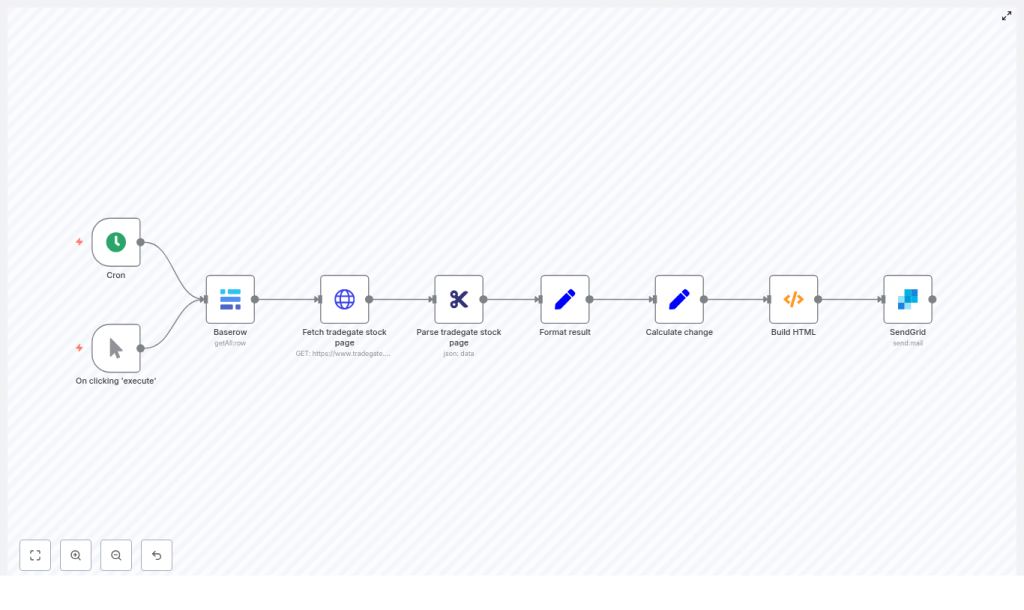
In this guide, we will walk through how the workflow works, when it is useful, and how each n8n node fits together. You will see how it pulls stock data from Tradegate, enriches it with your Baserow holdings, calculates values and changes, then wraps everything into a polished HTML email sent via SendGrid.
What this n8n workflow actually does
At a high level, this automation:
- Reads your portfolio from a Baserow table (name, ISIN, quantity, purchase price)
- Fetches the latest data from Tradegate for each ISIN
- Scrapes bid, ask, and other key details from the Tradegate HTML
- Calculates current values, gains, and percentage changes
- Builds a simple HTML report with a table and summary
- Sends the report as an email using SendGrid
The result is a daily (or on-demand) stock report that looks professional, runs automatically, and is easy to adjust as your portfolio or tooling evolves.
Why bother automating stock reports?
If you are still checking quotes manually, you already know the pain. Opening multiple tabs, copying values into a spreadsheet, doing the same calculations again and again… it adds up quickly and mistakes are almost guaranteed.
With n8n handling the work for you, you can:
- Schedule checks at consistent times, for example every weekday morning
- Standardize how you pull and calculate data
- Keep your portfolio view aligned with real market values
- Get clear HTML summaries in your inbox that you can read on any device
In short, you trade repetitive manual work for a single, maintainable workflow.
How the workflow is structured
The template follows a clean, linear pipeline. Each node has a narrow job, which makes the whole thing easier to understand and tweak later.
- Cron / Manual Trigger – starts the workflow on a schedule or on demand
- Baserow (getAll:row) – pulls your list of holdings
- HTTP Request – grabs the Tradegate order book page for each ISIN
- HTML Extract – scrapes bid, ask, and other details from the HTML
- Set nodes – formats numbers and calculates values and changes
- Function (Build HTML) – assembles the final email-ready HTML report
- SendGrid – sends the report to your chosen recipients
Let us go through these pieces in a slightly different order so you can see the story behind the automation.
Step 1: Decide when the report should run
Cron and Manual triggers in n8n
Start by adding two trigger nodes:
- Cron – configure this to run at your preferred time, for example weekdays at 07:15. This is what gives you an automatic daily stock report.
- Manual Trigger – keep this in the workflow for quick tests, debugging, or one-off runs whenever you want an ad-hoc report.
Both triggers can feed into the same chain of nodes, so you do not need to duplicate any logic.
Step 2: Store and fetch your portfolio from Baserow
Baserow node – your holdings as structured data
Next, the workflow needs to know what you actually own. That is where Baserow comes in.
Set up a Baserow table with at least these columns:
- Name – the stock or instrument name
- ISIN – used to query Tradegate
- Count – how many units you hold
- Purchase Price – your buy price per unit
Use the Baserow (getAll:row) node in n8n to read all rows from this table. Each row becomes an item that flows through the workflow, and each item carries the data needed to look up the corresponding Tradegate page and to calculate your current position.
Step 3: Pull Tradegate data for every ISIN
HTTP Request node – grabbing the order book page
For each row from Baserow, the workflow calls Tradegate. You do this with an HTTP Request node configured to send a GET request to the Tradegate order book URL.
Pass the ISIN from Baserow as a query parameter so the right page is requested for each holding. In practice, you will use an expression like:
isin = ={{$json["ISIN"]}}Set the response format to string. That way, the raw HTML comes through untouched, which is exactly what you want for the next step where you parse it.
Step 4: Scrape the key values from Tradegate
HTML Extract node – parsing the HTML
Once the HTML from Tradegate is available, the HTML Extract node takes over. This node lets you define CSS selectors to pick out exactly the pieces of data you need, such as:
- WKN – the WKN cell
- ISIN – the ISIN cell
- Currency – the currency field
- Name – typically in a heading element, such as
<h2> - Bid / Ask – the relevant price fields
In the example template, selectors look like:
#col1_content > table > tbody > tr:nth-child(2) > td:nth-child(1)and similar patterns for other table cells. These may need updating if Tradegate changes its HTML structure, so it is worth checking them from time to time.
Step 5: Clean up the data and calculate portfolio metrics
First Set node – computing current value
Now that you have both Baserow data and scraped Tradegate values in each item, you can start calculating.
Use a Set node to normalize and compute a Current Value for each holding. One example expression looks like this:
Current Value = {{ (parseFloat($json["Bid"].replace(',', '.')) * parseFloat($node["Baserow"].json["Count"])) .toFixed(2) }}A couple of important details here:
- parseFloat is used to turn the text values into numbers
- Commas in prices are replaced with dots, which is crucial for correct parsing
- toFixed(2) keeps the output neat with two decimal places
Second Set node – calculating change and percentage change
Next, add another Set node to derive:
- Change – difference between current value and purchase price
- Change (%) – percentage gain or loss relative to purchase price
The percentage change can be computed like this:
Change (%) = {{(((parseFloat($json["Current Value"]) - parseFloat($json["Purchase Price"])) / parseFloat($json["Purchase Price"])) * 100).toFixed(2)}}By the time items leave this step, each one carries all the fields you need for a clear portfolio snapshot.
Step 6: Turn the data into a readable HTML report
Function node – building the email HTML
Now for the fun part: turning these rows into an HTML report that you actually want to read.
Add a Function node that:
- Receives the final list of items (one per holding)
- Loops through them to build table rows
- Adds a header row and a footer with portfolio totals
- Wraps everything in a simple HTML structure with inline CSS
The example uses n8n’s $now helper to include a timestamp in the report, with timezone and locale formatting. For example:
${'$now'}.setZone("Europe/Dublin").setLocale('ie').toFormat('fff')All the HTML is typically stored in a single variable, for example email_html, and returned as part of the item JSON. Keep the layout simple: a basic table, some light inline styles, and a short summary paragraph so it works well in most email clients.
Step 7: Email the report with SendGrid
SendGrid node – delivering the final result
The last step is to send that HTML to your inbox.
Use the SendGrid node (or a similar transactional email provider) and configure it to:
- Set the contentType to
text/html - Map the HTML output from the Function node, for example
$json["html"], into the email body - Specify the sender, recipients, and subject line
Once this is in place, every scheduled run of the workflow will produce and send a fresh report automatically.
Practical tips to keep your workflow stable
Respect rate limits and site policies
Tradegate, like many exchanges, may have rate limits or specific rules about scraping. To stay on the safe side:
- Use n8n’s Wait node to add small delays between HTTP requests
- Limit concurrency so you do not hammer the remote server
- Review the site’s terms of use and adapt accordingly
Data hygiene and robustness
Clean data means more reliable reports. A few best practices:
- Normalize numbers, such as replacing commas with dots before using
parseFloat - Handle missing or malformed values gracefully, for example by skipping problematic rows
- Add basic validations so you can spot when parsing fails or selectors no longer match
Error handling and retries
Things will break occasionally, especially if Tradegate changes its HTML. To make this less painful:
- Use n8n’s error workflows to catch and process failures
- Connect HTTP and parsing steps to a retry or alerting subflow
- Send a short error email or log a note back into Baserow when a row cannot be parsed
Security best practices
Because this workflow touches credentials and possibly sensitive data, keep security in mind:
- Store API keys and credentials in n8n’s credentials store, not in plain text fields
- Restrict access to production workflows and logs
- Avoid writing secrets into output fields or debug messages
Ideas to enhance the workflow
Once the basic version is running smoothly, you can extend it in a few directions:
- Add currency conversion if your holdings are in multiple currencies
- Store daily snapshots in Baserow or a database and build simple charts or historical comparisons
- Expose a webhook or Slack integration so you can trigger ad-hoc reports on demand
- Improve email styling with branding, better typography, or conditional highlighting of winners and losers
Testing checklist before you rely on it
Before you fully trust the automation, run through this quick checklist:
- Use the Manual Trigger to test a few portfolio rows
- Inspect the raw HTML from the HTTP Request node to confirm Tradegate’s layout matches your expectations
- Verify that the CSS selectors in the HTML Extract node still match the correct elements
- Double check number parsing and calculations, especially if your locale uses commas in numbers
Wrapping up
This n8n workflow template gives you a repeatable, low-maintenance way to generate daily stock reports. It combines:
- Baserow for storing your holdings
- Tradegate as the source of live market prices
- SendGrid to deliver clean HTML summaries straight to your inbox
Because the workflow is modular, you can easily switch data sources, extend the calculations, or plug in a different email provider without rewriting everything.
Ready to stop doing portfolio updates by hand? Import or recreate the nodes described here, adjust the CSS selectors for your specific Tradegate pages, and put the Cron node on a schedule that suits you.
If you want the example workflow JSON or help tailoring it to your setup, feel free to reach out.
Call to action: Try this workflow in your n8n instance today, or message me for a customized version, troubleshooting support, or a live walkthrough. Subscribe if you would like more automation recipes like this in your inbox.
