


Build a Notion Knowledge-Base Assistant with n8n
On a rainy Tuesday afternoon, Mia stared at yet another Slack message blinking at the bottom of her screen.
“Hey, do you know where the latest onboarding checklist is?”
She sighed, opened Notion, and started typing into the search bar for what felt like the hundredth time that week. As the operations lead at a fast-growing startup, Mia had spent months organizing everything in Notion – product specs, onboarding docs, internal how-tos, HR policies, and meeting notes. The information was there, but finding it quickly had become a daily bottleneck.
New hires could not remember which space held which document. Managers asked the same questions about time off, billing, and product features. Even Mia, the person who built the knowledge base, sometimes struggled to track down the right page.
That afternoon, after answering the same “How do I request time off?” question for the third time, she decided something had to change.
The moment Mia realized search was not enough
Mia did a quick audit of their internal communication channels. The pattern was obvious:
- Slack was full of repeated questions about policies and processes
- New hires were overwhelmed by the size of the Notion workspace
- Team leads were frustrated by how long it took to find answers
Notion was a great place to store knowledge, but it was not acting like an assistant. People did not want to “go search a database.” They wanted to ask a question and get a short, accurate answer with a link if they needed more detail.
That night, while searching for “Notion AI assistant” ideas, Mia discovered something that caught her eye: an n8n workflow template that turned a Notion knowledge base into a chat assistant using GPT. It promised to do exactly what she needed:
- Receive chat messages from users
- Search a Notion database for relevant records
- Optionally pull in page content for deeper context
- Use an AI agent and OpenAI to craft short, sourced answers
It sounded like magic. But it was not magic. It was just smart automation.
What Mia decided to build
Mia sketched the idea on a notepad first. She wanted an assistant that could sit behind a chat interface, listen for questions, and then quietly do the heavy lifting:
- Receive a user question through a webhook
- Understand how her Notion knowledge base was structured
- Search by keywords or tags in the Notion database
- Read the content of a page if needed
- Use an AI agent connected to OpenAI to write a clear answer
- Include links to the relevant Notion pages
- Remember the last few messages so follow-up questions would make sense
In n8n terms, this translated into a set of specific building blocks:
- Chat trigger using a webhook to receive user queries
- Get database details to read the Notion DB schema and tag options
- Search Notion database to find matching pages by keyword or tag
- Search page content to pull matching blocks from a page
- Window buffer memory to hold recent chat turns
- AI agent + OpenAI Chat Model to summarize and produce the final response
If she could wire all of this together, her team could simply ask:
“How do I request time off?”
and get a concise answer plus links to the exact Notion pages, instead of a vague “search for it in Notion.”
Rising action: turning a Notion database into a real assistant
Mia starts with the Notion knowledge base
Before touching n8n, Mia opened Notion and looked at her existing knowledge base. To make it AI friendly, she created a dedicated database structured for question and answer pairs.
She made sure each entry had:
- A “question” field (rich_text) that captured the main query, such as “How do I request time off?”
- An “answer” field with a clear explanation
- “tags” like product, billing, onboarding, HR, and policies
- An “updated_at” field so she could track freshness
To make the future search more precise, she standardized the tags. No more “hr” in one place and “human resources” in another. She settled on a clear set of tags and stuck to them.
Then she created a Notion integration at developers.notion.com and shared the database with that integration. She knew that just creating an integration was not enough. It had to be explicitly granted read access to the specific database she wanted to search.
Bringing n8n into the story
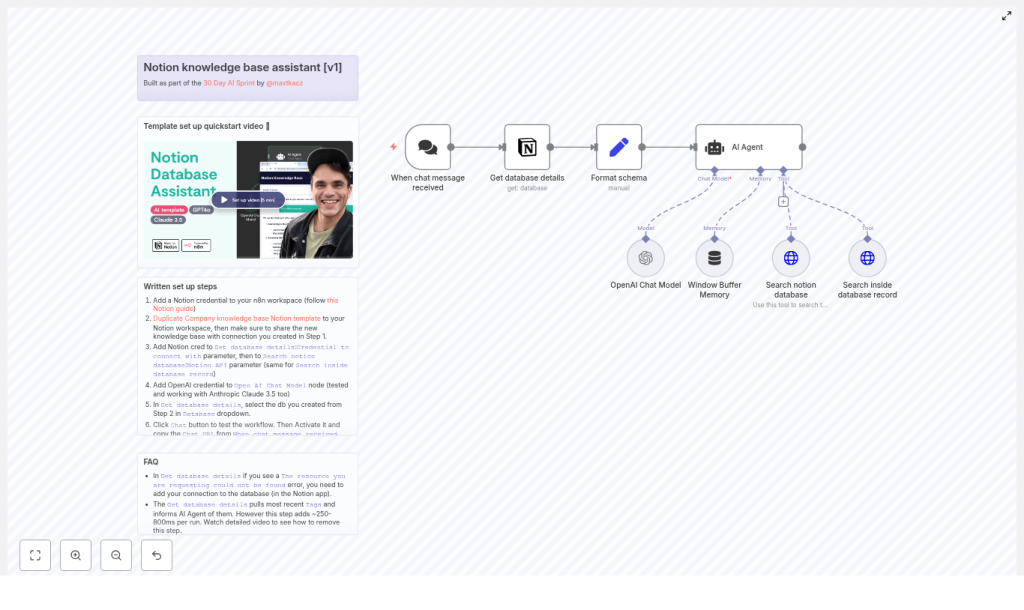
With Notion ready, Mia logged into her n8n instance. She could have run it self-hosted or in the cloud, but her company already had an n8n cloud workspace, so she opened a new workflow and started dropping in nodes, following the architecture she had in mind.
Her workflow slowly took shape:
- When chat message received – a webhook node that accepted user text from the chat interface
- Get database details – a Notion node to fetch database information, including property names and tag options
- Format schema – a Set node that transformed the raw Notion schema into compact JSON the AI agent could understand
- AI Agent – a langchain-style agent node that would decide when to call search tools
- Search notion database – an HTTP Request node calling
/v1/databases/{id}/querywith filters - Search inside database record – another HTTP Request node hitting
/v1/blocks/{page_id}/childrento fetch page blocks if the record needed deeper inspection - OpenAI Chat Model – the LLM node, wired to her OpenAI API key
- Window Buffer Memory – a memory node to keep a short history of the conversation
It was starting to look like a real assistant. But a few critical steps still stood between Mia and a working system.
The turning point: making the AI agent actually useful
Credential setup, or why nothing worked at first
The first time Mia ran the workflow, it failed almost instantly.
The Notion node complained that it could not find the resource she was requesting. The OpenAI node refused to respond.
She realized she had skipped the boring but essential part: credentials.
- For Notion, she went back into n8n, opened the credentials section, and added her Notion integration token. She double checked that the integration had been shared with the knowledge base database in Notion. Without that, Notion would keep responding with “The resource you are requesting could not be found”.
- For OpenAI, she created an API key in her OpenAI account and stored it in n8n credentials, then linked it to the Chat Model node.
She made a mental note not to ever paste API keys into workflow JSON or share them in public repos. n8n credentials and environment variables were the right place for secrets.
Once credentials were in place, the workflow started to move. The webhook received a test message, the Notion node fetched database details, and the AI agent came to life.
Teaching the assistant how to search
Next, Mia had to decide how the assistant should search the Notion database. She knew that a naive search could either miss relevant answers or flood the AI model with too much information.
So she defined a clear search strategy inside the tools the agent could call:
- First, try an exact keyword search against the
questionrich_text field - If no results, fall back to a tag-based search using the standardized tags
- If still no results, broaden the keyword search by including variations like singular/plural forms or common synonyms
To keep costs and hallucinations down, she configured the search to return only the top 3 results to the LLM. There was no need to send the entire knowledge base to the model for every question.
Now the agent could:
- Look up the database schema using the Get database details node
- Use the Format schema node to map those fields into a structure it could reason about
- Call the Search notion database tool when needed
- Optionally call Search inside database record to fetch page blocks for deeper context
Giving the AI a clear role
Even with search working, Mia knew that the AI needed guardrails. She did not want it to invent answers or send people to the wrong policy page.
So she crafted a concise system prompt for the AI Agent node. Its job was very specific:
- Use only facts from the provided Notion records
- Never hallucinate or guess information that was not in the data
- Always include the Notion page URL when a record contained the answer
- Ask the user for clarification if the question was ambiguous
Her final system message looked something like this:
Role: You are an assistant that answers questions using only the provided Notion records.
If a record contains the answer, include the page URL.
If no records match, explain that no direct match was found and offer to broaden the search.
She attached this prompt to the AI Agent node so every conversation started from the same set of instructions.
A real example: “How do I request time off?”
To test her new Notion knowledge-base assistant, Mia used the most common question her team asked.
She opened the chat interface connected to the webhook and typed:
“How do I request time off?”
Behind the scenes, the workflow sprang into action:
- The webhook node captured the message and passed the question to the AI Agent.
- The AI Agent decided to call the Search notion database tool with a keyword search on the
questionfield for “time off.” - The Notion database returned two relevant pages:
- “Time Off Policy”
- “Requesting Leave”
- The agent then called the Search inside database record tool for each page, pulling short paragraphs from the page blocks.
- Those snippets, plus the page URLs, were sent to the OpenAI Chat Model node.
- The LLM synthesized a concise answer, combining the key steps for requesting time off, and included links to both original Notion pages.
The response that came back to the chat interface was exactly what Mia had always wanted:
- A short explanation of how to request time off
- Two direct links to the relevant Notion pages for more detail
No one had to search through Notion manually. No one had to ping Mia in Slack. The assistant handled it.
When things go wrong: Mia hits a few bumps
Notion resource not found
At one point, another team created a second knowledge base database and asked Mia to plug it into the assistant. Suddenly, she started seeing this error again:
“The resource you are requesting could not be found”
She quickly remembered the cause. The Notion integration had to be explicitly shared with the new database page inside Notion. Creating the integration alone was not enough. Once she granted access in the Notion UI, the error disappeared.
Slow responses
As the assistant grew more popular, some users noticed occasional delays. Mia traced them back to a few specific behaviors:
- Fetching database details on every single request added 250 to 800 ms of latency
- Pulling multiple page contents for each query added even more time
To speed things up, she:
- Cached tag options and schema details instead of refreshing them on every call
- Limited the number of pages fetched and passed only the most relevant snippets to the LLM
Incorrect or empty answers
On a few occasions, the assistant returned empty or unhelpful answers for questions Mia knew were covered in the knowledge base.
She tracked the issue to two common mistakes:
- The
/queryrequest had filters that referenced a property name that did not exist in the database - The Format schema node was not mapping Notion properties correctly to the agent inputs
Once she corrected the property names and ensured that the schema mapping matched her Notion fields, the answers became reliable again.
Keeping things safe, fast, and sustainable
As more teams started using the assistant, Mia stepped back to think about security, costs, and best practices.
- Permissions: She configured the Notion integration with least-privilege access, granting only read permissions unless a specific workflow required writes.
- Secrets: All API keys stayed inside n8n credentials or encrypted environment variables. None were stored in workflow JSON or repos.
- LLM costs: She reduced token usage by sending only the most relevant blocks to OpenAI and instructing the model to keep answers concise.
- Rate limits: She respected Notion API rate limits and implemented exponential backoff for HTTP 429 responses to avoid hitting hard limits.
The assistant was no longer just a prototype. It was a production tool used daily by the entire company.
How Mia extended the assistant beyond the basics
Once the core Notion knowledge-base assistant worked smoothly, Mia started to think bigger.
- She added a feedback loop so users could mark answers as helpful or not. Those ratings were stored back in Notion for future improvements.
- She configured separate knowledge contexts so sensitive documents were only searchable by authorized users, while public FAQs stayed accessible to everyone.
- She integrated the assistant with Slack, so team members could ask questions directly in their existing channels instead of opening another app.
What started as a way to stop answering the same questions turned into a central knowledge layer for the company, powered by Notion, n8n, and OpenAI.
From chaos to clarity: Mia’s outcome
A few weeks after launch, Mia checked Slack. The flood of repetitive questions had slowed to a trickle. New hires were getting up to speed faster. Managers knew they could rely on the assistant for up-to-date answers with direct links to the underlying Notion pages.
The company’s knowledge had not changed. It was still stored in the same Notion database. What changed was how accessible it had become.
By combining:
- A well structured Notion knowledge base
- An n8n workflow with:
- Webhook chat trigger
- Not
