


Sync Discord Scheduled Events to Google Calendar with n8n
On a Tuesday night, just before another community meetup, Alex stared at three different calendars and sighed.
As the community manager for a fast-growing Discord server, Alex lived in a world of scheduled events, livestreams, office hours, and workshops. Discord showed one list, Google Calendar showed another, and nobody was ever completely sure which one was right. People missed events, joined at the wrong time, or pinged Alex with the same question again and again:
“Is this still happening?”
The problem was simple but painful. Events lived in Discord, while the team and wider community lived in Google Calendar. Every new Discord scheduled event meant another round of manual copy-paste into Google Calendar, plus updates if anything changed. One mistake could mean a no-show speaker or a confused audience.
Alex needed a way to sync Discord scheduled events to Google Calendar automatically, without babysitting two systems all day.
The problem: Two calendars, one overwhelmed community manager
Alex’s pain points will sound familiar to anyone running an active Discord community:
- Events were created in Discord, but the team relied on a shared Google Calendar.
- Every new event required double data entry, plus manual updates if times or details changed.
- Reminders and integrations were all tied to Google Calendar, not Discord.
Even with the best intentions, things slipped through the cracks. Sometimes the Discord event looked perfect, but the Google version was missing a description or had the wrong time. Other times, Alex forgot to update Google Calendar after tweaking a Discord event. The more the community grew, the more fragile this system felt.
Then, during a late-night search for “sync Discord scheduled events to Google Calendar,” Alex discovered something promising: an n8n workflow template built specifically for this problem.
Discovering the n8n workflow template
Alex already knew n8n as a flexible automation tool that could connect APIs and apps without writing full-blown backend code. But this template was different. It was designed to do exactly what Alex needed:
- Periodically pull scheduled events from a Discord server.
- Use each Discord event
idas the Google Calendar event ID. - Check if the event already existed in Google Calendar, then either create or update it.
- Only sync new or changed events, not everything every time.
If it worked, Alex could finally centralize everything in Google Calendar while still letting the community team create and manage events directly in Discord. No more copy-paste, no more guessing which calendar was right.
What Alex needed to get started
Before importing the template, Alex gathered the essentials:
- An n8n instance, running in the cloud.
- A Discord bot token, with the bot already invited to the server and allowed to view scheduled events.
- A Google account with OAuth credentials that had the Calendar scope enabled.
- The n8n workflow template that would connect Discord scheduled events with Google Calendar.
With that checklist complete, it was time to wire everything together.
Inside the workflow: How the automation actually works
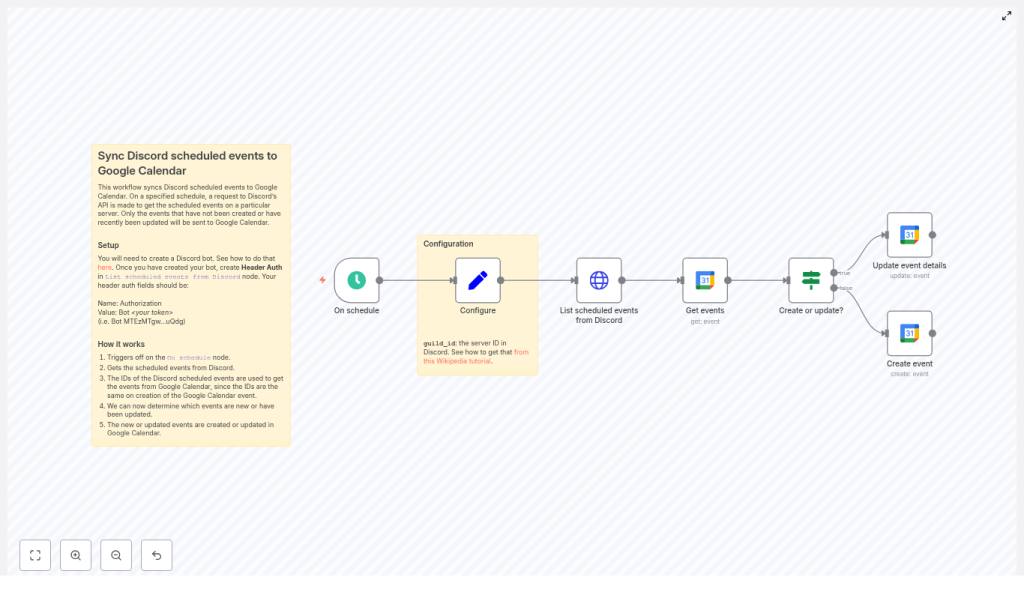
As Alex opened the template in n8n, the pieces started to click into place. The workflow was made up of several nodes, each with a clear role:
- On schedule – triggered the workflow at regular intervals so the sync ran automatically.
- Set (Configure) – stored the Discord
guild_id(server ID) as a variable for later use. - HTTP Request (List scheduled events from Discord) – called the Discord API to fetch scheduled events from the server.
- Google Calendar (Get events) – checked if a Google Calendar event already existed with the same ID.
- If (Create or update?) – decided whether to create a new event or update an existing one.
- Google Calendar (Create event / Update event details) – actually wrote the events into the selected Google Calendar.
It was like watching a well-organized assembly line. The only question was whether Alex could configure each part correctly.
Rising action: Setting up Discord, Google, and n8n
1. Bringing the Discord bot into the story
The first step was to make sure Discord would actually talk to n8n.
Alex opened the Discord Developer Portal, created a new bot, and invited it to the community guild. The bot was granted permissions to view scheduled events, nothing more. Security mattered, and there was no reason to give it extra powers.
The bot token was copied carefully and stored somewhere safe. This token would later be used as an HTTP header credential in n8n so the workflow could authenticate with the Discord API.
2. Adding credentials inside n8n
Next, Alex moved into n8n’s Credentials section and created two connections:
- Header Auth for Discord
Alex configured a header with:- Name:
Authorization - Value:
Bot <your_token>
For example:
Bot MTEzMTgw...uQdg - Name:
- Google Calendar OAuth2
Using Google’s client ID and client secret, Alex granted the workflow the required scope:https://www.googleapis.com/auth/calendar
With both credentials in place, n8n was ready to bridge Discord and Google Calendar.
3. Configuring the template nodes
Inside the workflow template, Alex opened the Set (Configure) node and replaced the placeholder with the actual Discord server ID:
guild_id = <your Discord server ID>
Then, in the Google Calendar nodes, Alex selected the target calendar from the list, ensuring all events would land in the same shared place the team already used.
The heart of the Discord side was the HTTP Request node, which called this endpoint:
GET https://discord.com/api/guilds/{{ $json.guild_id }}/scheduled-events?with_user_count=trueAlex made sure this node used the previously created Header Auth credential so the Authorization header included:
Bot <token>
With that, the workflow could now list scheduled events from Discord and pass them down the line.
The turning point: Mapping Discord events into Google Calendar
The real magic came when Alex started to map Discord’s event fields into Google Calendar using n8n expressions.
Each event from Discord had data like start time, end time, title, location, and description. The template guided Alex to connect those fields to the Google Calendar create and update nodes.
Inside the Google Calendar nodes, Alex used expressions to map values from the HTTP response:
- Start
{{$node["List scheduled events from Discord"].item.json.scheduled_start_time}} - End
{{$node["List scheduled events from Discord"].item.json.scheduled_end_time}} - Summary / Title
{{$node["List scheduled events from Discord"].item.json.name}} - Location
{{$node["List scheduled events from Discord"].item.json.entity_metadata.location}} - Description
{{$node["List scheduled events from Discord"].item.json.description}} - Event ID (Google Calendar event ID)
{{$node["List scheduled events from Discord"].item.json.id}}
That last mapping was the clever one. By using the Discord event ID as the Google Calendar event ID, Alex made sure that:
- The workflow could detect whether an event already existed in Google Calendar.
- Future runs would update the same event instead of creating duplicates.
The If node then checked if a Google event with that ID existed. If it did, the workflow updated it. If not, it created a new one.
Handling real-world details: Timezones, null fields, and errors
Before trusting the workflow with live events, Alex needed to make sure it could handle real-world messiness.
Timezone and date formats
Discord’s scheduled event timestamps arrived as ISO 8601 strings, which worked well with Google Calendar. Still, Alex double-checked that the Google Calendar nodes were receiving ISO timestamps and set the timezone explicitly where needed.
If there had been any mismatch, Alex could have used an n8n Function node to transform the timestamps before passing them on.
Handling null or missing fields
Not every Discord event had a location or description. Some were simple voice chats, others were quick ad-hoc sessions. To keep those from causing errors, Alex added simple checks so that missing fields would default to safe values.
Using Set or Function nodes, Alex could supply fallback text like “Online event” or leave fields blank in a controlled way, rather than letting null values break the workflow.
Error handling and rate limits
Alex knew that Discord’s API had rate limits, so setting the schedule to run every few seconds would not be smart. Instead, the workflow was scheduled at a reasonable interval, such as every 5 to 15 minutes, depending on how often new events were created.
For extra robustness, Alex enabled n8n’s error handling features, like:
- continueOnFail for non-critical nodes.
- Catch nodes to log and manage errors gracefully.
- Optional retry logic for temporary network or API issues.
Security practices
Alex kept security in mind throughout the setup:
- All sensitive data, such as the Discord bot token and Google OAuth credentials, lived inside n8n credentials, never in plain text inside nodes.
- The Discord bot’s permissions were limited to the minimum needed to list scheduled events, nothing more.
Troubleshooting along the way
Not everything worked perfectly on the first run. Alex hit a few bumps, each of which pointed back to common misconfigurations.
- 401 errors from Discord
When the HTTP Request node briefly returned a 401, Alex discovered that theAuthorizationheader was missing theBotprefix. Fixing it toBot <token>resolved the issue. - Events not appearing in Google Calendar
On another run, nothing showed up in the calendar. The problem turned out to be an incorrect Calendar ID and a missing authorization step in the Google credential. Once Alex re-authorized the credential and selected the right calendar, events began to appear. - Field path confusion
To verify the JSON structure from Discord, Alex used n8n’s debug output. Inspecting the raw API response helped confirm that expressions like.scheduled_start_timeand.entity_metadata.locationwere pointing to the right fields.
Life after automation: A calm, synced calendar
After a few successful test runs, Alex scheduled the workflow to run every 10 minutes. The next time someone created a scheduled event in Discord, it quietly appeared in the team’s Google Calendar with the correct title, time, and description.
When an event’s time was updated in Discord, the Google Calendar entry shifted too. No duplicates, no forgotten edits, no frantic last-minute pings.
Alex’s world changed in subtle but powerful ways:
- The community could see all upcoming events in a single shared Google Calendar.
- The team could rely on their existing Google Calendar reminders and integrations.
- Discord remained the source of truth for event creation, while n8n handled the syncing behind the scenes.
Instead of fighting with calendars, Alex could finally focus on what mattered: growing the community and running great events.
Ideas for extending the workflow
Once the core sync was stable, Alex started to think about what else could be automated around Discord events and Google Calendar.
- Notifications
Send a message to a Slack channel or a Discord text channel whenever an event is created or updated in Google Calendar. - Attendee invites
Map Discord usernames or roles to email addresses and add them as attendees in Google Calendar, using a clear permissions model. - Filtering events
Sync only certain events, such as those in a specific channel or with a particular status, instead of mirroring everything.
Key n8n expressions Alex used
Here is a quick reference of the core expressions that powered Alex’s workflow, so you can adapt or copy them into your own n8n setup:
// Calendar event ID (use Discord event id)
={{ $('List scheduled events from Discord').item.json.id }}

// Start and end timestamps
={{ $('List scheduled events from Discord').item.json.scheduled_start_time }}
={{ $('List scheduled events from Discord').item.json.scheduled_end_time }}

// Title, location, description
={{ $('List scheduled events from Discord').item.json.name }}
={{ $('List scheduled events from Discord').item.json.entity_metadata.location }}
={{ $('List scheduled events from Discord').item.json.description }}
Resolution: From chaos to a clean, automated calendar
What started as a constant headache for Alex turned into a quiet, reliable automation. By using an n8n workflow template to sync Discord scheduled events to Google Calendar, the gap between community tooling and team visibility finally closed.
The core pieces that made it work were simple but powerful:
- Using the Discord event ID as the Google Calendar event ID.
- Scheduling the workflow to run automatically on a regular interval.
- Mapping Discord fields directly into Google Calendar using n8n expressions.
- Handling timezones, null fields, and API errors with care.
Now, when someone on the team asks, “Is this event on the calendar?”, Alex can confidently say, “If it is scheduled in Discord, it is already there.”
Take the next step
If you are running a Discord community and juggling separate calendars, you do not have to stay in that loop. You can follow the same path Alex did:
- Import the n8n workflow template.
- Add your Discord bot and Google Calendar credentials.
- Set your
guild_idand target Calendar ID. - Run a test with a single event, then schedule it to run automatically.
If you want help customizing the workflow for filters, notifications, or timezone handling, reach out or subscribe to our tutorials for more step-by-step automation guides.
Call-to-action: Copy the template, set your credentials, and run the workflow. If you get stuck, share your setup details and we will walk you through troubleshooting so your Discord events and Google Calendar stay perfectly in sync.
