


Automate Markdown Reports with n8n & Gmail
Ever written a great report in markdown, then sighed at the thought of turning it into a nicely formatted email? You’re not alone. Copying, pasting, tweaking fonts, fixing spacing, and praying it looks OK in Outlook can eat up way too much time.
That’s where this n8n workflow template comes in. It takes markdown content, converts it to clean HTML, and sends it out via Gmail automatically. You write once in markdown, hit run, and n8n handles the rest.
In this guide, we’ll walk through what the template does, when it’s useful, and how to set it up step by step. Think of it as your “markdown to email” autopilot.
What this n8n email workflow actually does
This workflow is built around a simple pattern:
- You (or another system) send in some markdown content plus email details.
- n8n converts that markdown into HTML that looks good in email clients.
- Gmail sends it out using OAuth2, so you never have to expose your password.
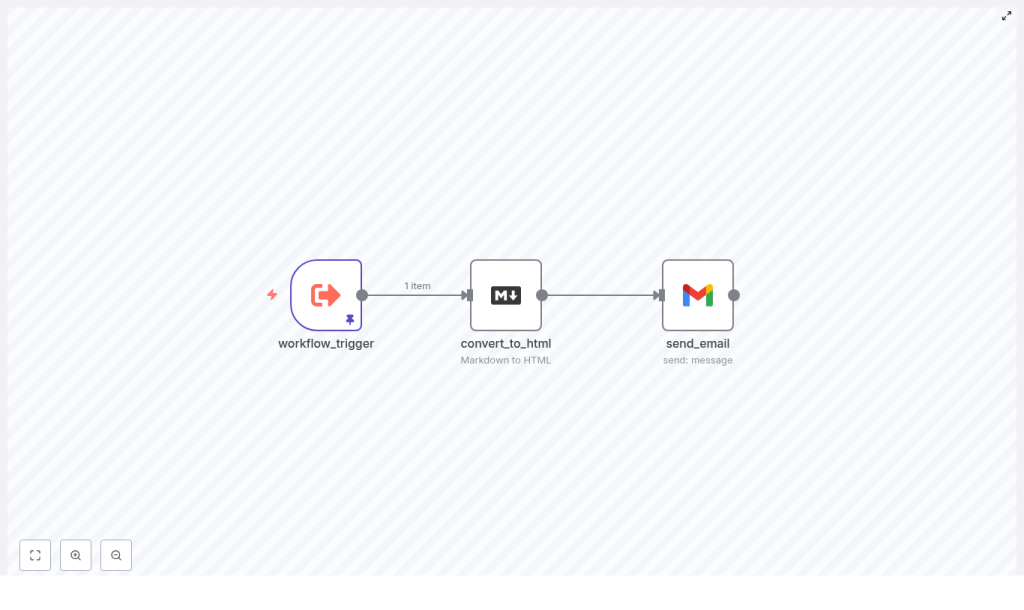
Under the hood, it uses three core n8n nodes:
- Execute Workflow Trigger (workflow_trigger) – kicks off the workflow and receives inputs like markdown content, recipient email, and subject line.
- Markdown to HTML (convert_to_html) – turns your
markdownReportContentinto HTML that is email friendly. - Gmail (send_email) – sends the generated HTML email using Gmail OAuth2 credentials.
In other words, this is a reusable n8n email workflow that takes “raw” markdown and turns it into automated HTML email reports with minimal effort.
When should you use this workflow?
If any of these sound familiar, this template will make your life easier:
- You send recurring research reports, weekly summaries, or status updates.
- Your team writes in markdown (Notion-style notes, docs, or internal tools) and you want those to go out as polished HTML emails.
- You want a single source of truth for report content, without manually formatting every email.
- You’re tired of formatting issues when sending markdown directly in email clients.
Automating markdown reports means:
- Less manual work – no more copy/paste formatting every week.
- Fewer mistakes – no more missing sections or wrong recipients.
- Consistent formatting – every report looks the same, every time.
Whether you are sending a deep research report on Microsoft Copilot or a simple weekly update, this pattern gives you a reliable foundation to scale your email reporting.
How the n8n email workflow is structured
The beauty of this template is that it is intentionally simple but can be extended in lots of ways. At its core, it follows this flow:
- Trigger: Accept a JSON payload with markdown and email details.
- Convert: Use the Markdown node to convert markdown to HTML.
- Send: Use the Gmail node to deliver the HTML email.
Let’s go through the setup in a more hands-on way.
Step-by-step: setting up the markdown to HTML email workflow
Step 1: Create and configure the trigger
First, you need a way to start the workflow and pass in your report content. In most cases, you will use the Execute Workflow Trigger node, but you can swap this for any trigger that fits your use case, such as:
- Webhook
- Cron (for scheduled sends)
- Manual execution
Configure the trigger to accept a JSON payload with three key fields:
{  "markdownReportContent": "# Report Title\nYour markdown content...",  "emailAddress": "recipient@example.com",  "subjectLine": "Weekly Research Report"
}
These fields map into the workflow and allow you to pass dynamic content. For example, you might send a research report about Microsoft Copilot, a weekly engineering summary, or a sales update.
As long as your payload includes markdownReportContent, emailAddress, and subjectLine, the rest of the workflow can run automatically.
Step 2: Convert markdown to HTML
Next, add the Markdown node to your workflow.
Configure it like this:
- Set the mode to markdownToHtml.
- Map the
markdownReportContentfield from the trigger to the Markdown node’s input.
The node will output a properly formatted HTML version of your markdown. This is important because email clients are notoriously picky. Sending raw markdown often leads to broken layouts, missing headings, or weird spacing.
By converting markdown to HTML in n8n, you get:
- More reliable rendering in Gmail, Outlook, Apple Mail, and others.
- Better control over styling.
- A cleaner, more professional look for automated email reports.
Step 3: Configure Gmail to send HTML emails
Now it is time to send the email.
Add the Gmail node and configure it with OAuth2 credentials. This keeps authentication secure and avoids storing raw passwords inside n8n.
Key settings to configure:
- sendTo – map this to
emailAddress. - subject – map this to
subjectLine. - message – map this to the HTML output from the Markdown node, for example:
{{$json.data}}or the equivalent expression for your environment.
Using Gmail OAuth2 in n8n gives you:
- Secure authentication without hard-coded passwords.
- Automatic token refresh handling.
- Compliance with Google’s security policies.
Once this node is configured, your workflow can take any markdown content and send it as a web-ready HTML email to the specified recipient.
Example payload: real-world testing
To see this workflow in action, you can test it with a realistic report. Here is an example payload the trigger node can accept:
{  "markdownReportContent": "Microsoft Copilot (MCP) is an advanced AI-powered assistant integrated across Microsoft 365...",  "emailAddress": "lucas@dlmholdings.com",  "subjectLine": "Deep Research Report on Microsoft Copilot (MCP)"
}
In the template, this kind of content is often stored in pinData so you can quickly test formatting and delivery. When you run the workflow with this payload:
- The markdown research report is converted into HTML.
- The Gmail node sends a polished HTML email to
lucas@dlmholdings.com. - You can verify that headings, lists, and formatting look correct across email clients.
This is a great way to validate your n8n email workflow before wiring it into a larger system.
Taking it further: advanced tips & extensions
Once you have the basic markdown to HTML email workflow running, you can start extending it to match your real-world needs.
Send to multiple recipients
Need to send the same report to several people?
- Map the
sendTofield to a comma-separated list of email addresses, or - Use an IF or SplitInBatches node to loop over a list of recipients and send personalized messages.
This is especially helpful when you want to customize parts of the email per recipient while reusing the same markdown base.
Add attachments or images
Want your automated email reports to include files or visuals?
- Use other nodes to fetch files from cloud storage or URLs.
- Attach them in the Gmail node’s attachments field.
For inline images, you can:
- Embed base64-encoded images directly in the HTML, or
- Host images on a CDN or file server and reference them via URLs in the HTML content.
Styling and reusable templates
If you want your emails to look branded and consistent, you can enhance the HTML with templates:
- Inject email-safe CSS directly into the HTML.
- Use a small templating approach to merge variables like name, date, or report type.
- Store templates in a database, file node, or external storage and load them at runtime.
This lets you keep your markdown focused on content while the template handles layout and styling.
Scheduling and full automation
You do not have to manually trigger these emails. To automate everything:
- Swap the trigger node for a Cron trigger to send reports daily, weekly, or monthly.
- Combine it with data collection nodes that build the markdown dynamically from:
- Notion
- Google Docs
- Internal APIs or databases
This turns your n8n email workflow into a true reporting pipeline: collect data, generate markdown, convert to HTML, and send via Gmail, all on a schedule.
Security & compliance: what to keep in mind
Automated email reports are powerful, but you still want to be careful with security and data handling. A few important points:
- Gmail OAuth2: Always prefer OAuth2 over password authentication. It is more secure and aligns with Google’s policies.
- Data handling: Avoid sending sensitive PII or confidential data in plain emails. If you must, consider encryption or DLP tools.
- Audit logs: Keep logging enabled for automated report generation so you can trace what was sent and when, similar to how you might track Copilot or other AI agent outputs.
- Rate limits & quotas: Gmail has sending limits. For high-volume sending, consider batching or integrating with a transactional email service.
Troubleshooting: common issues & quick fixes
If something feels off, here are some of the usual suspects when working with a markdown to HTML n8n email workflow.
- HTML rendering issues:
- Test messages across Gmail, Outlook, and Apple Mail.
- Use email-safe CSS and prefer inline styles for maximum compatibility.
- Authentication errors:
- Recreate or recheck your OAuth2 credentials in Google Cloud Console.
- Confirm that the redirect URIs match your n8n instance exactly.
- Malformed payloads:
- Validate your JSON input before triggering the workflow.
- Start with a simple test payload to verify conversion and delivery.
- Large files:
- Remember that Gmail has attachment limits.
- For large assets, send links to shared storage instead of attaching files directly.
Why this workflow really matters
This might look like a small automation, but it solves a very real problem: turning content into consistent, shareable communication without manual effort.
By automating markdown to HTML conversion and email delivery in n8n, you get:
- Consistent formatting across all your recurring reports.
- Faster turnaround from draft to inbox.
- Reproducible workflows that are easy to extend with analytics, personalization, or CRM integrations.
Whether it is a deep dive on Microsoft Copilot, a weekly leadership summary, or a product changelog, this n8n email workflow gives you a reliable pattern you can build on.
Try the n8n template for automated email reports
Ready to see it in action?
- Import the n8n workflow template into your n8n instance.
- Connect your Gmail OAuth2 credentials.
- Run a test with a markdown sample using the trigger payload.
You can paste the Microsoft Copilot research summary (or any markdown report you already have) into the markdownReportContent field, set your own emailAddress and subjectLine, then hit execute. Within seconds, you should see a clean HTML email in your inbox.
Call to action: Import this workflow, test it with your next markdown report, and share your results or questions in the n8n community. If you need a customized version for bulk sending, attachments, or advanced HTML templating, reach out for a tailored automation setup.
Keywords: n8n email workflow, markdown to HTML, automated email reports, Gmail OAuth2, executeWorkflowTrigger.
