


Automate ASMR Video Production with n8n: One Creator’s Journey From Idea to Vertical Video
On a quiet Tuesday night, Mia stared at her content calendar and sighed.
Her ASMR TikTok account had finally started to grow. Followers loved her soft tapping, slow camera moves, and atmospheric visuals. But the part no one saw was the grind behind each 20-second vertical clip. Ideas lived in a messy Google Sheet, prompts were drafted by hand, videos were rendered in yet another tool, and then everything had to be uploaded, labeled, and tracked.
By the time Mia finished 3 short ASMR videos, she felt like she had edited a full-length film.
She knew she needed a different approach – something that could turn her Google Sheets ideas into published vertical videos without swallowing her entire week. That is when she discovered an n8n workflow template that promised to automate ASMR video production, from concept to final vertical clip.
The Problem: Too Many Repetitive Steps, Not Enough Creative Time
Mia’s bottleneck was not a lack of ideas. It was the repetitive pipeline:
- Planning scenes and keeping track of them in Google Sheets
- Writing detailed prompts for each 8-second ASMR moment
- Sending those prompts to an AI video tool and waiting for renders
- Downloading, organizing, and merging clips
- Uploading everything to Google Drive and manually updating her sheet
Every step was small, but together they added hours to her workflow. She wanted to scale up her ASMR content, especially vertical TikTok-style videos, yet the manual process made that impossible.
While searching for “automate ASMR video production with n8n,” she stumbled across an automation template that connected Google Sheets, OpenAI, Kie AI, and Google Drive into a single n8n workflow. It claimed to turn simple spreadsheet rows into finished 9:16 ASMR videos with almost no manual intervention.
Curious, and a little skeptical, she decided to try it.
The Discovery: An n8n Workflow That Turns a Sheet Into a Production Line
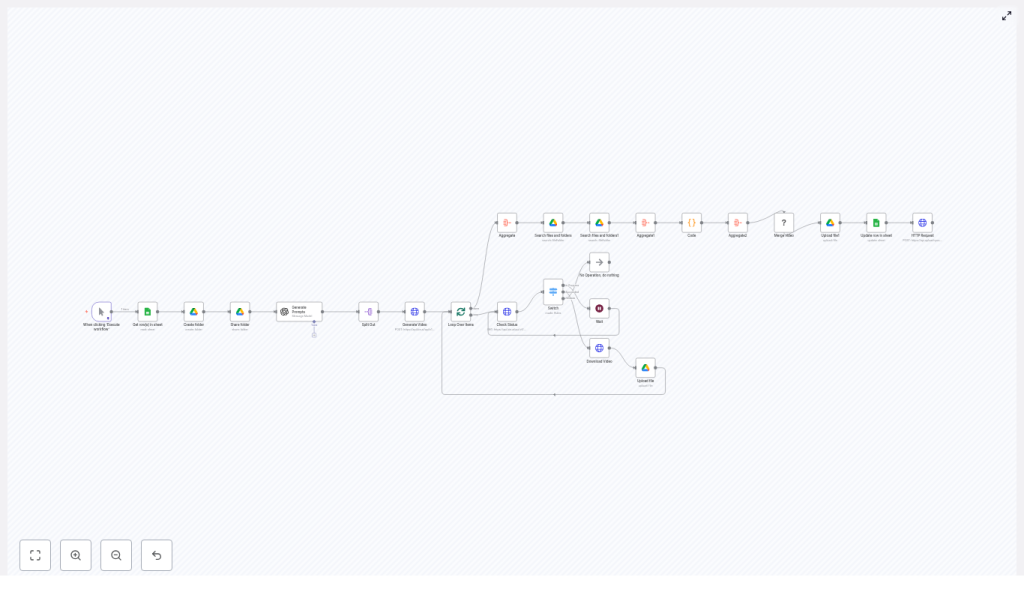
The template described an end-to-end n8n workflow that would:
- Read ASMR video concepts from a Google Sheet
- Use OpenAI to generate cinematic, JSON-safe prompts for each scene
- Send those prompts to an AI video generator like Kie AI
- Wait for the vertical clips to render, then download and store them
- Merge the clips into a single final video
- Upload everything to Google Drive and update the original sheet row
For Mia, this sounded like a small studio team living inside a workflow: planning, generating, rendering, and filing her ASMR videos automatically.
She opened n8n, imported the template, and began tailoring it to her own creative process.
Act 1: Setting Up the Source of Truth in Google Sheets
The first thing Mia had to do was bring order to her ideas.
Triggering the Workflow and Fetching “Ready” Concepts
In the template, everything started with a trigger node in n8n. Mia could run it manually when she was ready, or schedule it to fire at specific times. The trigger passed control to a Google Sheets node that pulled in rows where the Status column was set to “Ready.”
Each row in her sheet became a blueprint for one ASMR video. She structured it like this:
- Concept Name – the theme of the video
- Scene Consistency Block – background, color palette, camera height, overall mood
- Scene 1 Action – an 8-second ASMR motion
- Scene 2 Action
- Scene 3 Action
- Status – Ready, Complete, Error, etc.
This sheet became her single source of truth. If a row was marked “Ready,” the workflow would pick it up, process it, and later mark it as “Complete” or “Error.”
Act 2: Organizing Assets in Google Drive
Next, Mia needed a place for all the raw and final videos to live. She used to drag files into random folders, then hunt for them later. The template solved that too.
Creating and Sharing a Folder Per Concept
For each sheet row, an n8n node created a dedicated folder in Google Drive. The folder name followed a pattern like:
ID - Concept
So if her sheet row had ID 7 and the concept was “Soft brush on velvet,” the folder might be called 7 – Soft brush on velvet.
The workflow then adjusted sharing permissions. If she wanted to use other services or accounts downstream, she could make the folder accessible without exposing everything in her Drive. This structure meant every asset for a given ASMR video lived in one traceable place.
Act 3: Turning Simple Actions Into Cinematic AI Prompts
Mia’s biggest time sink had always been writing prompts. For each 8-second ASMR action, she had to think about environment, lighting, camera style, and what she did not want the AI to generate.
The template handed that job to OpenAI.
Generating Scene Prompts With OpenAI
Inside n8n, a node took the Scene Consistency Block and each of the three scene actions from the sheet, then passed them to an OpenAI model similar to GPT-4.
The prompt template instructed the model to output very specific, repeatable generation prompts with sections like:
- Environment & Setting
- Lighting Setup
- Core Action (8-second description)
- Style & Camera (macro, 4K, camera motion)
- Negative Prompts (no blur, no watermarks, no text)
The result was three JSON-safe prompt strings, one for each scene, formatted so they could be sent straight into the AI video rendering API without extra cleanup. The consistency block made sure all scenes shared the same background, color palette, and camera height for a cohesive final vertical clip.
Act 4: Watching the AI Render Vertical ASMR Clips
With the prompts ready, Mia reached the most nerve-racking part of her old process: rendering. Previously she would paste prompts into an AI tool, wait, refresh, and hope the output matched her vision.
The workflow template handled this with a calm, repeatable pattern.
Calling the AI Video Generator (Kie AI)
An HTTP Request node in n8n took each of the three prompts and sent them to an AI video API such as Kie AI. It included parameters like:
- prompt – the JSON-safe prompt string
- aspectRatio – set to 9:16 for vertical videos
The API responded by creating a render task. The workflow then:
- Polled a record-info or similar endpoint to check the status
- Waited when the clip was still rendering
- Downloaded the final video file when ready
- Uploaded that clip into the Google Drive folder created earlier
Looping Through Scenes Without Blocking Everything
To keep the automation efficient, Mia used split and loop-in-batches nodes. Each scene prompt went through the same render pipeline, but n8n managed them in batches instead of one giant blocking process.
A switch node checked whether the render was complete. If not, the workflow waited, then polled again. This pattern meant her automation could handle slow renders gracefully without locking up the entire workflow.
Act 5: From Separate Clips to a Finished Vertical Video
Once all three scenes finished rendering, Mia had a folder full of short vertical clips. In the past she would open a video editor, drag them in, and export a final file by hand. This time, n8n finished the job for her.
Merging Clips and Uploading the Final Video
Several nodes in the template gathered the three clips and passed them to a media merge step. The workflow combined them in order, creating a smooth ASMR story with three 8-second actions back to back.
The merged file was uploaded to the same Google Drive folder as final_video.mp4. Then the workflow returned to her Google Sheet and updated the original row:
- Drive Folder URL – link to the folder containing all clips and the final video
- Status – changed from “Ready” to “Complete”
For Mia, this felt like magic. She would mark a row “Ready,” and some time later, her sheet would show “Complete” with a Drive link to a fully produced ASMR vertical video.
Prompt Design Lessons Mia Learned for ASMR & TikTok Verticals
As she iterated, Mia discovered that good prompt design made the automation shine. The template’s guidance helped her refine her own style:
- Be specific about surfaces and props
Instead of “a bowl on a table,” she used phrases like “a matte black ceramic bowl on a pale oak surface.” This led to more visually satisfying ASMR scenes. - Include audio behavior cues
Even though the AI focused on visuals, she added lines like “microphone-close up on crisp finger tapping sounds” to align visuals with the kind of ASMR audio she would layer in post-production. - Use a Scene Consistency Block
She kept the same background, color palette, and camera height across all scenes. This “Scene Consistency Block” ensured the final merged video looked cohesive. - Limit each Core Action to 8 seconds
Clear, single motions per scene created punchy, watchable vertical clips. - Write strong negative prompts
She explicitly forbade text, logos, watermarks, and drastic lighting changes to avoid distracting or inconsistent renders.
Behind the Scenes: Costs, Security, and Reliability
As Mia’s output grew, she had to think like a producer, not just a creator. The template helped her address cost, security, and error handling so the automation stayed safe and sustainable.
Watching Costs
AI video rendering can be resource-intensive. Mia checked her video API provider’s pricing and estimated a cost per clip. Then she added simple guardrails in n8n, such as limiting the number of renders per day, so a single batch of ideas would not accidentally blow through her monthly budget.
Securing Secrets & Permissions
- She stored all API keys and OAuth credentials inside n8n credentials, never as raw values in Google Sheets.
- Drive folders were shared with the minimum permissions required. Public links were set to viewer-only, and write access was restricted to the services that genuinely needed it.
Handling Errors Gracefully
To avoid silent failures, Mia configured:
- Retries on unstable API calls
- Clear error logging inside n8n
If a render failed, the workflow updated the corresponding Google Sheet row with Status = “Error” and included the error message. That way she could quickly see which concept needed attention instead of guessing.
When Things Go Wrong: Troubleshooting the Workflow
As she experimented with more concepts, Mia ran into a few predictable issues. Fortunately, the template had guidance for those too.
- API rate limits
If she pushed too many prompts or render requests at once, APIs sometimes responded with rate limit errors. She added exponential backoff and simple queuing logic in n8n so the workflow slowed down and retried instead of failing outright. - File size and duration limits
She checked that her merge node supported the resolution and duration of her 9:16 clips. When she experimented with longer videos, she adjusted settings to stay within limits. - Prompt output formatting
She made sure to instruct OpenAI to return plain JSON-safe strings. This prevented parsing errors when the prompts were passed into the video API.
Scaling Up: From One Creator to a Content Machine
Within a few weeks, Mia had gone from manually crafting a handful of ASMR TikToks to running a small production line powered by n8n. That is when she started thinking bigger.
Batching Concepts
Instead of working on one idea at a time, she filled her Google Sheet with multiple rows and scheduled the workflow to run in batches. She also capped concurrent renders so she did not overload her video API or her budget.
Reusing Scene Consistency Blocks
She created a library of Scene Consistency Blocks for different series, like “soft pastel bedroom” or “dark studio with spotlight.” These reusable blocks gave each series a recognizable look and made it easy to spin up new concepts with a consistent aesthetic.
Automated Publishing (Optional)
Once she trusted the core workflow, Mia considered adding an upload API step to publish directly to platforms like TikTok or YouTube Shorts. With a few extra nodes, she could schedule posts or send final files to a separate upload service as part of the same n8n automation.
The Turning Point: From Overwhelmed to In Control
The real turning point came when Mia realized she no longer dreaded “content production days.” Instead of juggling tools, she spent her time where it mattered most:
- Brainstorming better ASMR concepts
- Refining her Scene Consistency Blocks
- Tuning prompts for more cinematic, soothing visuals
Her Google Sheet turned into a dashboard. Rows moved from “Ready” to “Complete,” each with a Drive link to a finished vertical video. The n8n workflow quietly handled everything in between.
Resolution: What This n8n Automation Really Delivers
By the end of her experiment, Mia had proved something to herself:
A simple Google Sheet, combined with n8n, OpenAI, and an AI video generator, can become a fully automated ASMR video production line.
The workflow:
- Removes repetitive manual tasks
- Speeds up experimentation and iteration
- Maintains a consistent visual aesthetic across multiple vertical videos
- Scales ASMR content production without burning out the creator
Try the Same Journey: Your Next Steps
If you see yourself in Mia’s story, you can follow the same path in a low-risk way.
- Create a Google Sheet with a Scene Consistency Block and three simple 8-second actions for a single ASMR concept.
- Import this n8n template and connect your Google Sheets, Google Drive, OpenAI, and video API credentials.
- Mark one row as Status = “Ready”, run the workflow, and examine the results.
- Iterate on your prompts, refine the consistency block, and adjust the cost guardrails to fit your monthly budget.
If you want to go deeper, you can export your sheet and tune the prompt templates further, or extend the workflow with automated publishing steps.
Need help with the raw n8n template or OpenAI prompt rules? You can use the ready-made workflow file and a sample prompt package to get started quickly and safely.
