


Automate LinkedIn Contributions with n8n & AI
Ever stare at LinkedIn thinking, “I should really be more active here,” then get lost in other work? You are not alone.
If you want to show up consistently, share smart insights, and stay visible in your niche, but you do not have time to hunt for posts and write thoughtful replies every week, this n8n workflow template is going to feel like a superpower.
In this guide, we will walk through an automation that:
- Finds fresh LinkedIn Advice articles on topics you care about
- Pulls out the key topics and existing contributions
- Uses AI to write unique, helpful responses for each topic
- Sends everything to Slack and logs it in NocoDB
- Runs on a schedule so you keep showing up, week after week
Think of it as your “LinkedIn engagement assistant” that quietly works in the background while you focus on everything else.
Why bother automating LinkedIn contributions at all?
LinkedIn rewards people who show up regularly with thoughtful input. When you consistently comment on relevant content, you:
- Build credibility as someone who knows their stuff
- Stay visible to your network and potential clients or employers
- Attract conversations, collaborations, and opportunities
The problem is not the value of doing this. It is the time it takes.
Finding the right articles, reading them, pulling out the topics, then writing something original for each one can easily eat an hour or two every week. That is exactly the part this n8n workflow automates for you.
With n8n plus an AI model, you can:
- Let automation discover new LinkedIn Advice content on your chosen topic
- Have AI draft unique, topic-specific contributions for you to review and use
- Keep everything organized in a database like NocoDB and instantly share it with your team via Slack
- Stick to a consistent posting rhythm by running the whole thing on a schedule
You still stay in control of what you actually post, but the heavy lifting is done for you.
What this n8n LinkedIn workflow actually does
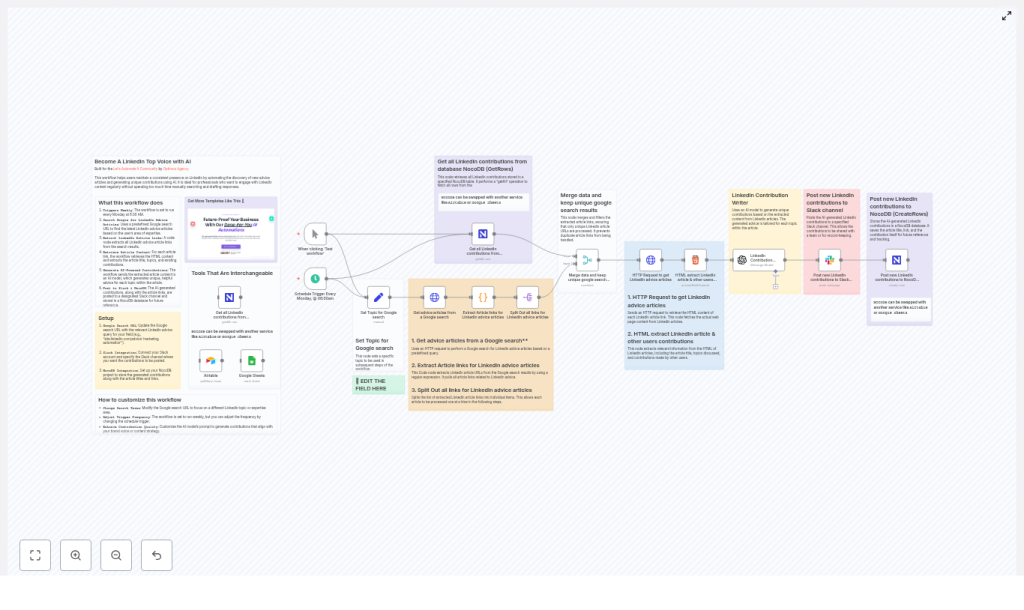
Let us zoom out for a second and look at the workflow from a high level. On each run, n8n will:
- Trigger itself on a schedule, for example every Monday at 08:00
- Search Google for LinkedIn Advice articles related to your chosen topic
- Pull LinkedIn article URLs out of the Google search HTML
- Split and deduplicate the links so each article is handled once
- Fetch each article’s HTML and extract the title, topics, and existing contributions
- Send that content to an AI model, which writes a unique paragraph of advice per topic
- Post the AI-generated contributions to a Slack channel and store them in NocoDB
So every time it runs, you end up with a list of curated LinkedIn articles, plus ready-to-use, AI-generated contributions that you can quickly review and post under your own name.
What you need before you start
You do not need to be a hardcore developer to use this, but you will need a few things set up:
- An n8n instance (cloud or self-hosted)
- An OpenAI API key or other supported LLM credentials configured in n8n
- Slack OAuth2 credentials added in n8n to post messages to your workspace
- A NocoDB project and API token
You can also use Airtable or Google Sheets instead, if you prefer those tools. - Basic comfort with:
- CSS selectors for grabbing elements from HTML
- Simple JavaScript for the link extraction step
Once those are in place, you are ready to walk through the workflow nodes.
How the workflow is built in n8n
Let us go through the main nodes, in the order they run. You can follow this to understand the template or to rebuild / tweak it yourself.
1. Schedule Trigger – keep your cadence on autopilot
The whole automation starts with a Schedule Trigger node. This is what tells n8n when to run the workflow.
Typical setup:
- Frequency: Weekly
- Day: Monday (or whatever works for you)
- Time: 08:00
Set it once, and your LinkedIn contribution engine quietly runs in the background at the same time every week.
2. Set your topic for Google search
Next up is a Set node that defines the topic you care about. Think of it as telling the workflow, “This is what I want to be known for.”
Example value:
Topic = "Paid Advertising"
This topic gets plugged into the Google search query, so you can easily switch from “Paid Advertising” to “Marketing Automation”, “Product Management”, or any other niche without touching the logic of the workflow.
3. Google Search with an HTTP Request
Now we need fresh LinkedIn Advice articles. To do that, the workflow uses an HTTP Request node to call Google with a targeted search query.
Example query:
site:linkedin.com/advice "Paid Advertising"The HTTP node returns the raw HTML of the search results page. We are not using an official Google API here, we are simply fetching the HTML so we can scan it for LinkedIn Advice URLs in the next step.
4. Extract LinkedIn article links with a Code node
Once we have the Google results HTML, we need to pull out the actual LinkedIn Advice article links.
This is where an n8n Code node comes in. It uses a regular expression to find URLs that match the LinkedIn Advice pattern.
Example regex used in the template:
const regexPattern = /https:\/\/www\.linkedin\.com\/advice\/[^%&\s"']+/g;The Code node scans the HTML, grabs all matching URLs, and returns them as an array. These then get turned into individual items so each link can be processed on its own.
5. Split and merge to keep URLs unique
Google might show the same LinkedIn article in multiple results, so we need to avoid double-processing.
The workflow uses two nodes here:
- Split Out node
This takes the array of URLs and creates one item per link. - Merge node (with keepUnique behavior)
Configured to merge on the URL field, it removes duplicates so each article is only processed once.
Result: a clean list of unique LinkedIn Advice URLs ready for content extraction.
6. Fetch article HTML for each LinkedIn URL
For every unique URL, the workflow uses another HTTP Request node to retrieve the full article HTML.
This HTML is exactly what we need for the next step: extracting the title, topics, and existing user contributions using CSS selectors in the HTML Extract node.
7. Extract title, topics, and contributions with HTML Extract
Now we get into the structure of the LinkedIn Advice page. The workflow uses an HTML Extract node to pull out specific elements.
In the template, these example selectors are used:
- ArticleTitle:
.pulse-title - ArticleTopics:
.article-main__content - ArticleContributions:
.contribution__text
These may change over time if LinkedIn updates its DOM, so if extraction breaks, you will want to inspect the page and adjust the selectors. The same pattern works if you ever decide to adapt this workflow to another site with a similar structure.
8. Generate AI-powered contributions with an LLM node
Once we have the article title and topics, it is time to bring in the AI.
The workflow sends the extracted content to an OpenAI / LLM node with a carefully structured prompt. The goal is to create original, topic-specific advice that complements what is already in the article.
The prompt typically asks the model to:
- Read the article title and topics
- Write one unique paragraph of advice per topic
- Avoid repeating suggestions that are already mentioned in the existing contributions
Example prompt structure (simplified):
ARTICLE TITLE
{{ArticleTitle}}

TOPICS:
{{ArticleTopics}}

Write a unique paragraph of advice for each topic.
You can tune the model settings to match your style:
- Lower temperature for more conservative, on-brand responses
- Higher temperature for more creative, varied ideas
Think of this node as your brainstorming partner that never gets tired.
9. Post results to Slack and log them in NocoDB
Finally, the workflow takes the AI-generated contributions and does two things:
- Posts to Slack
A Slack node sends a formatted message to a channel of your choice. This is great for:- Sharing draft contributions with your team
- Reviewing and editing before posting on LinkedIn
- Keeping everyone aligned on what is going out
- Saves a record in NocoDB
A NocoDB node creates a new row with fields like:- Article title
- Article URL
- AI-generated contribution
This gives you a searchable history of your ideas and comments, which you can reuse, repurpose, or analyze later.
At the end of each run, you have a neat bundle of curated content, AI suggestions, and a permanent record of everything generated.
Customizing the workflow to fit your style
The template works out of the box, but you will probably want to tweak it so it feels like it was built just for you.
Refine your Google search query
Instead of a broad topic, you can target specific subtopics or multiple related keywords. For example:
site:linkedin.com/advice "marketing automation" OR "PPC"Adjusting the query lets you home in on the exact type of content and conversations you want to be part of.
Use your preferred database
The example uses NocoDB, but the workflow is essentially just storing structured rows of data. You can easily swap in:
- Airtable
- Google Sheets
- Another database or spreadsheet tool supported by n8n
The logic stays the same, only the storage node changes.
Shape the AI’s voice
The prompt is where you teach the AI how to sound.
- Add instructions like “Write in a friendly, professional tone”
- Specify your audience, for example “Speak to B2B marketers”
- Set temperature lower for predictable, on-brand wording
- Set it higher if you want more creative, varied responses
Spend a bit of time here and the AI will feel much closer to your natural voice.
Filter which articles get processed
If you want to be picky about what gets through, you can add filters, for example:
- Only process articles whose title contains certain keywords
- Skip articles with too few extracted topics
This keeps your queue full of only the most relevant content.
Add error handling
The real world is messy. Links break, APIs rate limit, HTML changes.
To make the workflow more robust, consider adding:
- Error handling branches that:
- Skip broken or unreachable URLs
- Log errors to a separate database or Slack channel
- Retry logic or exponential backoff for HTTP and LLM requests
This way, a few problematic links will not derail the entire run.
Privacy, rate limits, and best practices
Before you let this workflow run on autopilot, it is worth keeping a few guidelines in mind.
- Respect publisher terms
This workflow only fetches public LinkedIn article HTML and generates original contributions. Avoid scraping private or restricted content, and always stay within platform terms of service. - Watch API rate limits
Google, LinkedIn, and your LLM provider may throttle requests. Use logging and, if needed, exponential backoff to avoid hitting hard limits. - Stay compliant and respectful
Make sure your prompts and outputs follow platform policies. Avoid generating content that targets or makes claims about identifiable individuals.
And always remember: AI is a helper, not a replacement for your judgment.
Quick troubleshooting guide
Things not working as expected? Here are a few common issues and where to look first.
- No links found in Google results
Try:- Updating your Google search query
- Inspecting the raw HTML to see if Google changed its DOM
- Testing your regex against the returned HTML to confirm it still matches LinkedIn Advice URLs
- Wrong or missing HTML extraction
If titles or topics are coming back empty:- Open a sample article in your browser
- Inspect elements and confirm the CSS selectors
- Update the selectors in the HTML Extract node to match the current LinkedIn structure
- Duplicate articles being processed
If you see the same article more than once:- Check the Merge node configuration
- Confirm it is set to keep unique items based on the URL field
Putting it all together
This n8n workflow takes the repetitive grind out of staying active on LinkedIn. It discovers relevant LinkedIn Advice articles, extracts the important bits, uses AI to generate unique and thoughtful contributions, and shares everything with you and your team via Slack while keeping a clean record in NocoDB.
You stay in control of what actually gets posted, but you no longer have to start from a blank page every time.
Ready to give it a spin?
- Download or open the n8n template from this walkthrough
- Plug in your OpenAI, Slack, and NocoDB (or Airtable / Google Sheets) credentials
- Set your topic in the Set node
- Turn on the schedule trigger and let it run
If you want help fine-tuning the prompt, swapping databases, or integrating this with a broader content system, you can reach out to the team or join the Let’s Automate It community for support and more templates.
Call-to-action: Download the
