


Automate Uploads: Google Drive to TikTok, Instagram & YouTube
Ever finished editing a video, felt proud for 3 seconds, then remembered you still have to upload it to TikTok, Instagram, YouTube, write descriptions, fix titles, and copy-paste the same text three times in a row? Yeah, that part is not the fun bit.
This n8n workflow template exists to rescue you from that repetitive upload grind. It watches a Google Drive folder, grabs new videos, pulls out the audio with OpenAI, auto-writes catchy descriptions, then uploads everything to TikTok, Instagram, and YouTube using the upload-post.com API. You get consistent metadata, hands-free publishing, and your brain back for actual creative work.
What this n8n workflow actually does
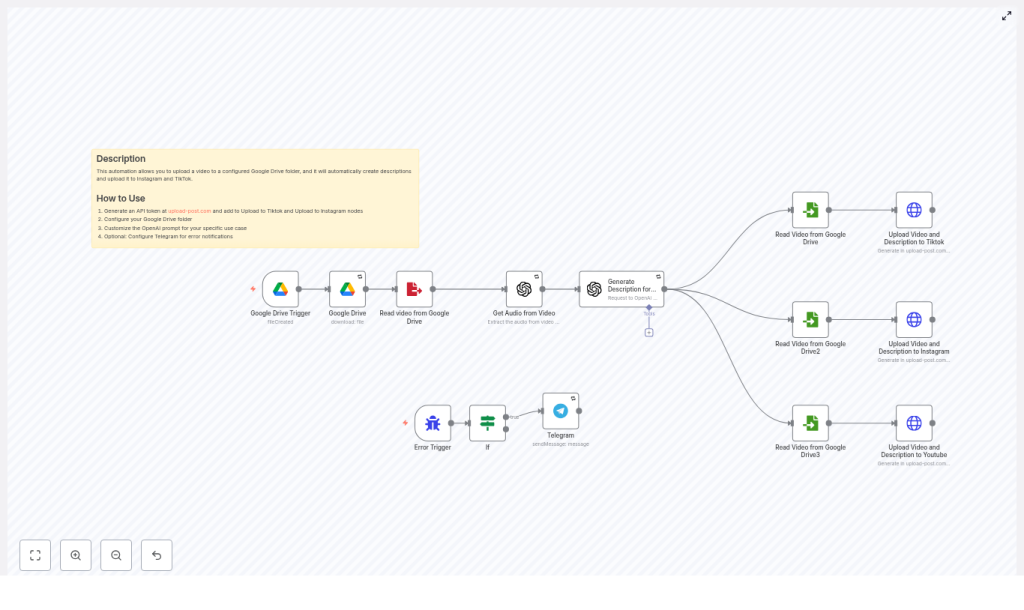
At a high level, this automation connects four main players: Google Drive, n8n, OpenAI, and upload-post.com. Together, they build a fully automated content pipeline that looks something like this:
- Spot a new video in a specific Google Drive folder
- Download and temporarily store the file
- Extract and transcribe the audio with OpenAI
- Use that transcript to generate platform-friendly titles and descriptions
- Upload the video to TikTok, Instagram, and YouTube via upload-post.com
- Ping you on Telegram if something breaks so you are not silently ghosted by your own automation
All of this runs inside n8n as a visual workflow template, so you can tweak steps, add logic, or bolt on extra nodes without rebuilding from scratch.
Tools and accounts you need before starting
Before you hit “import template” and expect magic, you will need a few basics set up:
- n8n instance (cloud or self-hosted)
- Google Drive account with OAuth credentials configured
- OpenAI API key for transcription and description generation
- upload-post.com account with an API token
- Optional but recommended: a Telegram bot for error notifications
Once these are in place, you are ready to plug them into the workflow and let automation do the boring parts.
Inside the workflow: key building blocks
The template is made up of several n8n nodes that each handle a specific task. Here is what is going on under the hood:
- Google Drive Trigger – Watches a specific folder for new video files.
- Google Drive (download) – Downloads the new file once it appears.
- Write/Read Binary File – Stores the video temporarily on disk and reads it back when needed.
- OpenAI (transcription) – Extracts audio and converts speech to text.
- OpenAI (description generation) – Turns the transcript into social media friendly titles and descriptions.
- Read Binary nodes per platform – Load the video file for each upload request.
- HTTP Request (upload-post.com) – Sends multipart/form-data POST requests to upload to TikTok, Instagram, and YouTube.
- Error Trigger + Telegram – Monitors for workflow errors and alerts you when something fails.
Now let us walk through how to set everything up step by step.
Step-by-step setup guide
1. Set up the Google Drive trigger
The workflow starts with a Google Drive Trigger node that keeps an eye on a specific folder. Whenever you drop a new video into that folder, the automation wakes up and gets to work.
In the template, the trigger is configured with something like:
triggerOn: specificFolder- A folder ID such as
18m0i341QLQuyWuHv_FBdz8-r-QDtofYm(replace this with your own)
You can choose how it checks for new files:
- Polling every minute for simple setups
- Webhook-based triggers if your Google Drive integration supports it
Once configured, dropping a video into that folder becomes your new “publish everywhere” button.
2. Download the file and make it filesystem-friendly
Next, a Google Drive node with the download operation fetches the video contents. The workflow then uses Write Binary File to store the file temporarily, and later uses Read Binary File nodes to load it again for each platform upload.
To avoid your filesystem complaining about weird filenames, the template normalizes the filename by replacing spaces with underscores using a JavaScript expression:
={{ $json.originalFilename.replaceAll(" ", "_") }}This helps prevent headaches when writing and re-reading the file from disk, especially on stricter environments where spaces are not welcome guests in filenames.
3. Extract audio and create a transcript with OpenAI
To generate descriptions that actually match what is said in the video, the workflow runs an audio extraction and transcription step. A node labeled Get Audio from Video sends the audio to OpenAI (or a compatible transcription model) and returns a transcript.
The transcript is exposed as item.json.text, which becomes the raw material for your social captions. No more guessing what you said in that clip from three weeks ago.
4. Let OpenAI write your titles and descriptions
With the transcript ready, another OpenAI node takes over and turns that text into a catchy, social-first description. The node uses a system instruction such as:
“You are an expert assistant in creating engaging social media video titles.”
The prompt includes both the transcript and some guidance, and it explicitly tells OpenAI to respond with only the description, no side comments or explanations. A simplified version of the prompt looks like this:
Audio: {{ $('Get Audio from Video').item.json.text }}
IMPORTANT: Reply only with the description, don't add anything else.
The output is then used as the title form field when sending data to upload-post.com for TikTok and Instagram.
YouTube is a bit stricter with title lengths, so the template trims the title to 70 characters:
.substring(0, 70)That way your titles do not get abruptly chopped mid-sentence on YouTube.
5. Upload to TikTok, Instagram, and YouTube via upload-post.com
Once the video and description are ready, the workflow fires HTTP requests to the upload-post.com API. Each upload uses the HTTP Request node configured for multipart/form-data and sends everything to:
https://api.upload-post.com/api/upload
Key form fields include:
title– the generated description or titleplatform[]– which platforms to publish to, such astiktok,instagram,youtubevideo– the binary video file field from the Read Binary nodeuser– your platform user identifier as expected by upload-post.com
Authentication is handled via an API key in the request header using n8n’s HTTP Header Auth credentials. For example:
Authorization: Apikey <token>
In the template, credentials may appear under names like Header Auth account or custom keys you define. Once this is connected, your video is pushed out to all selected platforms with a single workflow run.
Staying sane: error handling and monitoring
Automation is great until something fails silently and you realize a week later that nothing has been posting. To avoid that, the template includes built-in error handling.
- An Error Trigger node listens for workflow failures.
- An If node filters out specific issues like DNS or server offline errors if you want to ignore those temporary glitches.
- A Telegram node sends you a notification for important failures so you can jump in and fix things.
This way, you get alerts when it matters, without being spammed every time the internet hiccups.
Best practices to keep your automation healthy
To make sure your multi-platform publishing machine runs smoothly, keep these tips in mind:
- Credential security – Store your API keys and OAuth credentials in n8n’s credential manager, not directly inside node fields or plaintext values.
- Safe filenames – Normalize filenames by handling spaces and special characters before writing to disk.
- Rate limits and retries – Configure
retryOnFailandwaitBetweenTriesfor nodes that talk to external services like OpenAI or upload-post.com. - Platform-specific titles – Keep titles short for TikTok and Instagram, and slightly longer but still readable for YouTube. Truncation to 70 characters for YouTube is a good default.
- Testing environment – Use a staging upload-post account or a test user configuration before pointing everything at your live channels.
- Privacy – If your videos contain sensitive or private data, restrict Google Drive access and consider sanitizing transcripts before publishing.
Customizing the workflow for your brand
The template works out of the box, but you can easily adapt it to your content style and publishing needs. Common customizations include:
- Adding thumbnail generation and passing that thumbnail to YouTube uploads, if supported by upload-post.com.
- Upgrading the prompts to include branded hashtags, calls to action, or link placeholders.
- Inserting moderation steps that run the transcript through a policy or compliance model before posting.
- Adding conditional logic to post slightly different versions of the same video per platform, such as different crops or overlay text.
n8n gives you full control, so you can keep the core automation while fine-tuning the details.
Troubleshooting common issues
Things will occasionally go sideways. Here is a quick fix list for the most common problems:
- Empty transcript – Check that the transcription node supports your video format and that the file actually contains audio.
- Upload failures – Confirm your API key is valid, all required fields are present, and inspect the upload-post.com HTTP response for detailed error messages.
- Permission errors – Verify that your Google Drive OAuth scopes allow read and download access, and double-check the folder ID in the trigger.
- Filename not found – Make sure the temporary filename used in Write Binary and Read Binary nodes match, and normalize any characters that might break your filesystem.
Security and compliance checklist
Automating uploads does not mean forgetting about security. Keep an eye on:
- Storing API keys securely in n8n and rotating them regularly.
- Following platform terms of service when posting content via APIs.
- Respecting regional privacy regulations such as GDPR or CCPA if user data appears in your videos or transcripts.
- Limiting how long you store transcripts and considering encryption for temporary files on disk.
Wrapping up: from tedious uploads to one-click magic
This n8n workflow template shows how you can turn a repetitive, manual upload routine into a streamlined, multi-platform publishing system. It:
- Detects new videos in a Google Drive folder
- Uses OpenAI to extract context and generate descriptions
- Publishes to TikTok, Instagram, and YouTube via upload-post.com
- Handles errors and keeps you informed
Instead of juggling three upload screens and copy-pasting the same caption, you just drop a file into Drive and let automation do the heavy lifting.
Ready to automate? Import the template into your n8n instance, plug in your Google Drive, OpenAI, and upload-post.com credentials, and run a test with a sample video. Once it looks good, point it at your real content and enjoy having your time back.
Call to action: Try the workflow now: import the template into n8n, add your API keys and folder ID, then run it with a test video. Need help tuning the prompts, adding thumbnails, or extending the logic? Reach out for a quick consultation and we will help you tailor it to your brand.
