


Automate RSS News with n8n: How One Marketer Turned Chaos Into a Curated Trello Board
Multiple RSS feeds, endless browser tabs, and scattered notes can quietly drain hours from your week. This story follows a marketer who finally had enough, discovered an n8n workflow template, and turned that chaos into a clean Trello digest and instant review emails. Along the way, you will see exactly how the workflow is built, how each n8n node works, and how you can customize the same template for your own automation.
The problem: Too much news, not enough time
On Monday mornings, Emma, a content marketing manager at a B2B SaaS company, had a ritual she secretly hated.
She opened a dozen RSS feeds in different tabs, skimmed headlines for competitive updates, PR mentions, and industry news, then copied anything important into a Trello board for her team. Finally, she sent a quick email to her manager with a summary of what mattered.
It sounded simple. In reality, it was a mess.
- Some feeds updated overnight, others barely moved for days.
- Important stories slipped through when she got busy.
- Her Trello comments were inconsistent and sometimes too long to be useful.
- Her review email often went out late, which meant decisions were delayed.
Monitoring multiple RSS feeds manually was time-consuming and error-prone. Emma knew there had to be a better way to aggregate and filter news, then share it in a single place like Trello with an automatic email for review.
That is when she discovered an n8n template titled: Automate RSS feed updates to Trello.
The discovery: An n8n template that promised curated RSS digests
Emma had used n8n before for small automations, but this time she needed something robust. The template she found claimed to:
- Aggregate multiple RSS feeds into one stream.
- Filter items by date so only fresh news appeared.
- Sort and limit items so the digest stayed readable.
- Format everything into a Markdown summary.
- Post that summary as a Trello comment.
- Send a revision email through Gmail to whoever needed to review it.
It sounded like exactly what she needed. The catch: she had to understand how the workflow actually worked and make it fit her own setup.
So she imported the template into her n8n instance and started walking through it node by node.
Rising action: Building a reliable RSS automation in n8n
Scheduling the news run
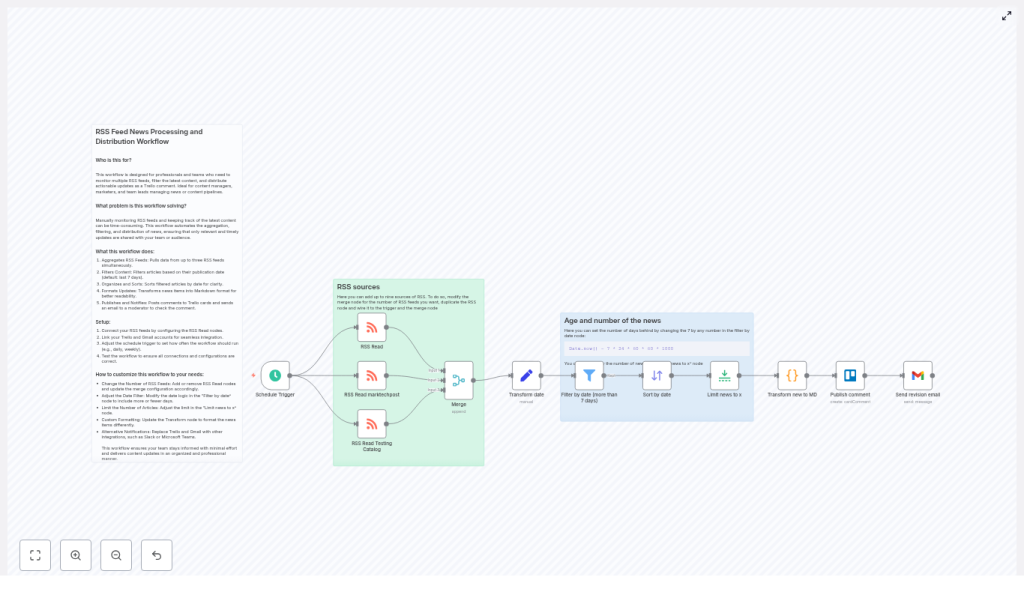
The first node Emma saw was a Schedule Trigger. This node controlled when the entire workflow would run.
The template was set to run weekly at a specific hour. That was close to what she wanted, but her team needed more frequent updates.
Inside the Schedule Trigger, she saw she could choose:
- Hourly runs for near real-time news.
- Daily runs for a morning digest.
- Weekly runs for long term overviews.
- Custom cron expressions for fully tailored timing.
Emma set it to run every weekday morning, just before her team’s standup. That alone would save her from ever manually checking feeds before the meeting.
Connecting multiple RSS feeds
Next came a small cluster of RSS Read nodes. Each one represented a different feed: competitor blogs, industry news, and PR mention trackers.
The template included three RSS Read nodes, but Emma had more sources. The instructions were simple enough:
- Duplicate an existing RSS Read node for each new feed.
- Connect the new node to the Schedule Trigger.
- Wire it into the Merge node that combined all feeds.
- Increase the Merge node’s
numberInputsto match the total count of RSS nodes.
For one stubborn feed with an SSL certificate issue, she noticed the ignoreSSL option in the RSS Read node. She enabled it as a temporary fix, making a note to ask the vendor to correct their SSL configuration later. The template recommended fixing SSL at the source whenever possible, which she kept in mind.
The turning point: From noisy feeds to a clean, curated stream
Merging and transforming the feed data
Once all the RSS nodes were wired up, they flowed into a Merge node. Emma realized this was where her scattered feeds finally became a single stream of articles.
The Merge node simply concatenated the inputs. After that, a Set node labeled something like “Transform date” took over. Inside, Emma found fields being standardized:
titleandlinkwere normalized.isoDatewas converted into a numeric timestamp using an expression likenew Date($json.isoDate).getTime().
This timestamp conversion was crucial. Without it, comparing dates across different feeds would be inconsistent and unreliable.
Filtering out old news
Next, the flow passed through a Filter node. This was where Emma’s biggest headache – outdated content – was finally addressed.
The template used an expression similar to:
Date.now() - 7 * 24 * 60 * 60 * 1000
This kept only items from the last 7 days. For Emma, a week was perfect for her weekly overview, but her daily digest needed a tighter window.
She duplicated the workflow for her daily run and changed the Filter node’s rightValue expression to:
Date.now() - 3 * 24 * 60 * 60 * 1000
Now she had one version that looked back 3 days for daily monitoring and another that kept a 7 day view for broader analysis.
Sorting, limiting, and formatting the digest
Once filtered, the articles moved into a Sort node configured to sort by date in descending order. Newest first, exactly how her team liked to read updates.
After sorting, a Limit node capped the number of items. The template defaulted to 10 articles, which prevented Trello comments from becoming walls of text.
During testing, Emma followed a key best practice: she temporarily set the Limit to 3 items. That way, she could quickly see if the formatting, sorting, and posting worked correctly without flooding her Trello board.
Then came the part that made the digest truly readable. A Code node transformed the selected items into a compact Markdown summary. The output looked something like this:
- [Article title](https://example.com):  Article summary or snippet

- [Another title](https://example2.com):  Summary
This Markdown digest was short, scannable, and perfect for Trello comments. Emma liked Markdown, but she realized she could have changed the Code node to output HTML instead, or even include images and author names if she wanted richer formatting.
Resolution: Trello updates and revision emails on autopilot
Publishing to Trello and notifying by email
With the digest formatted, the workflow finally arrived at the output stage.
A Trello node took the Markdown block and posted it as a comment on a specific Trello card that her team used for “Industry & Competitor News.” Every time the workflow ran, that card received a fresh, clean list of recent articles.
Right after Trello, a Gmail node sent a short email to her manager. The message simply said that the Trello card had been updated and was ready for review. This separation meant:
- The entire team could see the digest in Trello whenever they needed it.
- A designated reviewer got a direct prompt in their inbox to quickly verify content quality.
If she ever wanted to change channels, she knew she could swap Trello or Gmail for Slack, Microsoft Teams, or an internal webhook. The structure of the workflow would stay the same, only the destination nodes would differ.
Customizing the workflow for different teams
Once the basic version worked, Emma started tweaking it for other use cases in her company.
- Changing feeds: She duplicated RSS Read nodes and adjusted the Merge node’s input count to track new competitors and niche blogs.
- Adjusting date windows: Different boards used different Filter expressions, such as 3 day or 7 day windows, depending on how fast the space moved.
- Conditional routing: She added extra Filter nodes that looked at topics or categories, then routed articles to different Trello cards. PR mentions went to the comms board, research papers went to the product research board.
- Switching channels: For one team, she replaced Gmail with a Slack node so notifications landed in a dedicated channel instead of email.
Within a week, what started as a single marketer’s pain point turned into a small internal news infrastructure.
Staying reliable: Best practices Emma learned along the way
As the automations grew, Emma picked up a set of best practices that kept her n8n workflows stable and maintainable.
- Test with small limits: She always set the Limit node to 1 to 3 items when connecting new feeds or changing formatting, then increased it once everything looked right.
- Respect rate limits: For Trello, Gmail, and any other APIs, she avoided overly frequent runs and made sure schedules did not hit service quotas.
- Secure credentials: All credentials were stored in n8n’s encrypted credential manager, and API keys were rotated periodically.
- Normalize inconsistent content: Some feeds lacked
contentSnippetor had odd category fields. She added defensive logic in the Set and Code nodes to handle missing fields gracefully. - Log and retry on errors: She introduced error-handling nodes to send alerts when something failed and configured retries for transient issues.
When things break: Troubleshooting in the real world
Not everything worked perfectly the first time. Emma ran into a few common issues that you might face too.
No items returned from a feed
One day, a previously reliable RSS feed stopped returning items. To debug it, she:
- Opened the RSS URL directly in her browser to confirm it was reachable.
- Checked that the XML was valid and not returning an error page.
- Verified whether the feed had become private or required authentication, then adjusted the RSS Read node configuration accordingly.
Date filters not behaving correctly
Another time, articles that were clearly older than a week slipped into the digest. The culprit was a nonstandard date field in one of the feeds.
She went back to the Transform date (Set) node and confirmed that the workflow was using:
new Date($json.isoDate).getTime()
For feeds that did not use isoDate, she mapped the correct date field instead. Once the timestamp conversion was fixed, the Filter node started behaving as expected.
Trello comments too long or badly formatted
On a particularly busy news day, the digest comment felt overwhelming. To fix that, she:
- Reduced the Limit node to a smaller number of items.
- Refined the Code node to shorten summaries, sanitize content, and ensure Markdown stayed clean.
Since Trello supports Markdown-like formatting but has limits, she always tested with representative content before rolling changes out to the team.
How other teams used the same n8n RSS automation
Once word spread, other departments started asking for their own versions of Emma’s workflow. The same n8n template powered several use cases:
- Daily competitive intelligence digests for the marketing team, posted to Trello and copied into Slack.
- PR monitoring boards where industry mentions and press hits were aggregated and routed to a review column.
- Research update cards that collected new publications from multiple journals for the research lead to review weekly.
All of them started from the same core design: schedule, RSS Read, Merge, Transform, Filter, Sort, Limit, Markdown formatting, and then publish plus notify.
Your next step: Turn your RSS chaos into a curated workflow
If you recognize yourself in Emma’s story, juggling dozens of feeds and scrambling to keep your team informed, you can follow the same path.
- Import the n8n template into your own n8n instance.
- Connect your RSS feeds using individual RSS Read nodes.
- Update the Merge node’s
numberInputsto match your feed count. - Configure Trello and Gmail (or Slack, Teams, or webhooks) as your output channels.
- Run a manual execution with a small Limit to validate the results.
- Adjust date windows, formatting, and routing logic until the digest matches how your team actually works.
With a few careful tweaks, you can go from manual RSS monitoring to a fully automated, curated news flow that arrives on time, every time.
