


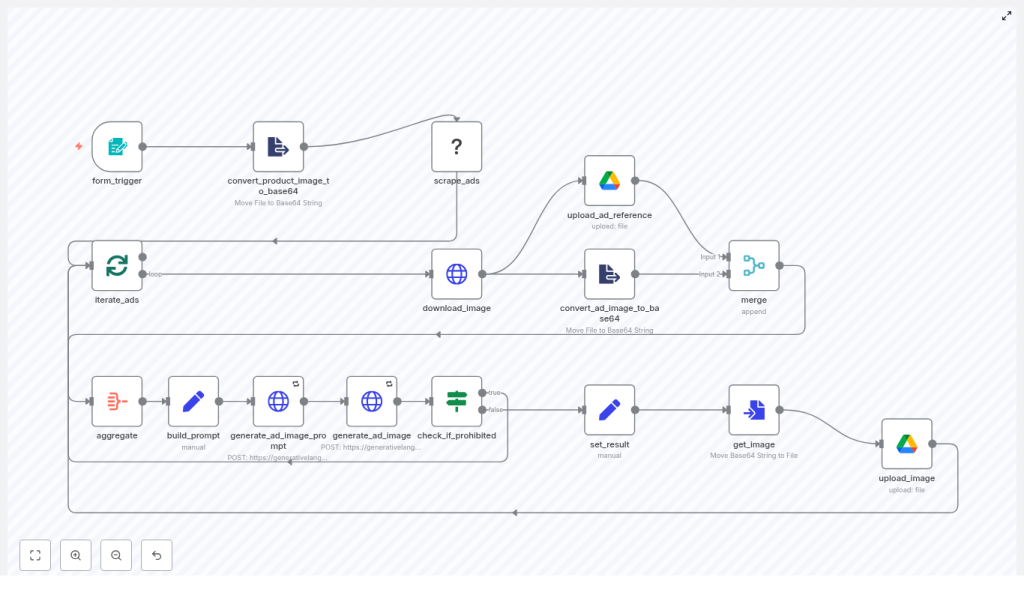
n8n Guide: Clone & Adapt Facebook Ads Ethically
Imagine being able to take the best ideas from your competitors’ Facebook ads, remix them with your own product, and spin out fresh creatives in minutes instead of days. That is exactly what this n8n workflow template helps you do, as long as you use it ethically and within the rules.
In this guide, we will walk through the “Recap AI – Facebook Ad Thief” n8n template in plain language. You will see what each node does, how images and prompts move through the pipeline, and where the AI magic happens. We will also talk about the legal and ethical guardrails you really should not skip.
What this n8n workflow actually does
Let us start with the big picture so you know what you are getting into.
This n8n workflow automates a full mini-pipeline for creative research and ad adaptation. It:
- Scrapes the Facebook Ad Library using an Apify actor
- Downloads ad images and saves them for reference
- Combines those reference images with your product image
- Uses Google Gemini (image-generating endpoints) to create new ad visuals
- Replaces competitor branding and packaging with your own product
- Stores everything neatly in Google Drive
Under the hood, n8n handles the orchestration: form triggers, loops, merges, condition checks, file conversions, and API calls. You just drop in a Facebook Ad Library URL, upload your product image, and let the workflow do the heavy lifting.
When to use this template (and when not to)
This workflow is ideal if you:
- Run Facebook ads and want to speed up creative testing
- Study competitor ads for structure, layout, and messaging
- Need a faster way to generate variation after variation for A/B tests
- Want a repeatable, documented process that your team can run on demand
It is not a good fit if your goal is to copy competitors outright. The whole point is to use their ads as inspiration, not as something to lift word-for-word or pixel-for-pixel.
Why this workflow makes your life easier
If you have ever tried to reverse engineer a competitor ad manually, you know the drill:
- Search the Facebook Ad Library
- Screenshot or download assets
- Brief a designer or prompt an AI model by hand
- Go back and forth until something looks right
This n8n template automates almost all of that. It:
- Handles scraping and downloading for you
- Pairs each competitor ad with your product image automatically
- Builds structured prompts for Gemini instead of making you write them from scratch
- Checks for prohibited content responses before storing anything
- Uploads final images to Google Drive so your team can review and use them
The result is a faster, more consistent creative exploration process that still leaves room for human judgment and review.
How the workflow runs from start to finish
Let us walk through the pipeline step by step so you can see how everything connects.
1. form_trigger – kick off the workflow
Everything starts with a simple form. A non-technical teammate can trigger the workflow by filling in:
- Facebook Ad Library URL – the page or search results you want to analyze
- Your product image – the image you want to feature in the adapted ads
This keeps the entry point friendly and low friction. No one needs to touch the workflow logic itself.
2. convert_product_image_to_base64 – prepare your product image
AI image-generation endpoints typically do not accept raw binary files. They want images as base64-encoded data so they can be passed inline in JSON.
This node:
- Takes the uploaded product image
- Converts it to base64
- Stores it as
inline_datafor later HTTP requests to Gemini
You will not see this step in the UI, but it is crucial for the API calls to work.
3. scrape_ads (Apify) – pull data from Facebook Ad Library
Next, n8n calls an Apify actor that knows how to scrape the Facebook Ad Library.
This node:
- Uses the URL from your form input
- Scrapes a structured dataset of ad cards
- Returns image URLs, titles, and other metadata
- Respects a configured limit so you are not pulling thousands of ads at once
Now you have a clean list of competitor ads to work with, instead of manually saving screenshots.
4. iterate_ads & download_image – process ads in batches
Rather than handling all ads at once, the workflow processes them in manageable chunks.
These nodes:
- Loop through each ad in the result set
- Pick the highest-quality image URL available
- Download the image so it can be used as a visual reference
The downloaded file can be saved for reference and is also passed along to later nodes for conversion and AI input.
5. upload_ad_reference & convert_ad_image_to_base64 – archive and encode
Once each competitor ad image is downloaded, the workflow does two things:
- Uploads it to Google Drive as an archive copy you can revisit later
- Converts it to base64 so it can be sent to Gemini as
inline_data
This means Gemini receives both:
- Your product image (base64)
- The competitor reference image (base64)
That combination lets the model keep the overall look and feel, while swapping in your product and branding.
6. aggregate & build_prompt – craft a smart AI prompt
Next up, the workflow gathers everything it knows about the current batch and builds a detailed instruction prompt for the AI model.
The prompt typically tells Gemini to:
- Recreate the style and composition of the competitor ad
- Remove or replace competitor branding, logos, labels, and CTAs
- Insert your product name, packaging, and messaging
- Apply any specific copy or design tweaks you want
This is one of the best places to experiment. The clearer your instructions here, the better your final results will be.
7. generate_ad_image_prompt & generate_ad_image (Gemini) – call the AI
Instead of sending a single rough prompt to Gemini, the template uses a two-step approach.
generate_ad_image_prompt
This node asks Gemini to refine and structure the prompt. It analyzes the inputs and outputs a more polished set of instructions for image generation.generate_ad_image
Using that refined prompt, this node calls the actual image-generation endpoint. It sends:- Your base64 product image
- The base64 competitor reference image
- The refined prompt text
Gemini returns generated content candidates that include image bytes or
inline_data.
The result is a new ad-style image that borrows the composition and vibe of the original, but features your product instead.
8. check_if_prohibited – enforce safety rules
Not every AI response is safe to use. Models can sometimes return content that is blocked by policy.
This node checks the Gemini response for any prohibited content flags. If something is flagged:
- The workflow branches away from the upload path
- The image is not stored or used
- You avoid accidentally pushing disallowed content into your asset library
Think of this node as a built-in safety net.
9. set_result, get_image, upload_image – save your new creatives
If the generated creative passes the safety check, the workflow wraps things up by:
- Converting the base64 image data back into a binary file
- Preparing the final result payload
- Uploading the finished image to a designated Google Drive folder
The loop can run multiple times per source ad, so you can generate several variations for testing and review.
Ethical and legal guidelines you should not ignore
Automating competitor-ad analysis is powerful, but it comes with responsibilities. To stay on the right side of the law and keep your brand reputation intact, keep these points in mind:
- Respect copyright and trademarks
Do not reproduce logos, brand marks, or other trademarked elements as-is. The goal is to replace them with your own branding, not copy them. - Follow Facebook ad policies
Your generated ads still need to comply with Facebook’s rules around claims, sensitive topics, health products, and imagery. - Use competitor ads as inspiration only
Focus on learning from layout, structure, and messaging patterns. Avoid copying unique creative ideas that could be considered derivative works. - Stay honest in your messaging
Any claims you adapt into your own ads must be accurate for your product. Do not inherit promises that do not apply to you.
Note: The template name is intentionally provocative. In practice, you should treat competitor ads as a research input, not something to literally steal.
Tips to get better results from the template
Once you have the workflow running, here are a few practical tweaks that can dramatically improve your outputs.
Refine your prompts
Be specific about what should change and what should stay the same. You might explicitly mention:
- Elements to replace: logos, on-pack text, CTA buttons, brand colors
- Elements to preserve: composition, lighting, camera angle, overall style
Use clean product images
Gemini will have a much easier time if your product image is:
- An isolated product shot
- Preferably a transparent PNG or a clean white / background-removed image
Start with small batches
When you are experimenting with prompt wording or styles, run smaller batches first. Once you are happy with the consistency, scale up and process more ads at once.
Keep human review in the loop
Even with safety checks, you should always have a person look at generated assets before they go live in paid campaigns. Use this step to catch:
- Brand inconsistencies
- Awkward compositions
- Any messaging that feels off or misleading
Log everything for traceability
It is smart to store:
- The original reference ad
- All generated variations
- Metadata about prompts, dates, and decisions
Keeping this history in Google Drive helps you track what came from where and how your creative strategy evolved.
Security and privacy: handle data carefully
Even though you are working with publicly visible ads, you should still treat the workflow with care:
- Use secure credentials in n8n for Apify, Google, and Gemini
- Limit access to your Google Drive folders to relevant team members
- Follow your company policies around data storage and retention
This is especially important if you integrate the workflow into broader marketing or analytics systems.
Ideas for extending or customizing the workflow
Once you are comfortable with the base template, you can extend it in a few different directions.
- Connect to testing platforms
Instead of running ads directly from Drive, you can push variants into dedicated creative-testing tools that handle serving and performance tracking. - Swap out the scraper
Prefer a different data source? Replace Apify with another scraper or the official Facebook Ad Library API where available, especially if you want tighter compliance control. - Add human-in-the-loop review
Send generated images to Slack or email for sign-off. That way, a designer or marketer can approve or reject assets before they are used anywhere else.
Legal disclaimer
This article describes an automation pattern, not legal advice. You are responsible for making sure your use of scraped content and AI-generated creatives complies with copyright law, trademark protections, and platform policies. If you are unsure where the line is, talk to legal counsel before deploying this at scale.
Wrapping up: what you get from this n8n template
To recap, this n8n template helps you:
- Scrape relevant ads from the Facebook Ad Library
- Pair competitor visuals with your own product imagery
- Use Gemini to generate adapted, test-ready ad creatives
- Store and manage everything in Google Drive
Used thoughtfully and ethically, it can dramatically speed up your creative iteration cycle and keep a steady stream of fresh ideas flowing into your ad tests.
Next steps
Curious to try it out?
- Download the n8n template and plug in a few safe sample ads to experiment with.
- Iterate on your prompts until you are happy with the look and feel.
- Share the workflow with your team so anyone can kick off a new creative batch from a simple form.
If you would like a checklist or a prompt library tailored to your specific product and niche, you can absolutely build one on top of this workflow. Use it to standardize how you brief the AI and get more consistent, on-brand results every time.
